

How-to — task-oriented recipe.
Who can access the Automation Builder in Affinity?
Interested in upgrading to the Advanced or Enterprise tiers? Please reach out to your Affinity point of contact or support@affinity.co.
How to create an automation
- Advanced tier: Only Admins at the account level can create and manage automations.
-
Enterprise tier: While Enterprise Admins and Admins at the account level can create and manage automations by default, Enterprise Admins can make changes by either removing access for Admins or extending access to Standard users as well.
- To do so, Enterprise Admins can click Settings > Users and Permissions > Roles > Edit Permissions.
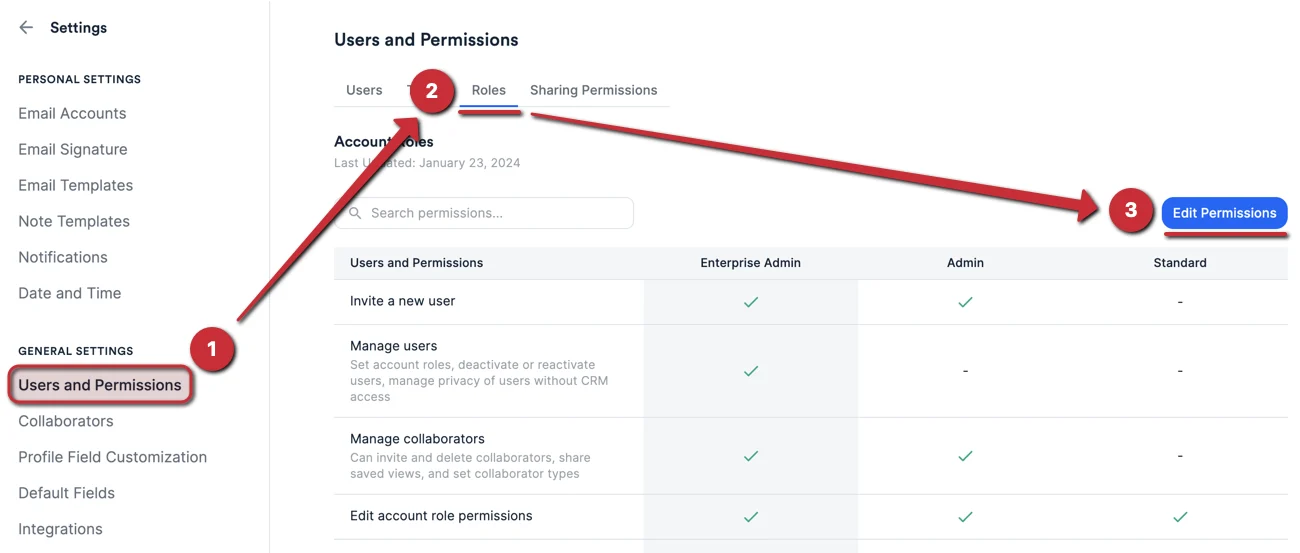
- To do so, Enterprise Admins can click Settings > Users and Permissions > Roles > Edit Permissions.
- From here, the Enterprise Admin can check/uncheck the boxes accordingly under the Automations section.
Part 1 — Setting up the trigger in the “If” section
Once you’ve confirmed that you have permission to create automations, follow these steps to set up the trigger:-
First, click on Settings on the left side of your screen.
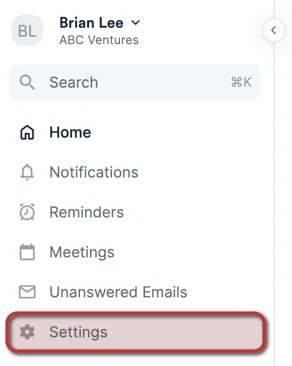
-
Click on Automations, then click New Automation on the top-right corner.
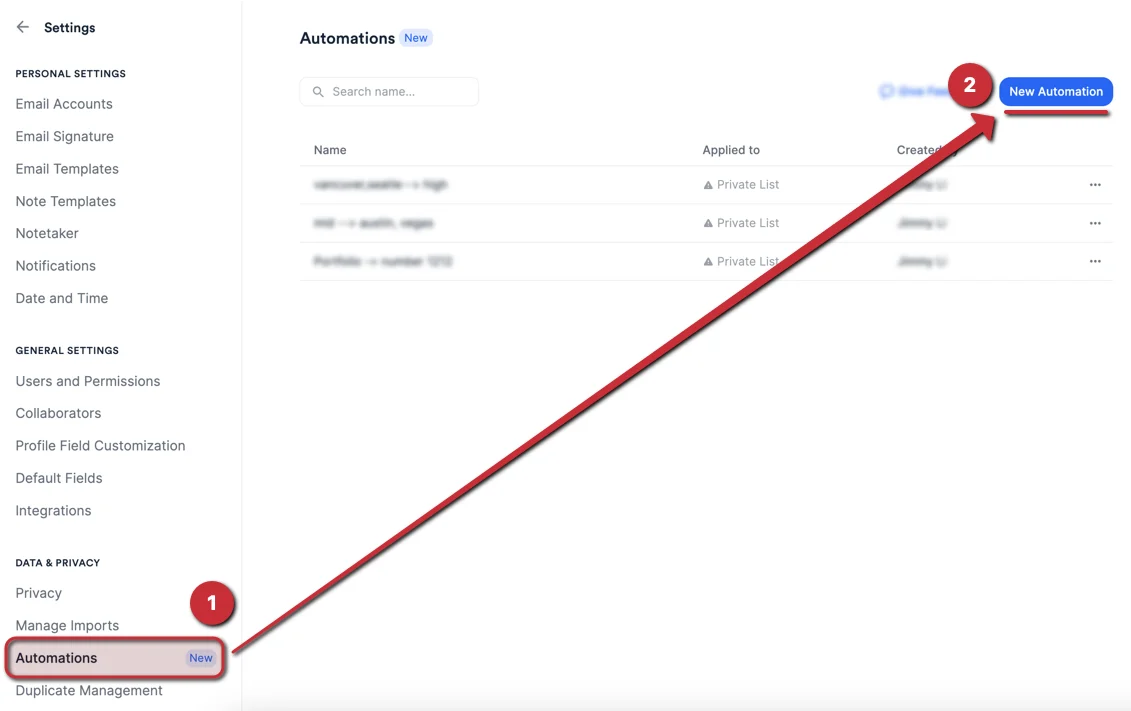
-
Now, name your automation and fill out the following fields for the trigger in the “If” section:
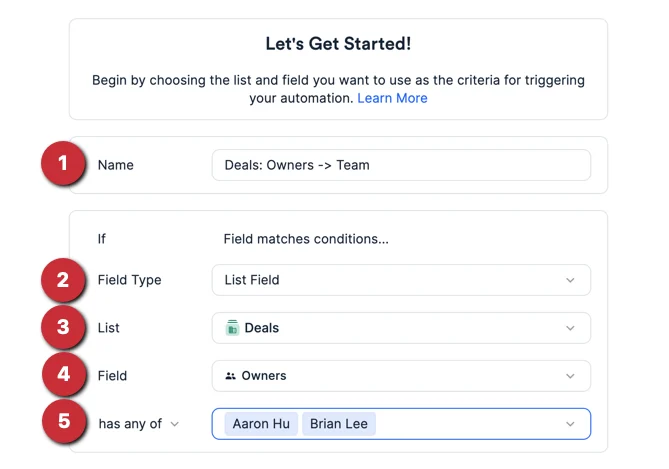
-
Name — Give your automation a name. We highly suggest naming your automation in the following format so that you can easily identify which list and which fields each automation consists of:
Example:
Deals: Owners -> Team - Field Type — Choose between List-Specific Field and Global Field, which will determine which fields you can select from (see Step 4 below). Enriched Fields are not supported for automations.
- List — If you chose List-Specific Field in Step 2 above, select the list that contains the list-specific field you’d like to use as the trigger. You will only be able to select a list that you have access to — it does not matter what your permissions are at the list level.
- Field — Select the field that will act as the trigger for the automation (see Field types that can be used to build automations).
-
Operator + Value — There are nine different types of operators available at this time:
- after — only available for date-type fields.
- before — only available for date-type fields.
- contains — only available for text-type fields. Please note, it is case-sensitive.
- has any of — available for fields that support multiple values (uses the “OR” logic so that any one of the field values acts as a qualifier instead of having to include all the field values).
- is any of — only available for fields that support a single value.
- is greater than — only available for number-type fields.
- is less than — only available for number-type fields.
- is empty — available for all field types.
- is not empty — available for all field types.
Part 2 — Setting up the action in the “Then” section
Now that you’ve set up the trigger, fill out the following fields for the action in the “Then” section by following Option 1 or Option 2 below:Option 1 — Update Field
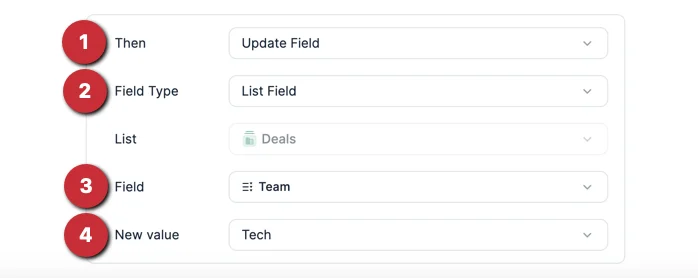
- Then — Update Field will enable you to automatically update another list-specific field from the list that you selected from the “If” section above, or update a global field.
- Field Type — Choose between List-Specific Field and Global Field, which will determine which fields you can select from (see Step 3 below). Enriched Fields are not supported for automations.
- Field — Select the list-specific field or global field that will get updated automatically.
- New value — Enter the field value(s) that should be automatically applied as a result of the trigger from the “If” section above.
Option 2 — Send Slack Notification
Please follow the steps in this article: Set up automations between Affinity and SlackPart 3 — View and/or edit existing automations
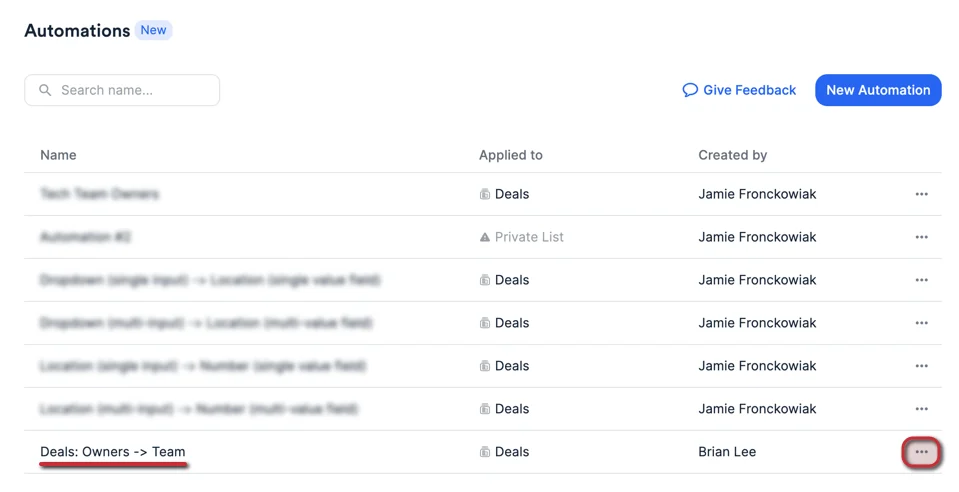
As you and your team members create more automations, you can see them all on the Automations tab.- Click on an automation’s name to view the automation’s details.
-
Click on the 3-dotted icon on the right of each automation to Edit or Delete.
- With these automations now running, the user who triggers these automations with their field value updates will get recorded on the Activity Timelines of people, organization, and opportunity profile pages.
Field types that can be used to build automations
All field types (except for Formula) can be used for both the “If” and “Then” sections:- Date
- Dropdown
- Location
- Number
- Organization
- People
- Ranked Dropdown
- Text
What will cause an automation to run?
Automations will get triggered by updating a field in any of the following product areas:- Lists (sheet view and board view)
- Profiles
- Extensions (Pathfinder Chrome Extension and Outlook Add-In)
- Mobile App
- API
What will cause an automation to break?
- Automations will not get triggered by updating a field via data imports.
- There are also four scenarios in which an automation may break or get deleted:

-
Scenario 1 — List Deletion
- If a list gets deleted, any automations using this list will get deleted as well.
- Solution: Recreate the automation from scratch.
-
Scenario 2 — Field Deletion/Change
- If a field gets deleted, any automations using this field will break.
- If a dropdown option from a dropdown-type field gets deleted, any automations using this dropdown option will break.
- If a field gets converted from one field type to another (e.g. text to dropdown), any automations using this field will break.
- Solution: Click the 3-dotted icon on the right of each automation to Edit or Delete.

-
Scenario 3 — Entity Deletion/Merge
- If an entity (a person or an organization) gets merged into another entity or deleted, any automations including this entity will break.
- Solution: Click the 3-dotted icon on the right of each automation to Edit or Delete.

-
Scenario 4 — Network/Authentication Error
- If there is a loss in network connection, all automations will temporarily break until connection is restored.
- If the authentication to a third-party app (e.g. Slack) is broken, any automations using this authentication will break.
- Solution: Restore your network connection and/or re-authenticate accordingly.
Important Callouts
- Enriched fields cannot be used for automations at this time.
- Automations will not backfill data when created. They will only run for field value edits moving forward.
- When a user gets deactivated/removed from the account, the automations they created will continue to run with no interruptions. Their automations can be paused, edited, and/or deleted by others who have permissions to manage automations.
- You can not create automations on lists that you don’t have access to.
- You and your team can collectively create up to 500 automations.
- Affinity will trigger up to 10 chain automations at a time (automations that are triggered by other automations).
- If you selected an opportunity list in Part 1 — Setting up the trigger, then you will only be able to select list-specific fields from that same opportunity list if you select Option 1 — Update Field. Global fields will not be available for selection.
- If there are automations that are applied to a list that you don’t have access to, they will be marked as a Private List. Simply hover over the term to identify the list owner and decide whether you’d like to request access to that particular list.
