

Filter/Sort in Classic Lists
How to filter columns within a list
There are two ways to filter columns within a list: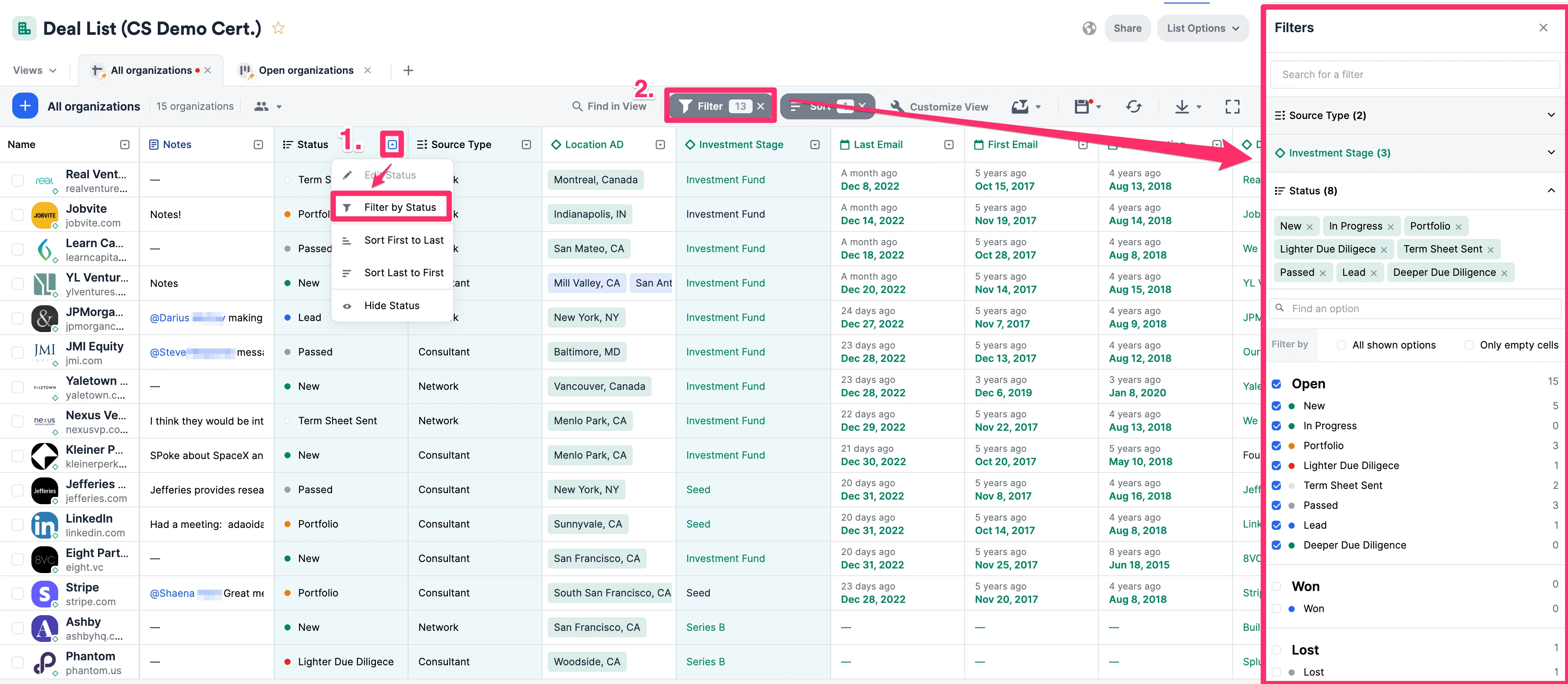
- Click the dropdown arrow within each column header, then click Filter by _______.
- Or, click the Filters button found above the column headers.
- Filtering by multiple values within a single column uses “OR” logic (more inclusive since it can meet any criteria).
- Filtering by multiple values across multiple columns uses “AND” logic (less inclusive since it must meet all criteria).
Which field types do not support filtering at this time?
While the text-type field is the only field type that does not support native filtering in its own column like how all other fields do, you can still choose the “Search all fields” option to narrow down your search results.Which field types do not support filtering at this time?
While the text-type field is the only field type that does not support native filtering in its own column like how all other fields do, you can still choose the “Search all fields” option to narrow down your search results.How to sort columns within a list
There are two ways to sort columns within a list:
- Click the Sort button found above the column headers.
- Or, click the dropdown arrow within each column header, then click Sort _______Note: You can sort up to 3 different columns at a time by clicking the Sort button. The very first column that is being sorted by will have the arrow icon on the left-side of the column header (as shown above).
Which field types do not support sorting at this time?
- Text-type
- Number-type (multiple values)
- Dropdown-type (multiple values)
- Location-type (single value)
- Location-type (multiple values)
- Person-type (multiple values)
- Organization-type (multiple values)
Filter/Sort in new Lists
Use the comprehensive Reference for Filtering and Sorting in new Lists to understand all the operators and what you can do in this major upgrade to the Classic lists experience.How to filter columns within a list
Steps
- Open the list where you want to apply filters.
- Click the column header → select Filter [column name].
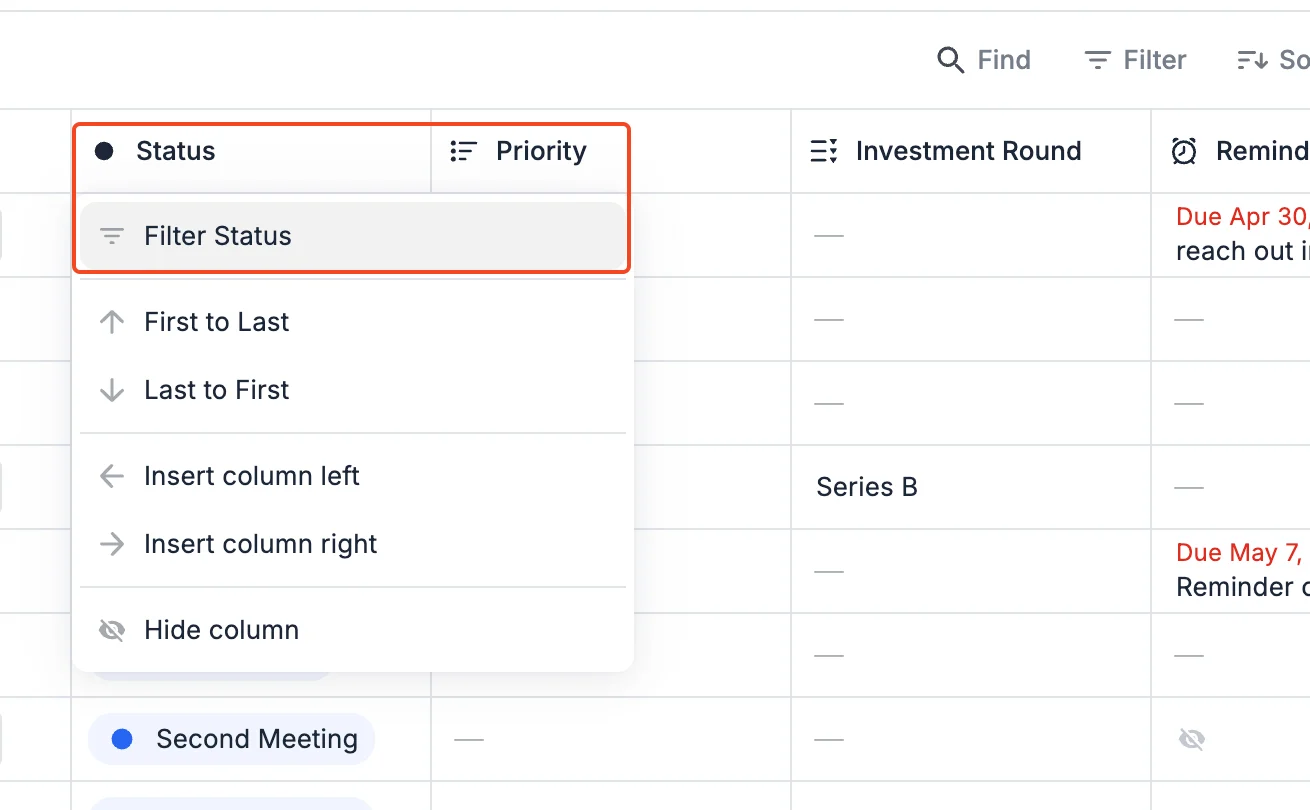
- Or click the Filter button above the column headers.
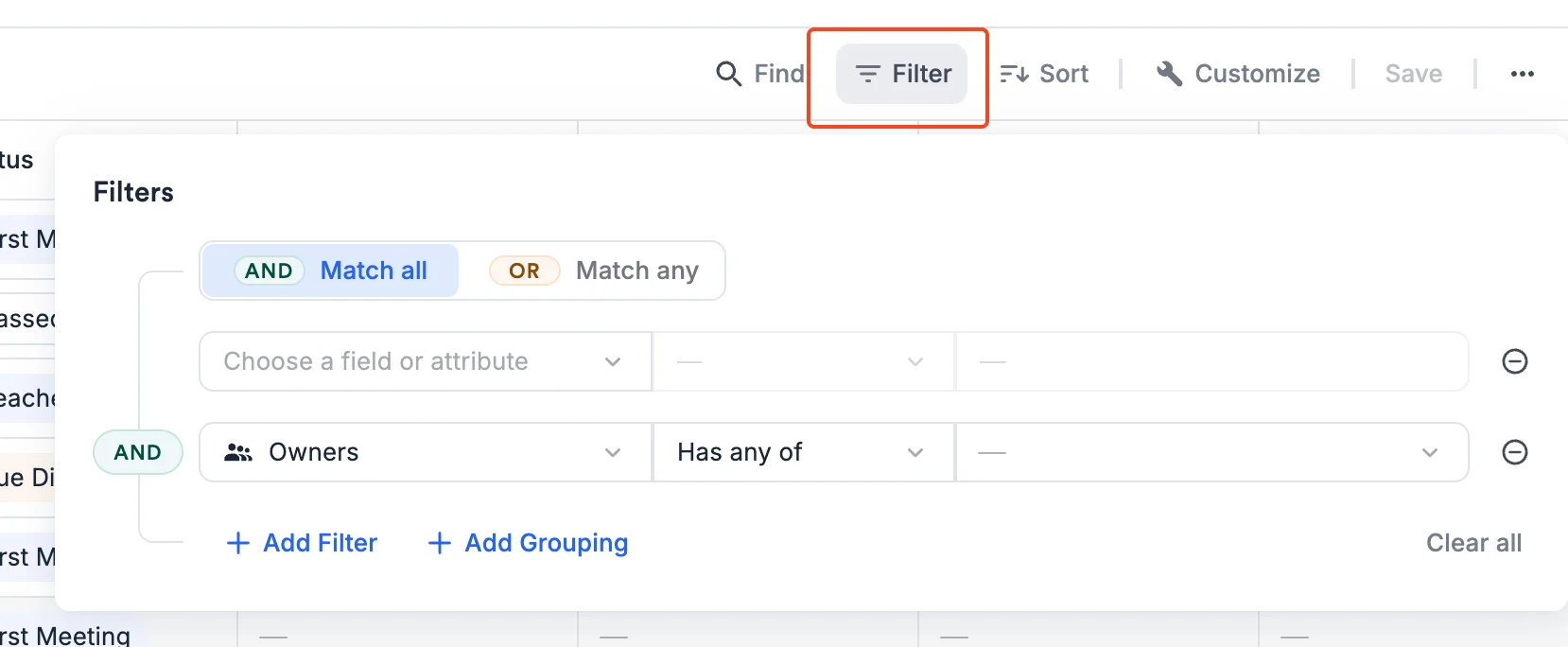
- Choose your operator (e.g., contains, is empty).
- Select your values or enter text, depending on field type.
- Press Apply.
Expected Outcome
Your list view will now display only the records that match your filter criteria. Filters can be combined across multiple fields.Tips/Warnings
- Filtering multiple values within one column = OR logic.
- Filtering across multiple columns = AND as well as OR logic.
- Notes and text fields only support word-level matching; “care” will not match “healthcare.”
- When filtering on notes/reminders, entities may surface if any note or reminder matches.
- Text-type
- Number-type (multiple values)
- Dropdown-type (multiple values)
- Location-type (single value)
- Location-type (multiple values)
- Person-type (multiple values)
- Organization-type (multiple values)
How to sort columns within a list
Overview Sorting helps you organize your list by up to five fields at once (3 in Classic Lists), while supporting expanded sorts on new fields such as Notes → Created Date and Connections Score.Steps
- Open the list where you want to sort.
- Click the Sort button above the column headers.
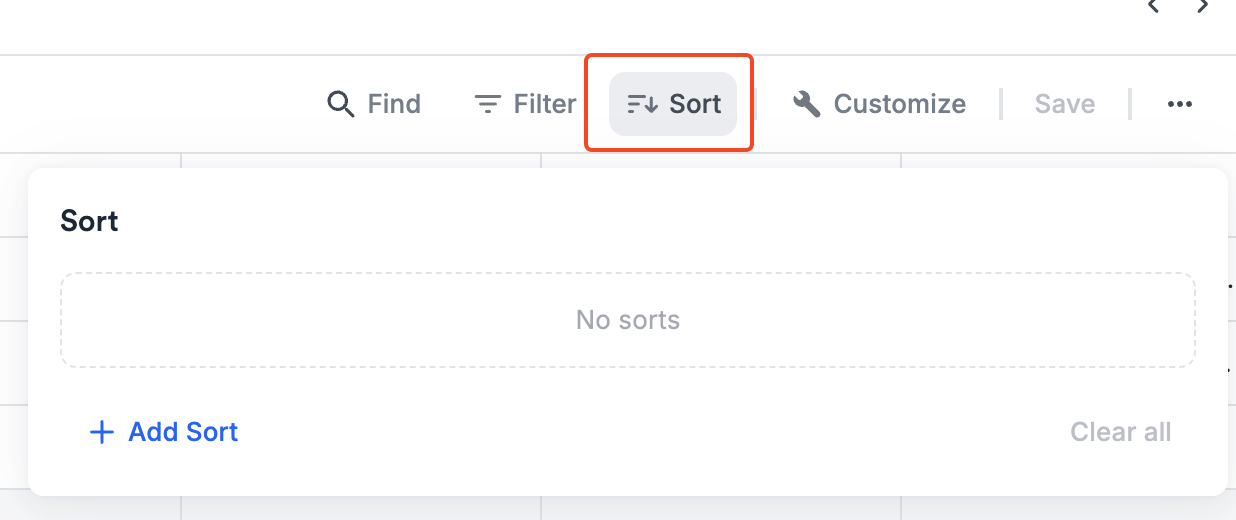
- Click + Add Sort and add up to 5 sort rules:
- Example: Stage (ascending), Score (descending), Created Date (newest first).
- Click Apply.
Expected Outcome
Your list will reorder based on the sort rules, with empty cells always appearing at the bottom.Tips/Warnings
- Use ordinal sorts (ranked dropdowns) to enforce business logic order (e.g., Priority 1 → Priority 3).
- Location sorts are alphabetical for now
- Sorting on Owners, which is a multi-value fields is supported
- Remember to Save in order to return to this sort configuration