

Concept — background and overview.
Types of saved views within a list
Once you determine what type of list you’ll be creating, you can start creating saved views within that list and customize them according to your preferences.-
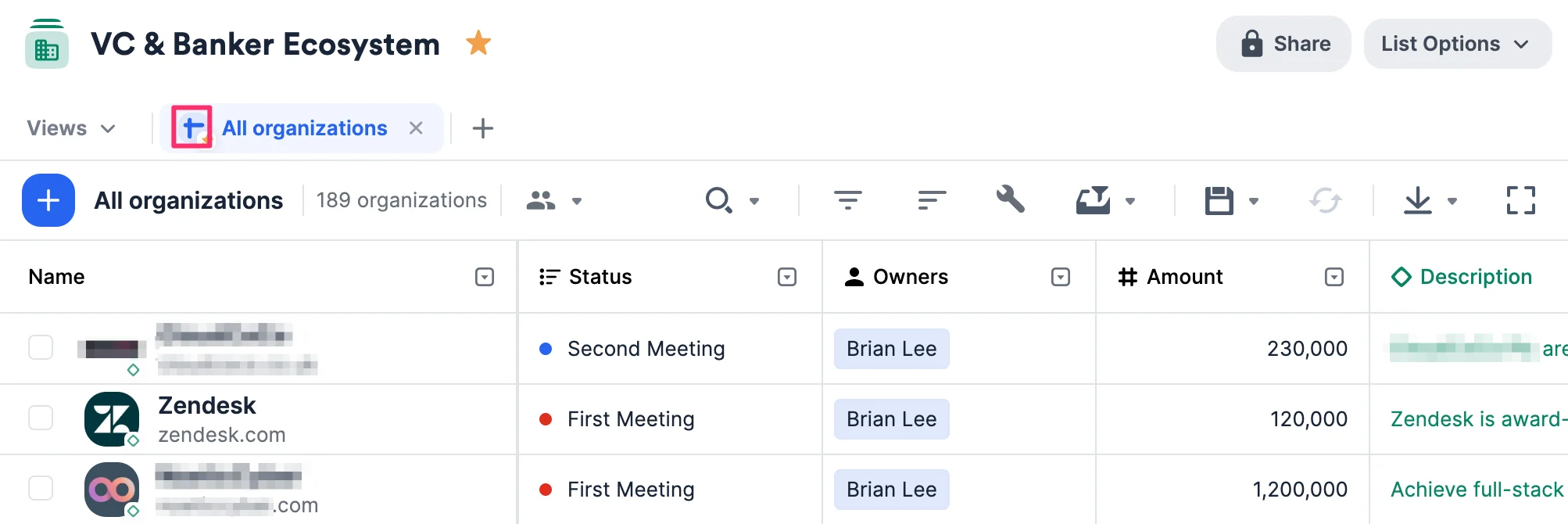
Sheet View — View your list data in a table-style format with cells.
-
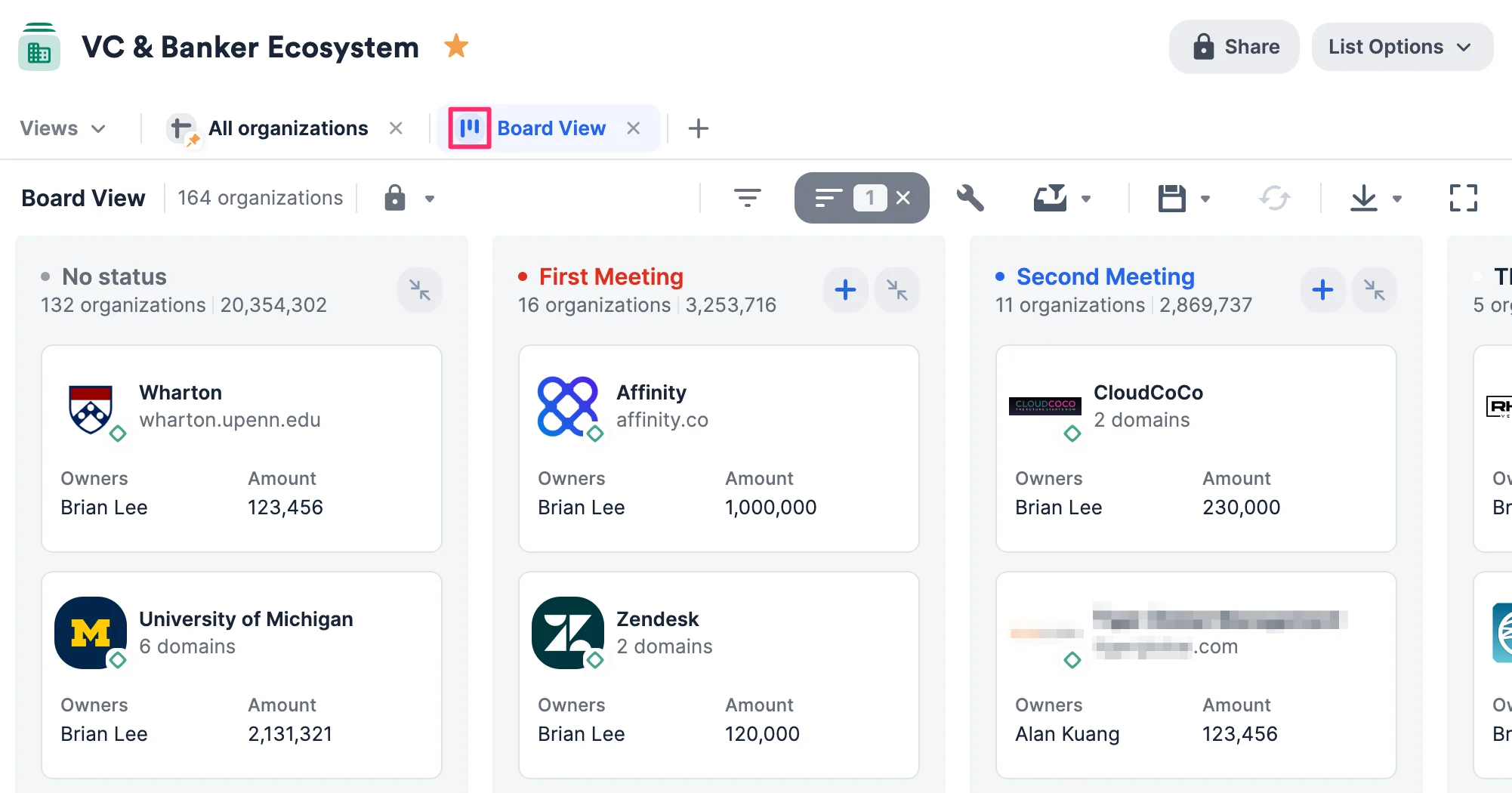
Board View — View your list data in a Kanban-style format with cards (see Affinity Board Views).
-
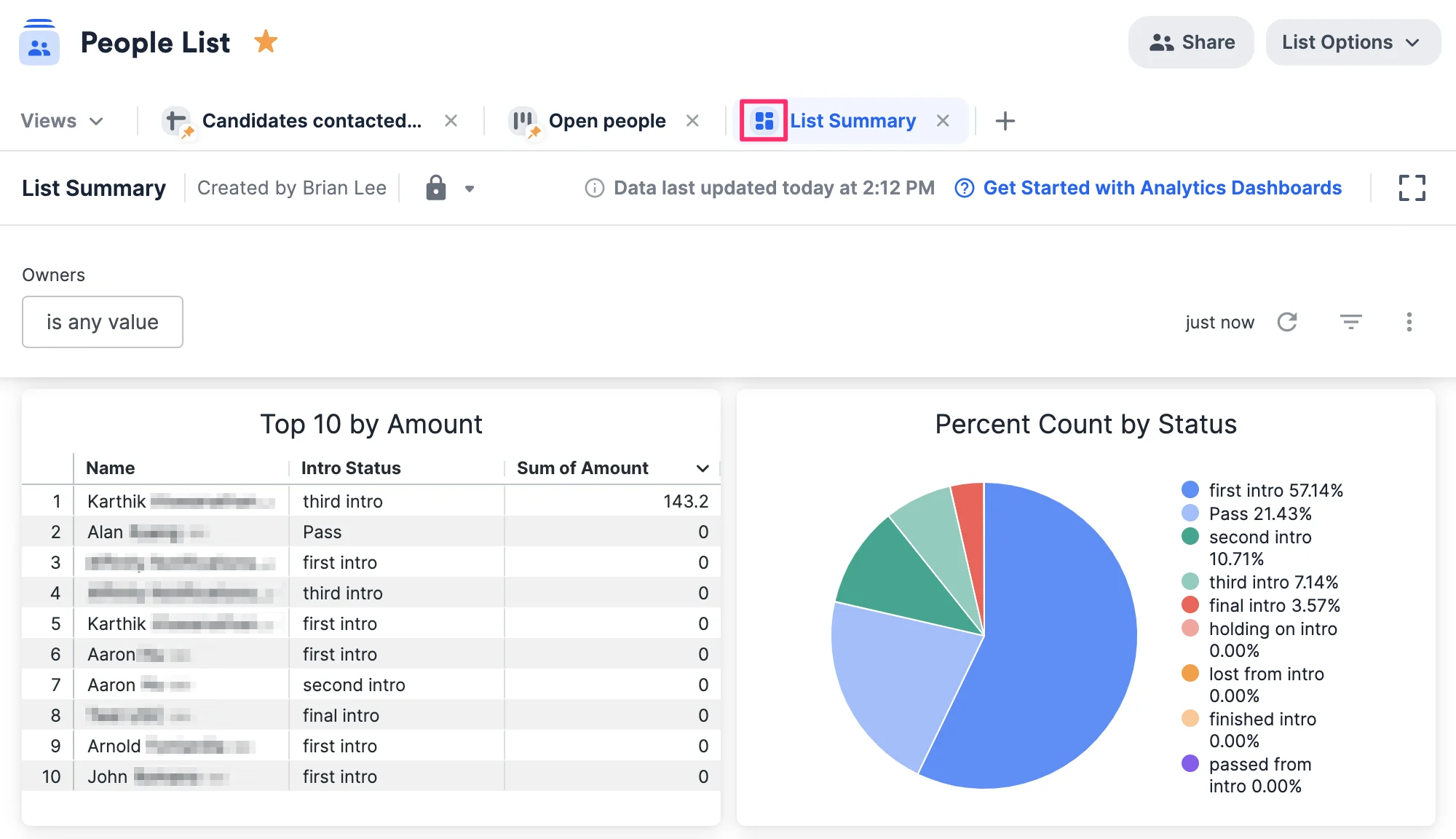
Dashboard View — View your list data in a report-style format with visual charts, graphs, and funnels (see Affinity Analytics).
- Dashboard views can only be created or edited by those with a Creator role in your Affinity account (see “Understanding your role” in Getting started with Affinity Analytics).
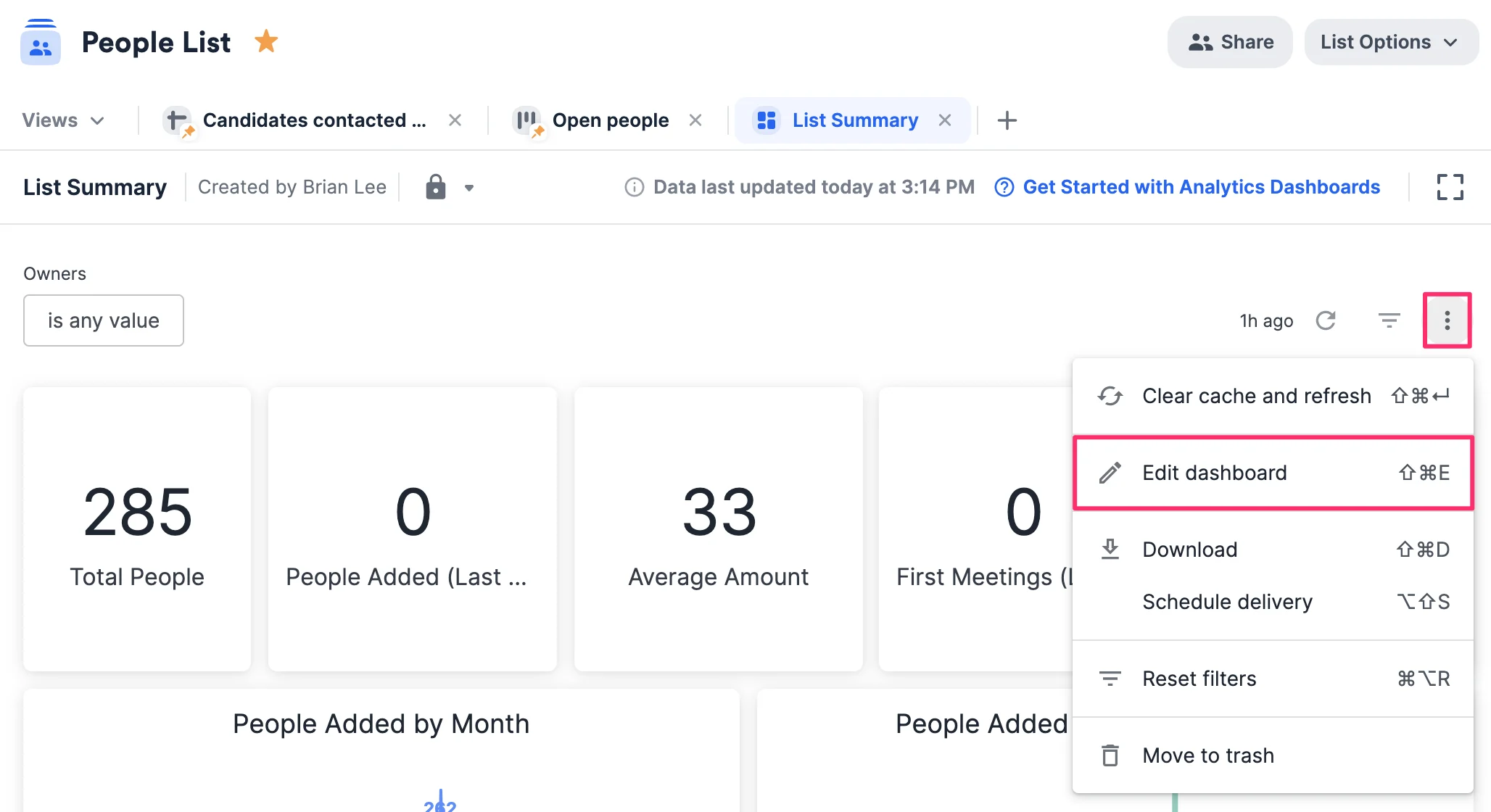
- Those with a Viewer role can filter and drill into underlying data on existing dashboard views (see “Understanding your role” in Getting started with Affinity Analytics).
- Dashboard views can only be created or edited by those with a Creator role in your Affinity account (see “Understanding your role” in Getting started with Affinity Analytics).
List-level actions (from left to right)

- Click the list title to edit the title. List owners and list admins only.
- Click the star icon to favorite or unfavorite the list.
- Click Share to share the list with your team. List owners and list admins only.
- Click List Options to see additional list-level actions.
View-level actions (from left to right)

- On the first row, navigate across saved views for that list:
- Click Views to access private or shared saved views, and to pin, unpin, or delete saved views.
- Use the tabs next to Views to switch between opened saved views.
- Click the + icon to create a new saved view, access an existing saved view, or choose a template.
- On the second row, take actions for the specific saved view:
- Click the blue + icon to add a contact as a list entry.
- Click the saved view title to edit the title.
- Click the View Permissions icon to make it private or shared.
- Click the Search icon to find a contact within the saved view.
- Click Filter, Sort, or Customize to change the saved view.
- Click the Filter interactions icon to filter by a team member’s communications.
- Click the Save icon to update the view with your changes or create a copy.
- Click the Revert icon to undo configuration changes to the saved view.
- Click the Export icon to export the current saved view as a CSV (see How to export data from your Affinity lists).
- Click the Full screen icon to enter full screen mode.