How-to — task-oriented recipe.
Drag and drop cards from one category to another
Click and hold on a card to drag and drop from one category to another.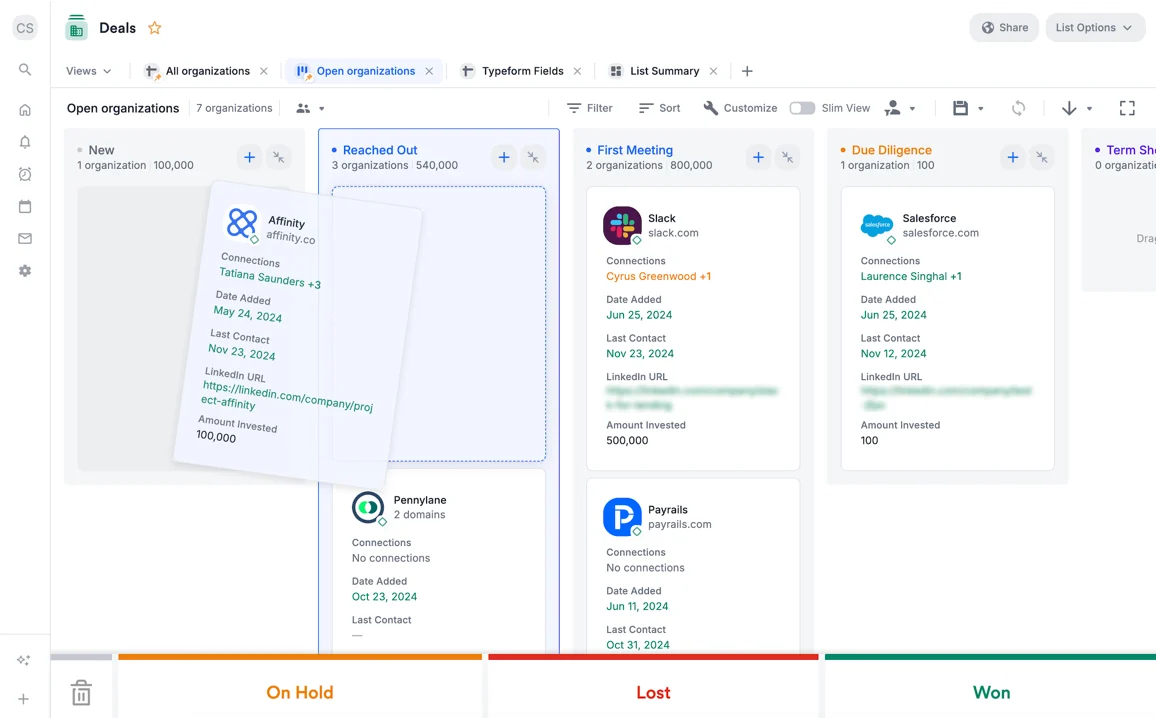
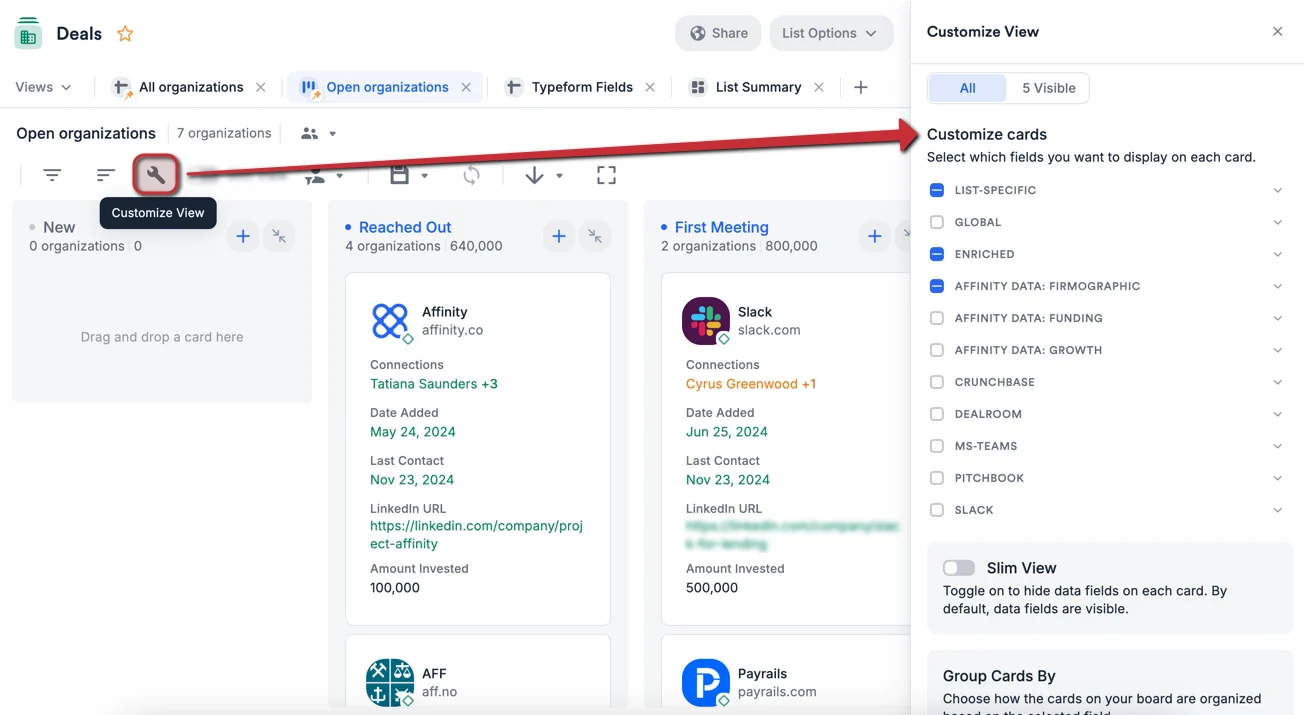
Customize cards within board view
- Click the Customize View icon.
-
Customize your cards by selecting the relevant fields you want to show within each card (6 fields max).
-
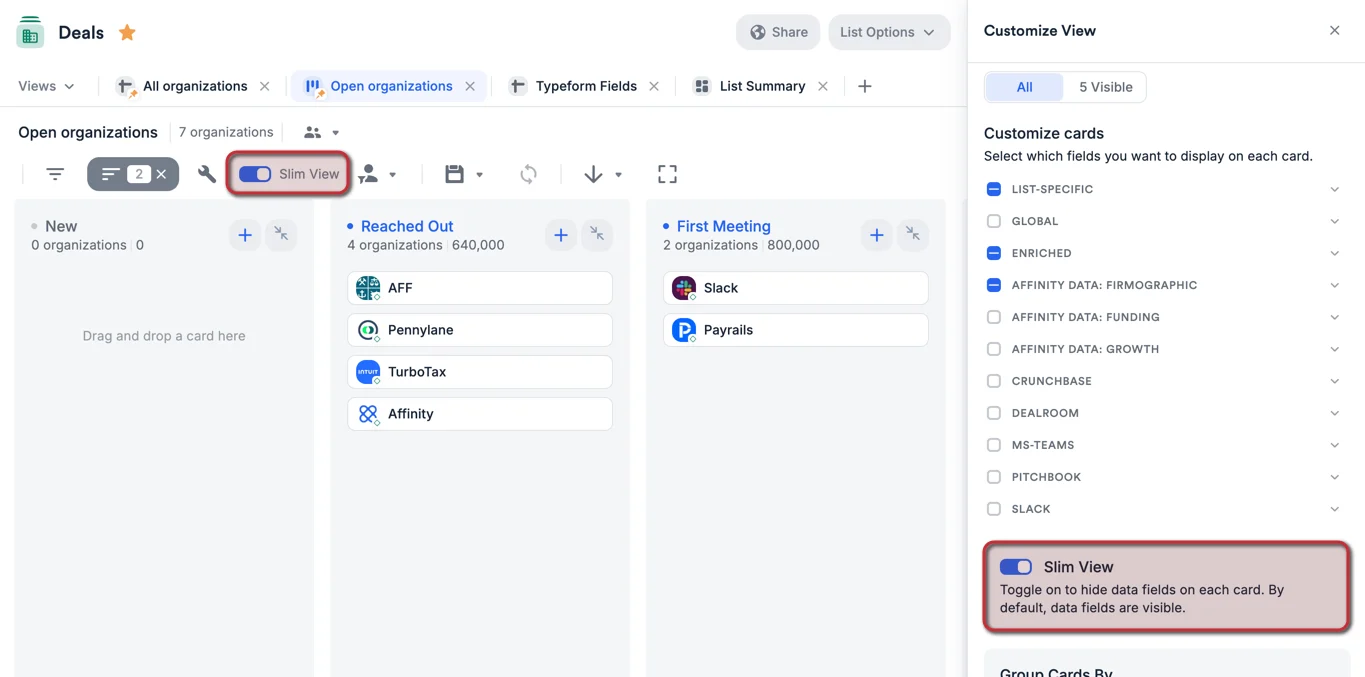
Or, condense them to view more cards at once by switching to Slim View.
- Here are all the field types that are available (or not) in board views based on list type:
* These are the specific field types that are not supported for board view at this time:
- Location-type fields (single value and multiple values)
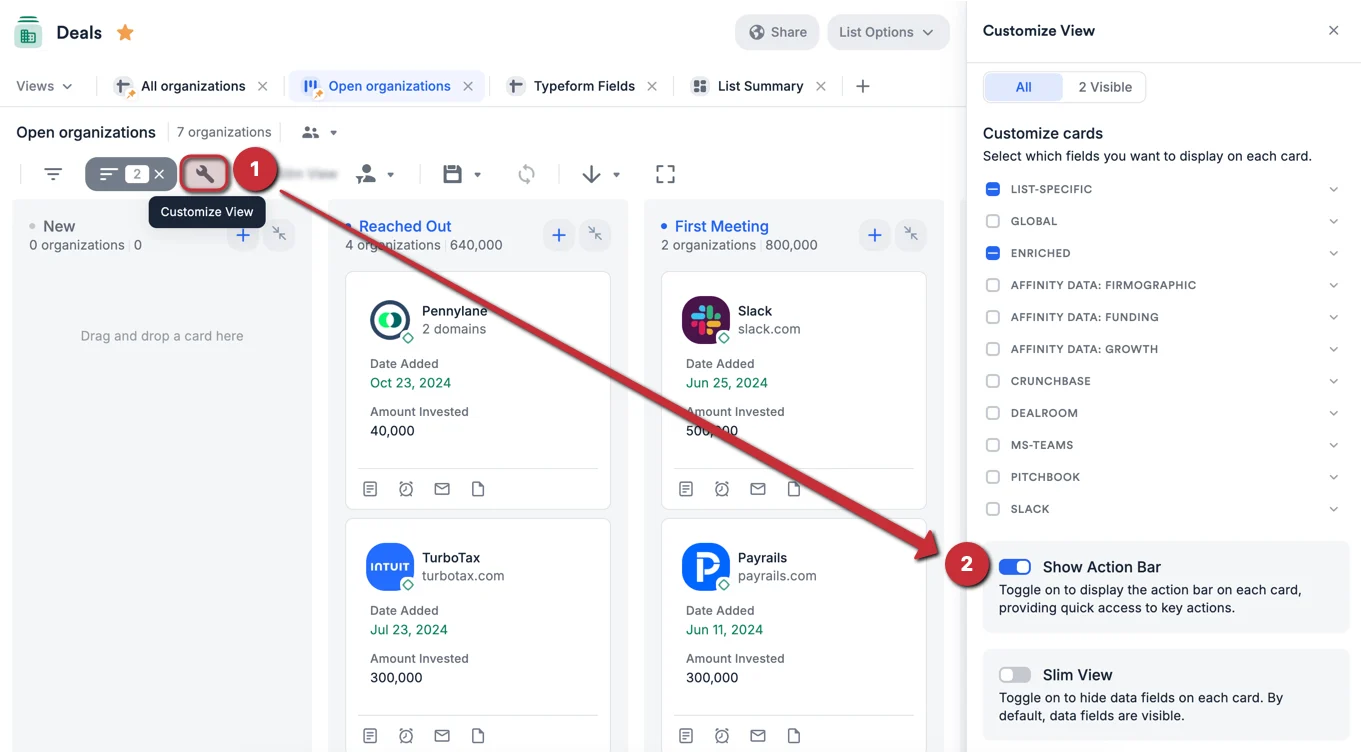
Toggle on Action Bar for each card
Toggle on the Action Bar to quickly add a note, set a reminder, send an email, or upload a file to an entity’s profile page with just one click.-
Click the Customize View button, then turn the toggle on for Show Action Bar.
-
You will see 4 icons appear at the bottom of each card, representing the 4 actions you can take:
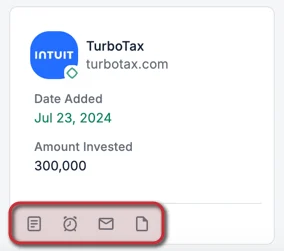
- Add a note
- Set a reminder
- Send an email
- Upload a file
Group by different ranked/regular dropdown fields
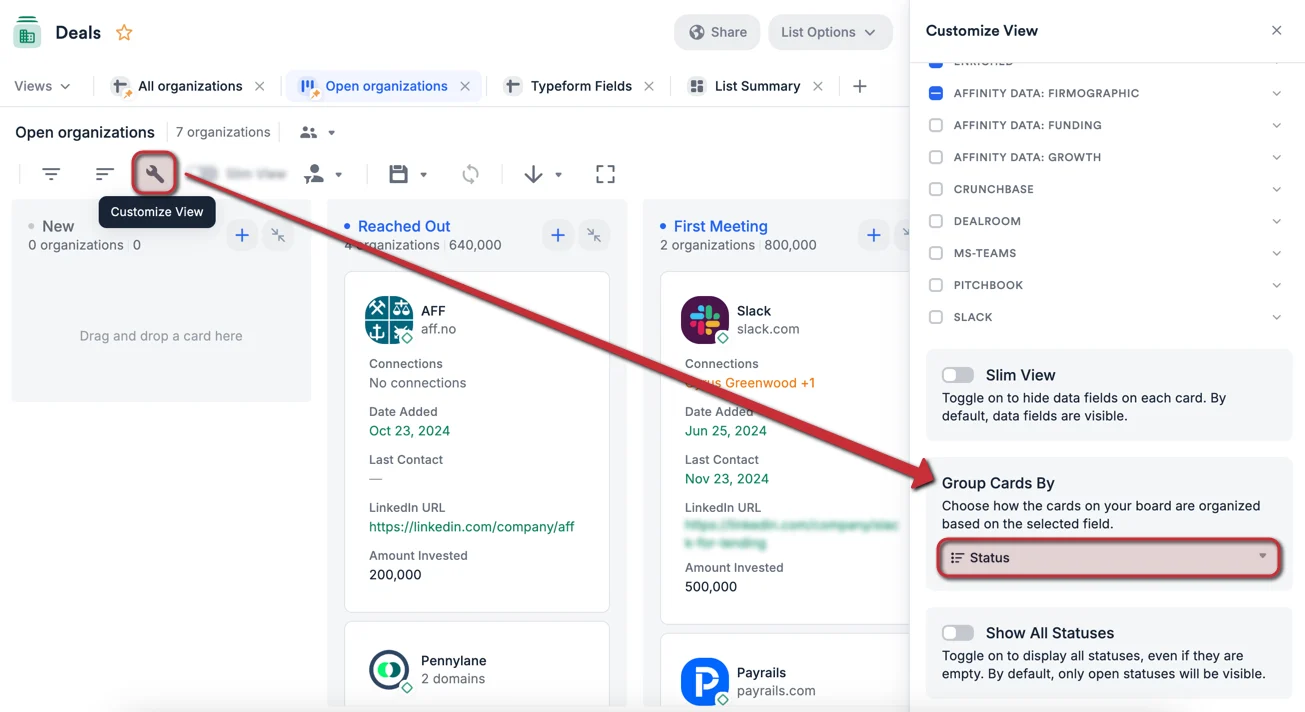
Though board views are initially grouped by the default Status field, you can now group by a different ranked/regular dropdown field (single values only — multiple values not supported).- Click the Customize View button.
- Under Select your board’s grouping field, select a field. You will see both list-specific fields and global fields available (see List-specific fields vs. Global fields).
- Make sure to click the Save icon to save the changes you made (see Update a saved view).
Toggle between Open status options and All status options
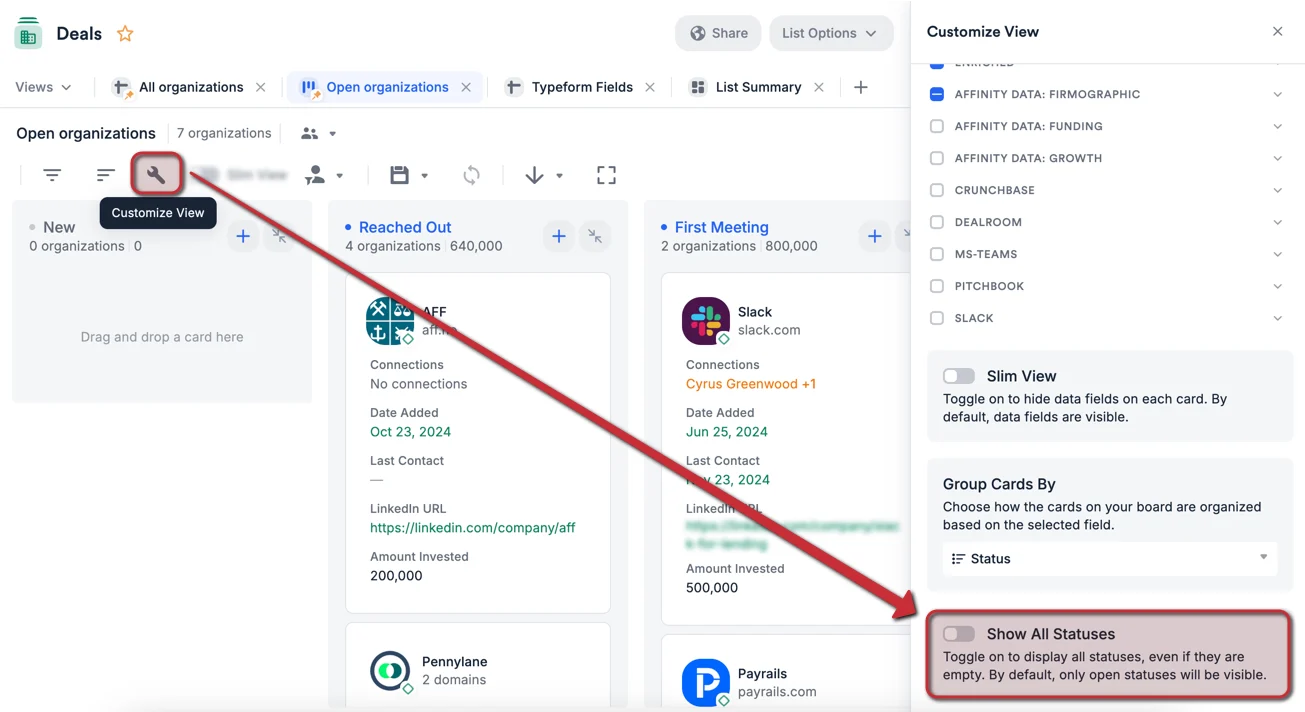
Board views grouped by the default Status field will show status options in the Open category, but you can now show all categories (i.e. Won, Lost, and On Hold).- Click the Customize View icon.
- Toggle on Display all statuses on the board.
Easily access profile pages
Simply click on a card to quickly access the contact’s profile page.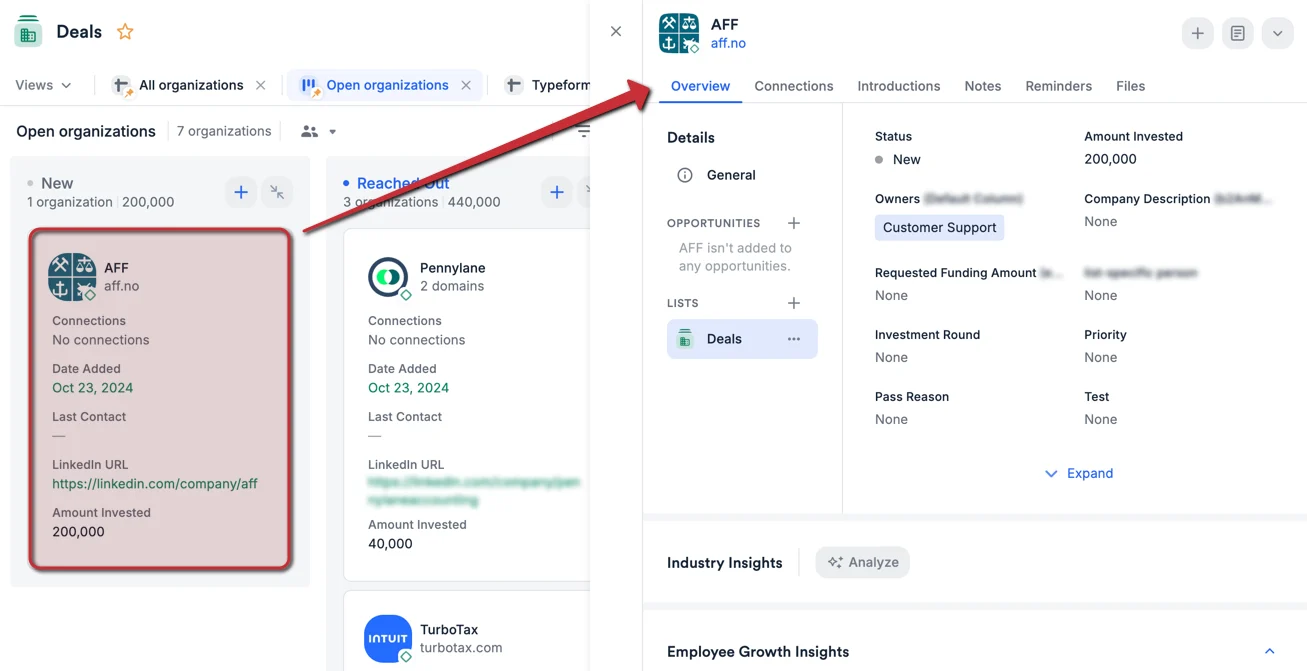
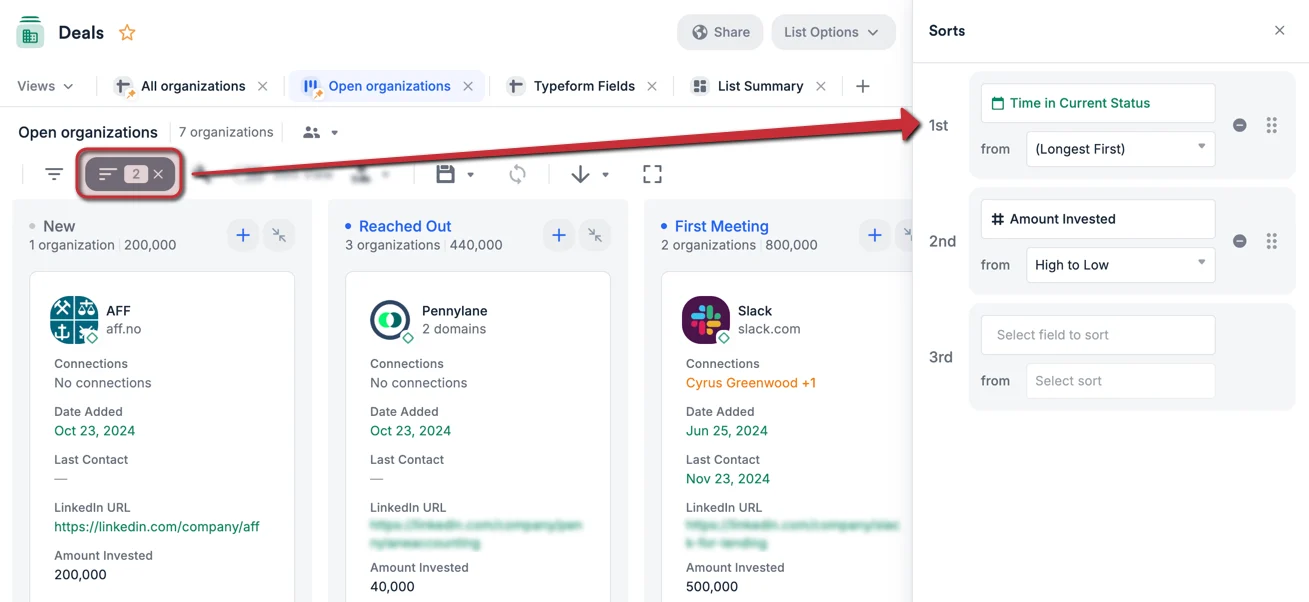
Sort by different fields
Sort by these different fields: Amount, Connections, Date Added, Owners, Time in Current Status, Last Contact, or by Alphabetical Order (multi-sorting up to 3 fields max).