

How-to — task-oriented recipe.
How to create a Reminder Trigger
-
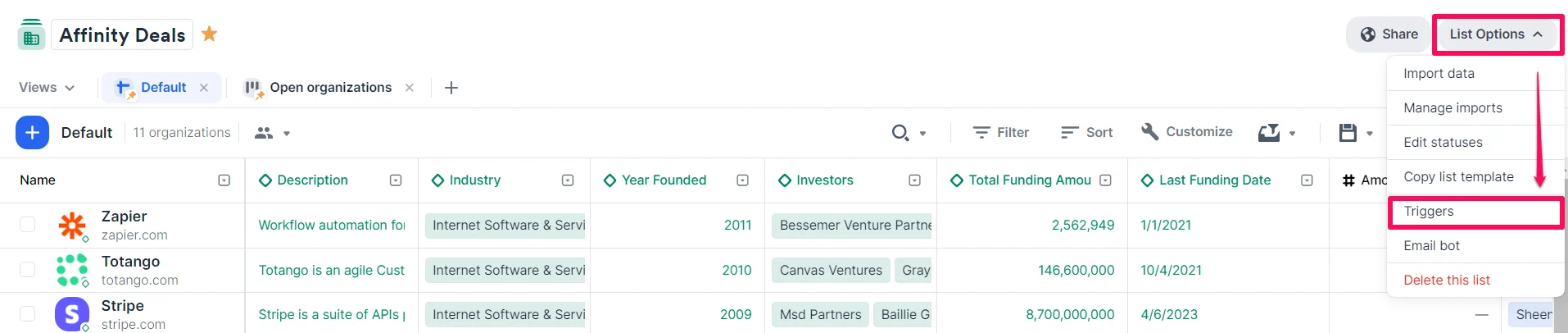
Click List Options on the top-right corner, then click Triggers.
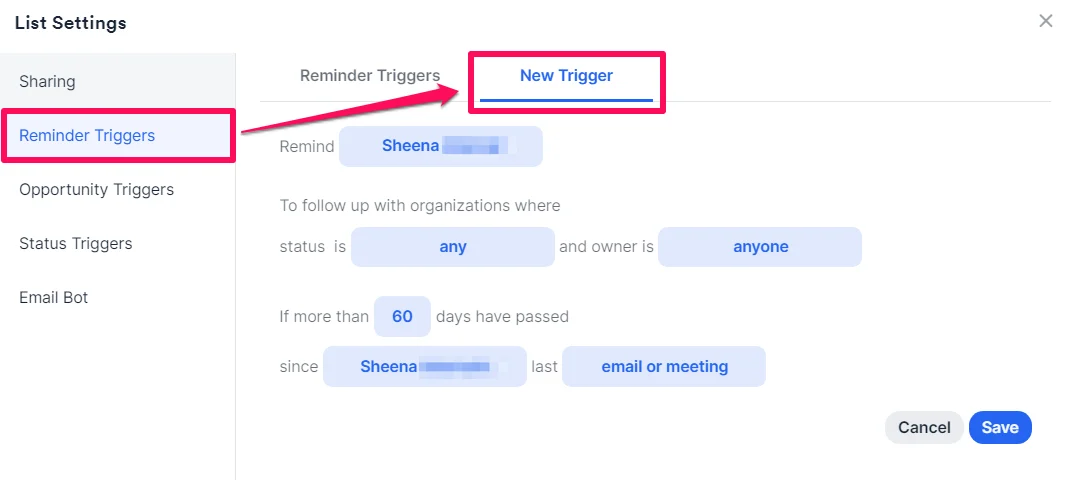
- Click Reminder Triggers and customize the available selections in blue. You can create as many reminder triggers as you’d like, each having their own unique combination of different statuses, owners, time durations, and interaction types.
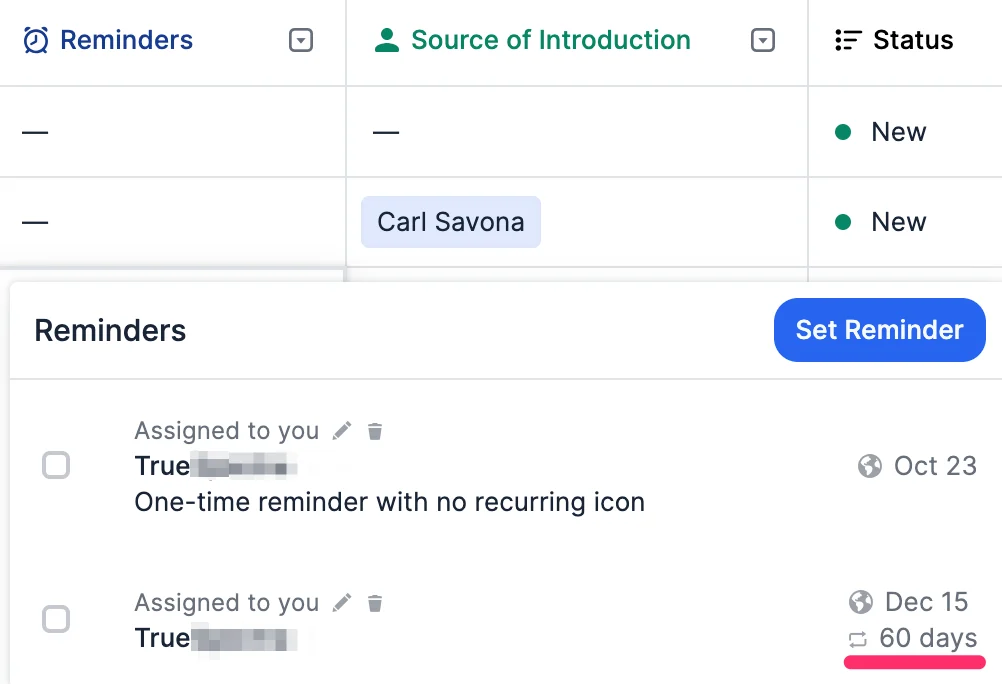
- Once they have been created, you’ll be able to tell which reminders are one-off vs. recurring based on the recurring icon and the number of days.
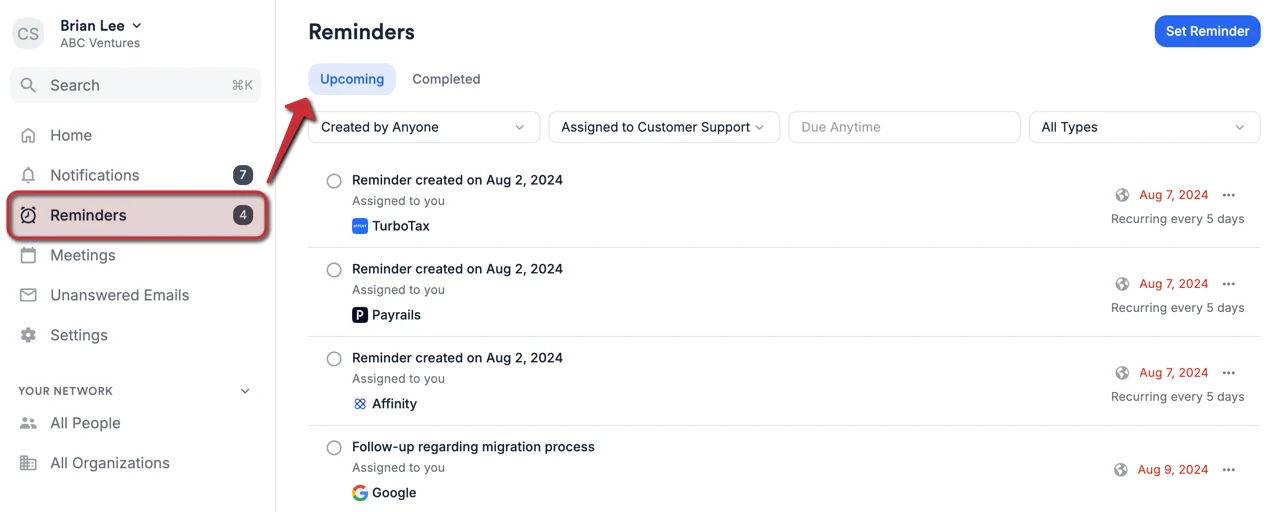
- You can also view all reminders at any time by clicking on the Reminders tab within the global navigation bar.
- If you haven’t already, you can set up your email and web app notifications to start receiving these reminders based on your preferences.
- You can also view all reminders at any time by clicking on the Reminders tab within the global navigation bar.
Important Callouts
- Deactivating a user will automatically delete any reminder triggers that were assigned to them.
- When creating a reminder trigger for the first time, the first set of reminders created from the reminder trigger will have their dates set to X days from the day the reminder trigger was created and will only be updated when the newest interaction takes place.
- For example, if you create a reminder trigger today to follow up with people in your people list if more than 30 days have passed since your last email with them, the first set of reminders created will have their dates set to 30 days from today, even if your last email interaction with some of them have taken place more than 30 days ago. Only after you have email interactions with these people, will the reminder trigger automatically set the new due dates moving forward.
- When making edits by adding field values to any field for a given list entry, Affinity will immediately auto-create (upon webpage refresh) a reminder for that list entry if it meets the reminder trigger’s criteria.
- On the other hand, when making edits by deleting field values from list-specific fields for a given list entry, Affinity will immediately auto-delete (upon webpage refresh) the reminder created from the reminder trigger for that list entry.
- When changing the status for a given list entry so that it no longer qualifies for the reminder trigger, Affinity will immediately auto-delete (upon webpage refresh) the reminder created from the reminder trigger.
- Deleting a reminder trigger will immediately auto-delete (upon webpage refresh) all reminders that were auto-created from that reminder trigger.