How-to — task-oriented recipe.
What happens when deactivating vs. removing a user?
The main difference between deactivating vs. removing a user on your team’s Affinity account is based on whether you’d like to keep or delete the user’s company email/calendar data. See the table below for more details:- Example: If Company123 has an Affinity subscription and their registered email domain in Affinity is @company123.com, then deactivating a user on this account will keep the email/calendar data associated with the email account ending in “@company123.com”. On the other hand, if the user synced in other personal email accounts ending in “@gmail.com” or different email domains, then the email/calendar data associated with these accounts will be removed.
- ** - If a user gets deactivated/removed, notes that are attached to their deleted logged interactions/synced meetings will get detached and converted into regular notes (click the hyperlinks to learn more). Any logged interactions/synced meetings that remain will have their attached notes remain as is.
How to deactivate a user
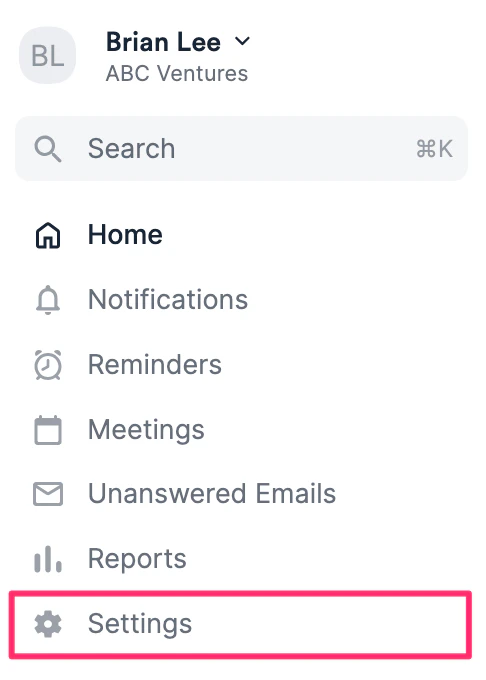
- Click Settings on the left side panel.
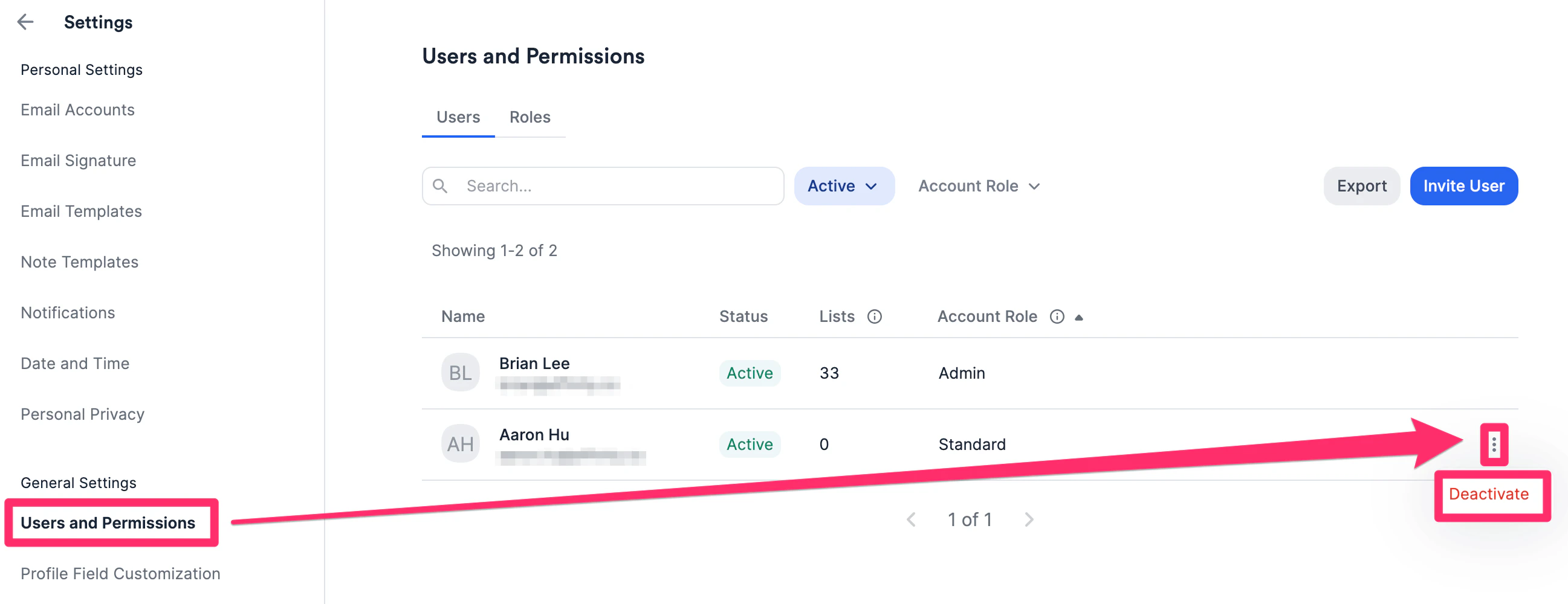
- Click Users and Permissions tab, then click the 3-dotted icon next to the user you’d like to deactivate. Note: For our Enterprise tier customers, only the Enterprise Admin will be able to deactivate a user (see Account Level Permissions).
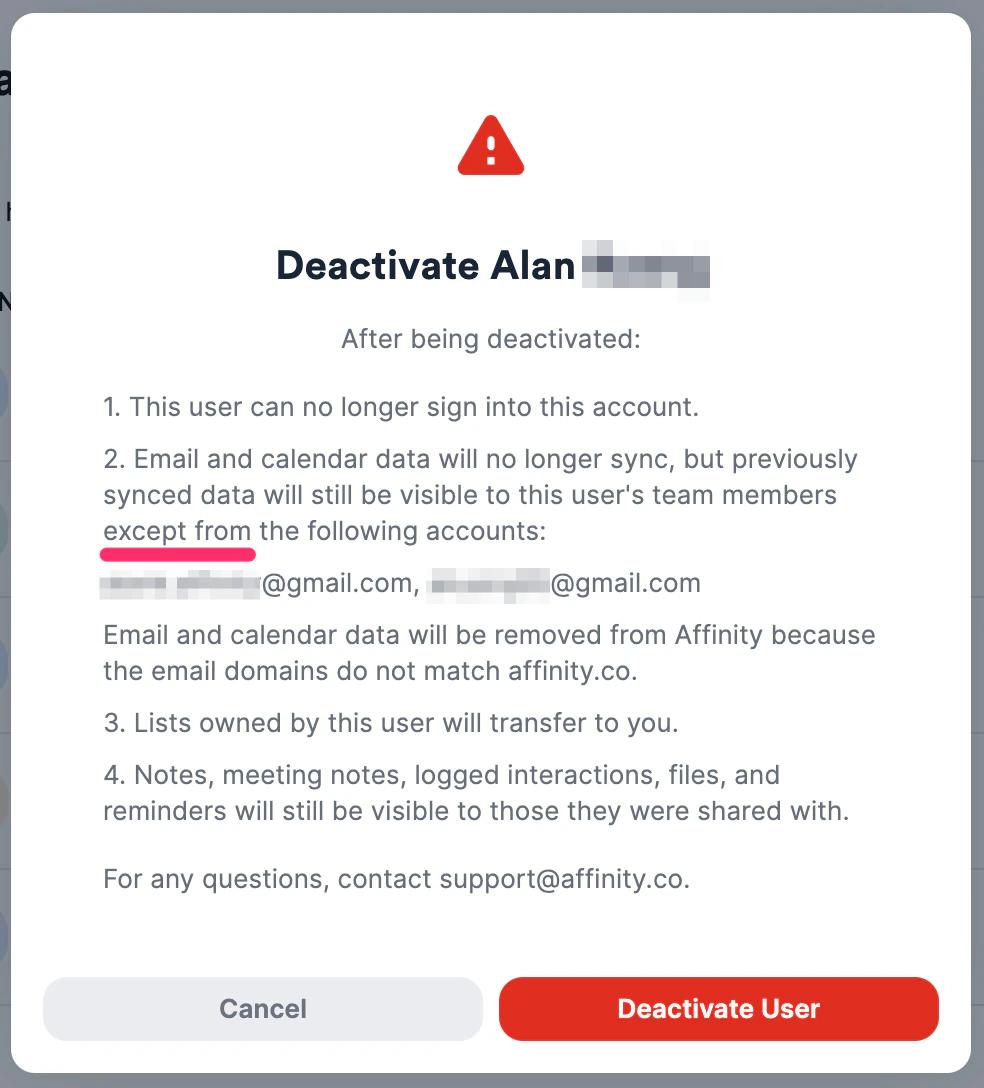
- Make sure you agree with the following, then click Confirm.
- This screenshot will show if the user only has their work email account(s) synced.
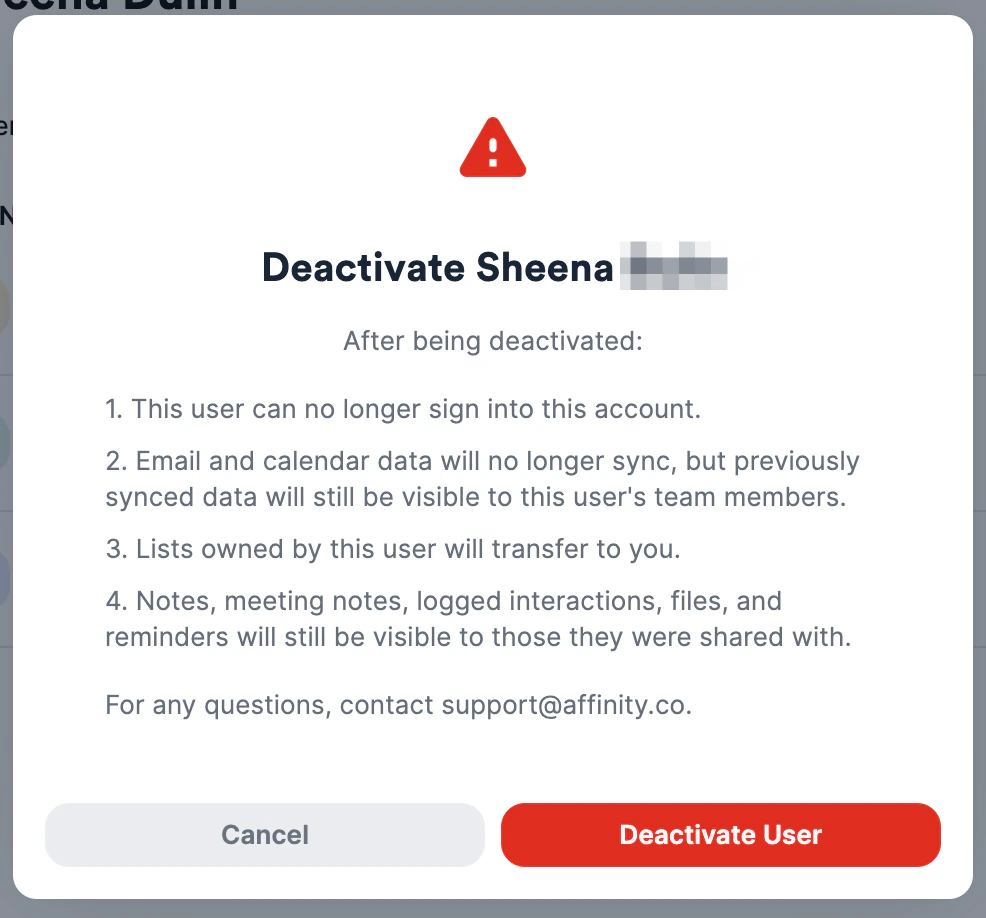
- This screenshot will show if the user also has personal/other email account(s) synced - the main difference being that any email accounts whose domains do not match that of their work email account will have their email/calendar data removed.
How to remove a user
- If you are an admin, please send an email to support@affinity.co, stating the full name and email address(es) of the user that you are requesting to completely remove.
- If you are not an admin, please CC your admin in the email so that they are aware of your request.
How to reactivate a user
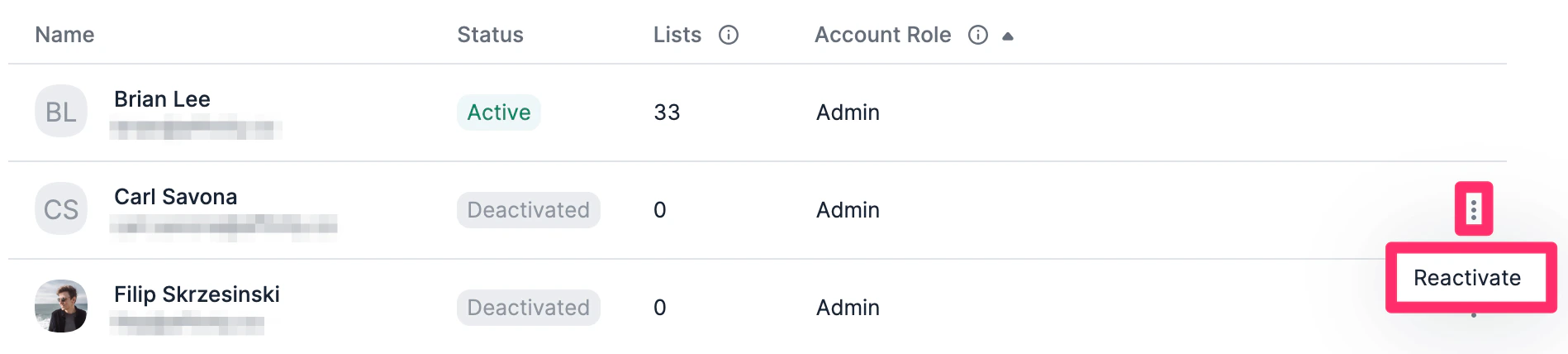
- Go to Settings, click the Users and Permissions tab, then make sure to check the box to show Deactivated users.
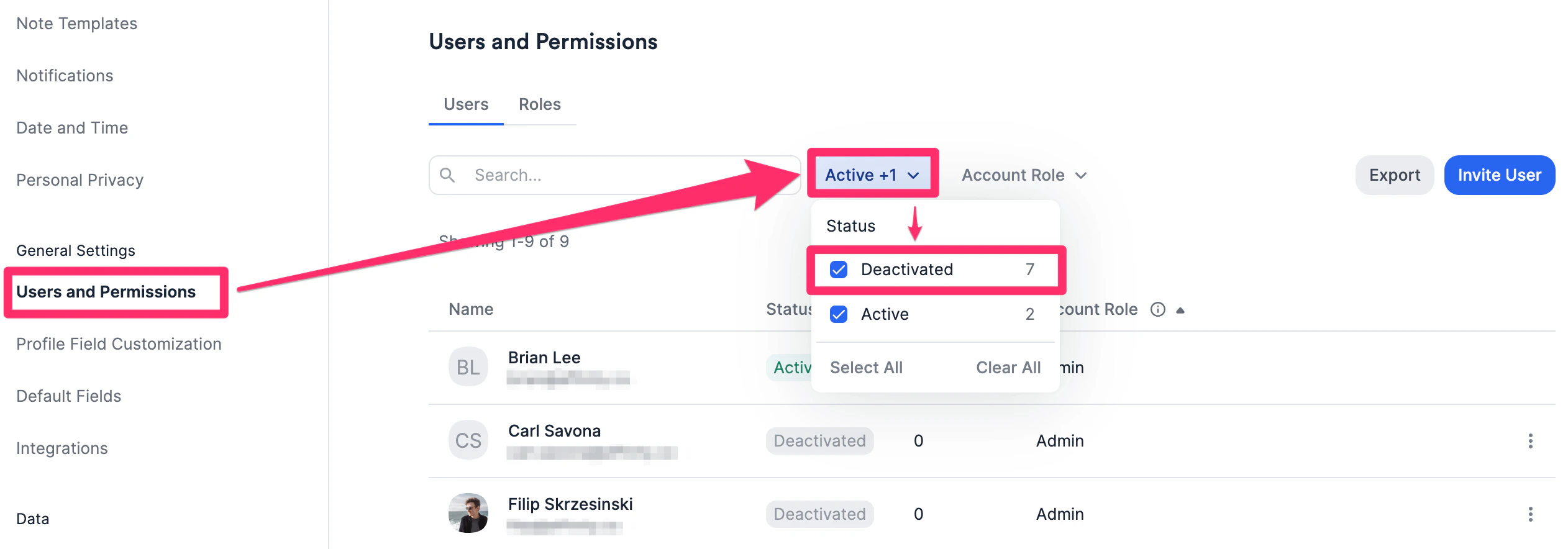
- Then, click the 3-dotted icon next to the user you’d like to reactivate. Note: For our Enterprise tier customers, only the Enterprise Admin will be able to reactivate a user (see Account Level Permissions). Note: When reactivating a user, a new API key will need to be generated (see How to obtain your Affinity API key).