

How-to — task-oriented recipe.
How to copy list entries from one list to another
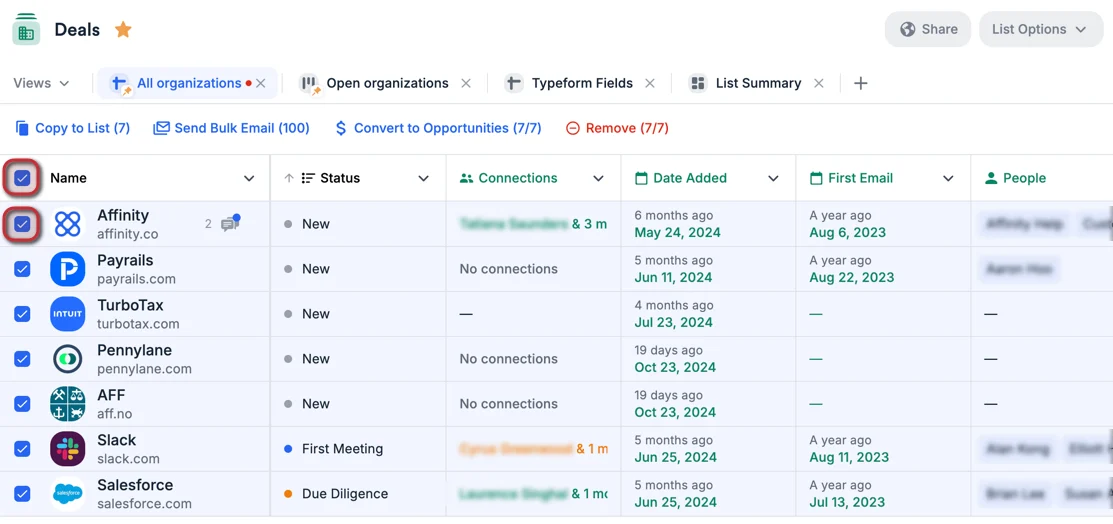
- Click the checkboxes next to the specific list entries you want to copy over. You can also click the checkbox next to the Name field to bulk-select all the list entries within the list.
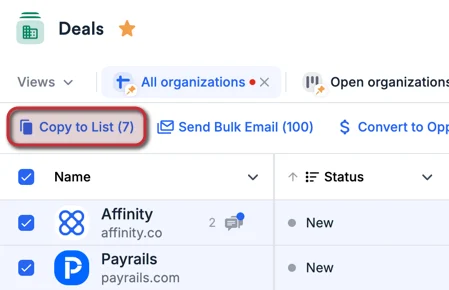
- Then, click the Copy to List button that appears above the Name field.
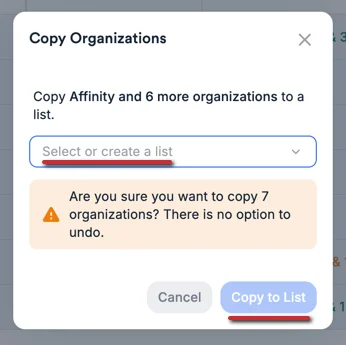
- Select the list you’d like to add these entries into or create a new list from scratch. You can only copy list entries from one list-type to another (i.e. from one organization list to another organization list).
Important Callouts
- Opportunity lists are not supported for the Copy to List feature. You can only copy list entries from people lists to other people lists, and from organization lists to other organization lists.
- There is no limit to the number of list entries you can copy over.
- However, the process is done in batches of 1,000 entries, so it can take longer if you copy over more than 1,000 list entries.
- Rest assured that you will receive a notification once all list entries have been successfully copied over to the designated list.
- Duplicate list entries are only detected when specific list entries have been selected. If you click the checkbox next to the Name field to select all list entries, duplicates will not be detected.
- Even when duplicate list entries are detected during your attempt to copy list entries over to the other list, Affinity will still copy over those duplicates. If you have feedback regarding this behavior, please let us know at support@affinity.co and we’d be happy to inform our team about making improvements moving forward.
- Copying over list entries to the other list will not trigger any required fields or status triggers in the other list.