

How-to — task-oriented recipe.
How to set up email and web app notifications
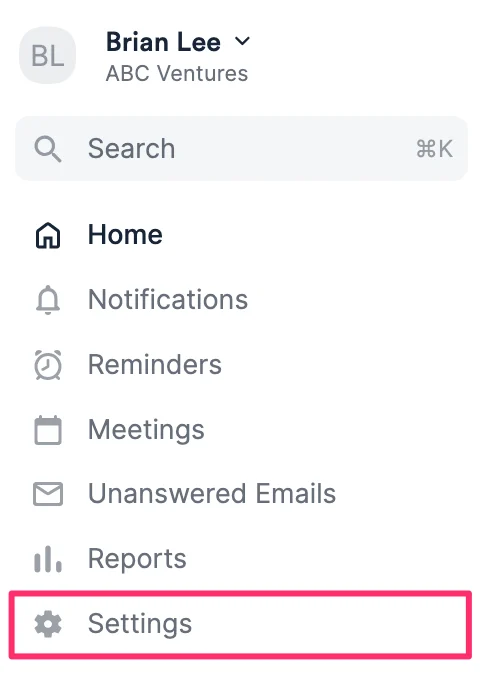
- Click on Settings on the left-side of your screen.
- Click the Notifications tab to see the activities you can turn on/off notifications for.
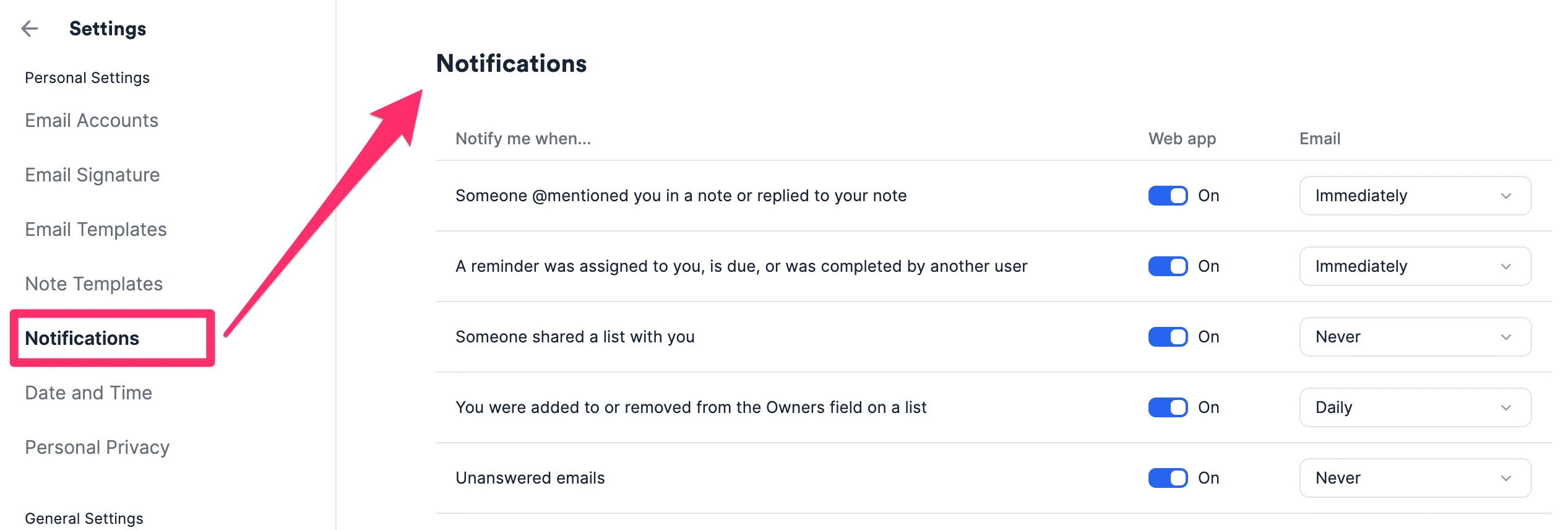
- When a team member @ mentions you on a note or replies to your note.
- When a reminder is assigned to you, is overdue, or was completed by another team member.
- Overdue reminders will be sent to you on a Daily basis, not Immediately (even if you set it up as Immediately).
- When a team member shares a list with you.
- When you’re added to or removed from the Owners field on any list.
- When you have unanswered emails.
- You will have three options to choose from (4 options for Notes and Reminders) when it comes to email notification frequency:
- Weekly - only for Notes and Reminders. an email will be sent to you around 4 PM every Friday based on your time zone preference.
- Daily - an email will be sent to you around 7 AM every day based on your time zone preference.
- Immediately - an email will be sent to you immediately.
- Never - no email will be sent to you.
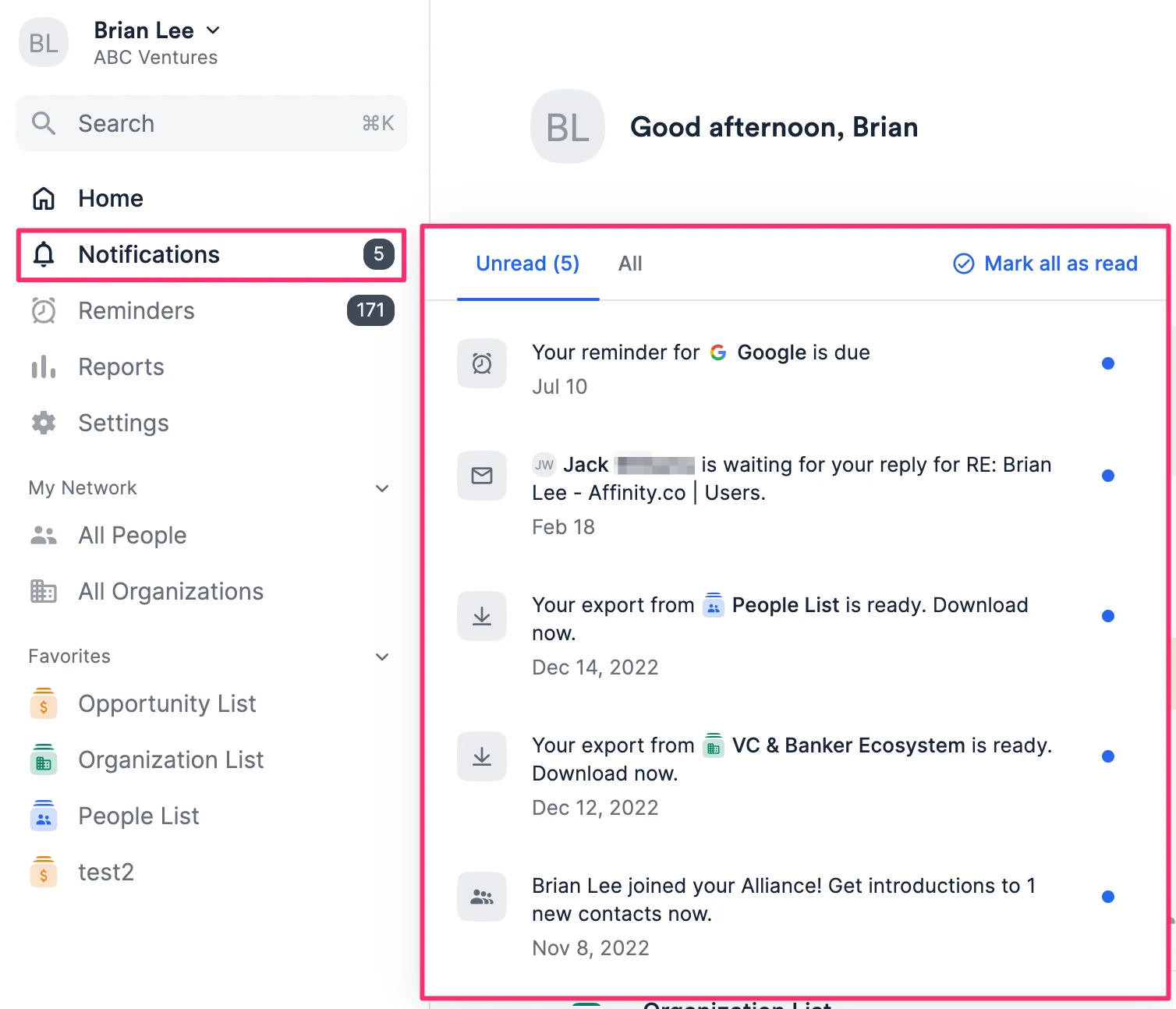
- Web app notifications will trigger immediately, regardless of what cadence you have set for your email notifications.
Frequently Asked Questions
What will the weekly email digest include for Notes and Reminders?- For Notes:
- Notes that you have been tagged in and replies to your notes
- For Reminders:
- Reminders overdue for you in the past 7 days (that have not been completed)
- Reminders assigned to you in the past 7 days (that have not been completed)
- No, you can only choose one option at a time.