

How-to — task-oriented recipe.
Who can access Affinity Notetaker?
- Interested in upgrading to the Advanced or Enterprise tiers? Please reach out to your Affinity point of contact or support@affinity.co.
- Important Callout: Affinity Notetaker is not available for Microsoft Exchange (On-Prem) users due to technical limitations related to Exchange calendars. Only Google and Microsoft Office 365 users can use Affinity Notetaker.
Why use Affinity Notetaker and not other note-taking tools?
- Affinity’s Notetaker has been optimized for private capital and dealmaking, while other note-taking tools tend to be focused more on sales.
- Affinity’s Notetaker integrates directly with the Affinity CRM, which will help in streamlining your team’s workflows and ensuring that your CRM remains as the source of truth.
- Affinity has set up contracts in place to ensure that customer data will not be used to train AI models.
Does Affinity Notetaker support multiple languages?
- Yes. However, please note the differences when it comes to transcripts versus meeting notes:
- Transcripts: Affinity Notetaker will generate the transcripts in English, Danish, Dutch, French, German, Indonesian, Italian, Japanese, Korean, Mandarin, Norwegian, Polish, Portuguese, Russian, Spanish, Swedish, or Ukrainian.
- The language used the most during the meeting will be the language used to generate the transcript.
- If multiple languages are spoken during the meeting, the less frequently used language(s) will not be transcribed.
- Meeting notes: Admins can configure the language for meeting notes from the Affinity AI Settings page (Settings → Affinity AI Settings).
- Options are:
- Always generate meeting notes in English (default)
- Generate meeting notes in the language of the transcript, for supported languages — with English as the fallback
- Supported languages for non-English meeting notes: French, German, Spanish, Italian, Japanese, Korean, Indonesian, and Portuguese. Section headers (e.g. Agenda, Next Steps) are also translated when this option is selected.
Note: Several languages are supported for transcription but not yet for meeting notes (Danish, Dutch, Mandarin, Norwegian, Polish, Russian, Swedish, Ukrainian). For calls in those languages, meeting notes will always be generated in English regardless of the admin setting..
- Transcripts: Affinity Notetaker will generate the transcripts in English, Danish, Dutch, French, German, Indonesian, Italian, Japanese, Korean, Mandarin, Norwegian, Polish, Portuguese, Russian, Spanish, Swedish, or Ukrainian.
Prerequisites for Zoom users
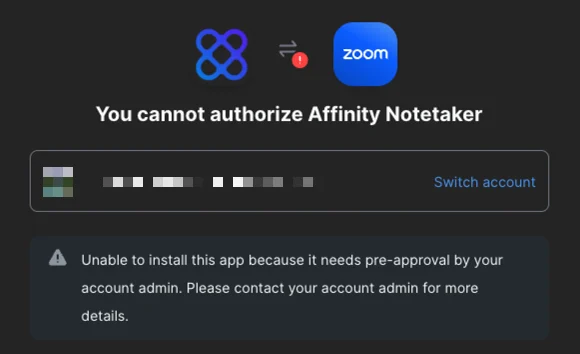
- Your organization’s Zoom admin must first approve of the Affinity app in the Zoom App Marketplace.

- Otherwise, you will come across this message: You cannot authorize Affinity Notetaker
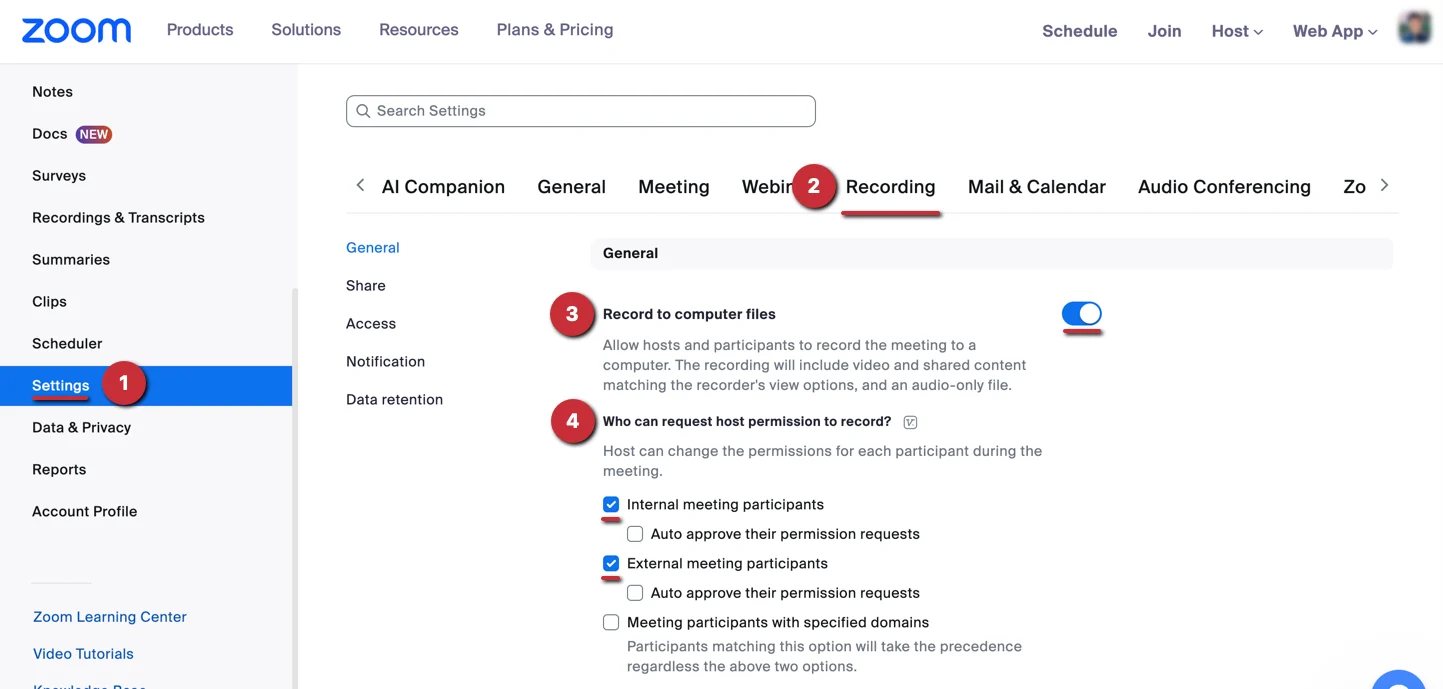
- Once your Zoom admin approves of the Affinity app, Zoom will require the following setting to be enabled for each person using Affinity Notetaker to allow meeting bots to transcribe calls:
- Go to your Zoom Settings on the web app, not the desktop app.
- Then, click the Recording tab.
- Turn on the toggle next to Record to computer files.
- Last but not least, click the on relevant checkboxes under Who can request host permission to record? based on your preferences.
- This can be done on an individual basis by each user, or the Zoom admin can turn it on for all users across the team.
- If your security team allows for this option, you can also check the boxes for “Auto approve their permission requests” for internal and/or external meeting participants. This option can be particularly helpful for your team members (e.g. Executive Assistants) who are not Affinity users, but set up many meetings for you and other team members who are Affinity users and have Affinity Notetaker enabled. Please note that they will still need to join the meeting in order for the auto-approval to take place.
- Note: This only applies to Zoom meetings in which you are the host of. Affinity Notetaker may not be able to join a Zoom meeting if another internal or external is the host and they either do not join the meeting or do not set this up from their end.
How to set up Affinity Notetaker
- Affinity Notetaker is only compatible with the following platforms:
- Zoom (both web app and desktop app) - The meeting host is required to join the meeting in order for Affinity Notetaker to record/transcribe.
- If the meeting host is an Affinity user and connects with Zoom (see Step 3a below), then they will not need to join the meeting.
- Microsoft Teams - The meeting host does not need to join the meeting in order for Affinity Notetaker to record/transcribe.
- Google Meet - The meeting host does not need to join the meeting in order for Affinity Notetaker to record/transcribe.
- Zoom (both web app and desktop app) - The meeting host is required to join the meeting in order for Affinity Notetaker to record/transcribe.
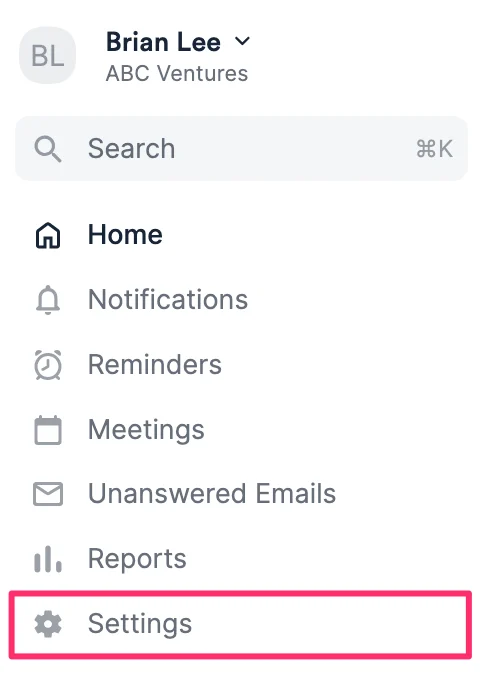
- Now, click on Settings to access your Notetaker settings.
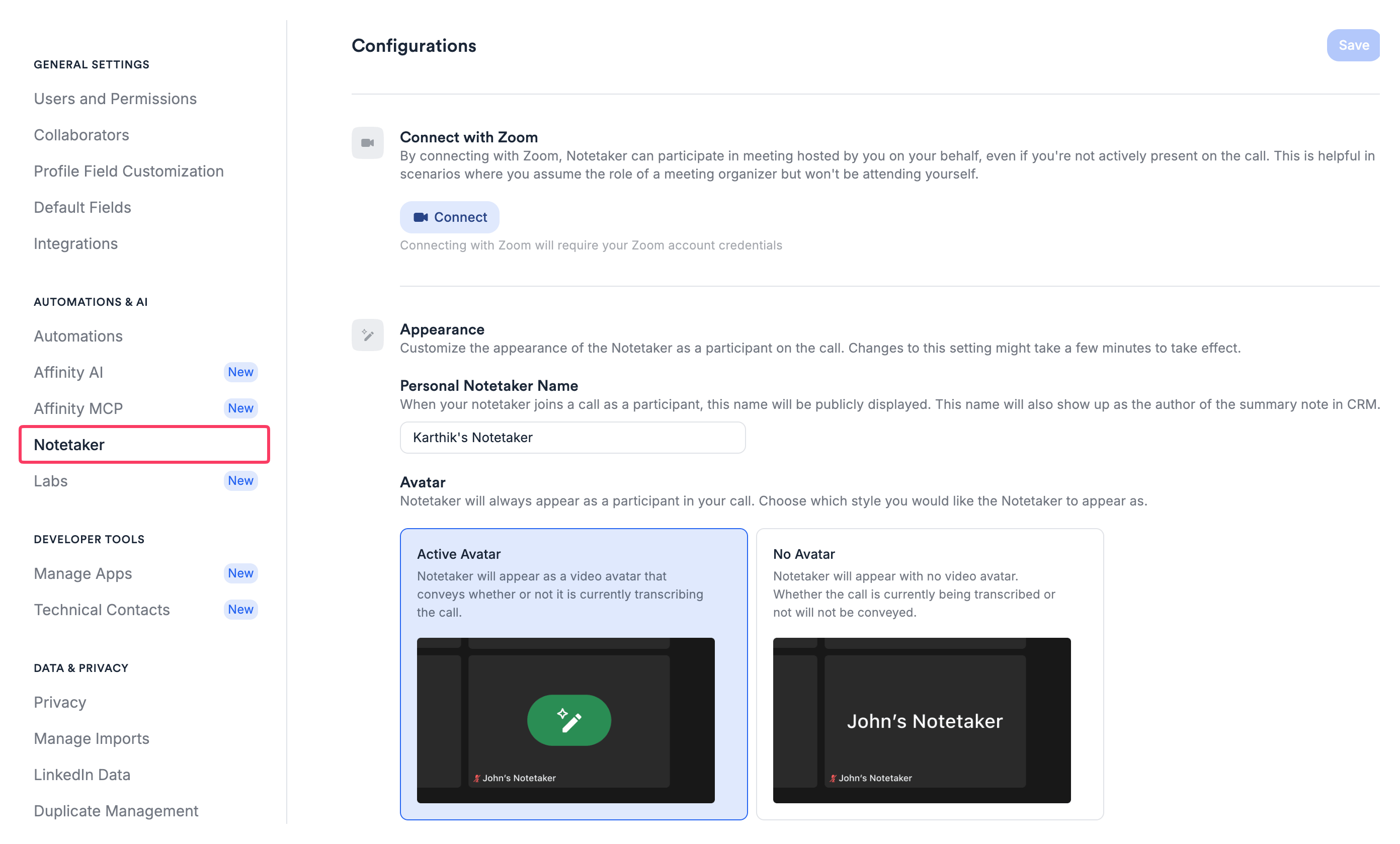
- Once you click Notetaker on the left-side, you can customize the following sections:
- Connect with Zoom - For Zoom users only, you can connect Affinity with your Zoom account to make sure that your Affinity Notetaker (or any of your colleague’s Affinity Notetakers) can join, transcribe, and summarize Zoom meetings that you’re the host of, even if you do not join.
- Connect with Zoom - For Zoom users only, you can connect Affinity with your Zoom account to make sure that your Affinity Notetaker (or any of your colleague’s Affinity Notetakers) can join, transcribe, and summarize Zoom meetings that you’re the host of, even if you do not join.
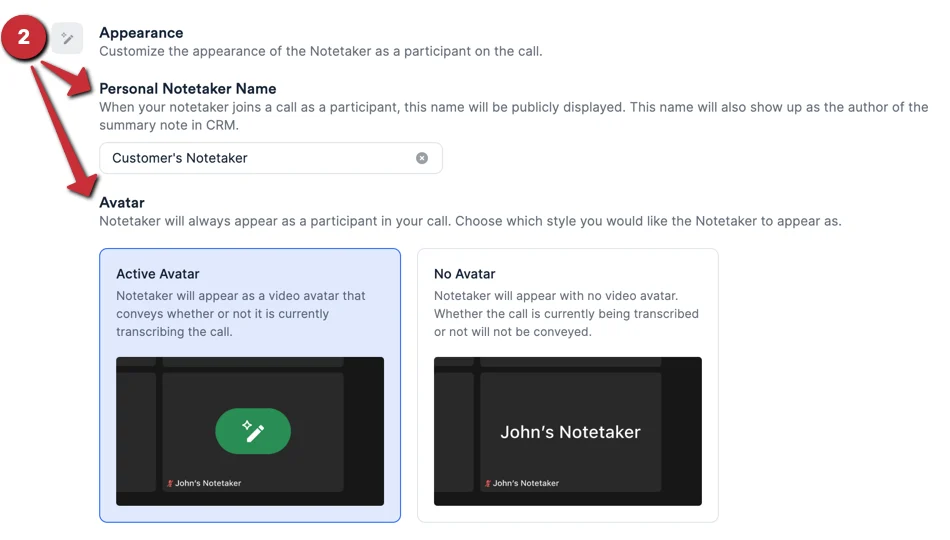
- Appearance - Customize your Notetaker’s name and decide whether to display an Active Avatar or No Avatar when your Notetaker is in a meeting.
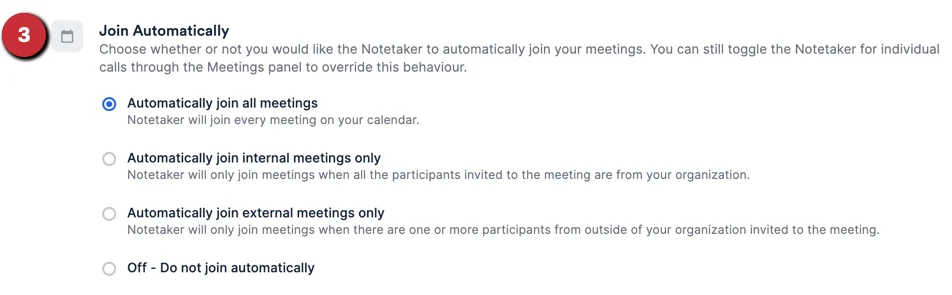
- Join Automatically - Set up automatic scheduling so that your Notetaker joins your meetings by default - whether it’s for all meetings, only internal meetings, or only external meetings.
- Finally, click Save to save any changes you made.
How to use Affinity Notetaker
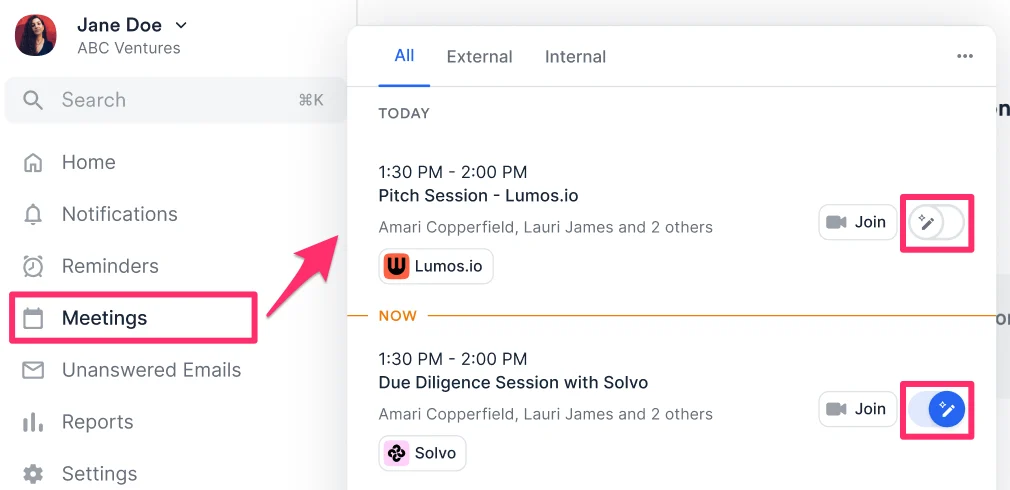
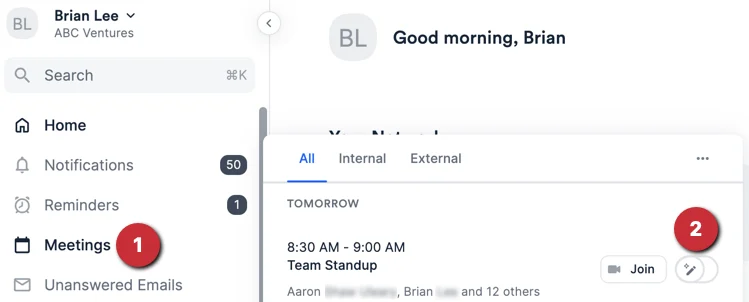
- Now that you’ve set up Affinity Notetaker, click the Meetings tab on the left side to see all your synced meetings from yesterday, today, and up to 2 weeks from today.
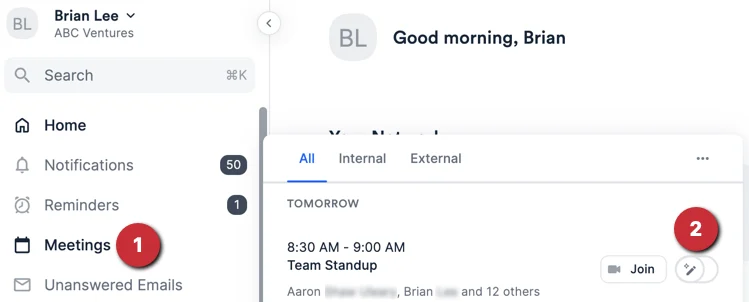
- Click the toggle that appears for each meeting to ensure that Affinity Notetaker joins as a participant.
- Note: Don’t see the toggle appear? Simply make a minor edit to the meeting from your native calendar application to make sure it updates - the toggle should appear afterwards.
- Note: Don’t see a specific meeting appear? It may be that the meeting has either been deleted from your native calendar application or that there is an external meeting participant who has been blocklisted, therefore preventing their meetings from appearing in Affinity (learn more).
- If multiple users turn the toggle on for the same meeting, Affinity will randomly select one of the users’ notetakers and consider that user to be the author of the meeting note that gets generated.
- Affinity Notetaker will join the call at the scheduled start time (or instantly if the meeting has already started). If it doesn’t, you can simply click the toggle off for that specific meeting within the Meetings tab, then click the toggle again immediately to turn it on and trigger Affinity Notetaker to join the call.
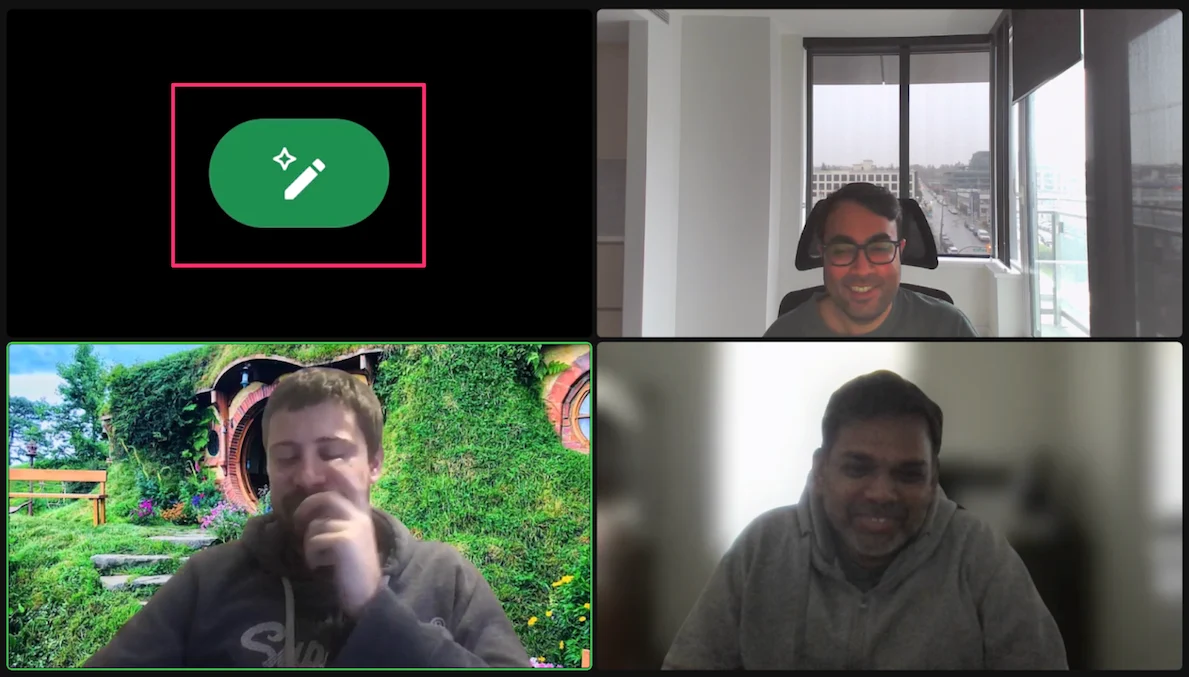
- On the call, you will see a participant under your Notetaker name transcribing and summarizing the meeting for you. This participant is a bot and will not interact with the other participants.
- When the Notetaker is active and transcribing, you will see a green image (see below).
- When the Notetaker is inactive, you will see the inactive state (see Troubleshooting for Affinity Notetaker). To reactivate the Notetaker, simply go back to the Meetings tab and turn the toggle off for the meeting, then toggle it back on immediately.
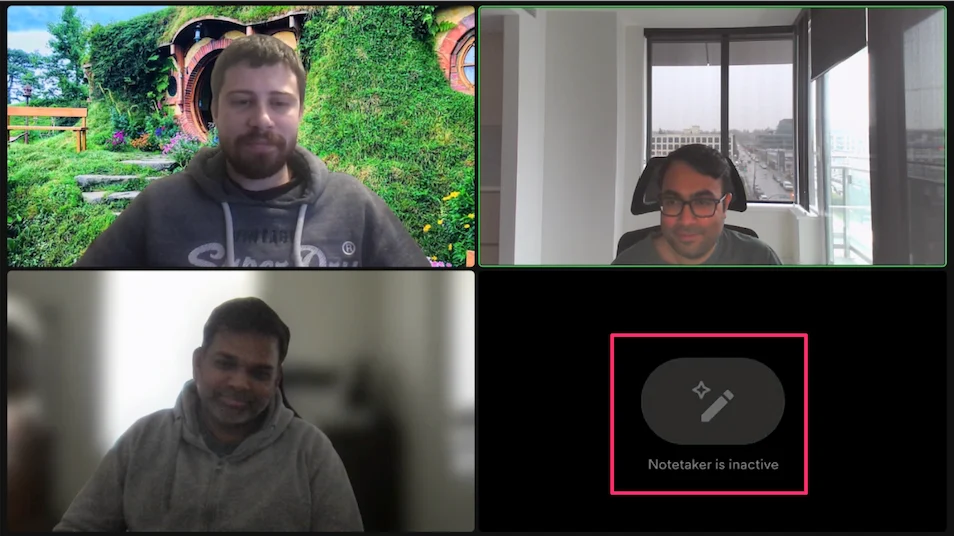
- When the Notetaker is active and transcribing, you will see a green image (see below).
- Once your meeting ends, you and your team members will receive an email with a detailed meeting summarization which includes the following: Agenda, Key Highlights, Next Steps, and Summary.
- You can also click View Note in CRM or View Full Transcript.
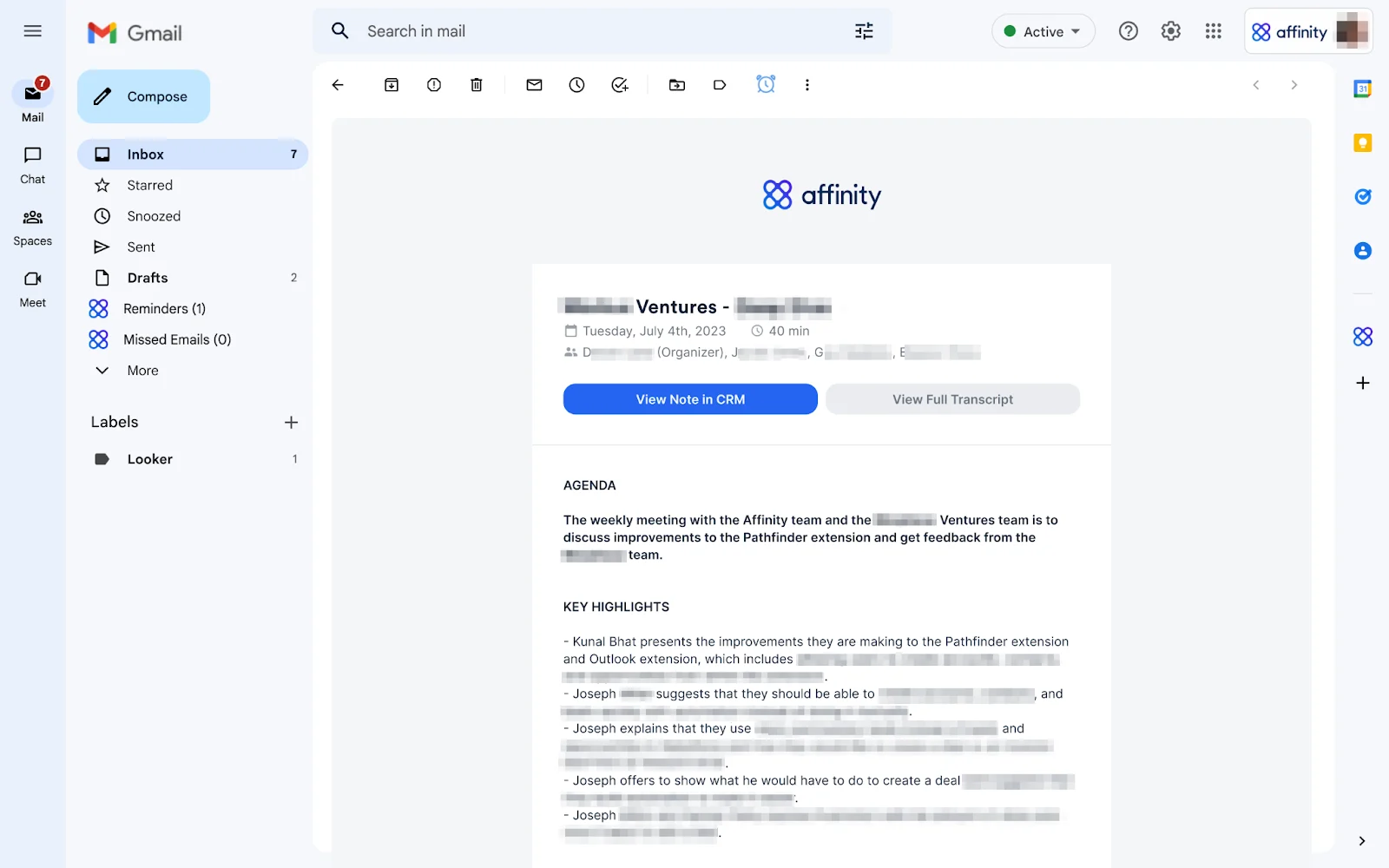
- You can also click View Note in CRM or View Full Transcript.
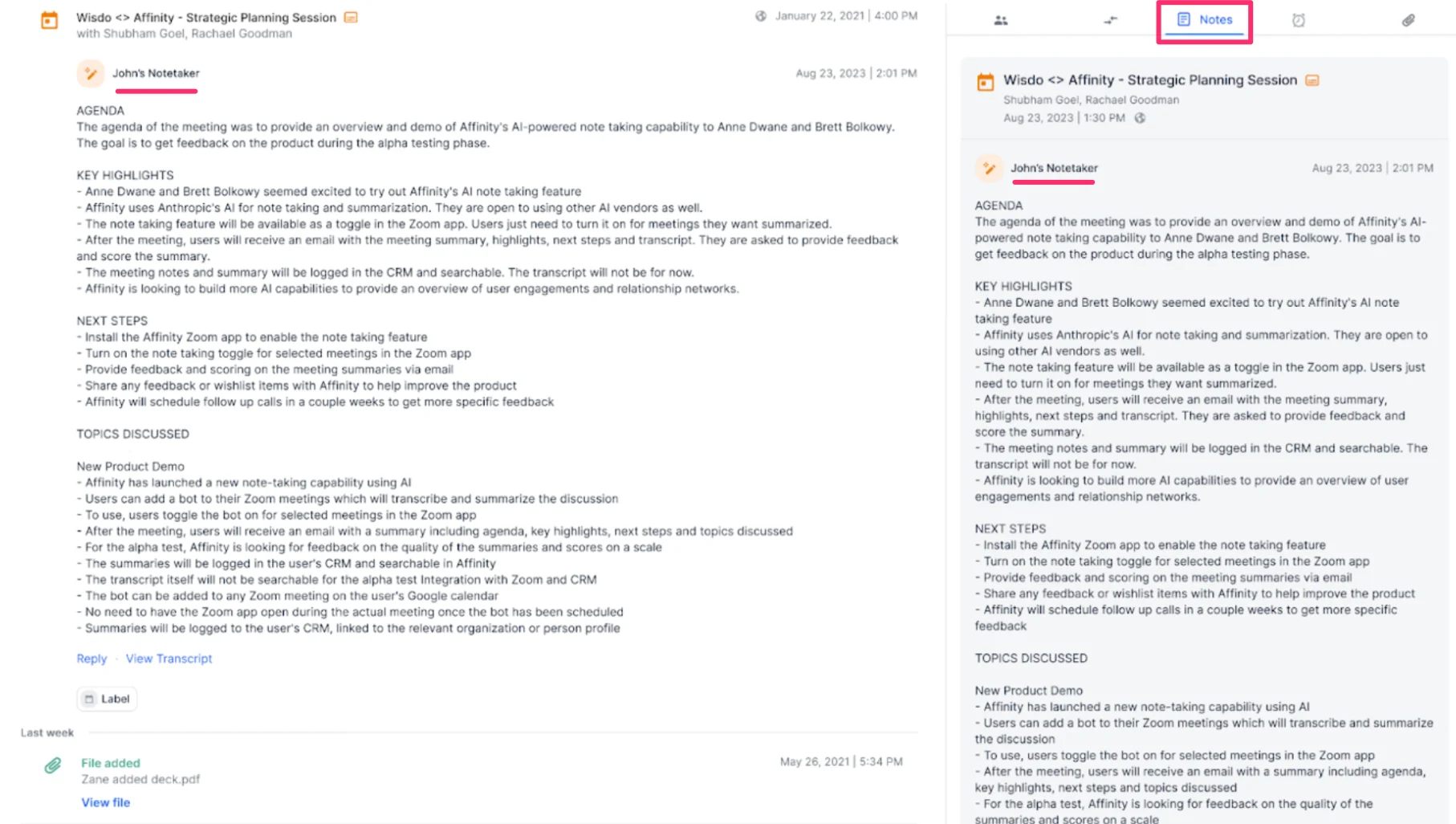
- The note will also be automatically added as a meeting note for that meeting in Affinity. The meeting note can be found on the Activity Timeline or the Notes tab on the Affinity profile pages of the external meeting participants.
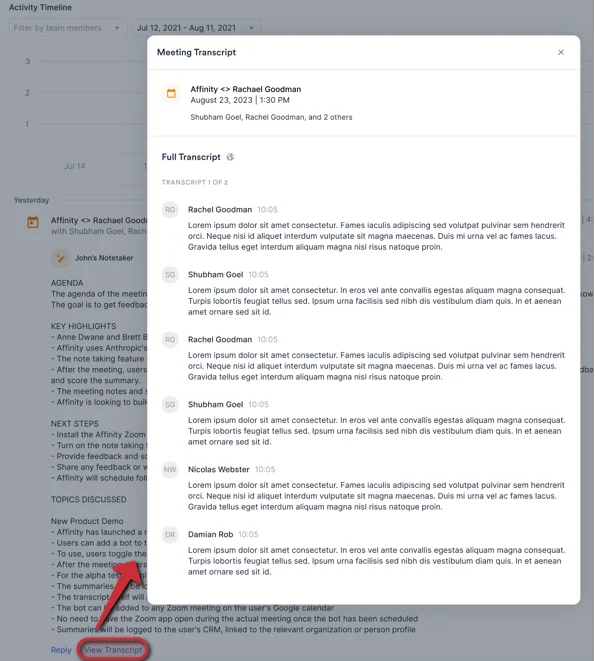
- Last but not least, click View Transcript to access to a long form transcription of the call.
Why is Affinity Notetaker inactive on the meeting or unable to join the meeting?
- See Troubleshooting for Affinity Notetaker to see the list of all potential reasons why Affinity Notetaker may be inactive or unable to join the meeting.
How to remove Affinity Notetaker from a meeting
- Option 1: If you are the owner of the Notetaker that has joined the meeting, you can click on the Meetings tab and toggle off Affinity Notetaker for that specific meeting.
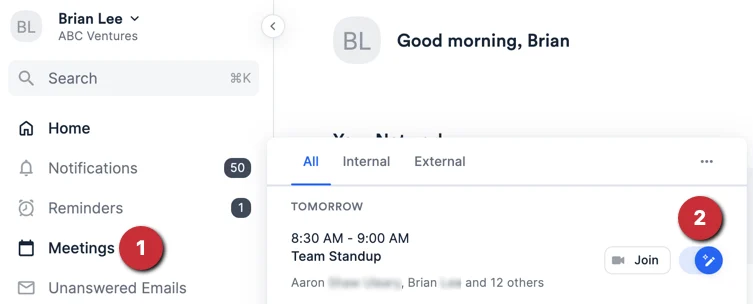
- Option 2: The meeting host can also remove Affinity Notetaker from the meeting directly, even if they aren’t the owner of the Notetaker.
- Note: If the meeting host removes the Notetaker during the middle of the meeting, the Notetaker will still transcribe the meeting up to the point it was removed.
- Should you decide later within the meeting that you’d like the Notetaker to rejoin the call, simply click the toggle back on within the Meetings tab.
How does Affinity Notetaker treat internal meetings?
For Standard users at the account level
- Affinity Notetaker will email you the auto-generated note summaries for internal meetings (i.e. meetings only consisting of you and your team members) that you’re a participant of. Transcripts will not be available in the email.
- These notes will not surface on your organization’s profile page in Affinity since they are attached to internal meetings. Only external meetings between you/your team and external contacts will surface on your organization’s profile page.
- Click on the Meetings tab to toggle on Affinity Notetaker for the internal meeting.
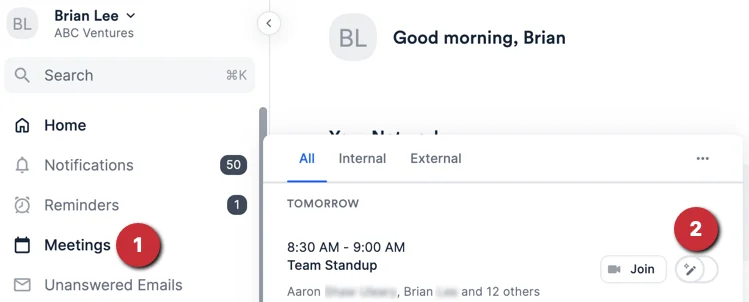
- The email summary that gets sent after every meeting will contain a link directly to the note, which is the main way to access the note within the CRM. Transcripts will not be available in the email.
- You can associate an external entity to the note so that the note can be viewed from that entity’s Affinity profile page.
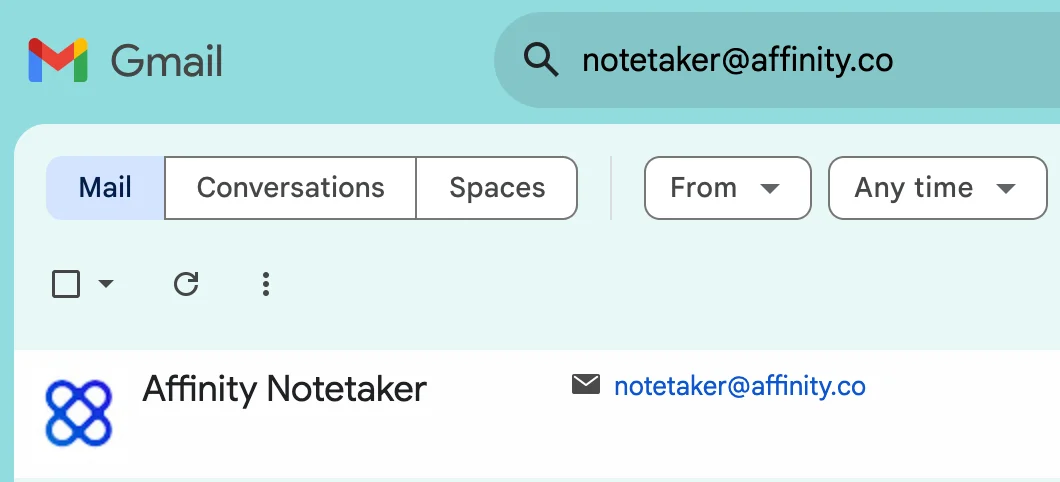
- You can also search for notetaker@affinity.co in your inbox to filter by all the emails that have been generated from Notetaker, which includes all the internal meetings that aren’t surfaced in the Affinity CRM.
For Enterprise Admins and Admins at the account level
There are two options Enterprise Admins/Admins can choose from to determine how Affinity Notetaker treats your internal meetings: Access in Affinity AI → Notetaker and click Edit.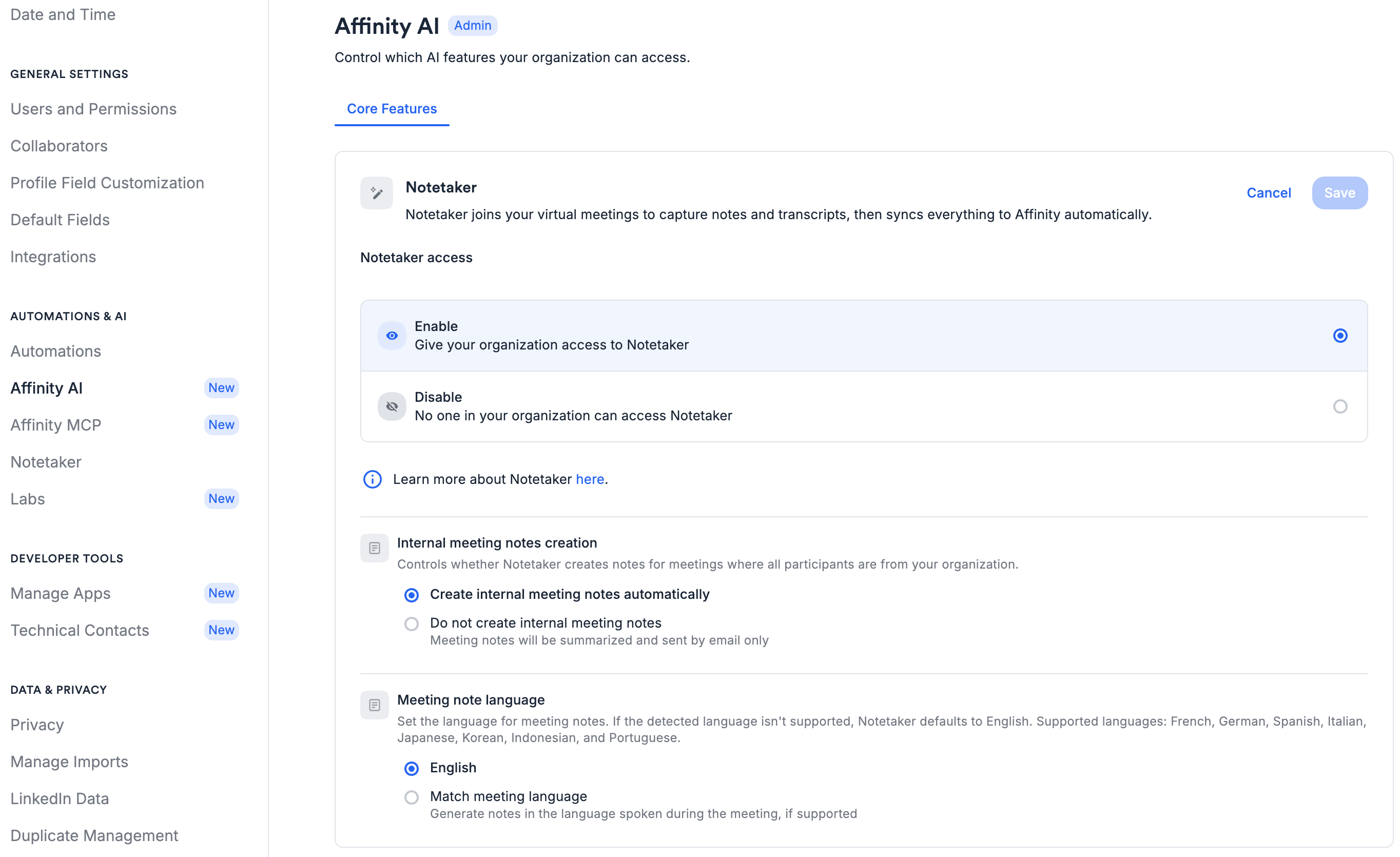
- Option 1: Create internal meeting notes
- For teams that are more collaborative with sharing data.
- Affinity Notetaker will send you (and your team members who were meeting participants) emails of auto-generated note summaries for internal meetings, when:
- Internal meetings only have internal attendees
- The query explicitly excludes notes with only internal person associations
- Turning on Option 1 is not retroactive, it will only apply to internal meetings moving forward once it has been turned on.
- For Enterprise tier users: The auto-generated internal meeting notes will be viewable to only the meeting participants, regardless of the sharing permission set up for the Fallback Behavior setting.
- Note: The sharing permission for these notes can be changed at any time by the user whose Notetaker created the note. Currently, there’s no way to automatically associate internal meeting notes with the org’s company
- For Advanced tier users: The auto-generated internal meeting notes will be viewable to all users, since there are no specific sharing permissions in the Advanced tier.
- Option 2 (Default): Off - Do not create internal meeting notes
- For teams that are more sensitive with sharing data.
- Affinity Notetaker will only send you (and your team members who were meeting participants) emails of auto-generated note summaries for internal meetings.
- These notes will not appear on your organization’s Affinity profile page. Transcripts for these internal meetings will not be available.
Important Callouts
- Affinity Notetaker will only transcribe external meetings that go on for 5 minutes or longer.
- Affinity Notetaker will not be able to join meetings where a meeting room (e.g. Zoom Rooms) is set to be the meeting host.
- We highly suggest designating an individual to be the meeting host, not a meeting room.
- Notetaker notes will only be sent to active Affinity users (deactivated users will not receive Notetaker notes / Transcripts)
- If the contact(s) associated with an event, has not yet been created within Affinity, the Notetaker will not consider them as an external.
- This largely affects 1:1 events, where the external has not yet been created within Affinity, causing the event to be seen as an internal only by the Notetaker.
- Solution: Please make sure, especially in 1:1 events, that attendees have a profile within Affinity.
- Notetaker does NOT support group emails. Notetaker only sends meeting summary emails to individual Affinity users (internals) who are directly matched to the meeting attendees via their email addresses. Notetaker does not expand Google Groups or distribution lists into individual attendees, so people who are only included via a group address won’t be captured as attendees and won’t receive the summary email unless their individual email is on the event.
Frequently Asked Questions
Where can I expect to see the transcript and meeting notes?- The meeting note and transcript can be found on the Activity Timeline / Notes tab on the profile of the external organization on the call. It can also be found on the profiles of any external participants on the call.
- You will also receive an email with the summary and a link to the note and transcript.
- The Notetaker will attempt to join the call at the scheduled start time. If the meeting starts late, the Notetaker wait for 15 minutes before leaving the meeting if no one has joined yet (see more details in FAQ #11 below).
- If the Notetaker is not in the meeting, you can simply click the Notetaker toggle back on for that specific meeting within the Meetings tab.
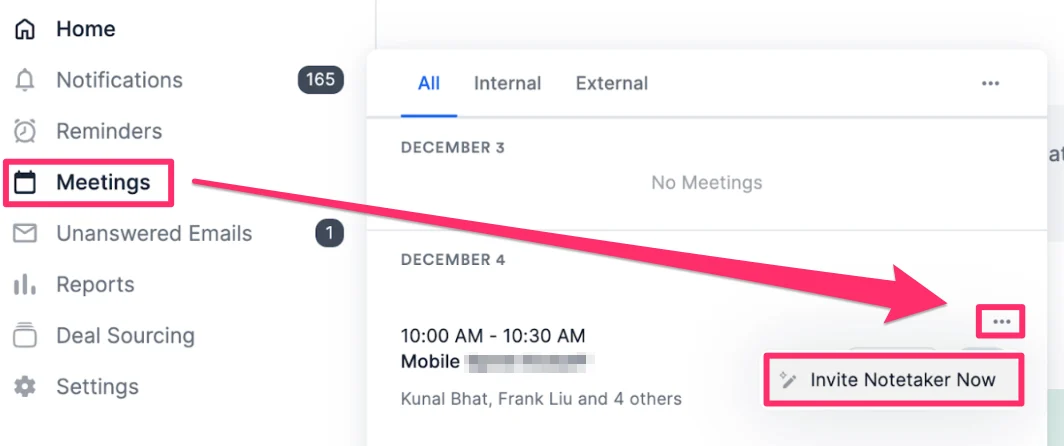
- Yes, hover over the meeting in the Meetings tab, then click the 3-dotted icon to Invite Notetaker Now.
- Yes, the generated meeting note is editable like any other note in Affinity. However, only the user who added the Notetaker can edit the note. This is usually the person who scheduled the Notetaker. If that person is removed from the calendar invite before the meeting — or was invited only through a group/distribution-list address — Affinity assigns the note to another internal attendee so a note is still created, and that attendee becomes the editor.
- You should expect to receive an email with a summary and transcript available within a few minutes after the end of your meeting. It will also be added to Affinity at the same time.
- For Enterprise tier customers: The permissions of the note will be determined by what the Enterprise Admin for your account has set for the Fallback Behavior (see the section titled “What content types can the Enterprise Admin adjust sharing options for?” in the Enterprise Permissions (Enterprise only) article).

- Once the note is created, the owner of the note (usually, the user who added the Notetaker) can change the sharing option to be based on the Synced Meeting Notes.
- For non-Enterprise customers: All team members can view the note in Affinity.
- Only one Affinity Notetaker (per organization) will join any given meeting.
- This means that two or more Affinity Notetakers can join any given meeting, as long as these other Affinity Notetakers are from users of different organizations.
- If there’s two or more team members from the same organization with Affinity Notetaker enabled, which Affinity Notetaker gets on the meeting is randomized, but can be identified by the name of the Notetaker on the call.
- If you publish your manually written note before Affinity Notetaker, then Affinity Notetaker’s auto-generated note will get added as a reply under your manually written note.
- If Affinity Notetaker publishes its note before you, then your manually written note will get added as a reply under Affinity Notetaker’s auto-generated note.
- Affinity Notetaker will join the meeting link found in the Location field of the calendar invite.
- If there is no meeting link found in the Location field, then it will look at the Description field next.
- Yes, simply click the toggle back on within the Meetings tab.
- No, Affinity Notetaker will stay on for the meeting’s intended duration.
- If there is no waiting room:
- Yes, Affinity Notetaker will join a meeting and stay for 15 minutes before leaving the meeting if no one has joined yet.
- If there is a waiting room:
- Google Meet: Yes, Affinity Notetaker will join a waiting room and stay for 10 minutes in Google Meet before leaving the meeting if no one has joined yet.
- Zoom: Yes, Affinity Notetaker will join a waiting room and stay for 20 minutes in Zoom before leaving the meeting if no one has joined yet.
- Microsoft Teams: Yes, Affinity Notetaker will join a waiting room and stay for 20 minutes in Microsoft Teams before leaving the meeting if no one has joined yet.
- In any of the cases above, you can simply click the Notetaker toggle back on for that specific meeting within the Meetings tab.