

Reference — lookup information.
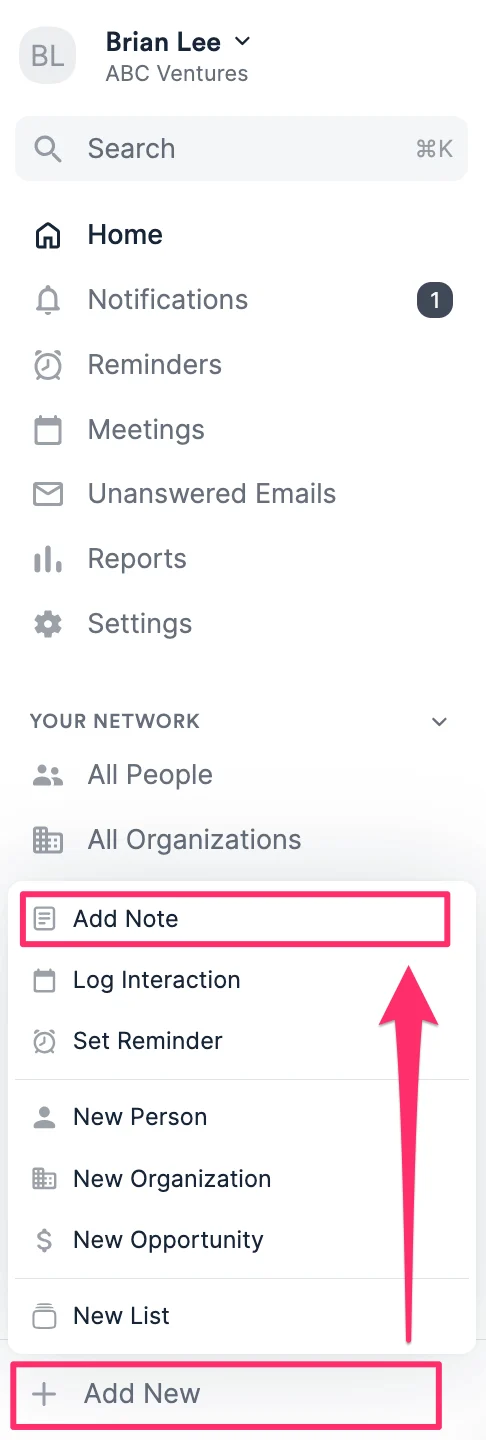
- To begin, click + Add New on the bottom-left corner of the global navigation, then click Add Note.
- Once you associate the note to a person, organization, or opportunity, you can move onto the different formatting options or immediately toggle them on with common keyboard shortcuts:
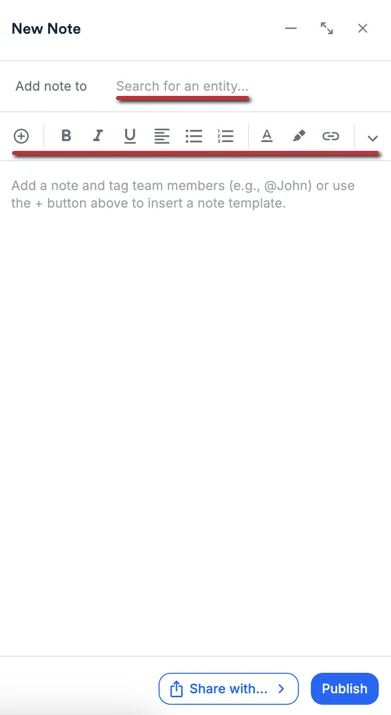
- Bold: Ctrl/Cmd + B
- Italic: Ctrl/Cmd + I
- Underline: Ctrl/Cmd + U
- Numbered list: # + . +
[space] - Blockquote: ” +
[space] - Divider: - - - Typing a dash ”-” and a space will automatically start bullet point formatting. Typing a “1.” and a space will automatically start numbered formatting.

- Create hyperlinks by highlighting a word/phrase, then by clicking the Hyperlink icon - you’ll notice a popup appear where you can add a link.
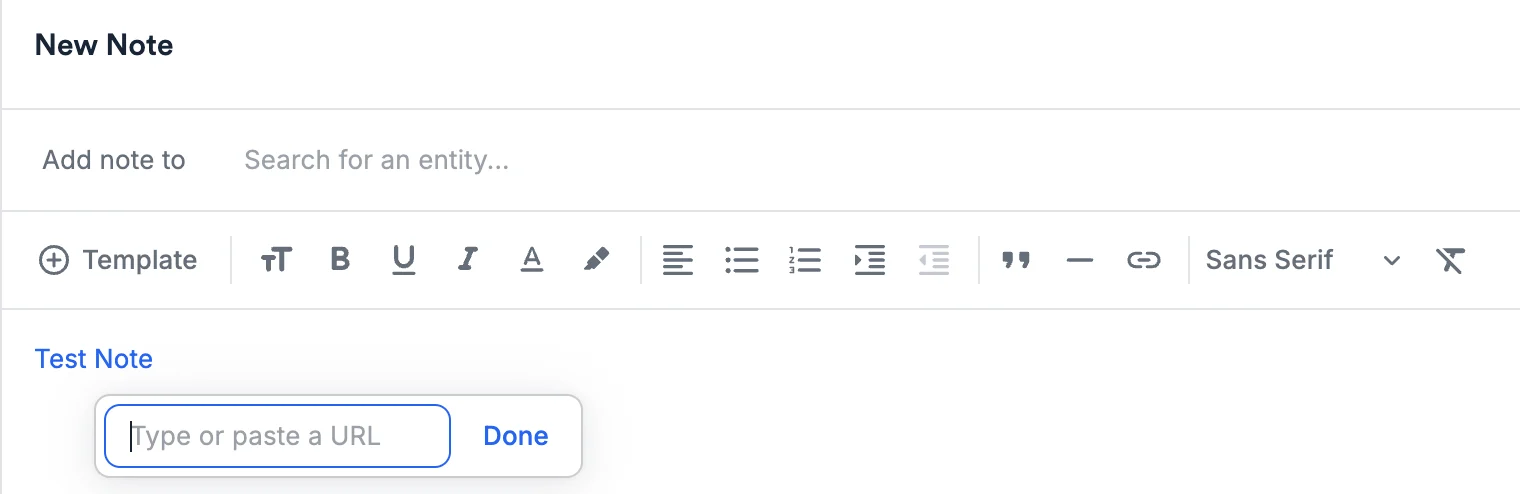
- You can also create hyperlinks by simply highlighting the text, and pasting (CMD + V / CTRL + V) the URL directly.
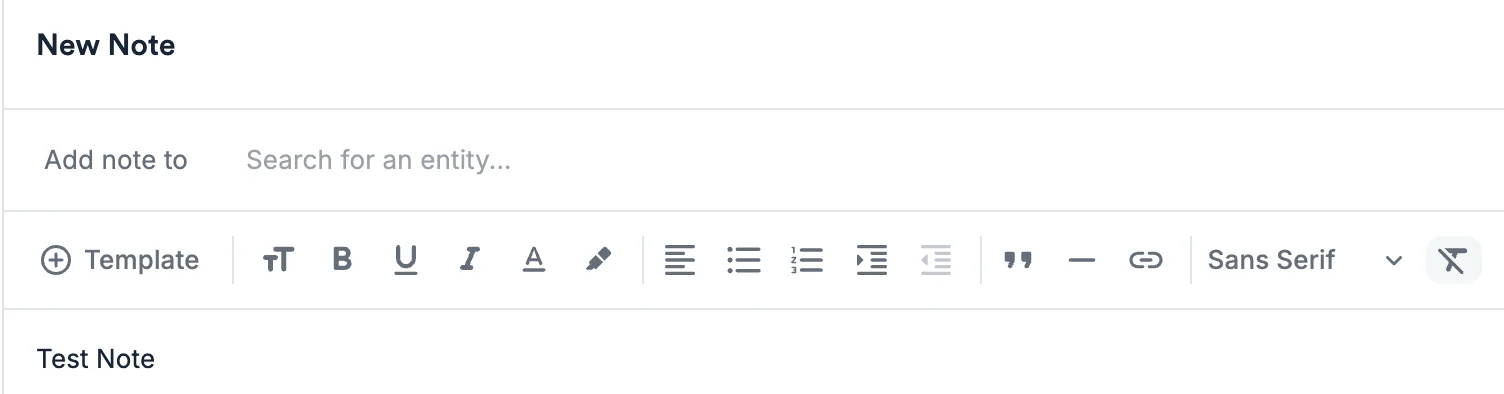
- Want to remove the formatting for some text? Simply highlight the word/phrase, then click the Clear format icon (the letter T with a line across).
- Create Note Templates to quickly use for future note-taking.
- You can also @ mention your team members in notes to notify them about that particular note.
Limitations
- Copying/pasting nested bullets between Microsoft Word/other apps and Affinity is not supported.
- Affinity Mobile App: You can view and save notes, but only in plain text. If you try to view a note that contains rich text, it will display in **plain text** (Markdown).