

How-to — task-oriented recipe.
Overview
You can now embed images directly into your notes in Affinity’s Web CRM and Extensions. This makes it easier to capture visual context alongside written details—whether that’s screenshots, diagrams, or reference material.Prerequisites
- Available on Affinity Web CRM and Affinity Extensions
- You must have permission to create or edit notes
- Supported file formats: JPEG, JPG, PNG
- Maximum: 10 images per note, with a file size limit of 5MB per image
Steps
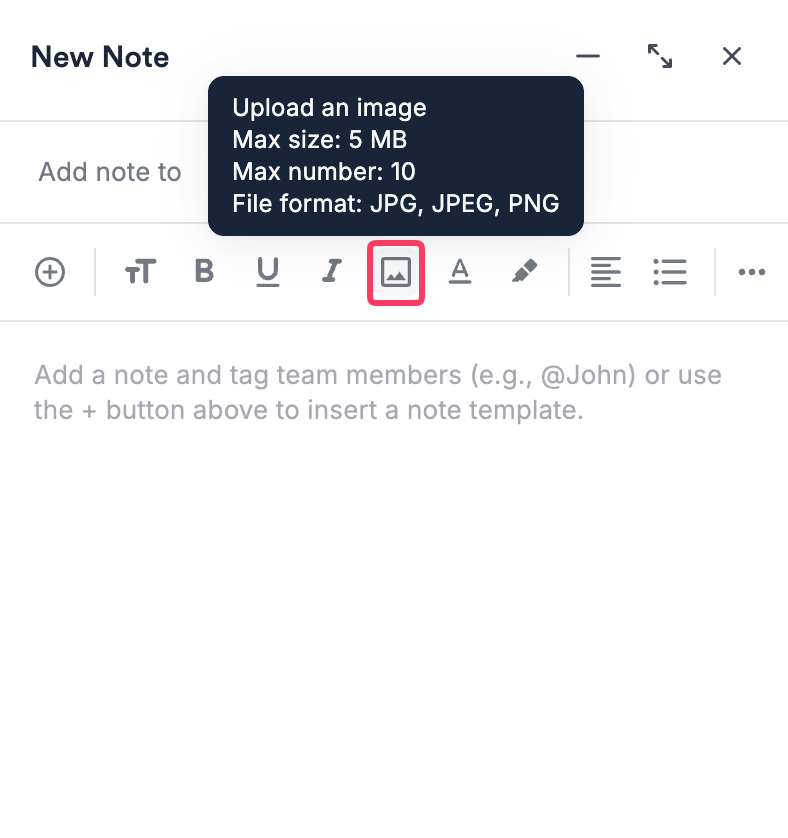
- Open an existing note or create a new note
- In Web CRM: Navigate to the Notes section on a Profile to edit an existing note or click Add Note.
- In Extensions: Open the note editor.
- In Mobile: Images can be added via photo library or camera
- 💡 Images added to notes can be viewed across all Affinity clients - CRM, extensions, and mobile.
- Add your images
- Upload → Click the image upload icon or toolbar option and select files from your computer.
- Drag and drop → Drag image files directly into the note body.
- Copy and paste → Paste an image from your clipboard into the note editor. (Note: pasting images from some external tools may not always be supported.)
- Save your note (if editing) or Publish (if creating)
- Once you’ve added your images, finish editing your note and click Save (or click Publish if creating a new note).
(CRM/Extensions) To download, open an image in a new tab or expand an image
- In CRM and Extensions, you can right-click on the image to download via browser controls
- In CRM and Extensions, you can use the “New Tab” button in the image overlay toolbar to open the image in a new tab, to see the image in larger size
- you can also right-click on the image to open in a new tab via browser controls, to see the image in larger size.
- In CRM only, you can use the “Expand” button in the image overlay toolbar to open an in-product viewer that expands the image to full screen and supports zoom in/out functionality
Tips & Limitations
Previewing notes with images- In views where we only show a preview of a note (e.g. Note column on Lists, list of Notes in Extensions), placeholder text is displayed instead of the image
- Querying image content via Deal Assist or search
- Copying text along with Images from one position in an Affinity note to a different position in the Affinity note; text will be copied, image can be dragged to reposition
- Copying text along with images from one Affinity note to another Affinity note; text will be copied, image would need to be copied individually
- Copy/paste images from another tool into Affinity notes is not reliably supported yet
- Exporting Note images (can still export notes, they just won’t include images)