

How-to — task-oriented recipe.
Overview
- What are Activity Sync Rules?
- How to set up Activity Sync Rules for your team
- Important Callouts
What are Activity Sync Rules?
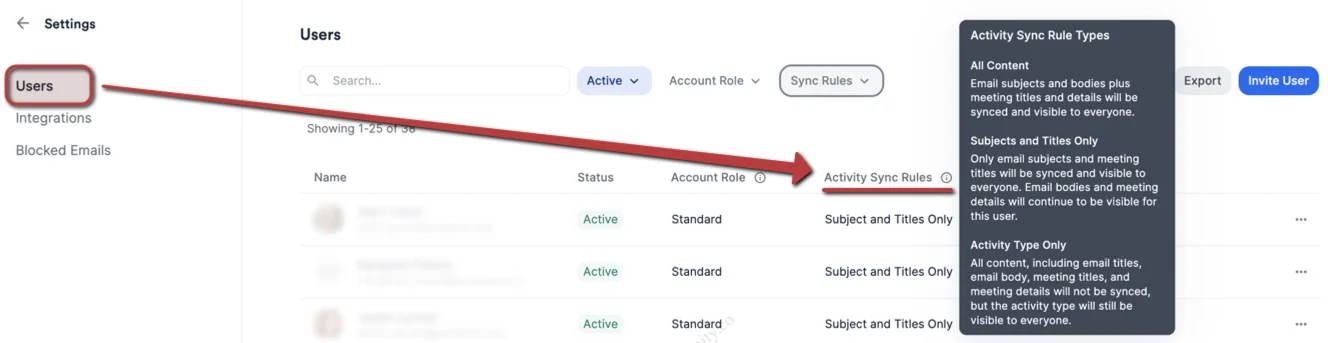
Activity Sync Rules are the different levels of surfacing information that Affinity for Salesforce admins can choose for each user to designate how much or how little of their communications should be surfaced for other team members to see. There are three different levels:- All Content (Default) - The most revealing. Shows email subjects, email bodies, meeting titles, and meeting bodies.
- Subjects and Titles Only - Less revealing. Shows only email subjects and meeting titles.
- Activity Type Only - The least revealing. Only shows metadata such as activity type.
How to set up Activity Sync Rules for your team
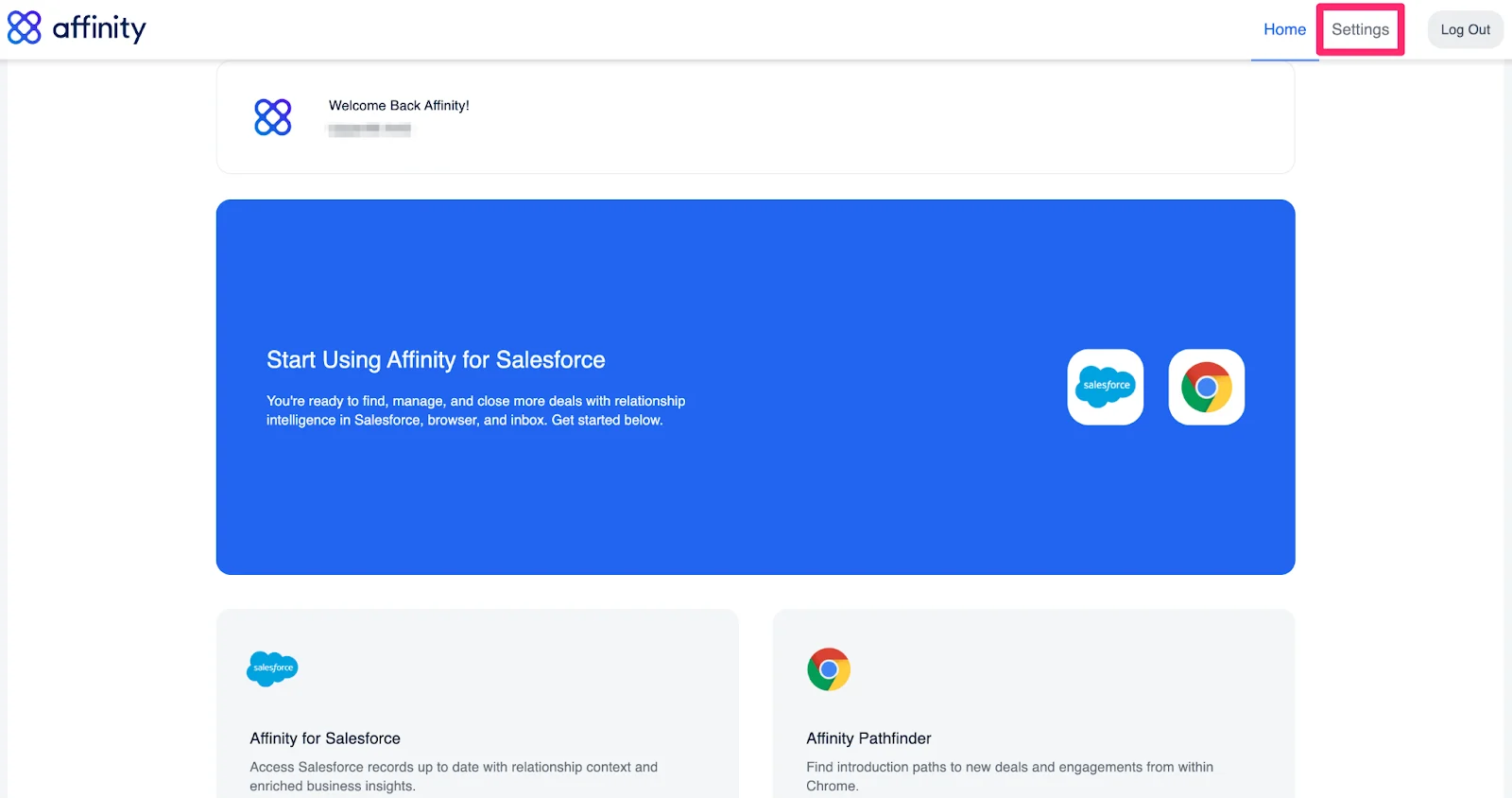
- Sign into your Affinity instance, then click on Settings in the top-right corner.
- On the Users tab, you’ll notice the new Activity Sync Rules column, which shows the syncing option assigned to each user. Hover over the Information icon to see more details regarding each option.
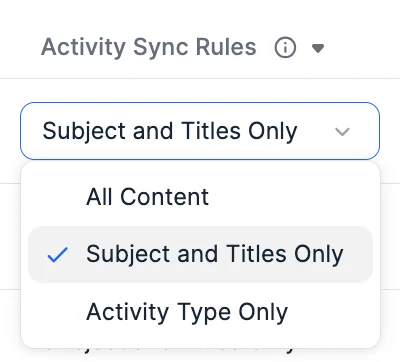
- If any user should have their Activity Sync Rule changed, click on the option to see the different options appear. The changes will be applied and saved immediately after clicking an option.
Important Callouts
- If multiple users are on an email thread and have different levels of Activity Sync, the level with the highest restrictions (least revealing) will take precedence.
- Example: If another user (Person C) is added to the email thread later on in the email thread, and Person C has even higher levels of restrictions than the participants in previous emails, then those higher restrictions will apply for future activities created in Salesforce where Person C is involved.
- Note: This applies only to the activities created from the moment the user with higher restrictions is added to the email thread. Affinity will not be updating previous activities where Person C was not involved.