

How-to — task-oriented recipe.
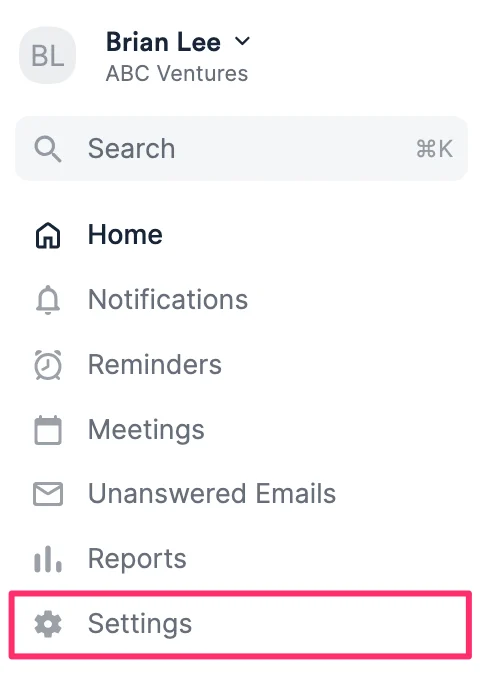
- Once you’ve checked the prerequisites (check out the section titled “Prerequisites” within this article: Getting started with native integrations in Affinity) and enabled proper access to Typeform, click Settings on the left-side of your screen.
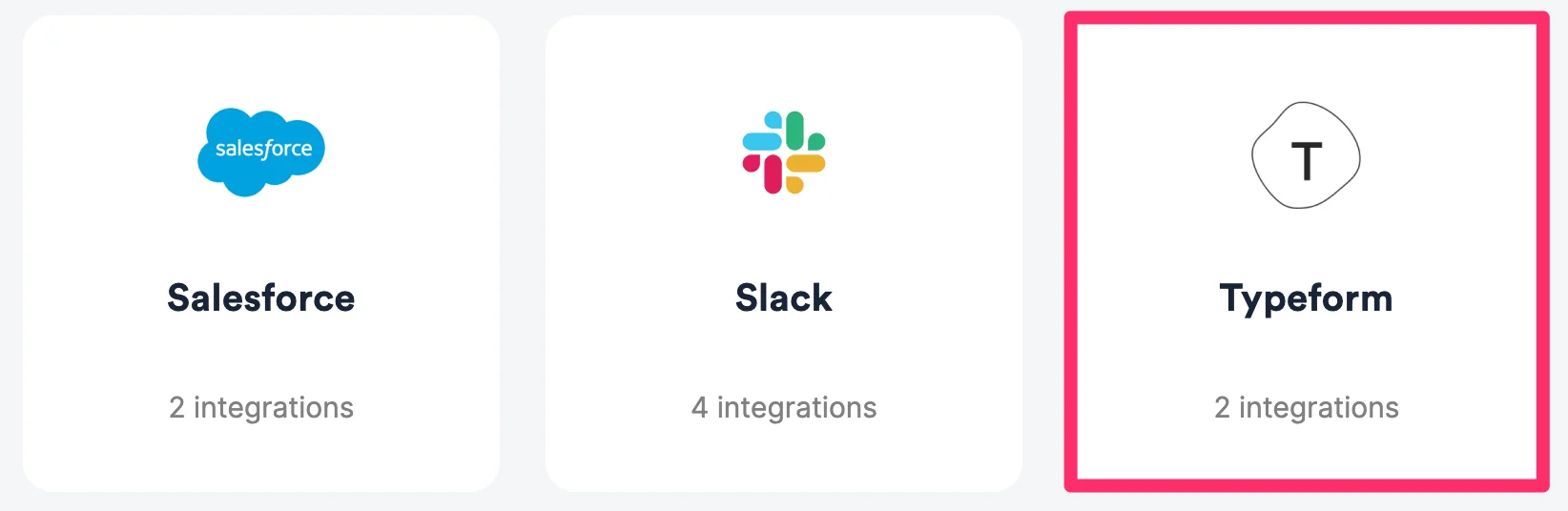
- Click on the Integrations tab, then click on Typeform.
- Jump to the relevant Typeform integration, data format table, or the FAQ section to learn more:
- Integration: Typeform Response to Affinity Organization List
- Integration: Typeform Response to Affinity Person List
- Data Format Table: Typeform field types and their corresponding Affinity field types
- Frequently Asked Questions
Typeform Response to Affinity Organization List
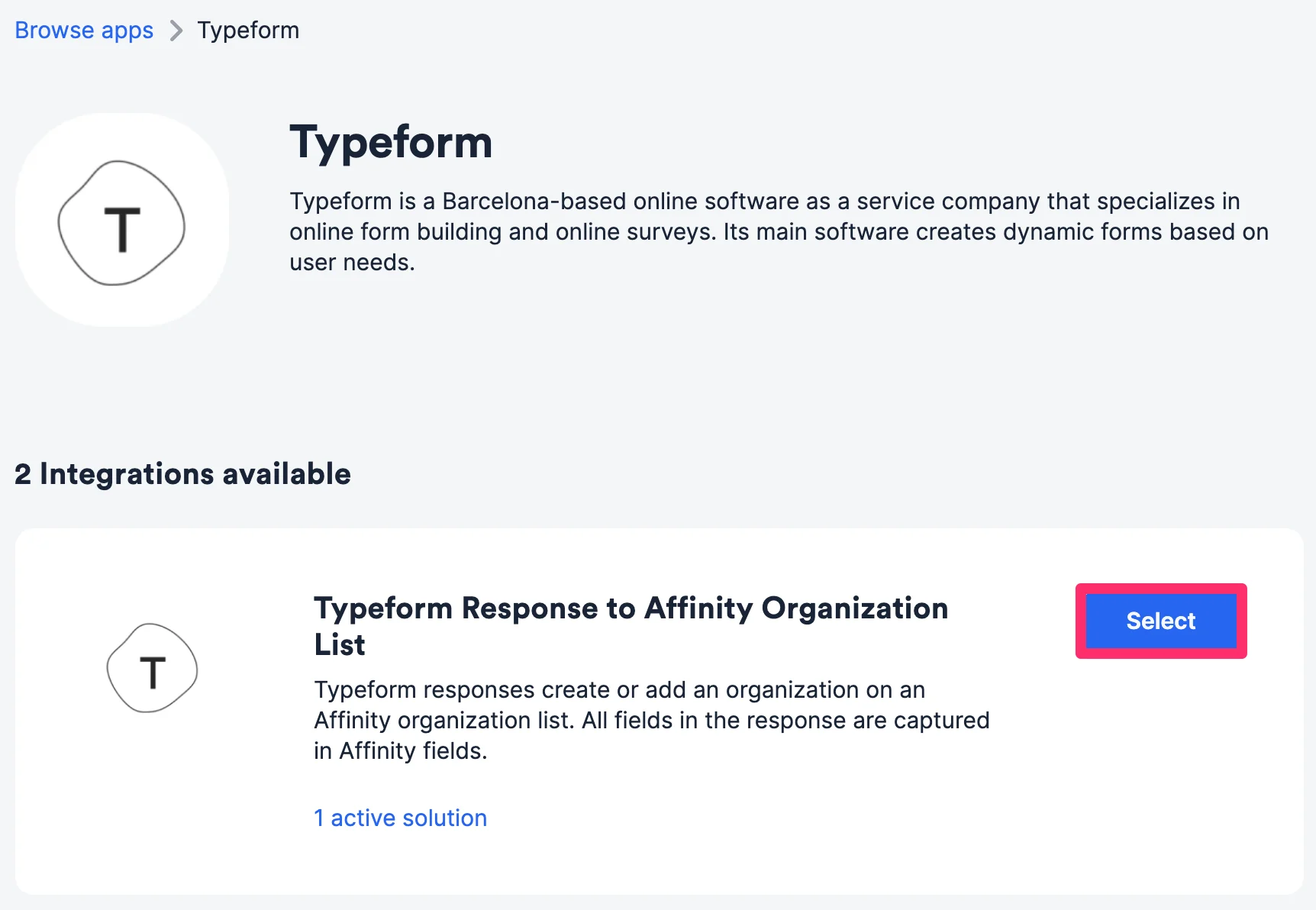
For incoming Typeform submissions and file attachments used to track organizations, Affinity will add them as list entries and attach those files to your desired organization list in Affinity.- Within the Typeform Response to Affinity Organization List integration, click Select.
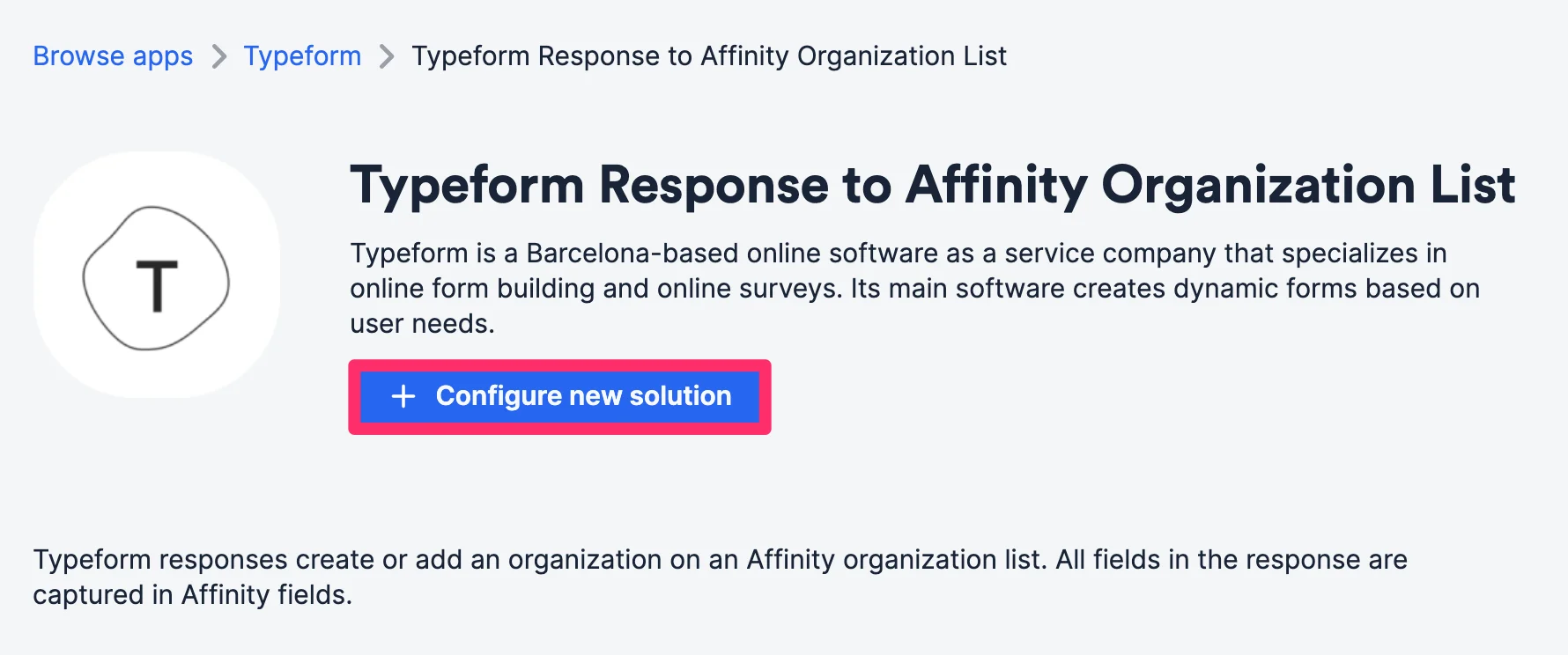
- Click Configure new solution.
- Authenticate your Typeform account. If this is your first time, you may notice a prompt asking you to allow permissions for Tray.io, our backend integrations processor.
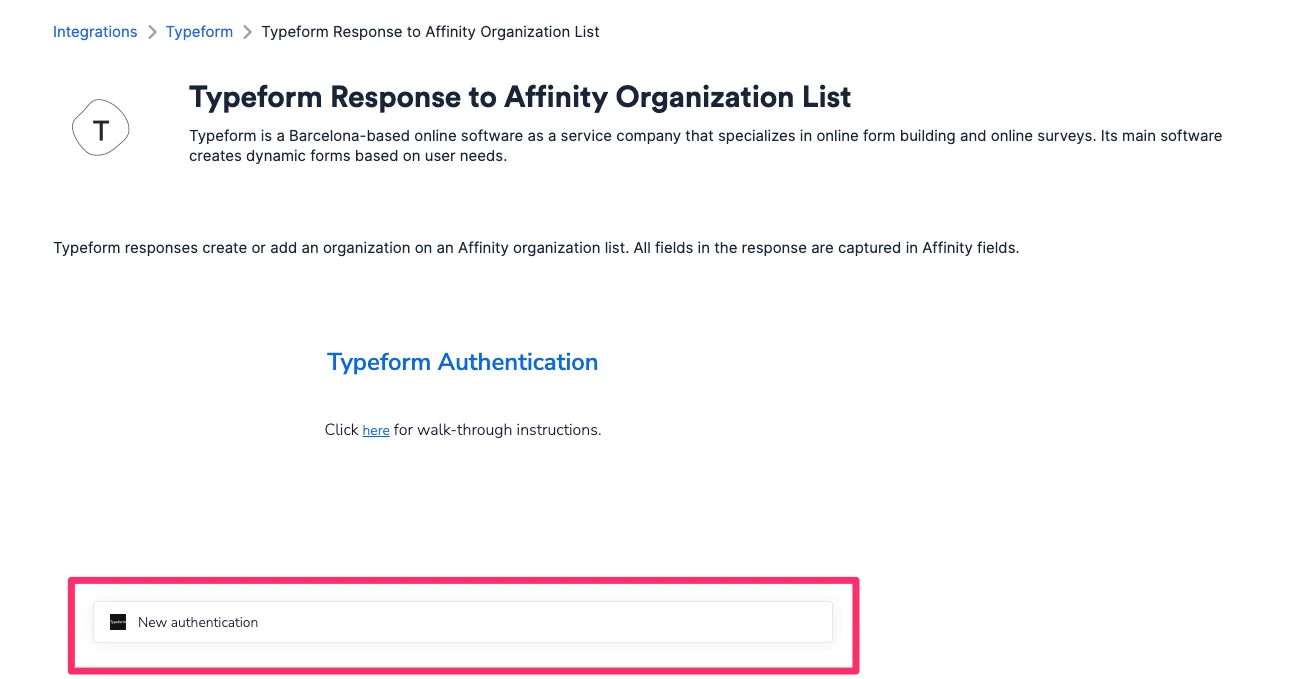
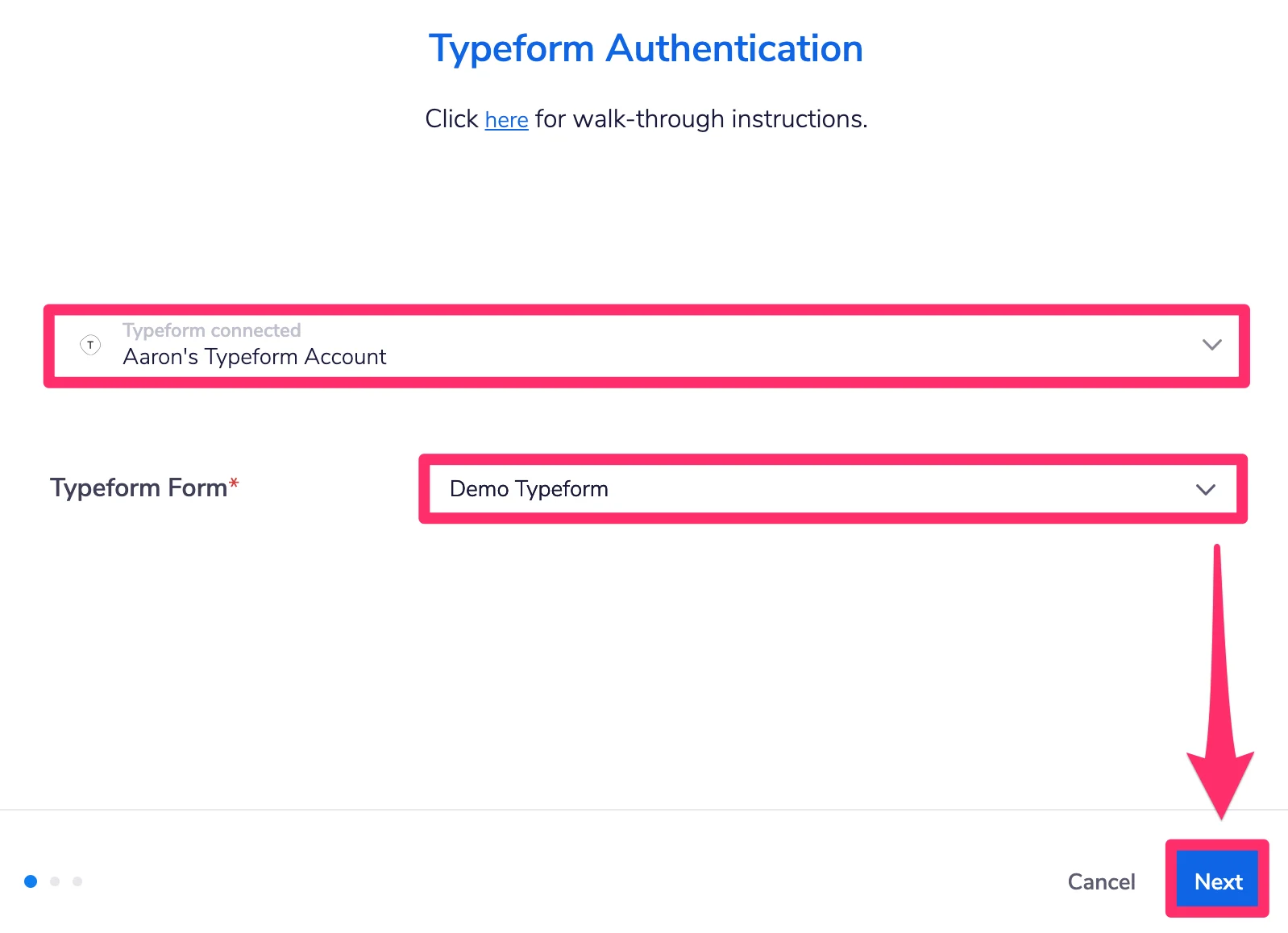
- Select the specific Typeform form that you’d like to receive data from, then click Next.
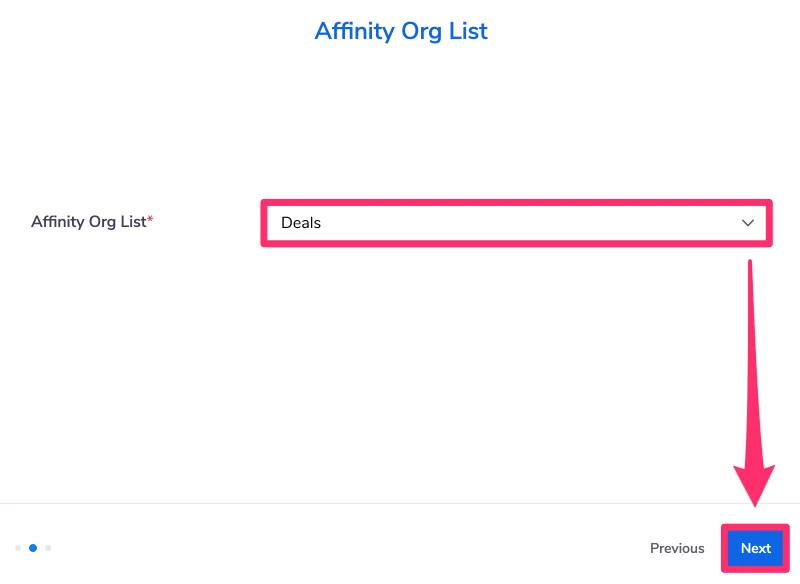
- Select the Affinity organization list (which you must be the list owner/list admin for) that you’d like to sync the Typeform submissions into.
- Map the organization name and organization URL fields from your Typeform Form to the relevant fields shown below. Please make sure your Typeform Form requires organization name and organization URL as those fields are required to create an organization in Affinity.
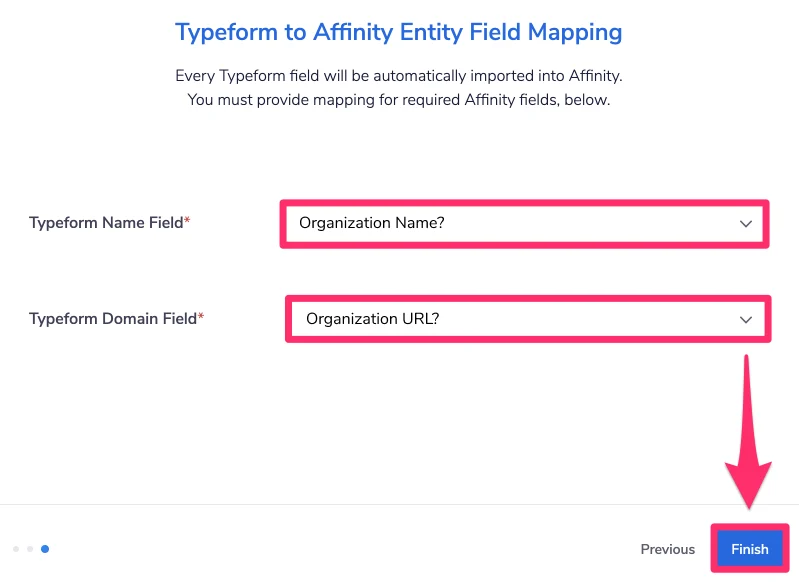
- Click Finish and you’re all set! Once a response comes in, we will automatically create custom list-specific fields for each question from your Typeform Form.
- You can access these custom list-specific fields by clicking on Customize View, then checking them under the List-Specific section.
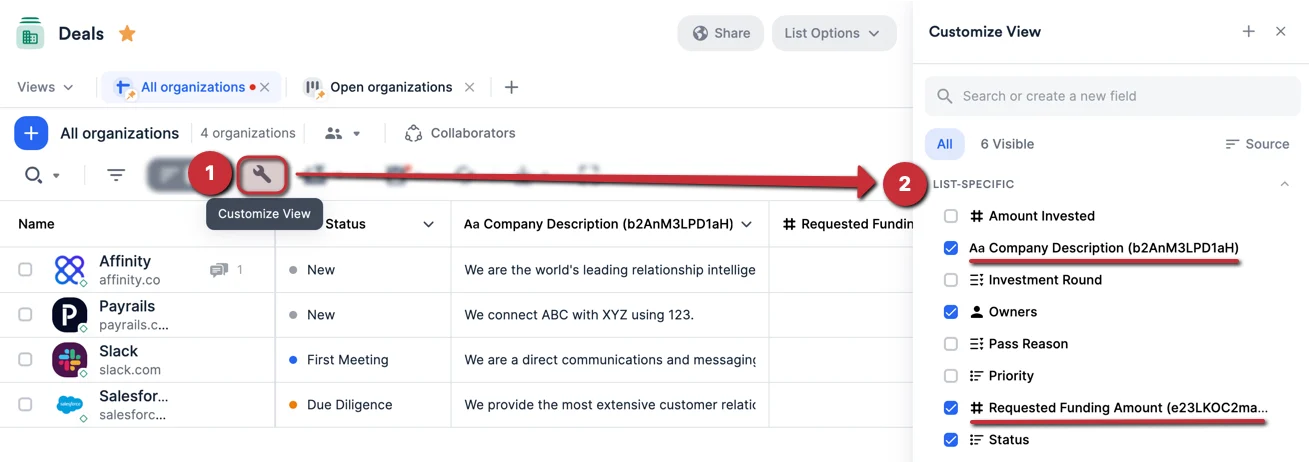
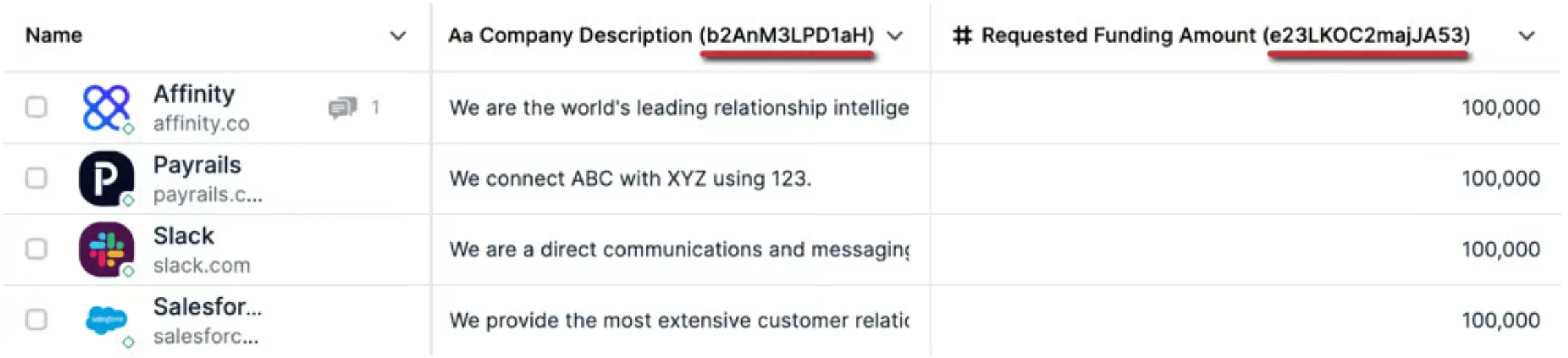
- You’ll notice a series of letters and numbers in parentheses next to each field’s title - this is the unique Typeform ID for each field. Please do not edit/delete the Typeform IDs in each field as it is required to map the responses properly.
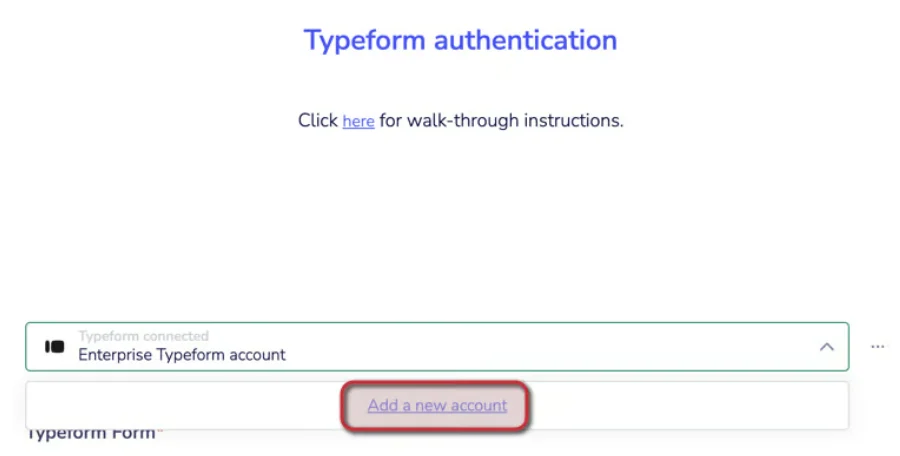
- If you make any edits and updates to the Typeform form, please click the Edit icon to make sure your updates sync to the Affinity integration.

- From here, click Add a new account to sign in with your Typeform credentials, even if it is the same Typeform credentials you previously authenticated with. This process will sync any updates you made.
Typeform Response to Affinity Person List
For incoming Typeform submissions and file attachments used to track people, Affinity will add them as list entries and attach those files to your desired people list in Affinity.- Within the Typeform Response to Affinity Person List integration, click Select.
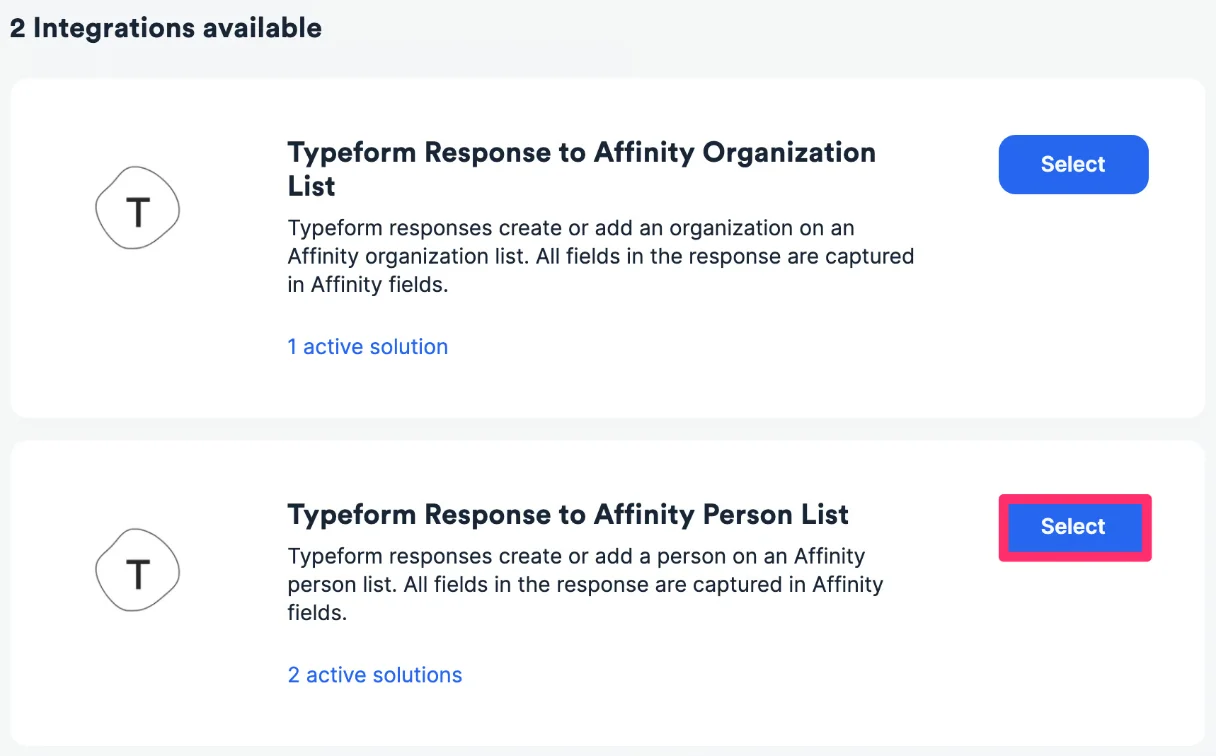
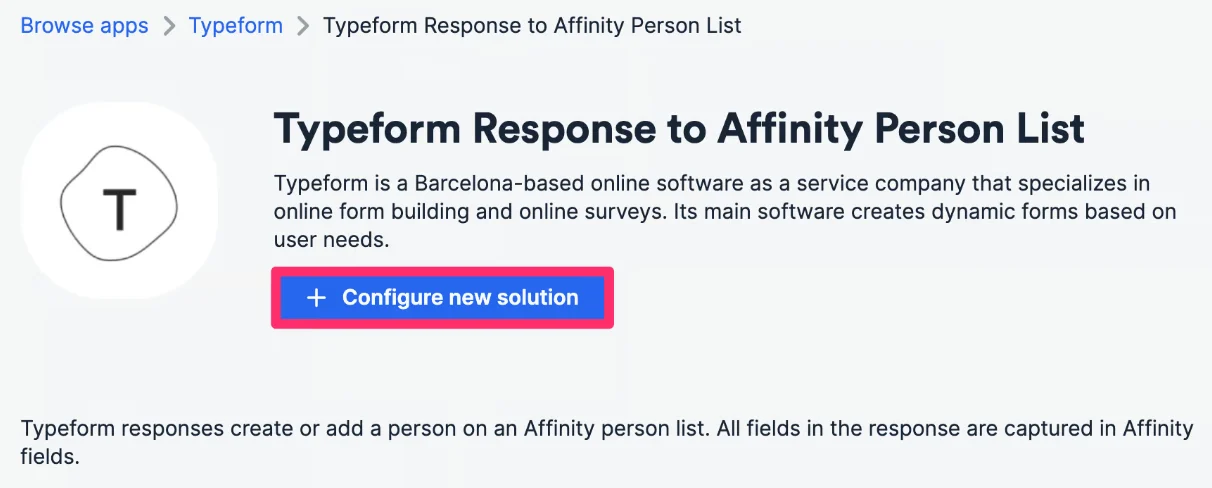
- Click Configure new solution.
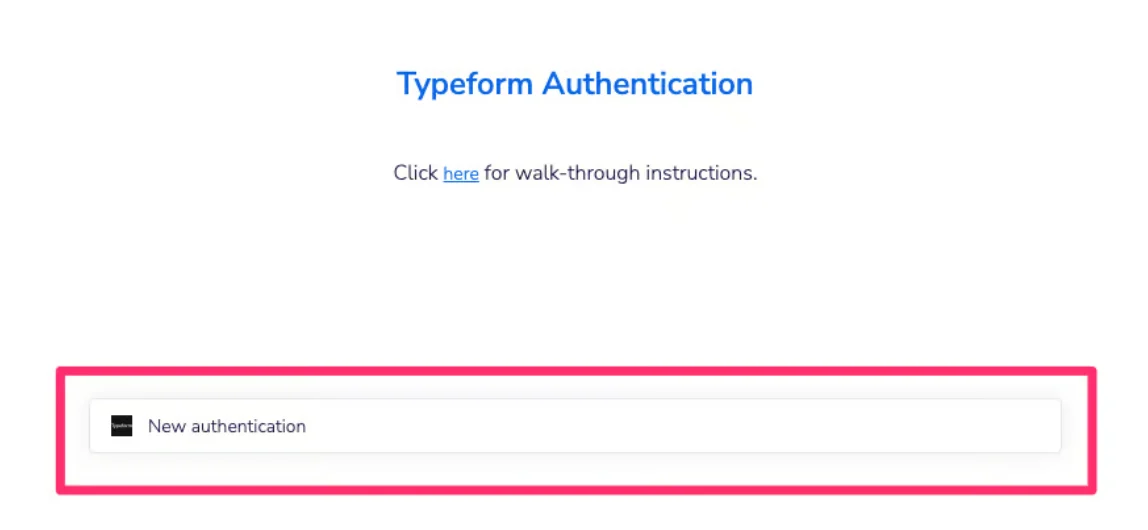
- Authenticate your Typeform account. If this is your first time, you may notice a prompt asking you to allow permissions for Tray.io, our backend integrations processor.
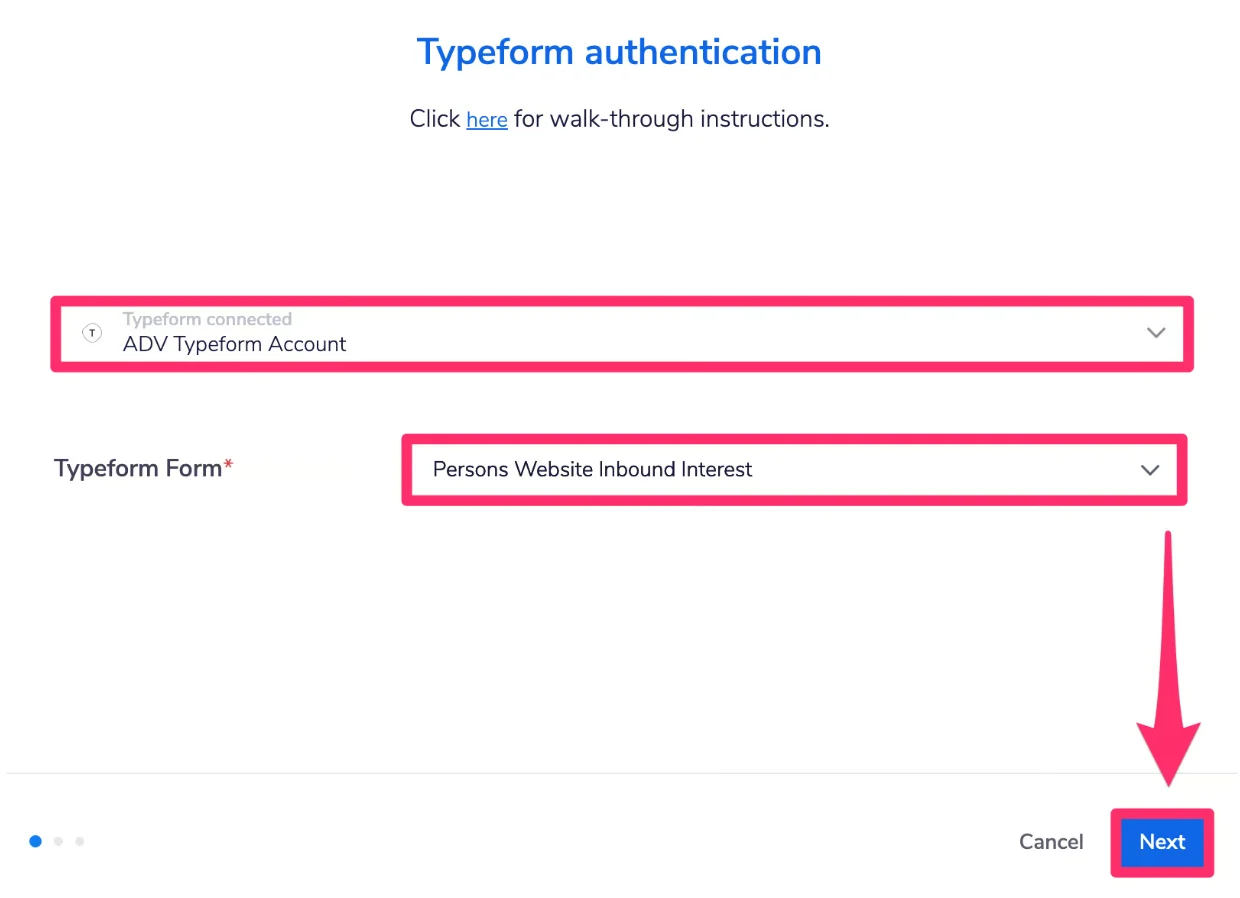
- Select the specific Typeform form that you’d like to receive data from, then click Next.
- Note: If your Typeform account has more than 200 forms, you may not be able to find the specific Typeform form in the dropdown suggestions - please reach out to support@affinity.co with the relevant form ID if this is the case and we’d be happy to set it up for you.
- Note: If your Typeform account has more than 200 forms, you may not be able to find the specific Typeform form in the dropdown suggestions - please reach out to support@affinity.co with the relevant form ID if this is the case and we’d be happy to set it up for you.
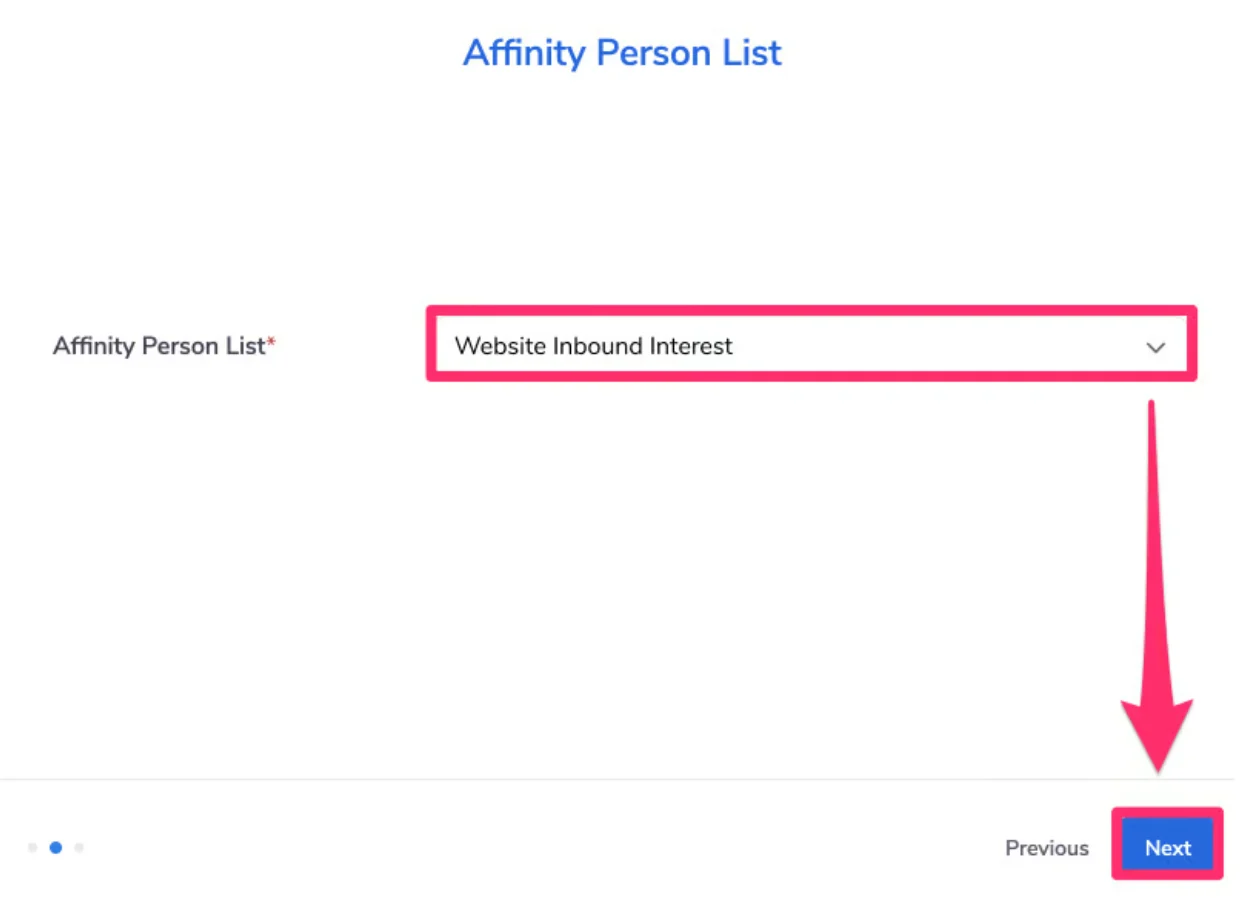
- Select the Affinity people type list (which you must be the list owner/list admin for) that you’d like to sync the submissions into, then click Next.
- Important Callout: You must be the list owner/list admin for the list that you select - otherwise, the Typeform fields will not get auto-created due to your limited permissions on that list.
- Map the first name, last name, and email address fields from your Typeform Form to the relevant fields shown below. Please make sure your Typeform Form requires first name, last name, and email address as those fields are required to create a person contact in Affinity.
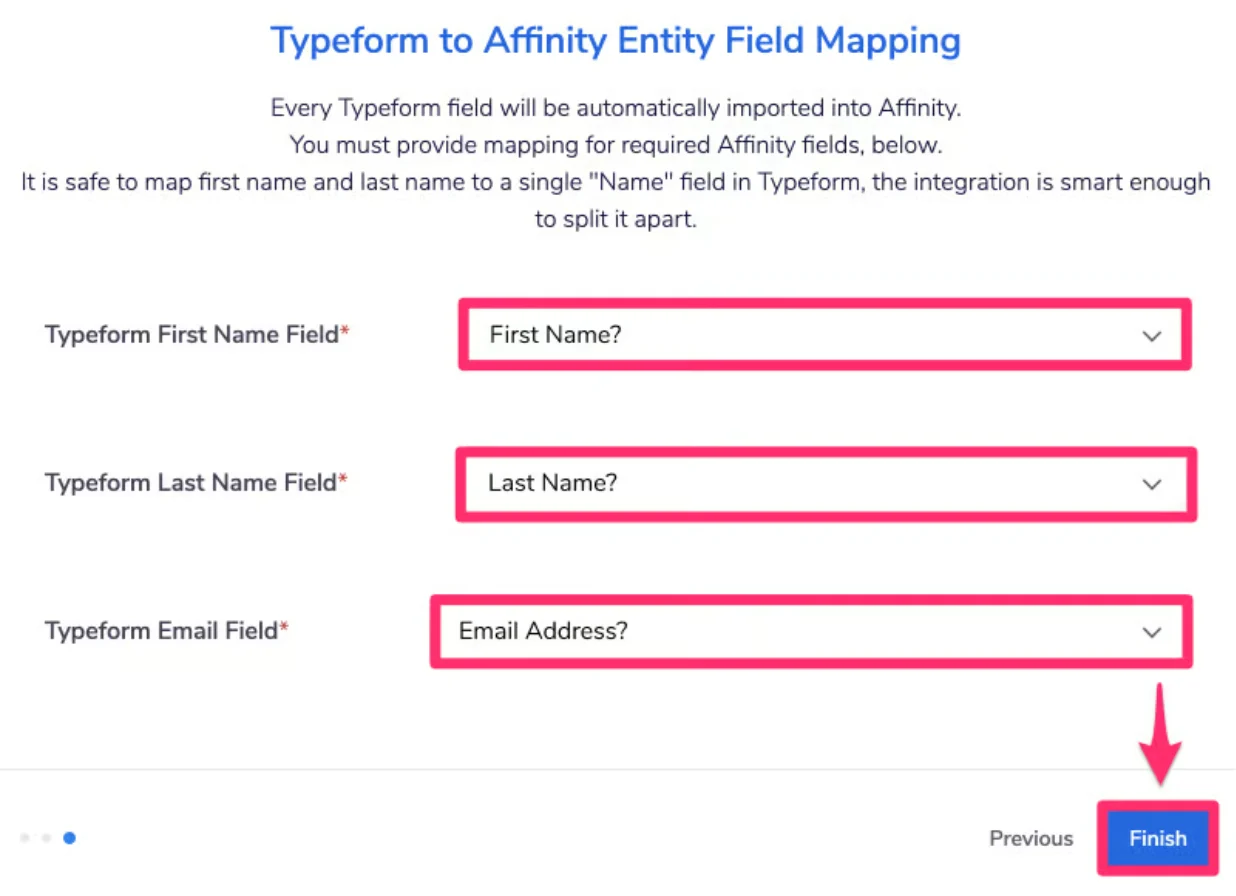
- Click Finish and you’re all set! Once a response comes in, we will automatically create custom list-specific fields for each question from your Typeform Form.
- You can access these custom list-specific fields by clicking on Customize View, then checking them under the List-Specific section.
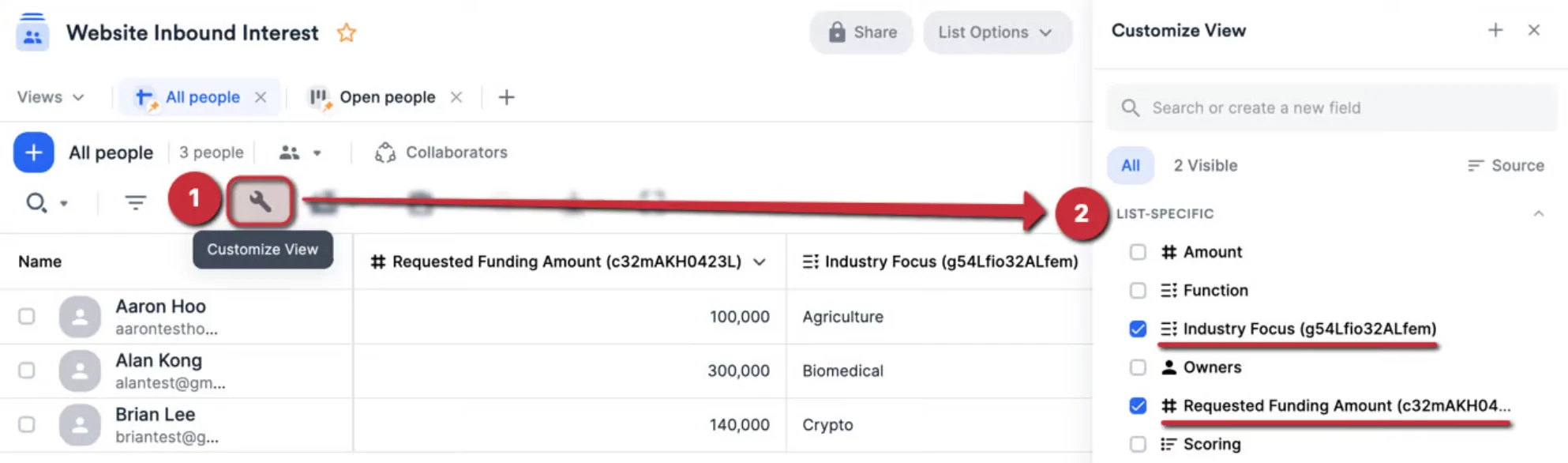
- You’ll notice a series of letters and numbers in parentheses next to each field’s title in the column - this is the unique Typeform ID for each field. Please do not edit/delete the Typeform IDs in each field as they are required to map the responses properly.

- If you make any edits and updates to the Typeform form, please click the Edit icon to make sure your updates sync to the Affinity integration.

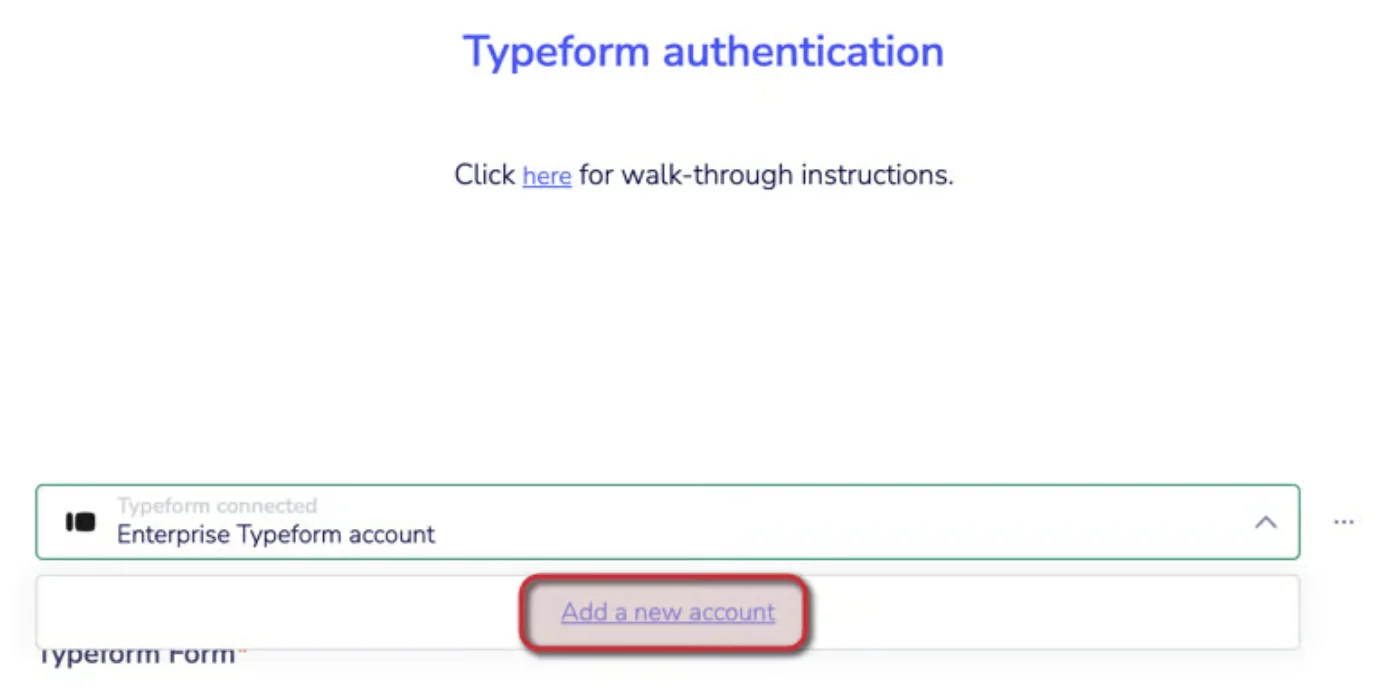
- From here, click Add a new account to sign in with your Typeform credentials, even if it is the same Typeform credentials you previously authenticated with. This process will sync any updates you made.
Typeform field types and their corresponding Affinity field types
Based on the field types in your Typeform Form, here are the field types that will get created in Affinity:Frequently Asked Questions
What happens to duplicate Typeform submissions regarding the same person or organization?- The person/organization will not get added to the list again and therefore will not create any duplicate list entries. Will Affinity backfill existing Typeform responses when the integrations are created?
- No. Affinity will not retroactively push existing Typeform responses to the desired list in Affinity. Can the fields in the Typeform form get mapped to global fields in Affinity?
- No, you can only map to list-specific fields. Can you link multiple Typeform forms into a single list in Affinity?
- Yes. Just note that you will end up with a lot of Typeform columns created in that Affinity list (one custom Typeform column will get created for each question in the Typeform form). Can you link the same Typeform form to more than one list in Affinity?
- Yes. For example, you can link the same Typeform form to both an organization list and a people list.