How-to — task-oriented recipe.
Getting started
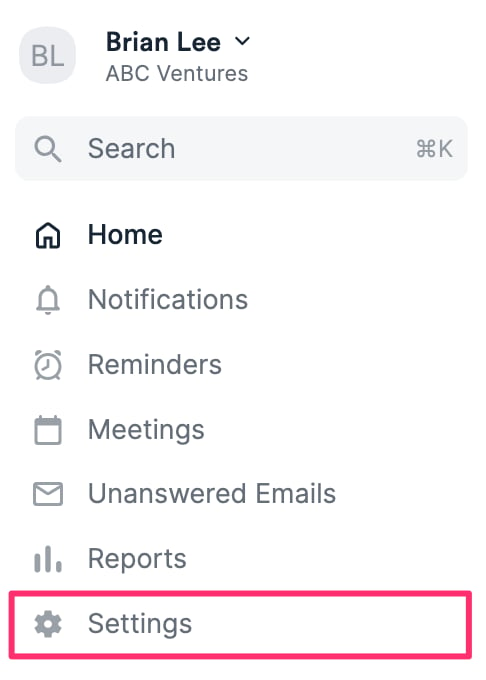
- Once you’ve checked the prerequisites in Getting started with native integrations in Affinity and enabled proper access to Dropbox, click Settings on the left side of your screen.
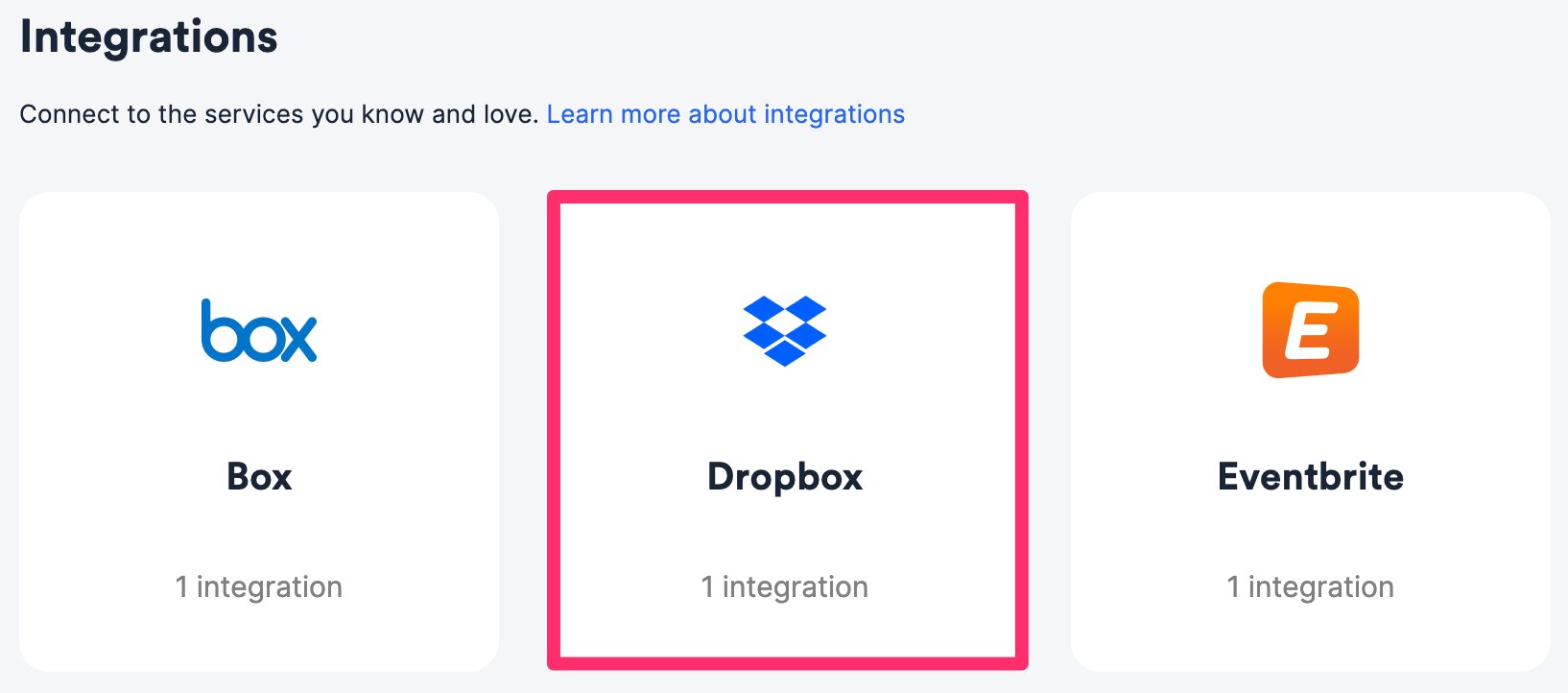
- Click on the Integrations tab, then click on Dropbox.
How to sync uploaded files from Affinity list entries into Dropbox
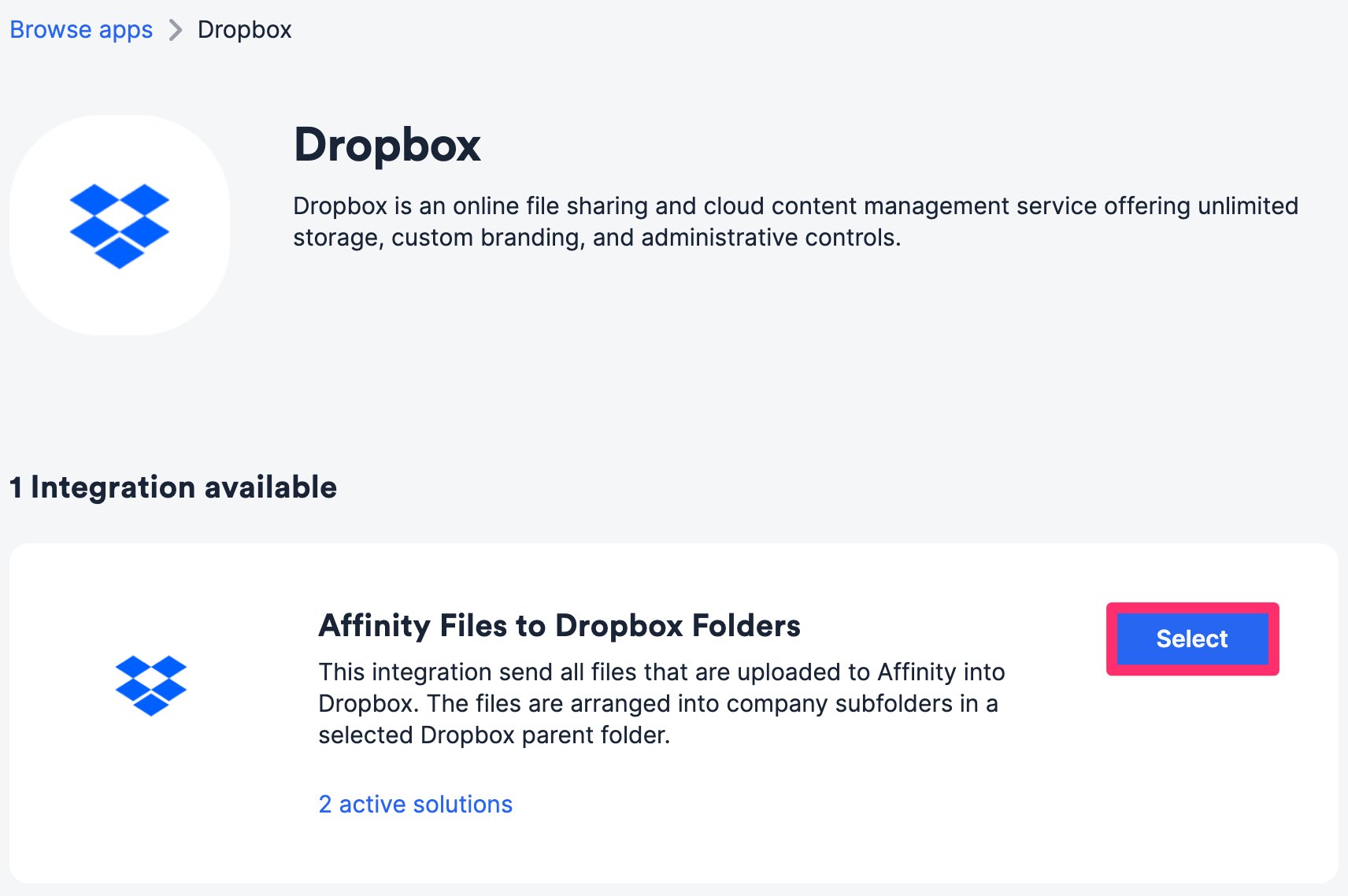
For all list entries within a given Affinity list, the files that have been uploaded to these list entries’ profile pages will also sync to a specific folder in your Dropbox account. This is supported for all three types of lists: people, organizations, and opportunities.- Within the Affinity Files to Dropbox Folders integration, click Select.
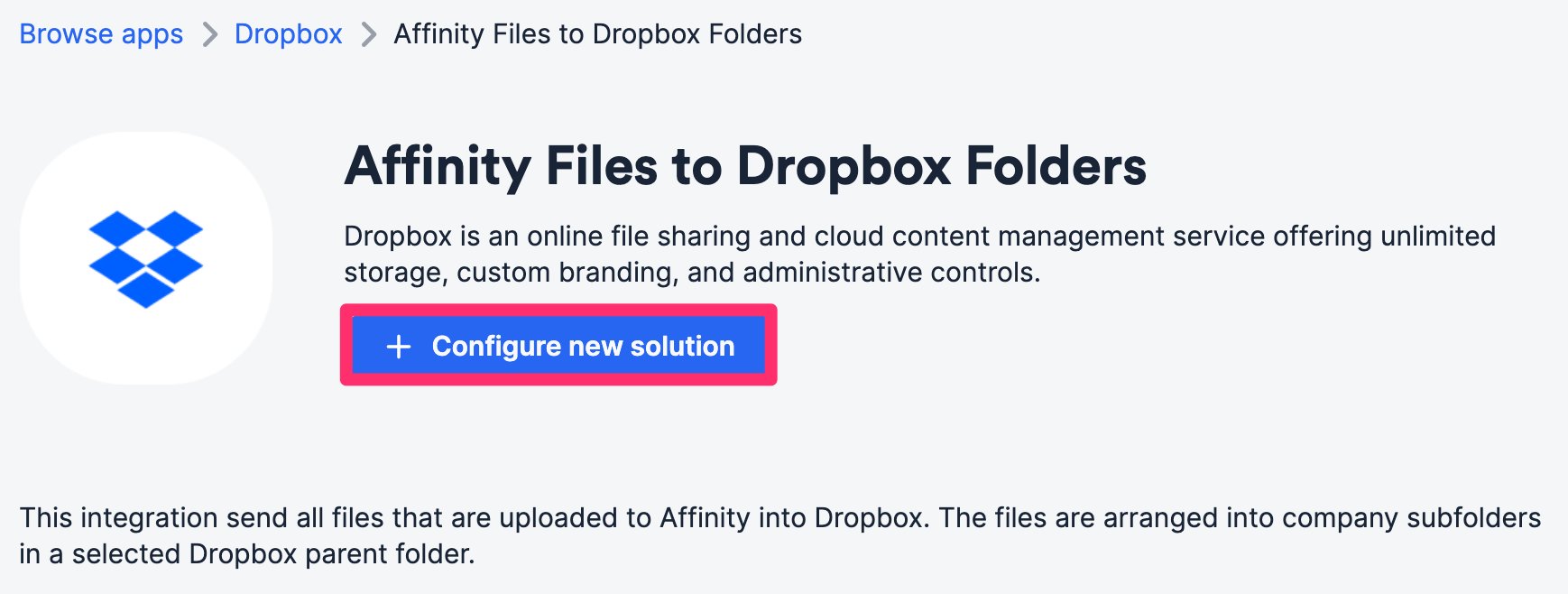
- Click Configure new solution.
- Authenticate your Dropbox account.
- For Affinity List to Sync, select the list you’d like to sync from. Ideally, you’d also want to have this list approved for auto-upload (see the “How to auto-upload files” section in How to upload, download, and remove files in Affinity) in your privacy settings, as we only sync files that are already uploaded to Affinity, not those in the Found in your email section.
- Note: Once set up, this integration will automatically backfill for already-uploaded files on Affinity profile pages and upload them to the designated Dropbox folder.
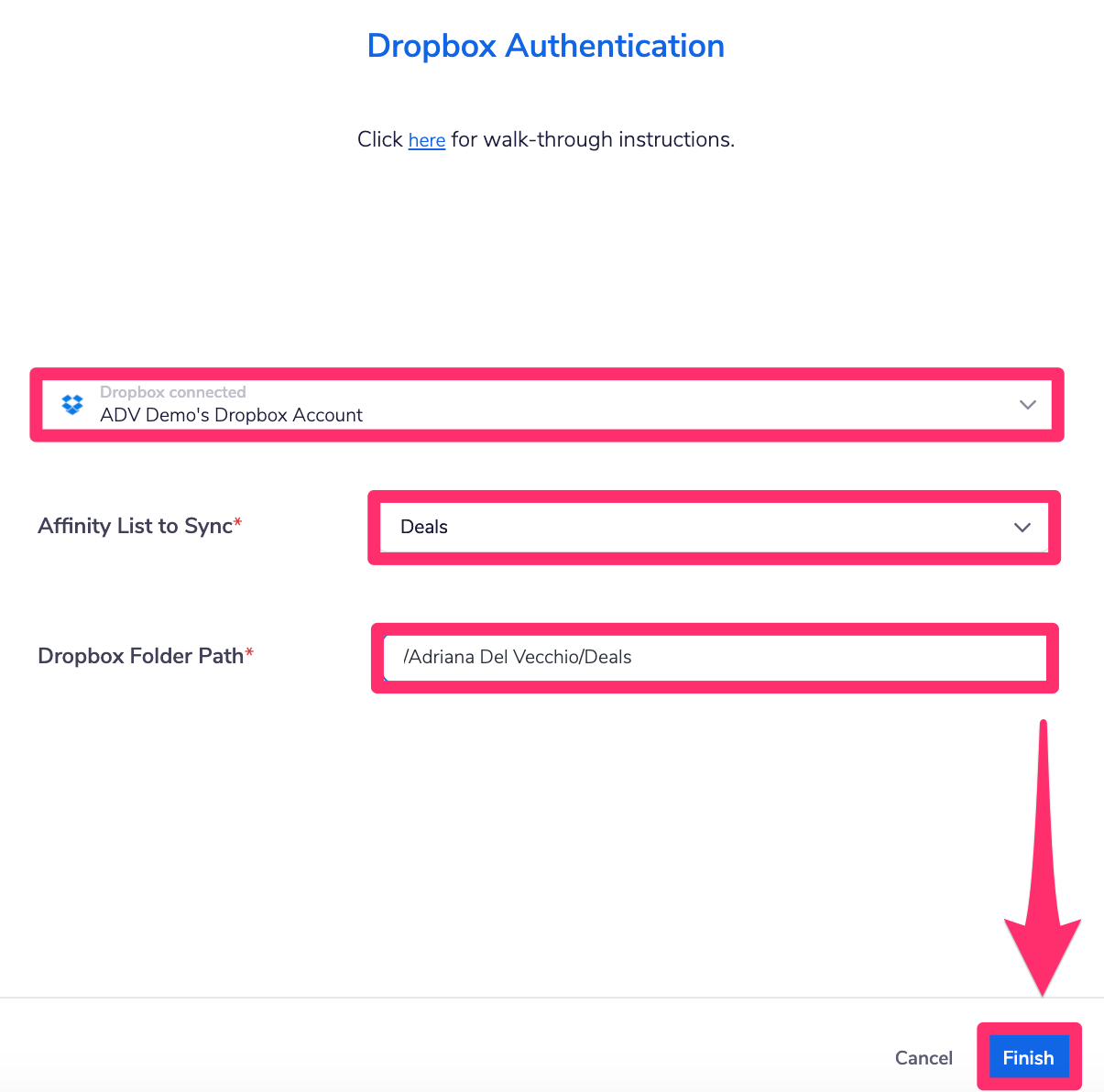
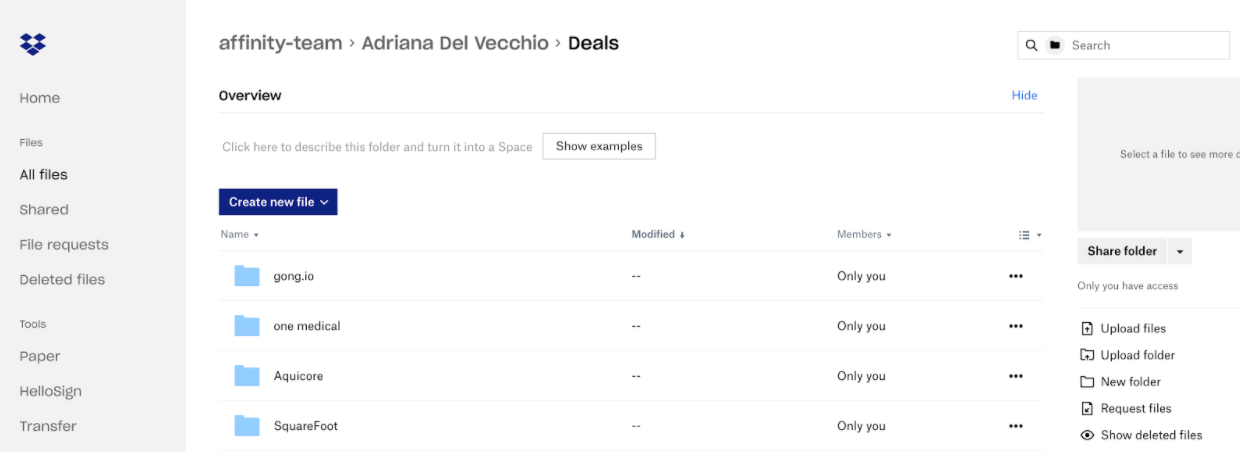
- For Dropbox Folder Path, open a new tab and go to the Dropbox folder you’d like to sync files into.
- Copy its folder path found at the end of the URL.
- For example, the folder path for
https://www.dropbox.com/home/Adriana%20Del%20Vecchio/Dealsis/Adriana%20Del%20Vecchio/Deals. - Note: If there are spaces in the folder’s title, they will be replaced with
%20in the URL.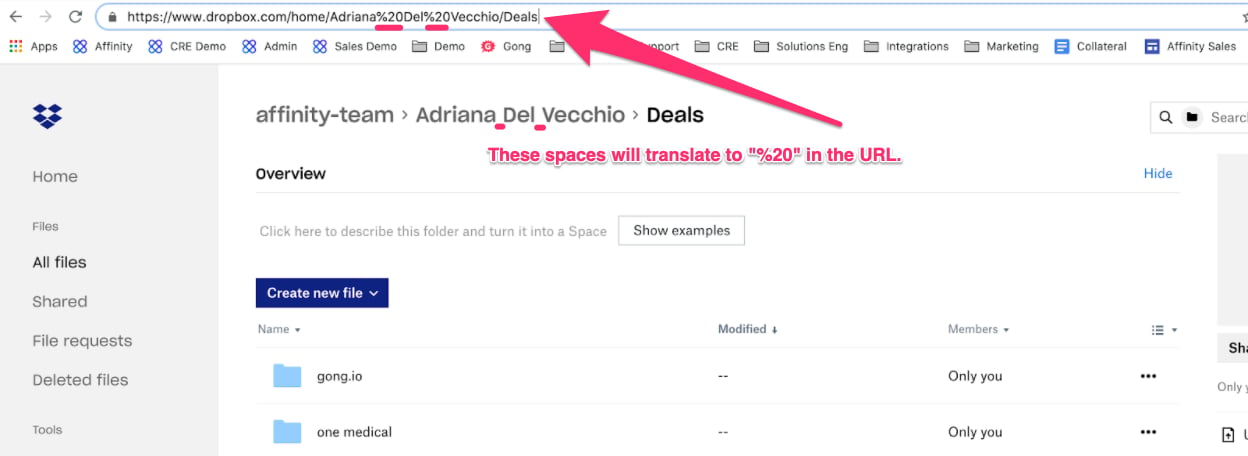
- As you paste the folder path below, replace the
%20with spaces again (as shown below).
- For example, the folder path for
- Last but not least, click Finish and you are all set. These files will start syncing into the selected folder in your Dropbox account and will create separate folders for each list entry.