

Reference — lookup information.
How to sign into Affinity Pathfinder
-
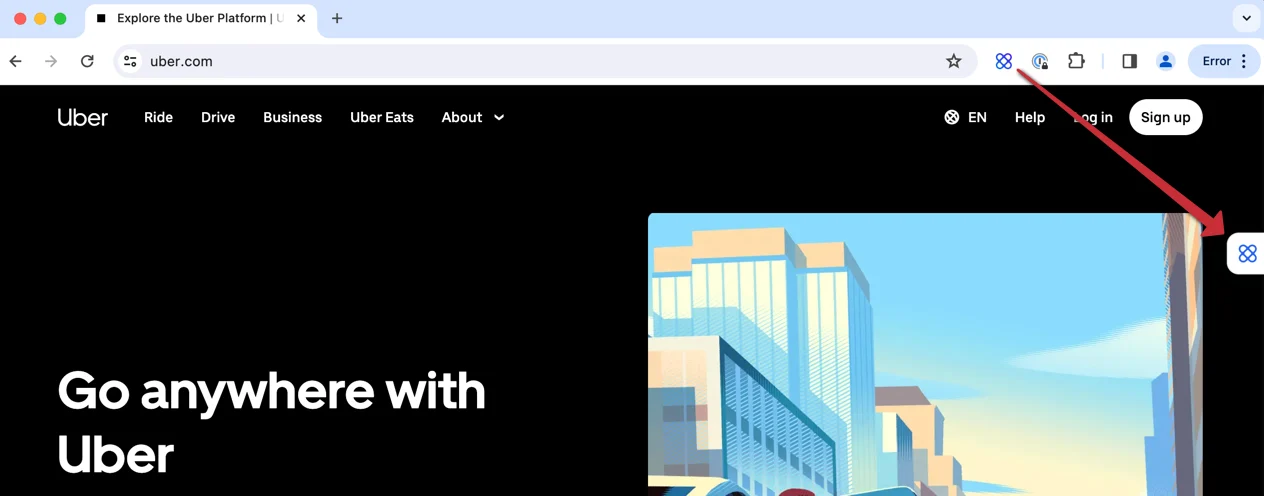
Once you’ve downloaded Affinity Pathfinder, make sure the Chrome extension icon appears on the top-right corner of your Chrome web browser.
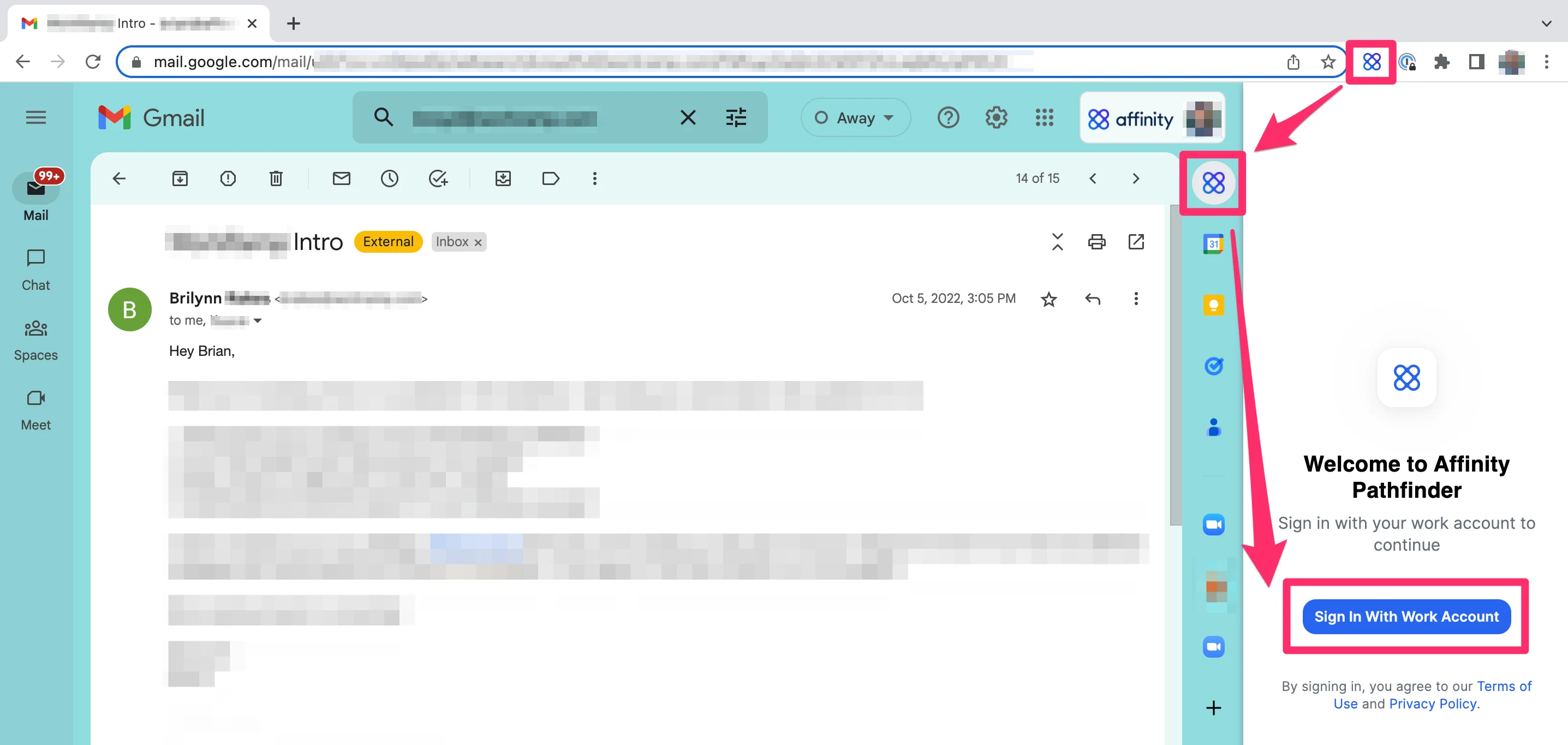
- Gmail users: Click into any email thread in your Gmail account that involves externals. Then, refresh the webpage and click the Affinity icon on the right sidebar of the email to click the Sign In With Work Account button.
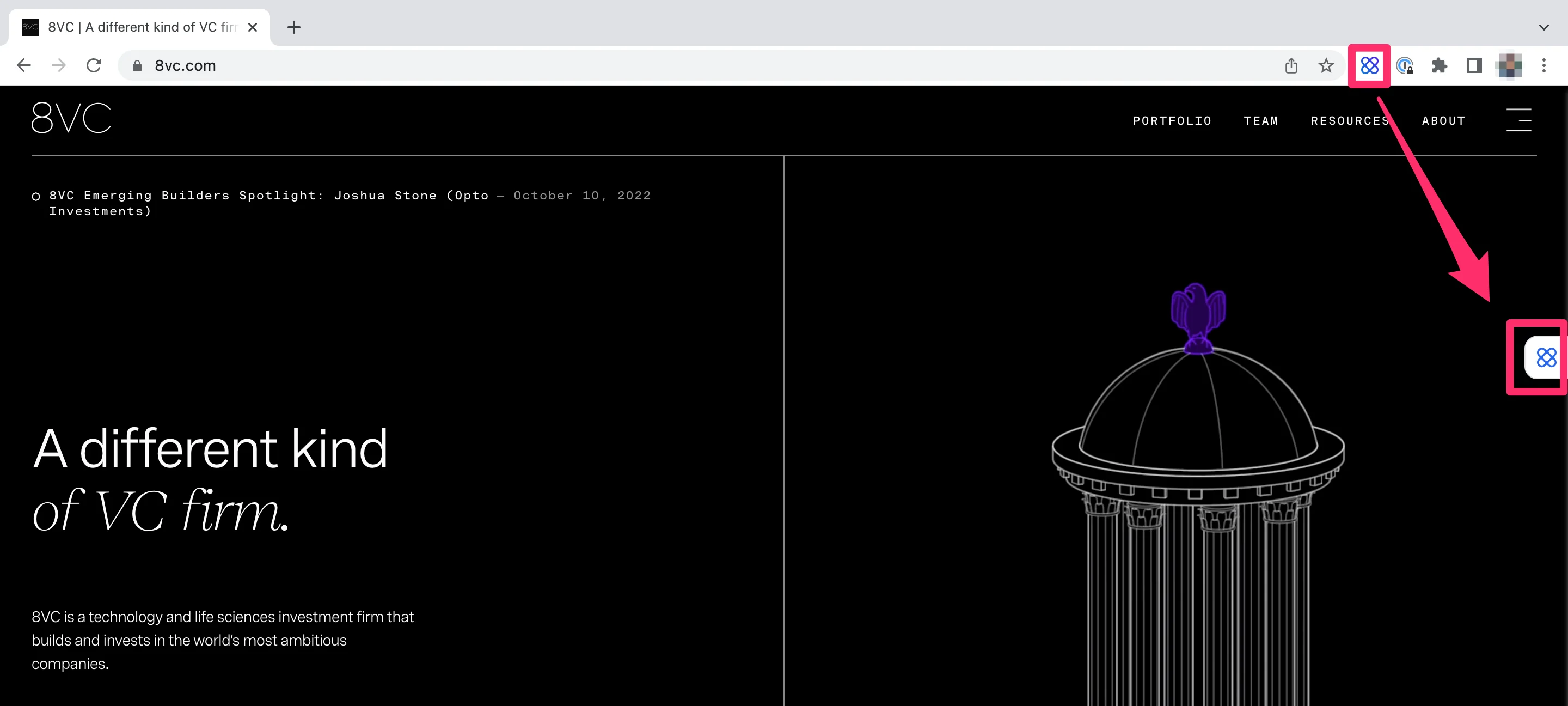
- Non-Gmail users: Go to any organization’s website or LinkedIn profile and refresh the webpage. Then, click the Affinity icon on the right side and click the Sign In With Work Account button.
- Gmail users: Click into any email thread in your Gmail account that involves externals. Then, refresh the webpage and click the Affinity icon on the right sidebar of the email to click the Sign In With Work Account button.
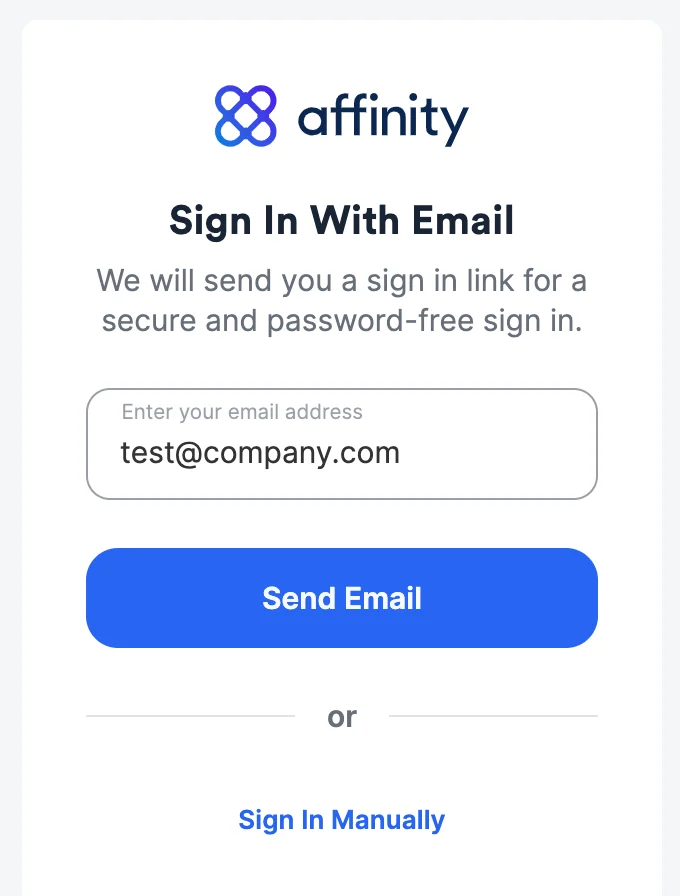
- You’ll notice a new window appear, where you can enter your email address to receive an email that contains the sign in link.
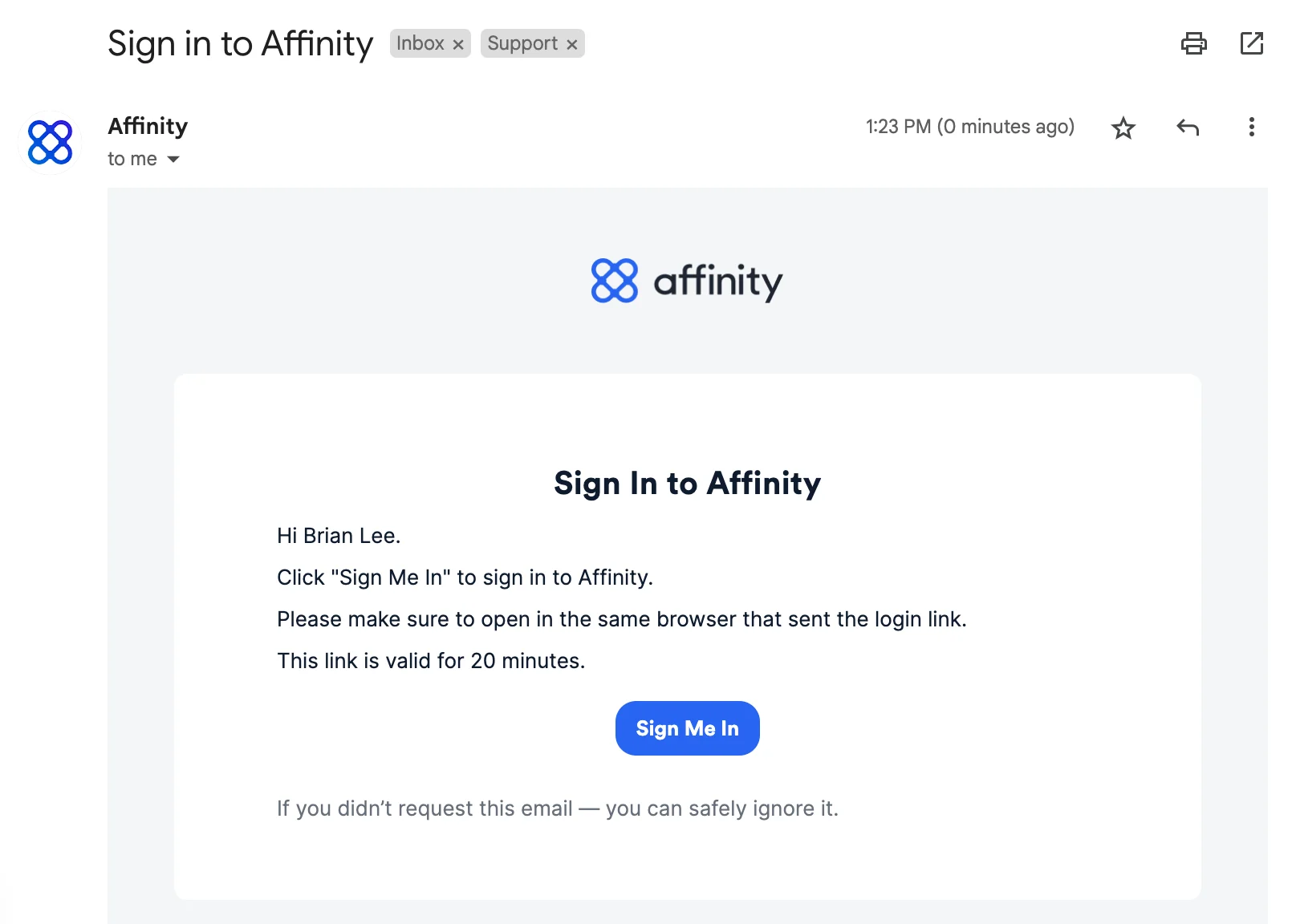
- Once you open the email, click the Sign Me In button.
How to use Affinity Pathfinder within your Gmail inbox (Only Gmail users)
- Once you’re signed in, click into any email thread and click on the Affinity icon on the right side. Based on the participants in the email thread that match with the contacts in your Salesforce account, you’ll notice people, organizations, and opportunities appear on the right sidebar.
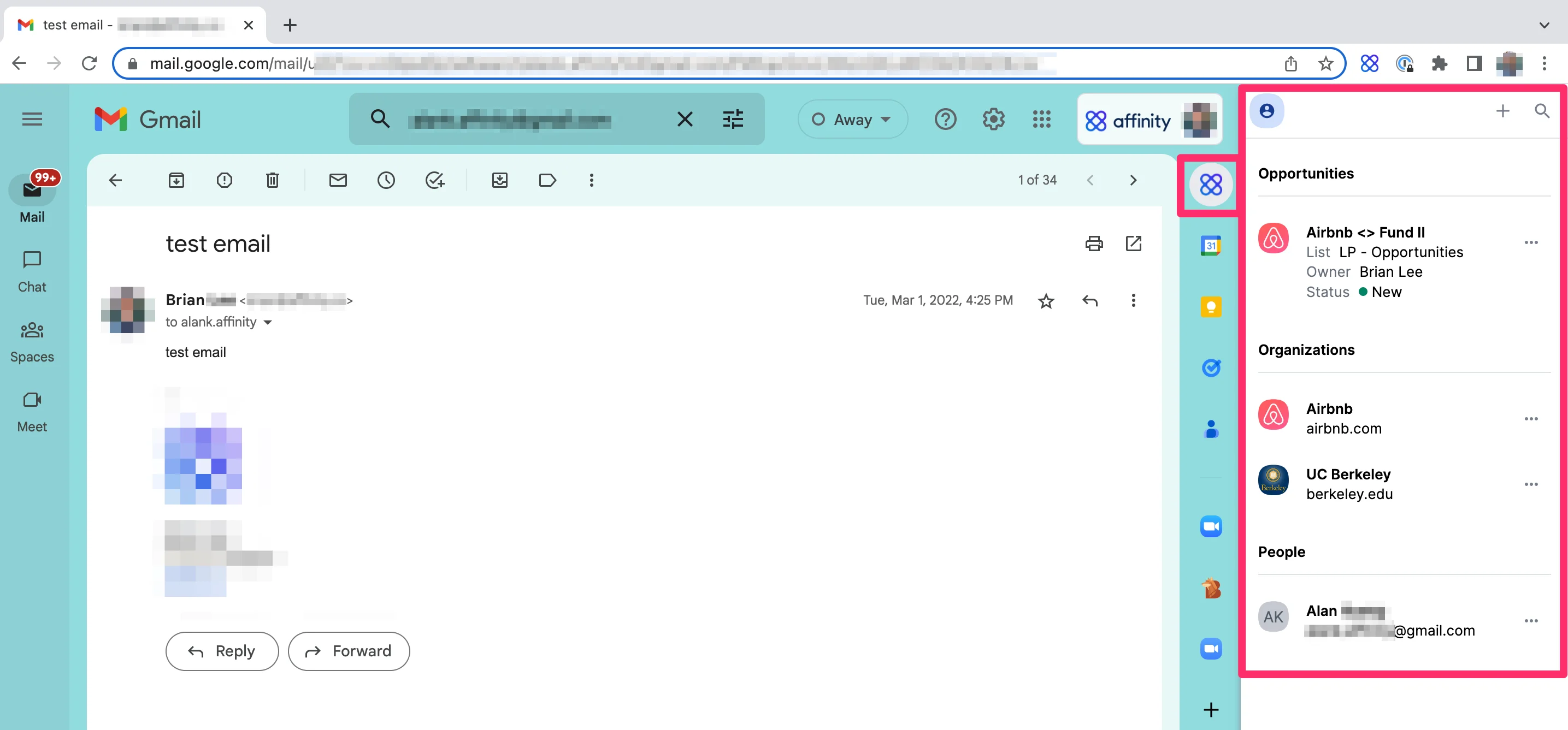
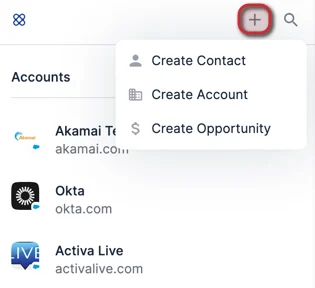
- If these people, organizations, or opportunities don’t exist in your Salesforce account yet, you can click the plus icon on the top-right corner to create them accordingly.
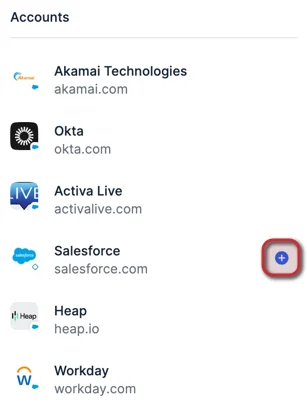
- You can also click the blue plus (+) button as a quicker alternative (if available).
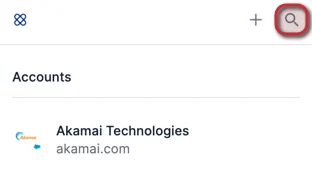
- You can also click the search icon to search for existing contacts.
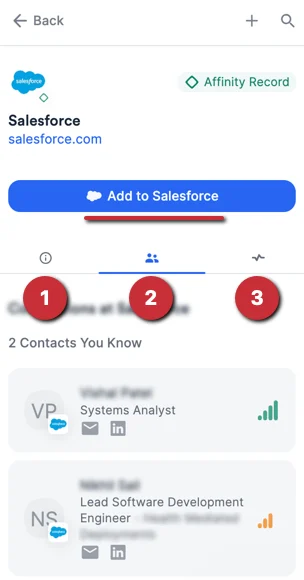
- Click on any person or organization to get more information. If they don’t already exist in your Salesforce instance, you will see a blue Add to Salesforce button, along with three tabs:
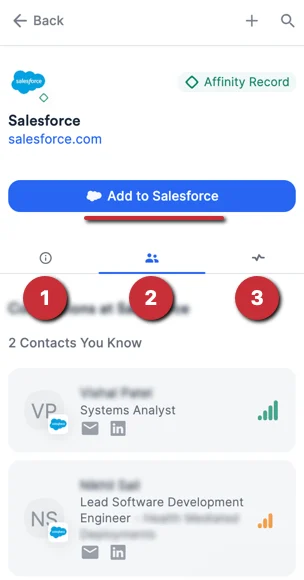
- Details - Displays enriched Affinity Data and custom Salesforce data.
- Connections - Displays all the connections who know that entity based on synced email and calendar activities.
- There is also an Inferred Connections section specifically shown on organization profiles.
- Activities - Displays all the synced emails and meetings from you and your team members as it relates to that entity.
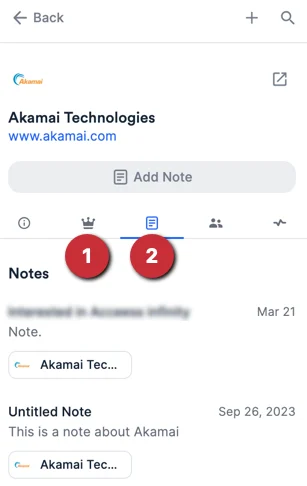
- If they exist in your Salesforce instance, you will see two additional tabs (for a total of 5 tabs):
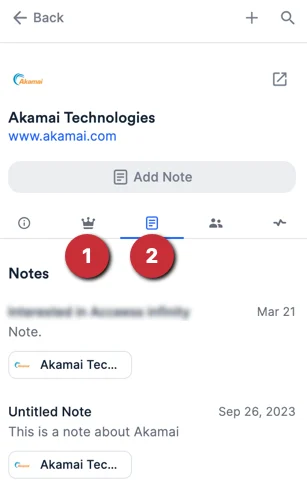
- Opps - Displays only opportunities that the people and organizations associated with in your Salesforce instance. The field values for these opportunities can be edited from here.
- Notes - Displays the notes associated with that entity.
How to use Affinity Pathfinder on any website (All users)
- Type in any website, like “www.uber.com,” then click the Pathfinder icon on the right side of your screen. You can also click-and-hold to drag-and-reposition the icon.
- If the organization doesn’t exist as a record in your Salesforce instance yet, you can click Add to Salesforce.
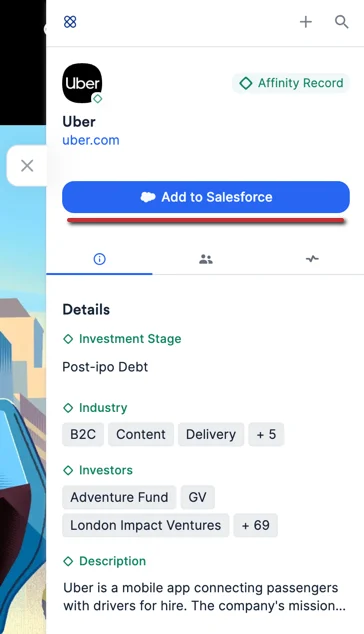
- If they don’t already exist in your Salesforce instance, you will see a blue Add to Salesforce button, along with three tabs (Details, Connections, Activities).
- If they exist in your Salesforce instance, you will see two additional tabs (Opps, Notes).
How to use Affinity Pathfinder on LinkedIn (All users)
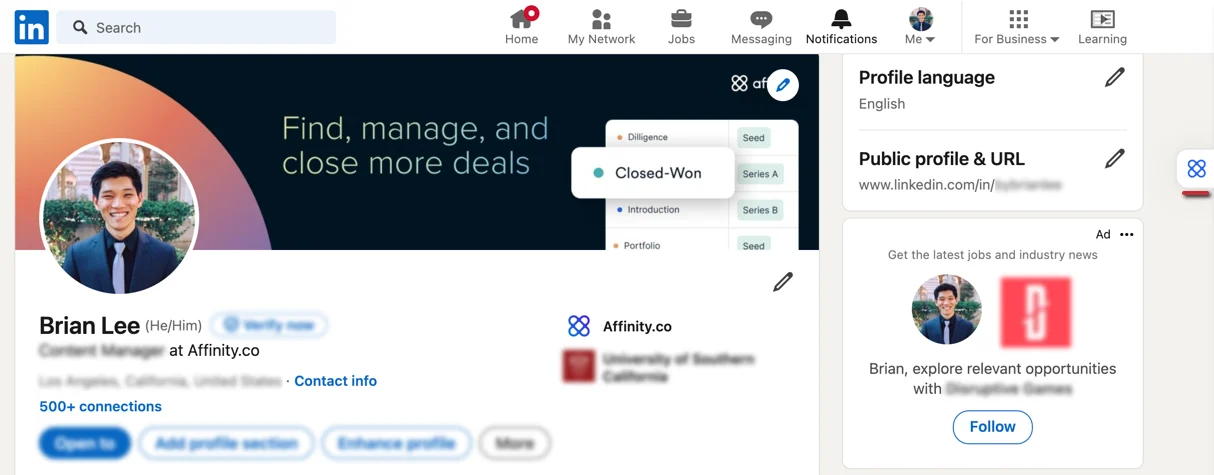
- Click into a person or organization’s LinkedIn profile page, then click the Affinity icon on the right side of your screen to view more information.
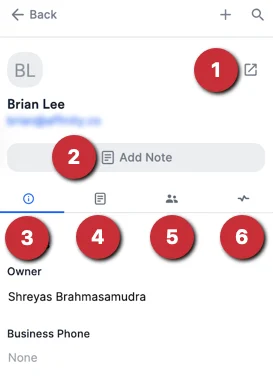
- If that person/organization exists in your Salesforce account, here are the following actions you can take:
- Visit the entity’s profile page in Salesforce
- Add a note
- View Details about that entity
- View Notes about that entity
- View Connections with that entity
- View synced email and meeting activity between you/your team members and that entity
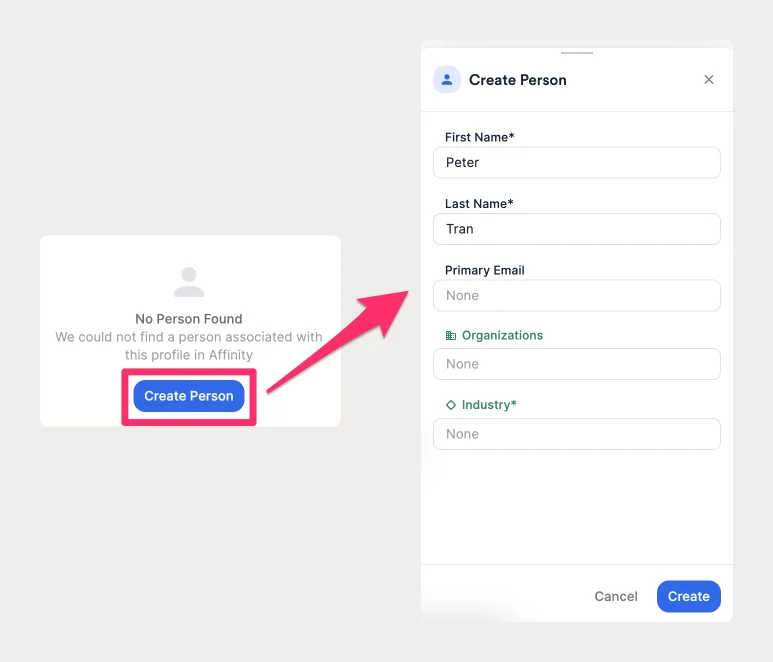
- If you come across a person/organization that doesn’t exist in your Salesforce account yet, you’ll notice the empty state with the Create Contact/Account button.
Profile Tab Counts - Connections and Activities
Quickly evaluate your/your team’s involvement with a given contact or account based on the profile tab counts for the following: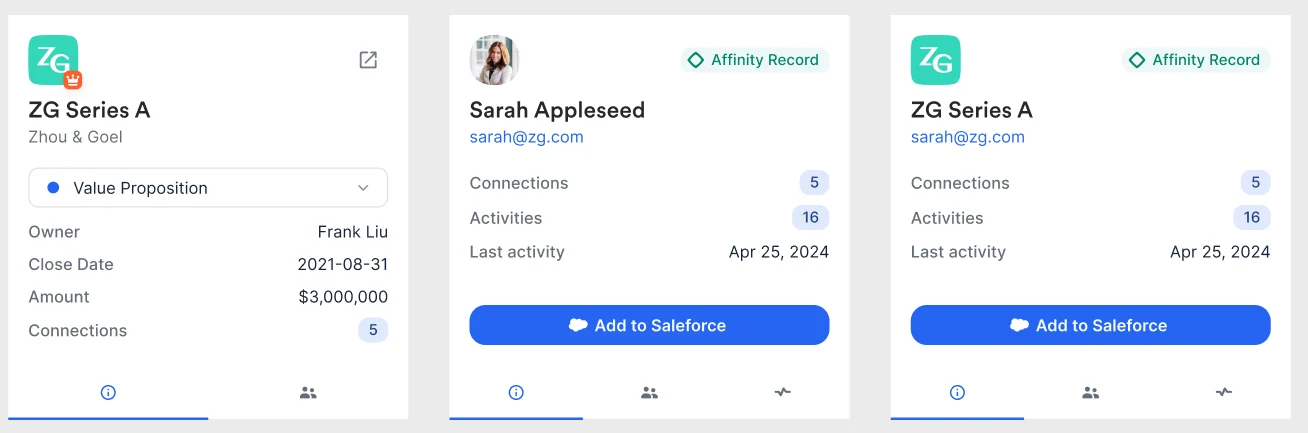
- Connections - Count of total connections, including manually added and inferred connections.
- Activities - Count of total activities (synced emails and meetings).
- The count will vary from user to user based on their respective Salesforce activity permissions.
Important Callouts
- Affinity’s Pathfinder Chrome Extension is officially supported on Google Chrome’s web browser only.
- If you’re having issues with Affinity Pathfinder loading, please follow these troubleshooting steps.
- Affinity Pathfinder will not show results on LinkedIn Sales Navigator.
- Copying/pasting hyperlinks is currently not supported when adding notes via Affinity Pathfinder.
- @ mentioning team members on notes or logging outside interactions into Affinity is temporarily unavailable on Pathfinder.