

Concept — background and overview.
How to access profile pages in Affinity
- Click on the search bar or press Alt + K (on PC keyboards) or Command + K (on Mac keyboards) to immediately access the search bar.
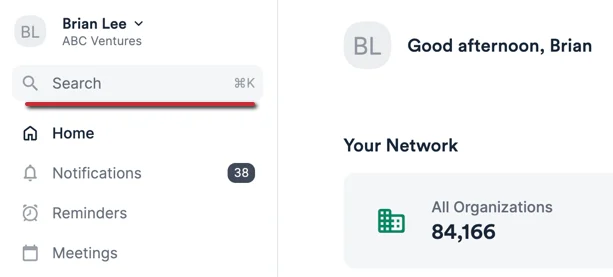
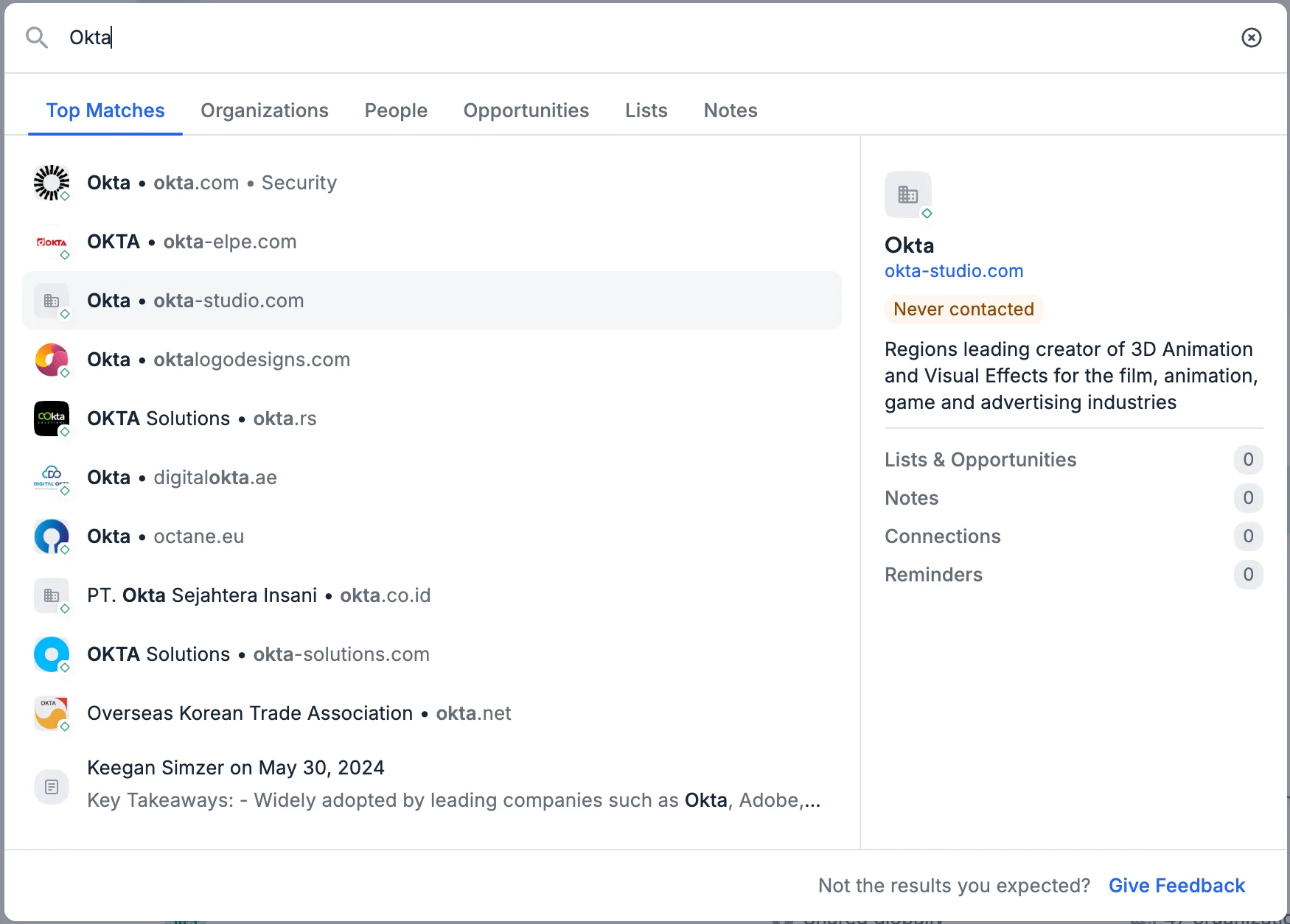
- Type in the name/email address of the person or the name/URL of the company.
How to edit/remove a profile photo
Simply hover over their avatar to see the Edit option appear.
- While the Edit option will appear across all profile photos for people, it will not appear for some organizations and all opportunities (learn more on How to edit/remove an entity’s profile photo).
Add to List or Add Notes
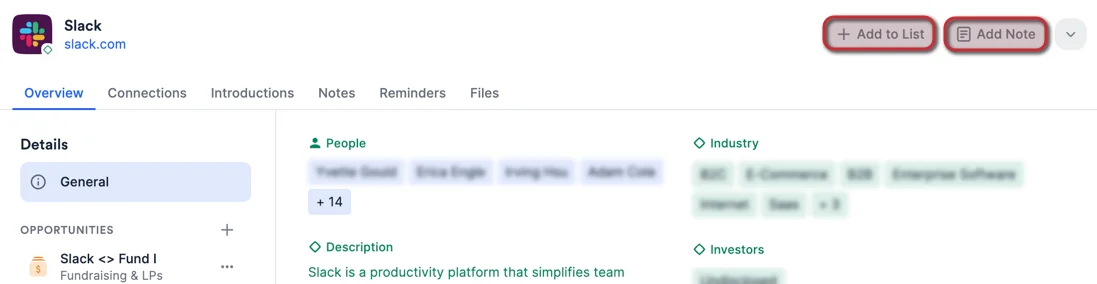
- Add the entity to a list - please note your options may vary based on whether the entity is a person or an organization (see Types of Lists in Affinity).
- Add a note to the person, organization, or opportunity (see Creating and Viewing Notes).
Log Interactions, Set Reminders, Upload Files, Edit Name/Email/Domain, Export Notes, Merge Duplicates, or Delete Entity
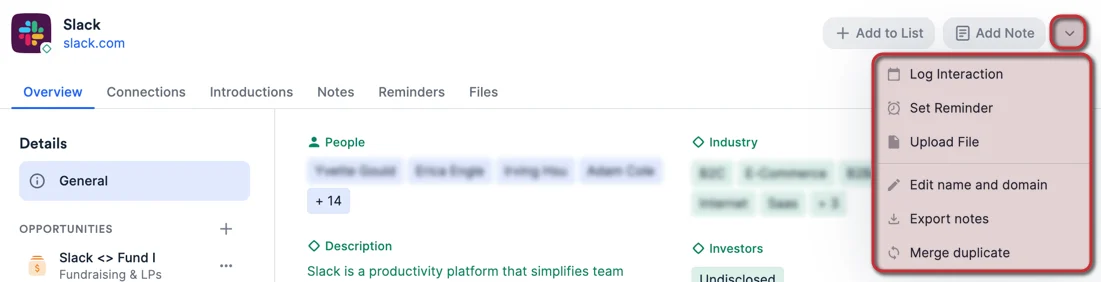
- Log an interaction with a person, organization, or people associated with an opportunity (see How to log outside interactions into Affinity).
- Set a reminder about a person, organization, or opportunity (see How to set reminders in Affinity).
- Upload relevant files to that person’s, organization’s, or opportunity’s profile page for you/your team members to collectively access (see How to upload, download, and remove files on Affinity).
- Edit the name of person, organization, or opportunity.
- Edit a person’s email addresses or an organization’s domains.
- Apostrophes (’) are not supported in email addresses.
- Export notes associated with the person, organization, or opportunity.
- Merge duplicate people or organizations.
- Delete person, manually-created organization, or opportunity.
- Organizations that are enriched by Affinity Data cannot be deleted.
Overview - General data (enriched and global fields)
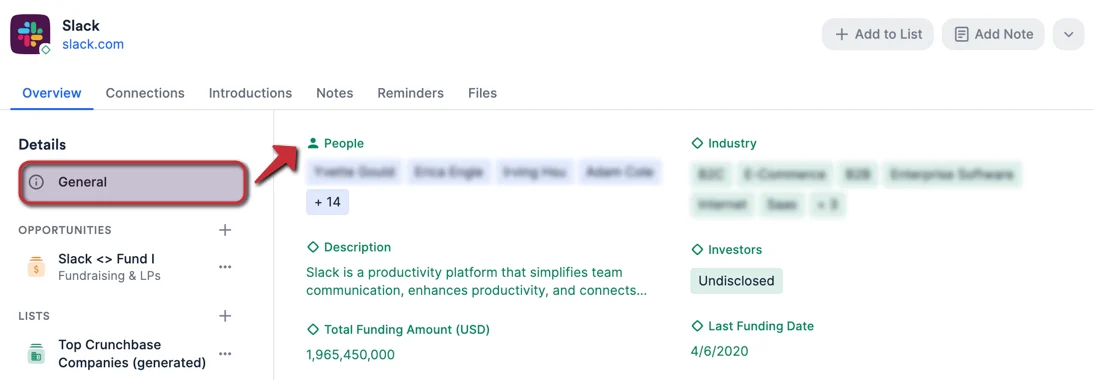
- Contains enriched fields and global fields related to that entity (see Fields: Enriched, Global, and List-specific).
- To customize which enriched fields and global fields you’d like to see on a profile page, see How to customize Profile Fields.
Overview - Opportunities data (list-specific fields)
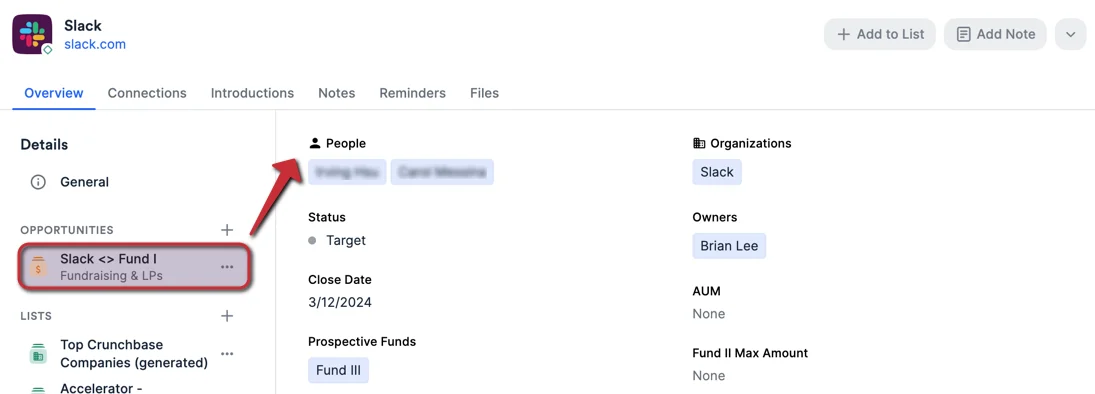
- Click the + icon next to the Opportunities label to create a new opportunity for that entity.
- Contains list-specific fields from each opportunity that the entity is associated with (see Fields: Enriched, Global, and List-specific).
- To customize which list-specific fields you’d like to see on an opportunity’s profile page, see How to customize Profile Fields.
Overview - Lists data (list-specific fields)
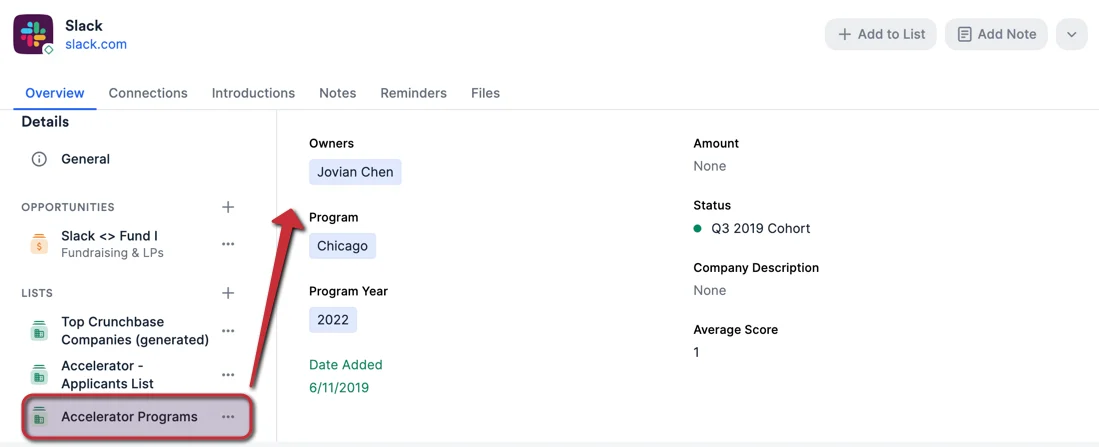
- Click the + icon next to the Lists label to add that entity to a list as a list entry.
- Contains list-specific fields from each list that the entity is associated with (see Fields: Enriched, Global, and List-specific).
- To customize which list-specific fields you’d like to see on a profile page, see How to customize Profile Fields.
Connections, Introductions, Notes, Reminders, and Files
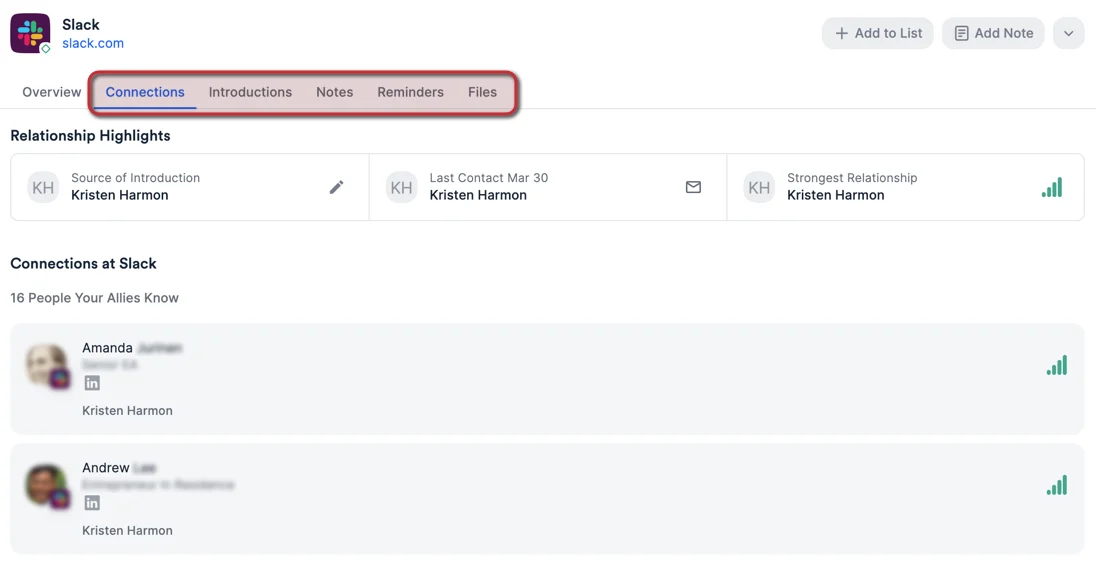
- Ability to see the Connections associated with a person or organization (see Leveraging your Connections and Relationship Strengths).
- Ability to see the Introductions associated with a person or organization (see How to track introductions in Affinity).
- Note: Opportunities do not have Introductions.
- Ability to see all Notes associated with a person, organization, or opportunity (see How to create/view notes in Affinity).
- Ability to see all Reminders associated with a person, organization, or opportunity (see How to set reminders in Affinity).
- Ability to see all Files associated with a person, organization, or opportunity (see How to upload, download, and remove files in Affinity).
Profile Tab Counts - Connections, Introductions, Notes, Reminders, and Files
Quickly evaluate your/your team’s involvement with a given person, organization, or opportunity based on the profile tab counts for the following:
- Connections - Count of total connections, including manually added and inferred connections.
- Introductions - Count of total introductions, including introductions made to and made by the given entity.
- Notes - Count of all visible notes.
- If you’re on the Enterprise tier, the count will vary from user to user based on Enterprise Permissions.
- Reminders - Count of all visible and upcoming reminders. This does not include completed reminders.
- If you’re on the Enterprise tier, the count will vary from user to user based on Enterprise Permissions.
- Files - Count of all uploaded files. This does not include files that have been detected but not yet uploaded to the profile page.
- If you’re on the Enterprise tier, the count will vary from user to user based on Enterprise Permissions.
Employee Growth Insights (Advanced and Enterprise tiers only)
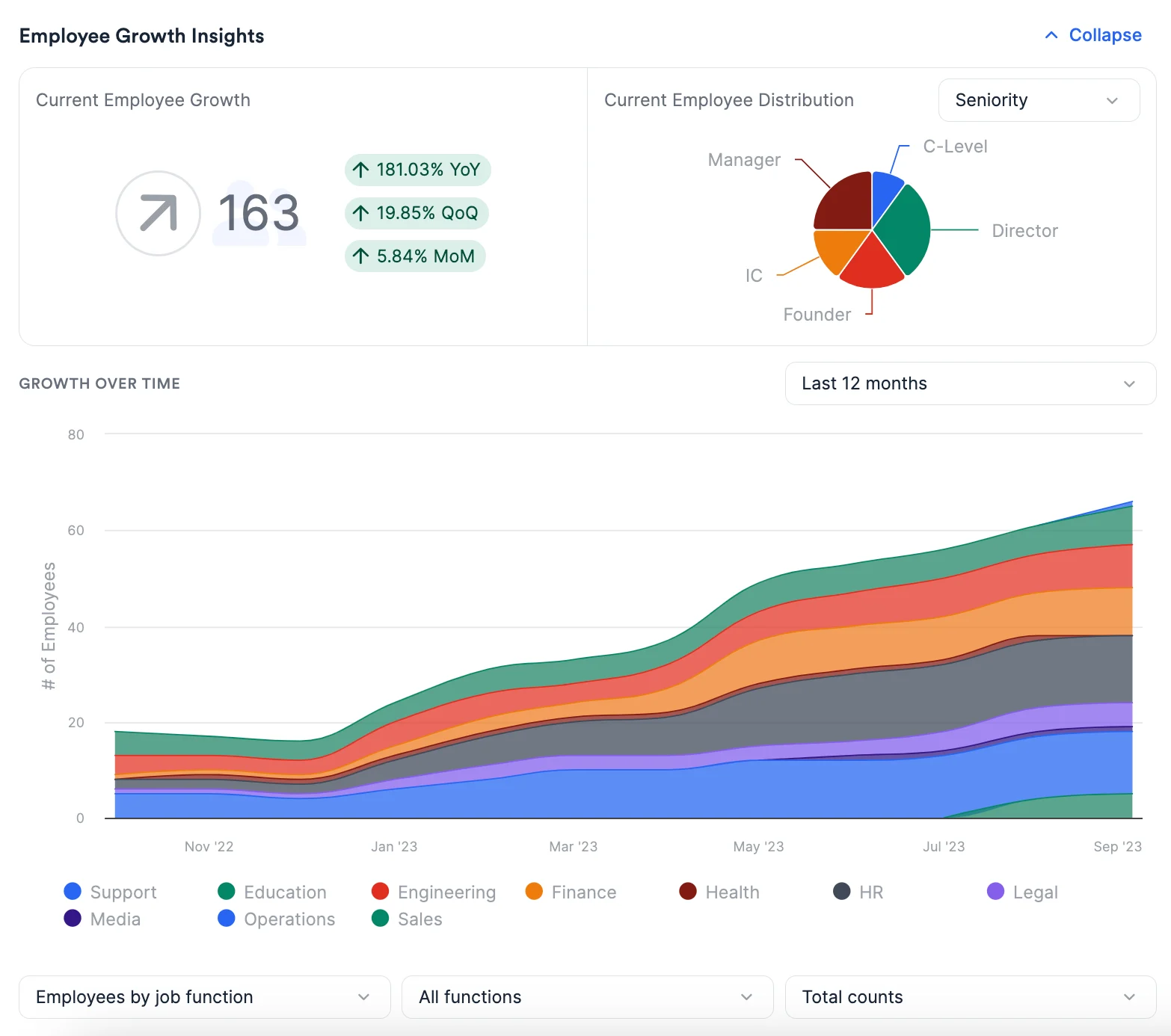
- Shows charts and visualizations related to an organization’s employee headcount, distribution by job function and seniority, and growth over time (see Employee Growth Insights for organizations).
- Only shown on organization profiles.
- Only available for customers on the Advanced and Enterprise tiers.
Activity Timeline
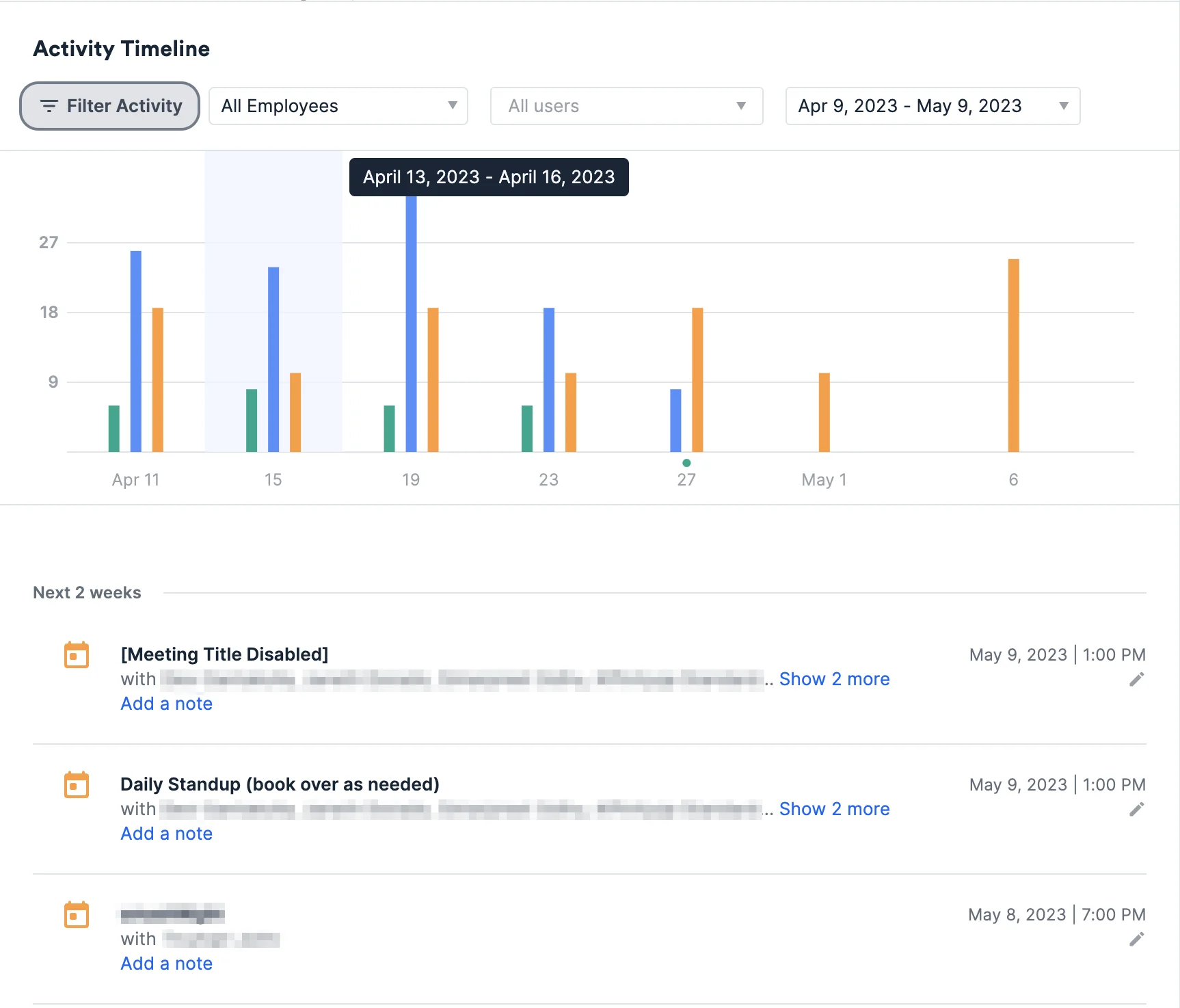
- Ability to see a chronological timeline of Sent/Received emails, Meetings, Phone calls, List activity, Files, Notes, and Reminders.
- For organization profile pages, you can filter activities either by All Employees and Current Employees.
- Current Employees is determined by the Current Organization field.
- Select which activity types to filter by (see Activity Timeline on Profiles).
- Don’t see email/calendar data on certain profile pages? It may be that you’re viewing an internal contact’s profile page (a team member or someone whose email domain has been considered by your admin to be treated as if they were team members) rather than an external contact’s profile page (someone outside of your team) - see Internal vs. External Contacts to learn more. Now that you understand the main sections of a profile page to find the information you need, we’ll go over Affinity’s search functionality - both across the CRM and when searching for specific data points within the context of a list: Conducting searches in Affinity.