

Concept — background and overview.
How the Activity Timeline works
- Synced email/calendar data and field value changes will be recorded on the entity’s Activity Timeline.
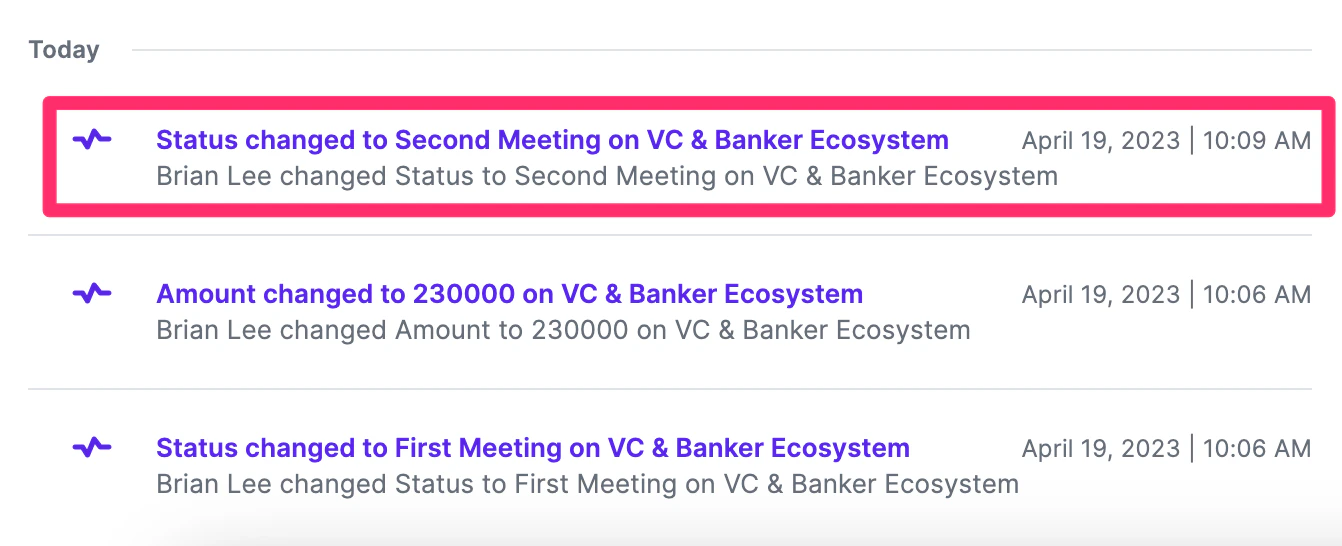
- For example, changing the Status field (ranked dropdown) of a particular organization will be tracked on that organization’s profile page.
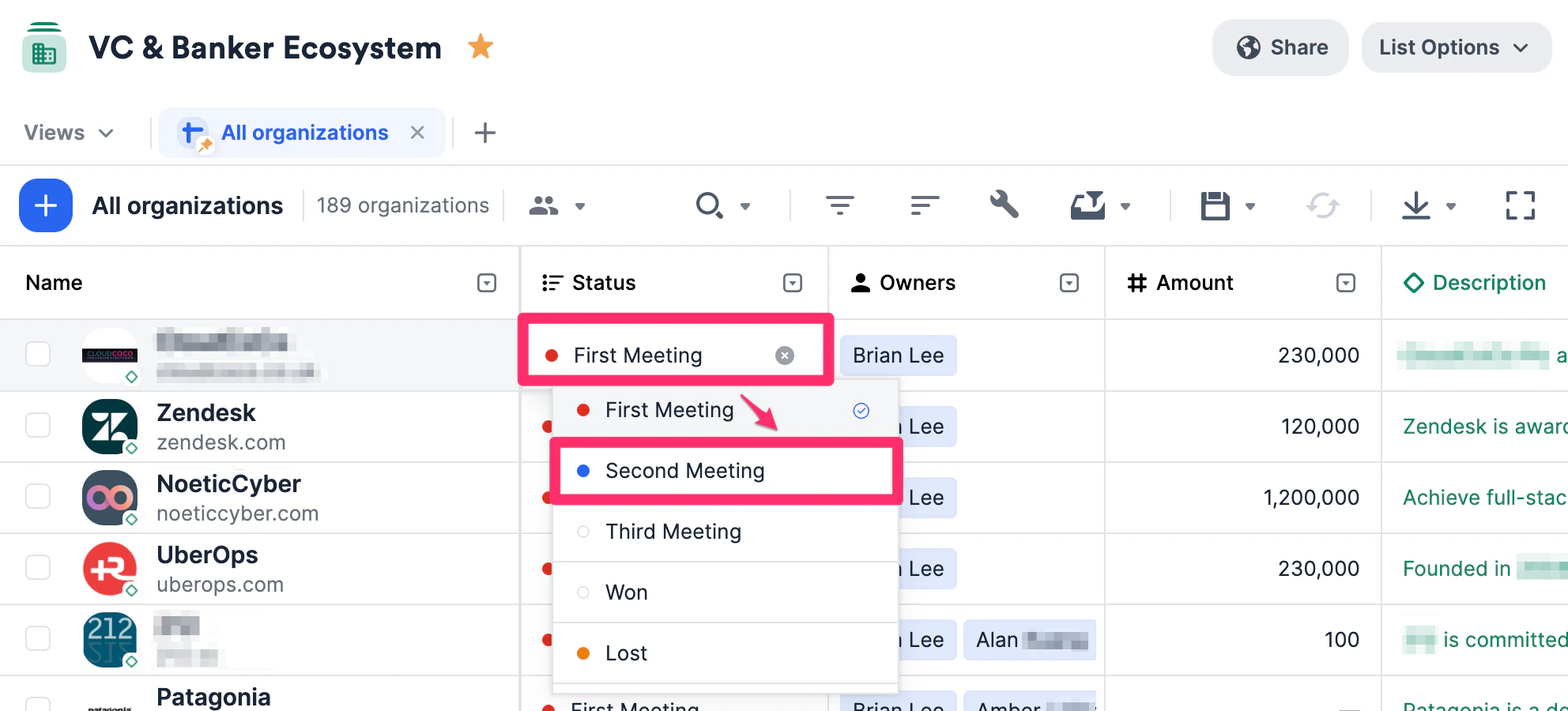
- Scroll down on the contact’s profile page to see the change on the Activity Timeline.
Note: If you do not have access to certain lists, field updates for those lists will not surface for you.
Filtering the Activity Timeline
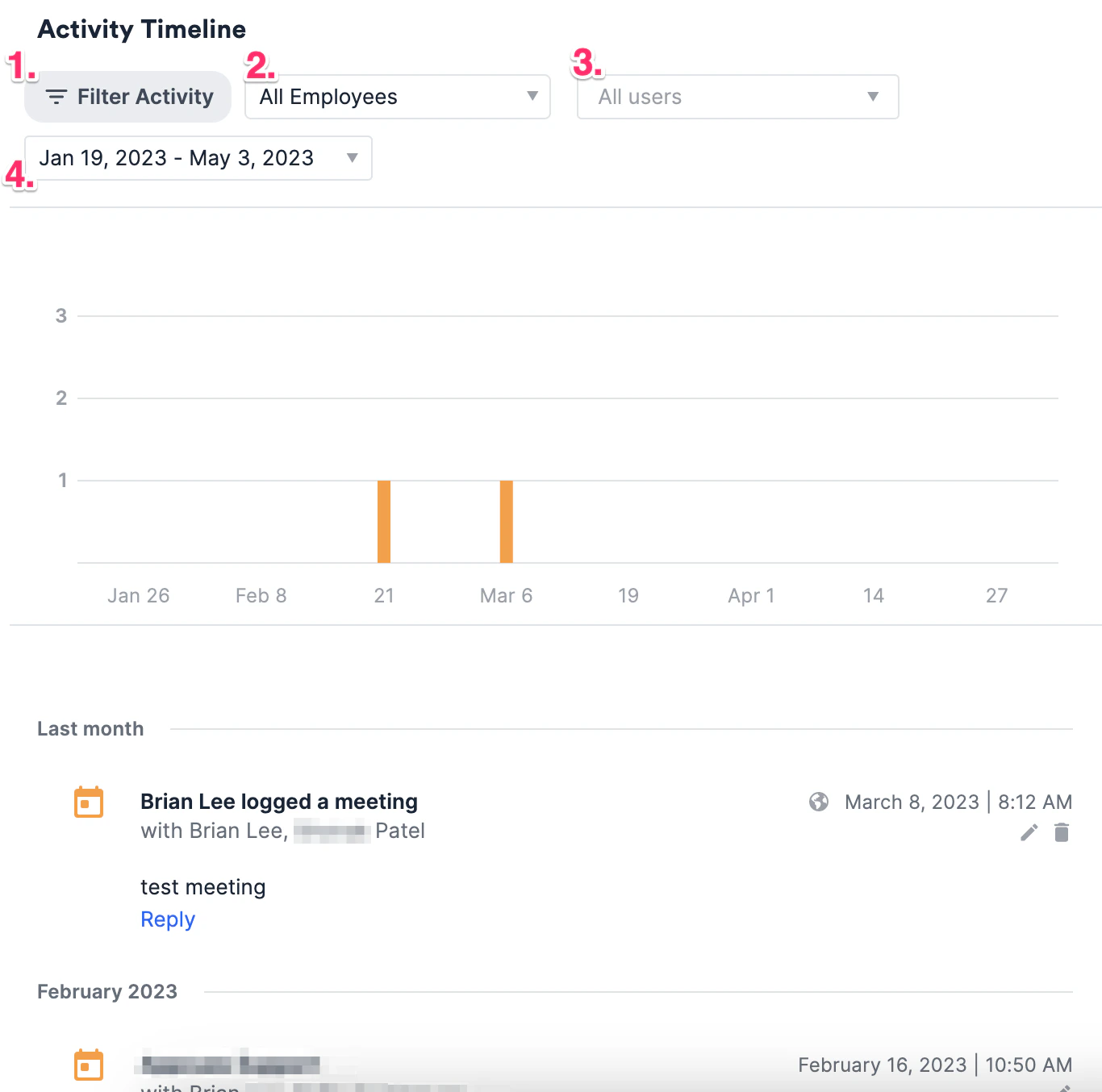
You can filter the Activity Timeline by the following attributes:- Filter Activity: Meetings, Phone Calls, Sent/Received Emails, Sent/Received Messages, Notes, List Activity, Reminders, and Files
- All Employees/Current Employees: For organization profile pages, you can filter activities either by All Employees and Current Employees.
- Please note that Current Employees is determined by the Current Organization field.
- All users: You can filter activities by specific users on your team.
- Time Period: Specify the time period.
Why won’t some emails or meetings show up on the Activity Timeline?
Start with two quick checks:- You and/or your team member(s) may have your email accounts’ syncing disabled (see How to reenable syncing into Affinity).
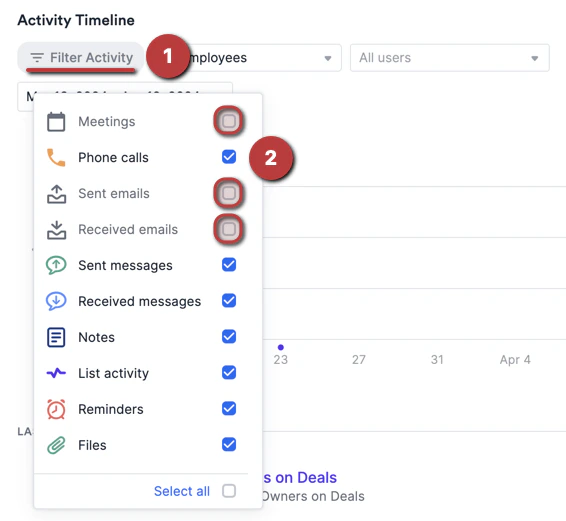
- If you don’t see any emails or meetings at all, you may have unchecked the following activity types: Sent emails, Received emails, and Meetings.
- Click the Filter Activity button.
- Then, click the checkboxes to show the emails and meetings.
Emails and meetings that are hidden from the timeline
-
Calendar replies and invitations. To keep calendar noise out of the timeline, Affinity doesn’t show emails whose subject line starts with:
- “Accepted:” or “Tentatively Accepted:”
- “Invitation:” or “Updated invitation:”
- “Invitation with note:” or “Updated invitation with note:”
- “Rejected:”
- “Canceled Event:”
- “Declined:”
- Anything involving a blocklisted person or organization. If anyone on an email or meeting is blocklisted, the whole email or meeting is hidden, even when other people were on it too. It also doesn’t count toward Last Email, Last Meeting, or Last Contact. See Setting up your privacy preferences in Affinity.
- Emails and meetings you don’t have access to. You see the emails and meetings synced by teammates whose data is shared with you. On the Enterprise tier, a team’s Non Member Visibility setting can also hide its emails and meetings from people outside the team (see Enterprise Permissions). You always see the emails and meetings your own synced account picked up.
Emails and meetings that Affinity doesn’t sync
- Emails in certain folders. Gmail Spam, Trash, Drafts, and Chat. In Outlook, folders such as Junk Email, Deleted Items, Drafts, Outbox, and Clutter.
- Emails outside your “Affinity” label or folder, if you use Selective Email Sync. Only emails with that label (Gmail) or in that folder (Outlook) sync. See Syncing data into Affinity.
- Canceled meetings. A meeting that’s canceled after it syncs is removed.
- Google Calendar focus time, out of office, and working location blocks. Only regular events sync.
- Events from holiday calendars.
- Events scheduled more than 3 years in the future.
- Private events, only if your account is set up not to sync them. By default, private events sync.
- Calendars other than your primary calendar, depending on how your account is set up. See How to prevent syncing your personal calendar data.
Emails and meetings that show on the timeline but don’t count everywhere
- Mass emails and First/Last Email. An email with 6 or more recipients (To and Cc combined) still shows on the timeline, but it doesn’t update the First Email or Last Email fields. The exception is a thread where both your team and the external contact have sent emails: those still count.
- Very large meetings and First/Last/Next Meeting. There’s no attendee limit for these fields, but a meeting is skipped when the number of your teammates on it multiplied by the number of external attendees is more than 1,000 (for example, 2 teammates and 501 external guests). Because Last Contact is the most recent of Last Email and Last Meeting, a skipped meeting can’t become Last Contact either.
- Relationship strength. Some interactions show on the timeline but don’t count toward relationship strength: meetings with 8 or more attendees, automatic replies and out-of-office messages, and emails from mailing lists or automated addresses. Emails sent to many people count, but less than one-to-one emails.
Important Callouts
Most field types have their value changes recorded on the Activity Timeline. These 8 do:- Number (single & multiple values)
- Date (single values only)
- Location (single & multiple values)
- Ranked dropdown (single values only)
- Person (single & multiple values)
- Organization (single & multiple values)
- Text (single values only)
- Dropdown (single & multiple values)
- Formula fields — these are always calculated on the fly, so there are no stored values to compare.
- Enriched fields of any type, regardless of the list above.