

How-to — task-oriented recipe.
- Important Callout: Merging duplicates cannot be undone and should be merged with caution. The only merges that can be undone are merges done via the Duplicate management tool, and only for Person contacts.
Duplicate Management center (Admins only)
If you are an admin (or an Enterprise Admin on the Enterprise tier), you can manage duplicates in one place through the Duplicate Management center.-
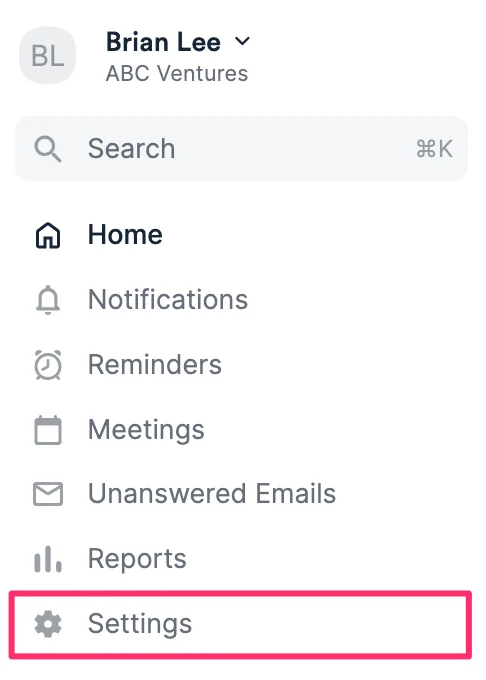
Click on Settings on the left side of your screen.
-
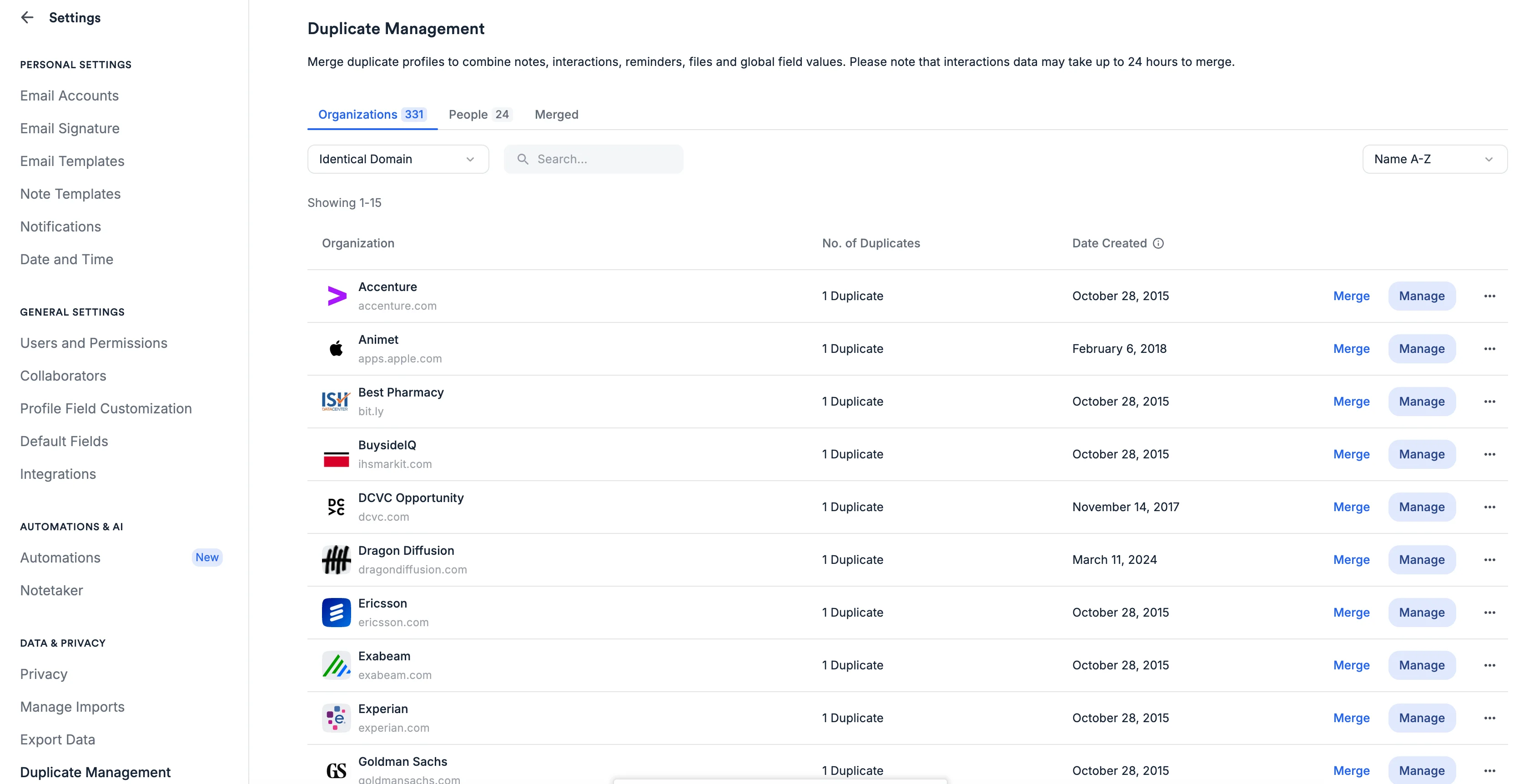
Scroll down and click the Duplicate Management tab. You can click on either the Organizations tab or the People tab based on which entity type you’d want to focus on. You’ll also notice a Merge section - this section provides a log of records that were merged, are in the process of being merged, or where the merge action errored. It is also within this tab, that Admins can undo People merges that they deem to have occurred in error. (NOTE: The undo feature is only available for people merges done through the Duplicate Management tool - any merges done via the profile will still be permanent.)
-
You can also filter by additional criteria, based on what you are looking at.
- For Organization duplicates, you can filter on Identical Domain, Domain Redirect, or Identical name.
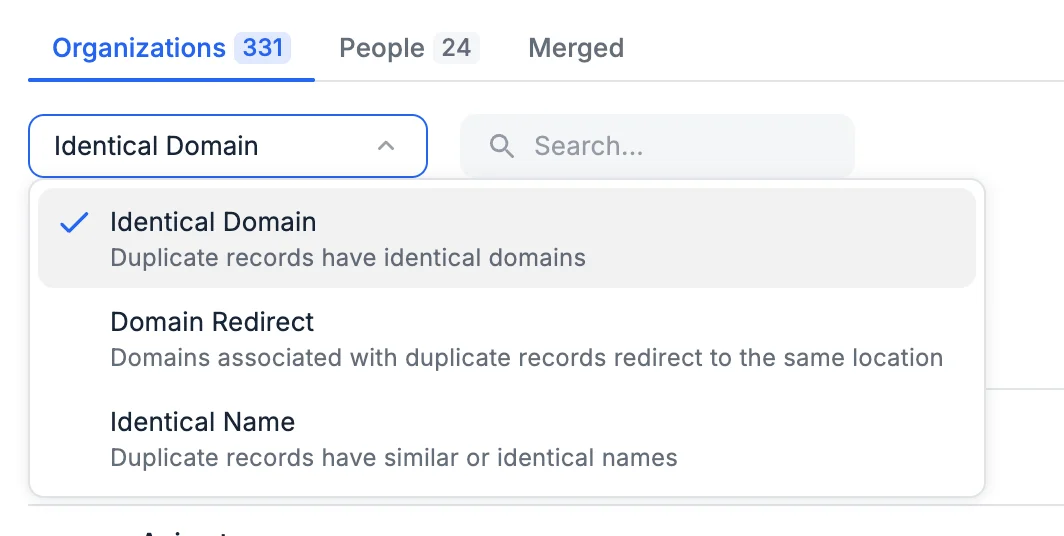
- You can now merge all duplicate records for a given match type at once. Merge all is only available for the “Identical domain” duplicate Organization suggestions and not “domain redirect” or “Identical name” based suggestions.
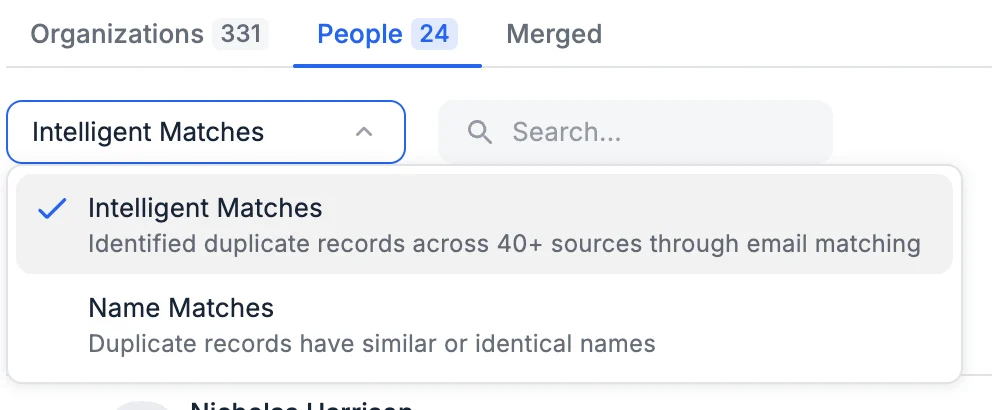
- For People duplicates, you can filter on Intelligent Matches or Name Matches. Additionally, Admins can bulk merge any records that are identified through our Intelligent Matching filter, as well as bulk “remove from list” for selected or all suggestions.
- Merge all of People records is only available for duplicates identified by the “Intelligent Matches” filter, they are not available for the “Name Matches” duplicate suggestions.
- For Organization duplicates, you can filter on Identical Domain, Domain Redirect, or Identical name.
-
For each duplicate suggestion, choose one of the three options:
- Merge - This will combine notes, interactions, reminders, files, and global field values from the Duplicate contact and merge them onto the Primary contact.

- Manage - View a side-by-side comparison that highlights key differences between the Primary and Duplicate records.

- Remove from List - This option is found by clicking on the ellipse (3-dots). This action will remove the suggestion from appearing in the Duplicate Manager.

- Merge - This will combine notes, interactions, reminders, files, and global field values from the Duplicate contact and merge them onto the Primary contact.
- To check on a merge in progress, navigate to the Merge tab. Here, this section provides a log of records that were merged, are in the process of being merged, or where the merge action errored.
Merge all
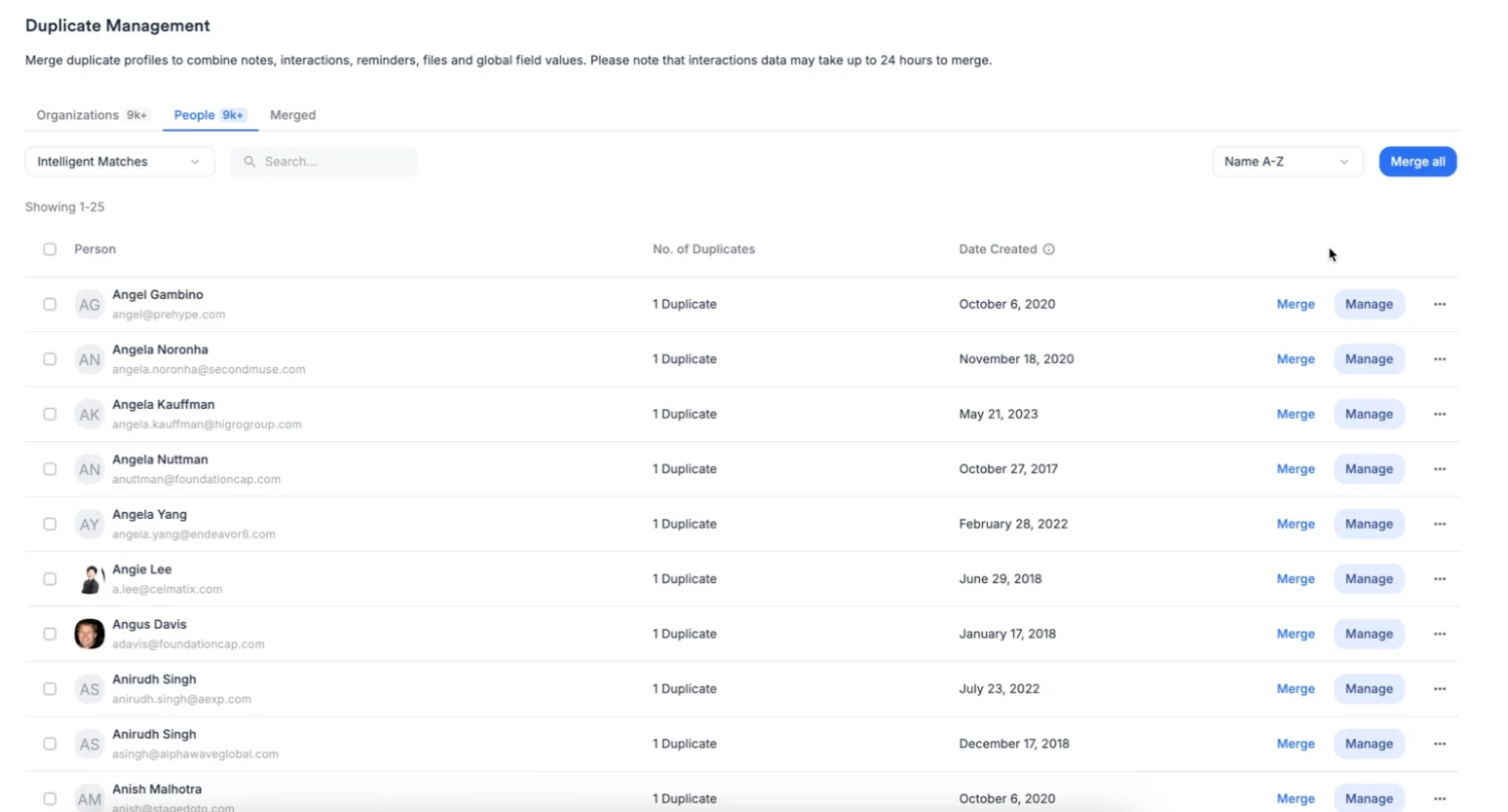
- You can now merge all duplicate records for a given match type at once.
- Merge all of People records is only available for duplicates identified the “Intelligent Matches” filter, they are not available for the “Name Matches” duplicate suggestions.
- Merge all is only available for the “domain match” duplicate Organization suggestions and not “domain redirect” or “name match” based suggestions.
- This is to ensure that you can safely merge records in bulk.
- NOTE: After a “Merge all”, there might still be a small number of duplicates that appear.
- This happens when there are multiple duplicates for the same record.
- The “Merge All” will merge the first matching pair
Merging duplicates one by one (All user types)
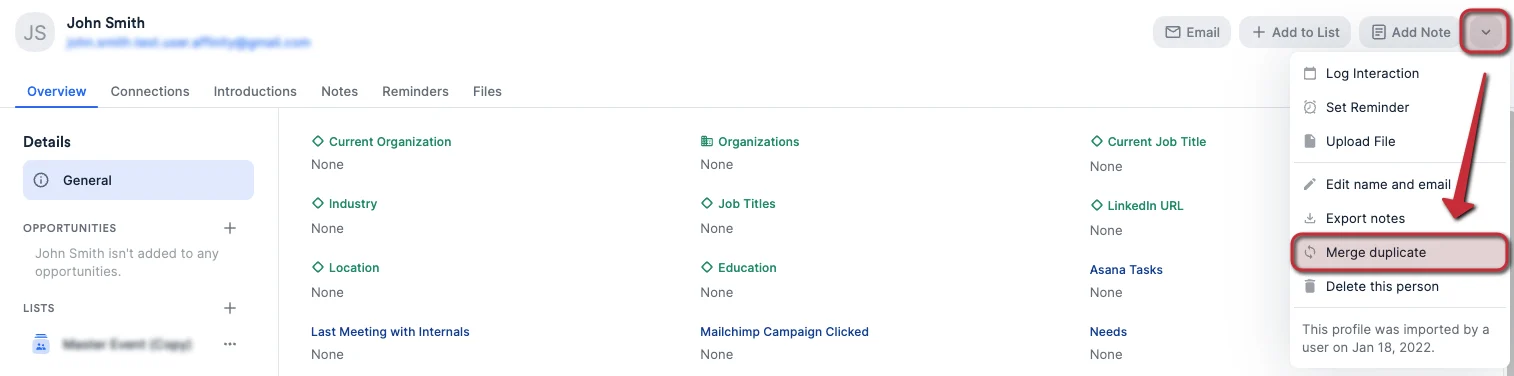
If you are not an admin, you can still merge duplicates by following the steps below.- Go to the profile page of the person/organization that will be the main contact you’d like to keep as the primary.
-
Click the dropdown button, then click Merge duplicate.
-
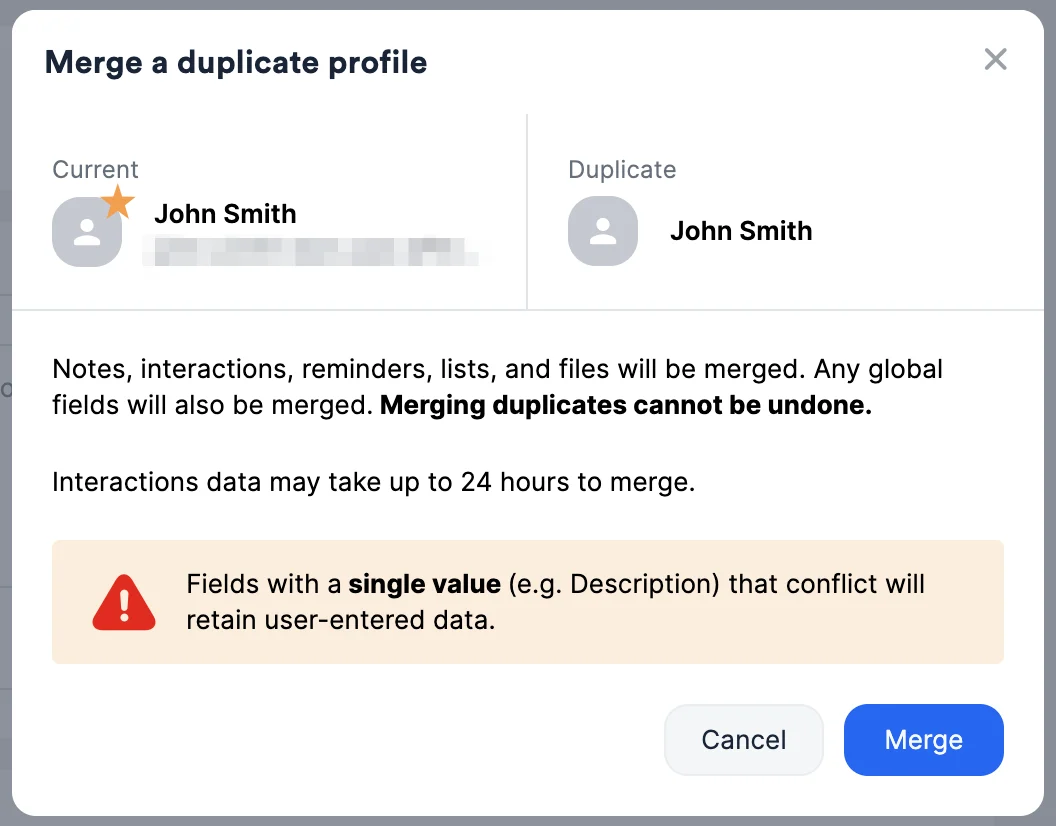
Type in the name of the duplicate you’d like to merge into the main contact, then click Merge. This will combine notes, interactions, reminders, files, and global field values from the Duplicate contact and merge them onto the Current contact.
Frequently Asked Questions
Can you undo a merge?- Yes, for both People and Organizations merged via the Duplicate Management tool. Navigate to the Merged tab in Duplicate Management to view merge history and unmerge records if needed.
- Merges that occurred via individual profiles remain permanent and cannot be undone.
- Intelligent Matches (~97% accuracy): Based on email matching across 40+ data sources to determine if emails belong to the same person
- Name Matches (lower accuracy): Based on identical or very similar names/emails, useful when limited information is available
- Identical Domain: Two companies have the exact same domain
- Domain Redirect: Two companies have domains that redirect to the same destination
- Name Matches (lower accuracy): Based on identical or very similar names/domains
- Merged records consolidate data, reducing the pool of potential duplicates
- Some duplicate suggestions may have been related to records you’ve already merged
- The system prioritizes showing one pair at a time when multiple duplicates exist for the same record
- You will end up with duplicate list entries on that list (shown as the Primary entity), but with the following impact:
- The list-specific field values will remain the same for each list entry
- The global field values (single value) from the Duplicate list entry will be overwritten by the Primary list entry
- The global field values (multiple values) from the Duplicate list entry will be added and combined into those from the Primary list entry
- Learn more about list-specific and global fields
- The Activity Timeline on the Primary entity’s profile page will surface the historical list activities of both Primary and Duplicate list entries
- You will not be able to merge opportunities given their unique nature. You can only merge duplicate people and duplicate organizations.
- Yes, both Person and Organization merge APIs are available in open beta, allowing you to define your own business logic to automatically identify and merge duplicates
- View full API documentation at developer.affinity.co for details
- The time it takes to merge records depends on the amount of data associated with the entities
- Most records merge in ~2-3 minutes
- Records with extensive associated data (many notes, interactions, list entries) can take several hours
- You’ll be prompted with estimated timing when performing the merge action
- Merge All is only available for high-confidence match types to ensure safe bulk merging:
- People: Only available for “Intelligent Matches” (~97% accuracy)
- Organizations: Only available for “Identical Domain” matches
- Lower confidence match types (Name Matches, Domain Redirects) require individual review because:
- Different companies can share the same name
- Domain redirects can occur for various business reasons (mergers, acquisitions, rebrands)
- These scenarios require specific judgment rather than automatic bulk merging
- Affinity will merge all duplicate pairs within the selected match type
- If a record has multiple duplicates, only the first matching pair will be merged
- You may still see some duplicate suggestions after “Merge All” completes - these represent additional duplicate clusters that need separate merge actions
- You can track the status of all merges in the Merged tab
- This action removes the duplicate suggestion from appearing in the Duplicate Manager
- It does not prevent you or other users from manually merging the records later by visiting a profile and using the merge action
- Use this when you’ve determined that suggested records are not actually duplicates
- Not currently available. Duplicate suggestions must be reviewed and acted upon within the Duplicate Management interface
- If this capability would be valuable for your workflow, please contact your Affinity representative or support@affinity.co