

- A likely relationship Affinity surfaces from shared history,
- even when no one at your firm has interacted with that person directly, and
- a lead worth checking — not a confirmed relationship. (Think of two people who attended the same college in the same years: they probably crossed paths, but you can’t be sure.)
The two types in this release
- Overlapping work history — “your teammates likely know them.”
- A contact worked at the same company, over an overlapping stretch of time, as one or more of your teammates.
- Investor ↔ portfolio-company executive — “known through your firm’s network.”
- Leverages the first second-degree, external-to-external connection Affinity builds.
- A contact your firm already knows was at an investment firm when it funded a target company, so they very likely know that company’s executives and founders.
Where you’ll see them
Inferred connections live in the Connections tab, and appear on two kinds of profile. On a company profile. Open any Company Profile → Connections tab. Below your direct connections, look for “Inferred Connections to{Company}”, with a sub-header like “3 people likely within your firm’s network.”
On a person’s profile. Open a person’s profile → Connections tab and look for “Inferred Connections to {Person}”, with a line like “2 people may be connected to {Person}.” Person profiles were added after the initial release — including the profiles of bridge contacts — so you can start from someone you already know instead of working back from the company.
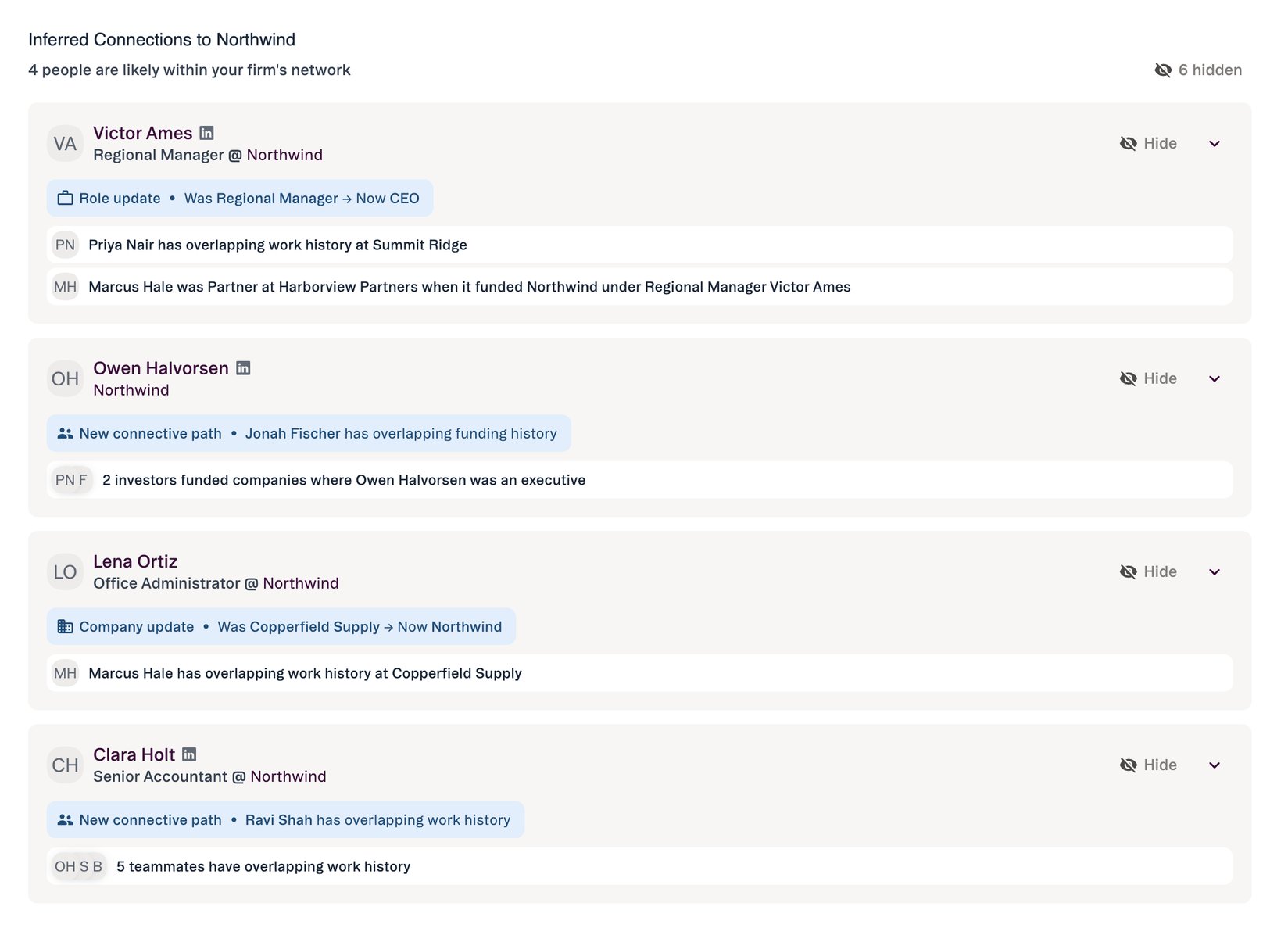
Each row in either section is a connection card — one card per person your firm might be able to reach.
Which direction the list runs
The two profile types answer different questions, so it’s worth knowing which one you’re looking at. In both cases the section header names the profile you’re currently on — not the person at the end of the path.Reading a collapsed card
By default each card is collapsed and shows:- The person — name, title, and company (e.g. “John Smith · CTO @ Potluck”). A LinkedIn icon appears when we have a match.
- One or two relationship rows explaining why they surfaced:
- Work-history row — e.g. “5 teammates have overlapping work history.”
- Funding row — e.g. “Carol Channing was a Partner at Greenleaf Investing when it funded Potluck under CTO John Smith.”
- When both rows appear, work history sits on top — a teammate who actually worked alongside someone is usually a warmer path than a funding-era overlap.
Expanding a card for the full timeline
Click a funding / investor-executive card to expand it in place into a timeline view:- A horizontal bar for each person across the relevant years.
- A shaded band marking the window they shared.
- A dashed marker on the funding round (e.g. “SERIES B”) with a plain-language summary — “Carol Channing was an investor at Greenleaf Investing 8 months ago when Potluck raised its Series B on March 25, 2025.”
- A ⋯ menu on each person’s row to view their profile, open LinkedIn, or copy their email.
- Only one card is open at a time — opening another closes the first.
At launch, only funding / investor-executive cards expand — work-history cards stay collapsed. The work-history data doesn’t yet include the per-person start and end dates a timeline needs, so we don’t draw one we can’t stand behind. A full work-history timeline is a planned follow-up.
Hide an inferred connection
Some suggestions won’t help you. Hide them, and the next suggestion moves up. A hide is just for you, on that page. Your teammates still see the person. AI Chat stops suggesting a person you’ve hidden, but they still come up if you search for them in global search. If you hide someone on a company profile, they still appear on other profiles where they’re suggested. Hiding doesn’t change the connection itself or how Affinity ranks it for anyone else.Hide a person
- Open a company or person profile and click the Connections tab. You can also hide people from the profile slide-out in a list, and from the Pathfinder Chrome app.
- Find the person under Inferred Connections.
- Click Hide on their card. In a narrow window, hover over the card to see the hide icon.
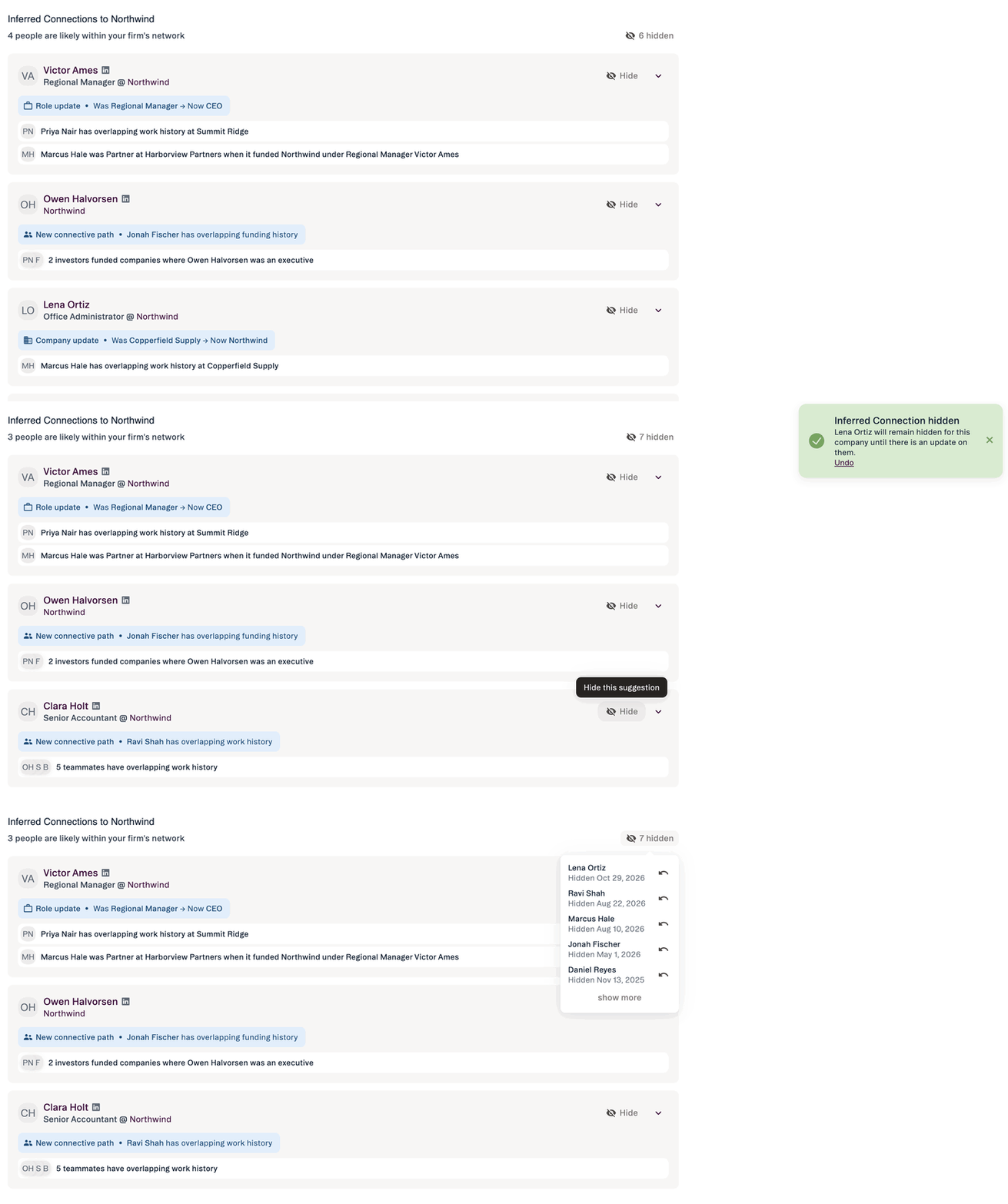
Undo a hide
Click Undo in the confirmation message. The card goes back where it was.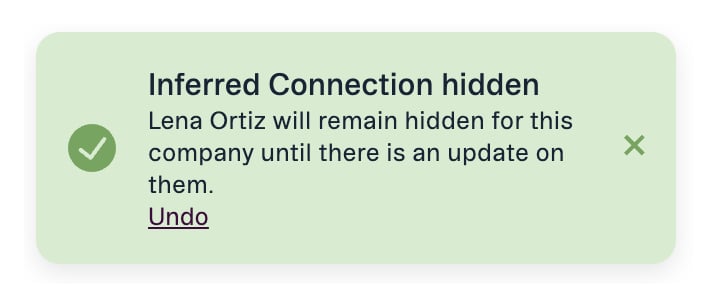
See who you’ve hidden and unhide them
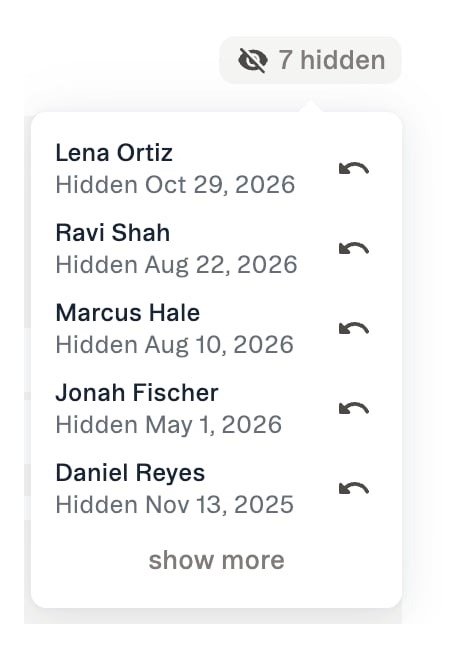
- On the profile’s Connections tab, click the hidden button next to the inferred connections. It shows how many people you’ve hidden on this page, for example 3 hidden.
- The list shows each person and the date you hid them.
- Click the undo icon next to a person to unhide them.
When a hidden person comes back
A hide lasts until there’s an update on the person. They reappear on their own if:- Their role changes.
- They move to a different company.
- Affinity finds a new connection to them through someone your firm knows.
Find a warm intro with AI Chat or MCP
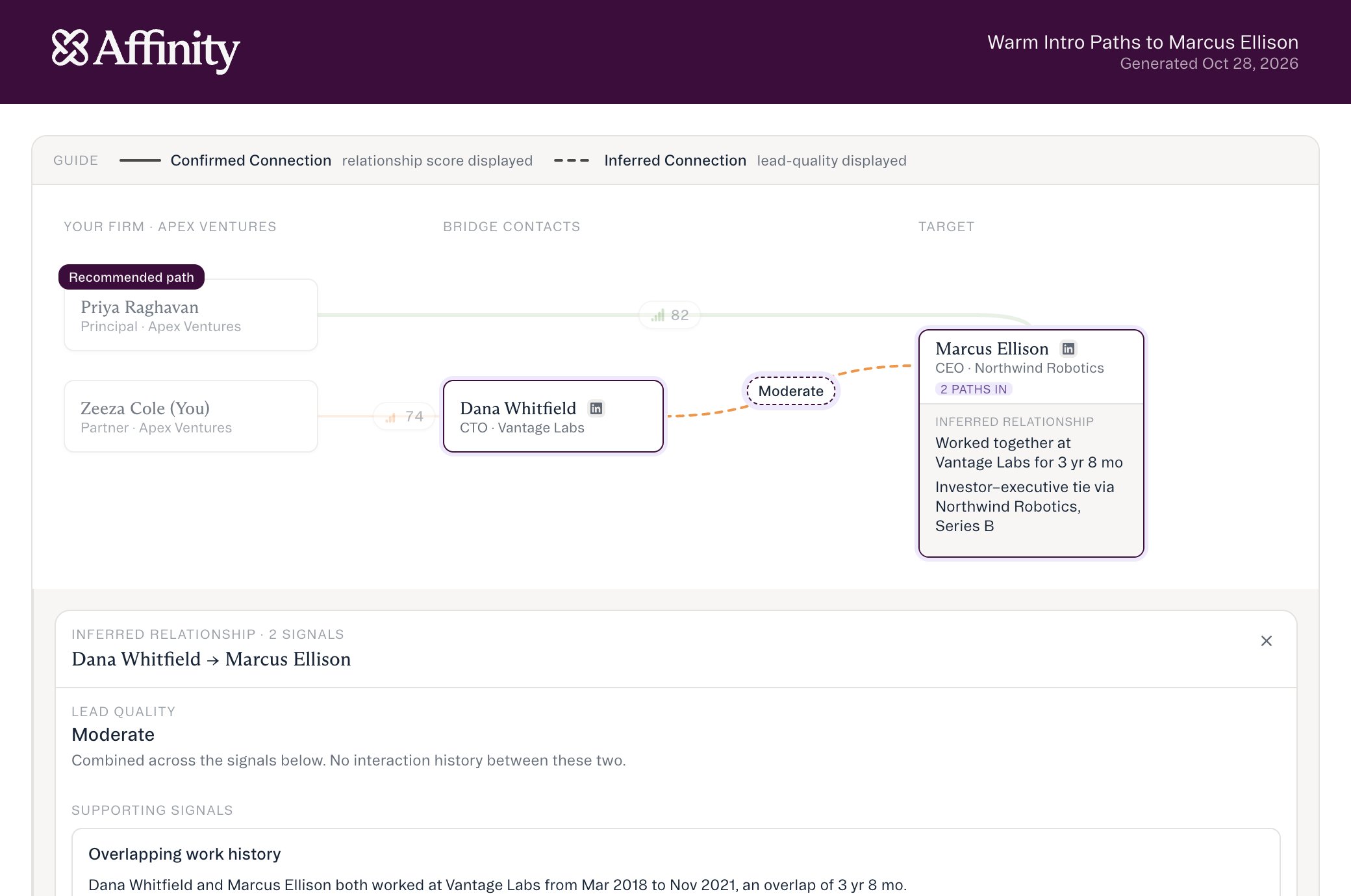
- “Who can introduce me to someone at Crusoe Energy?”
- “Do we know anyone at [investment firm]?”
- “How can I get introduced to the CEO of [company]?”
- One ranked list. Affinity ranks your direct relationships and inferred connections together, across one-hop and two-hop paths. The same question gets the same order.
- A Strong, Moderate or Weak label on every connection. Direct connections keep the relationship score you already see. Inferred connections show the label only, never a number, and there’s no overall path score.
- The evidence behind each connection — the last email or meeting and its date, the shared employer and overlap years, or the funding round, firm and investor — so you can judge it before you ask. In Claude, click a connection on the warm intro map to see it.
- Departed contacts and deactivated teammates are left out of the ranked paths, and each result says so. They still appear in the Connections tab on profiles.
- Empty result? It means none surfaced for that company — not an error, and not that you have zero. Coverage varies by company and by your firm’s access.
How Affinity infers an investor ↔ executive connection
You’re being handed a prediction, so it helps to see the chain behind it:- A funding event links an investor firm to a company it backed.
- Affinity checks whether a person your firm knows worked at that investor firm during the investment period — at the time of the deal, not just sometime in their career.
- It filters for relevant roles — partners and investors on the investor side; C-suite, founders, and board members on the company side — so the bridge is senior enough to plausibly know the target’s leadership.
- Affinity scores each inferred connection for confidence (longer, more recent overlaps and smaller companies score higher) to decide what surfaces and in what order.
- You won’t see a confidence number — it works quietly in the background, the same way relationship strength does for your explicit relationships.
What’s not available yet
- No full profile page for a person outside your CRM. Click their name to open a short Profile Insights view instead.
- No adding to a list from an inferred connection card or from Profile Insights.
- Hiding works in Affinity only. You can’t hide a person through the API or the Affinity MCP, and you can’t give a reason for hiding.
- On a person’s profile, the Connections-tab number badge counts direct connections only — it doesn’t include inferred ones, so the badge can look low while inferred matches appear in the section below it. On a company profile the badge does include inferred connections.
- Work-history cards can’t be expanded into a timeline at launch (see the note above).
- Not in this release: mobile, the connection side panel, and the Pathfinder Chrome extension. (Pathfinder is a separate product — Affinity’s Chrome extension — not another name for the Connections tab.)
FAQ
Is an inferred connection a confirmed relationship?
Is an inferred connection a confirmed relationship?
No — it’s a well-reasoned lead based on shared history. Treat it as a starting point to research and validate, not proof that two people know each other.
On a person's profile, are the listed people ones who can reach them, or ones they can reach?
On a person's profile, are the listed people ones who can reach them, or ones they can reach?
People they can reach. The profile you’re viewing is the bridge, and each name below it is a potential destination — so the path runs you → the person whose profile you’re on → the name in the list. The section header names the profile you’re on rather than the endpoint of the path. See Which direction the list runs.
Why is this person showing up if we've never talked to them?
Why is this person showing up if we've never talked to them?
That’s the point of inferred connections — they surface probable paths your recorded activity can’t. The relationship row (and, for funding overlaps, the timeline) shows exactly what shared history triggered it.
Are inferred paths ranked alongside my direct relationships in AI Chat and MCP?
Are inferred paths ranked alongside my direct relationships in AI Chat and MCP?
Yes. Affinity ranks direct relationships and inferred connections together and gives each connection a Strong, Moderate or Weak label. Inferred connections show the label and the evidence behind it, never a number. They’re still leads, so check the evidence before you ask.
If I hide someone, does my team stop seeing them?
If I hide someone, does my team stop seeing them?
No. A hide is just for you, on the page where you hid it. Your teammates still see the person, and so do you on other profiles. See Hide an inferred connection.
I hid someone by mistake. How do I get them back?
I hid someone by mistake. How do I get them back?
Click Undo in the confirmation message. If the message has gone, click the hidden button on the profile’s Connections tab, then click the undo icon next to the person.
Why did someone I hid come back?
Why did someone I hid come back?
A hide lasts until there’s an update on the person. If their role or company changes, or Affinity finds a new connection to them, they reappear with a note on their card saying what changed. Hide them again if they still don’t help.
Do I see a confidence score?
Do I see a confidence score?
No. Confidence scoring runs in the background to rank what surfaces, but it isn’t shown in the product.
A company I expected to have connections came back empty. Is it broken?
A company I expected to have connections came back empty. Is it broken?
Not necessarily. An empty result means no inferred paths surfaced for that company — which can come down to available data or your firm’s access. Not an error, and not a statement that none exist.