

What it can answer
Affinity AI draws only on data you can already see:- Companies, people, and opportunities — fields, lists, owners, stages
- Notes, files, meetings, emails, and activity history — including notes and files on opportunities and people, and PDFs such as pitch decks already in Affinity
- Relationships and connection strength
- Recent external news on a company
What it can do (with your approval)
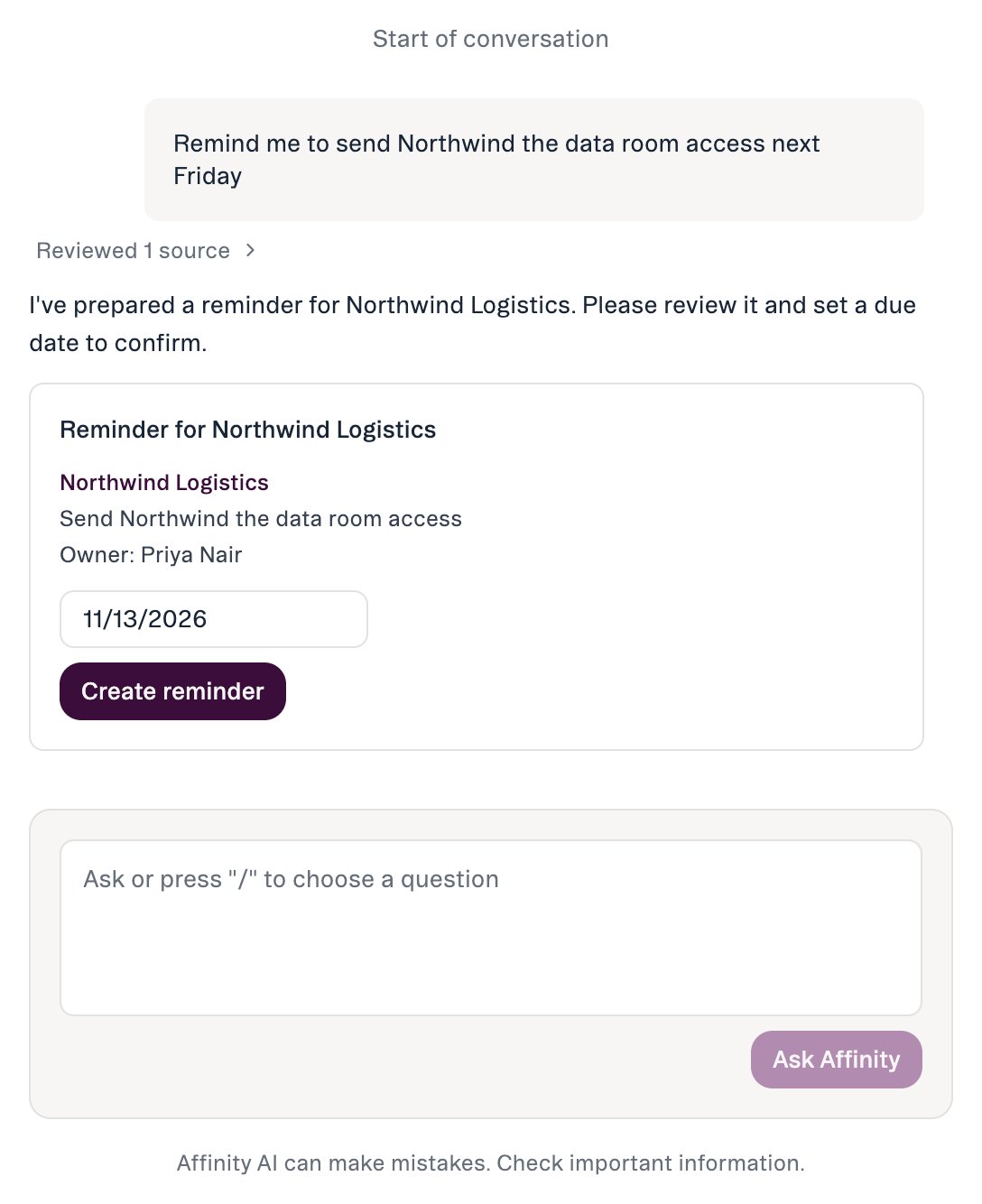
Every action is confirm-before-execute: Affinity AI proposes the change, and nothing is written until you approve. The actions:- Update a field — a field value or an opportunity’s pipeline stage.
- Add to a list — add one record to one of your lists, or several companies or people in one step.
- Create a note — draft and log a note on a record.
- Create a reminder — so a follow-up doesn’t slip.
How an answer looks
Affinity AI works in two visible stages: a thinking state shows the work in progress; a short “sources used” line at the end tells you exactly which data the answer drew on, so you can open it and verify.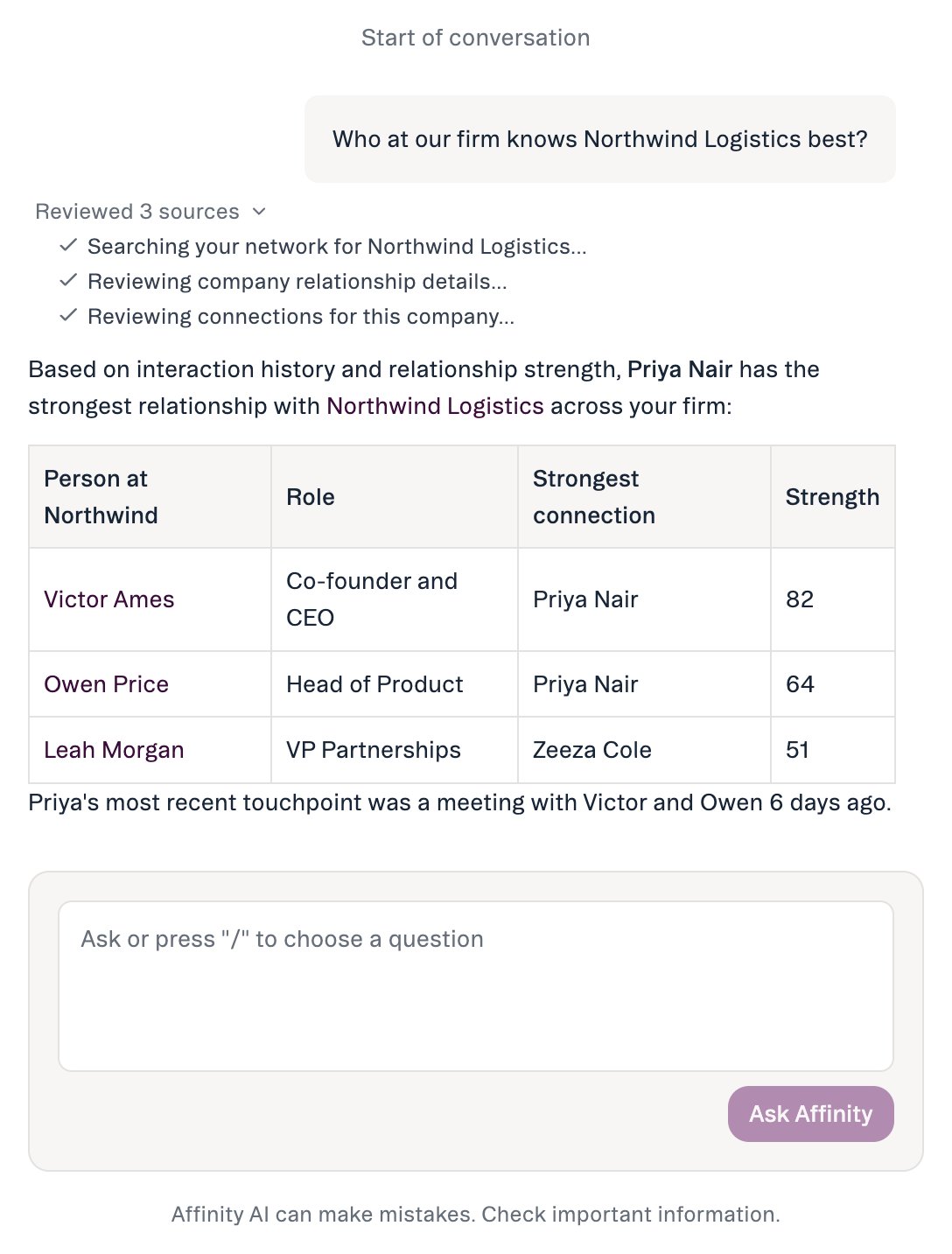
How to trust it
- It shows its sources. Every answer ends with the data it reviewed.
- It signals confidence. When supporting data is thin, it flags low confidence — open the source before relying on it.
- It suggests; it doesn’t act on its own. You always see a confirmation before anything changes, and can tell a suggested action from a completed one.
- It respects your permissions. It can only see and change what your account already allows.
- You can give feedback. 👍 / 👎 on any answer; 👎 routes to Affinity’s product team.
Known limits
- ~90-day activity-history window — very long-range “first ever interaction” questions can be truncated.
- People search is by name or email — not by role/title, location, or expertise.
- No location/geographic filtering.
- No reliable historical field-value lookup — it reports a field’s value now, not what it was at a past point.
Where to find it
AI Chat lives in the web app (not on mobile). Open it from the left navigation — Chat and Ascend (agents) are separate items — or press Cmd+J (Mac) / Alt+J (Windows). Admins control whether AI features are on for your org at Settings → Automations & AI → Affinity AI.Common questions
- Will it change my data without asking? No — every action is confirm-before-execute. There’s no “always allow.”
- Does it see data I can’t access? No — it’s scoped to your existing permissions.
- Will it send emails? No.
- How is it different from Search or filters? It’s conversational — ask follow-ups and refine — and it aggregates across profiles instead of tab-hopping.
Affinity AI can make mistakes. Review each suggestion before approving it.