

What is AI Chat?
AI Chat is a conversational interface to your Affinity CRM. Instead of building filters or clicking through profiles, ask questions in natural language and get instant answers grounded in your firm’s data — with cited sources. AI Chat can also take confirm-before-execute actions: it proposes a change, shows you exactly what it will do, and waits for your approval before anything is written. Think of it as a knowledgeable colleague who has instant access to every company, person, note, and interaction in your CRM.- vs Search — conversational: ask follow-ups, refine, explore.
- vs Filters — no UI to learn; describe what you want in plain language.
- vs manual clicking — aggregates across profiles instantly.
Your first conversation
1. Open AI Chat
Log into the Affinity web app (AI Chat is web-only), open AI Chat from the left navigation (or press Cmd+J on Mac, Alt+J on Windows), and you’ll see a few suggested prompts — click one or type your own.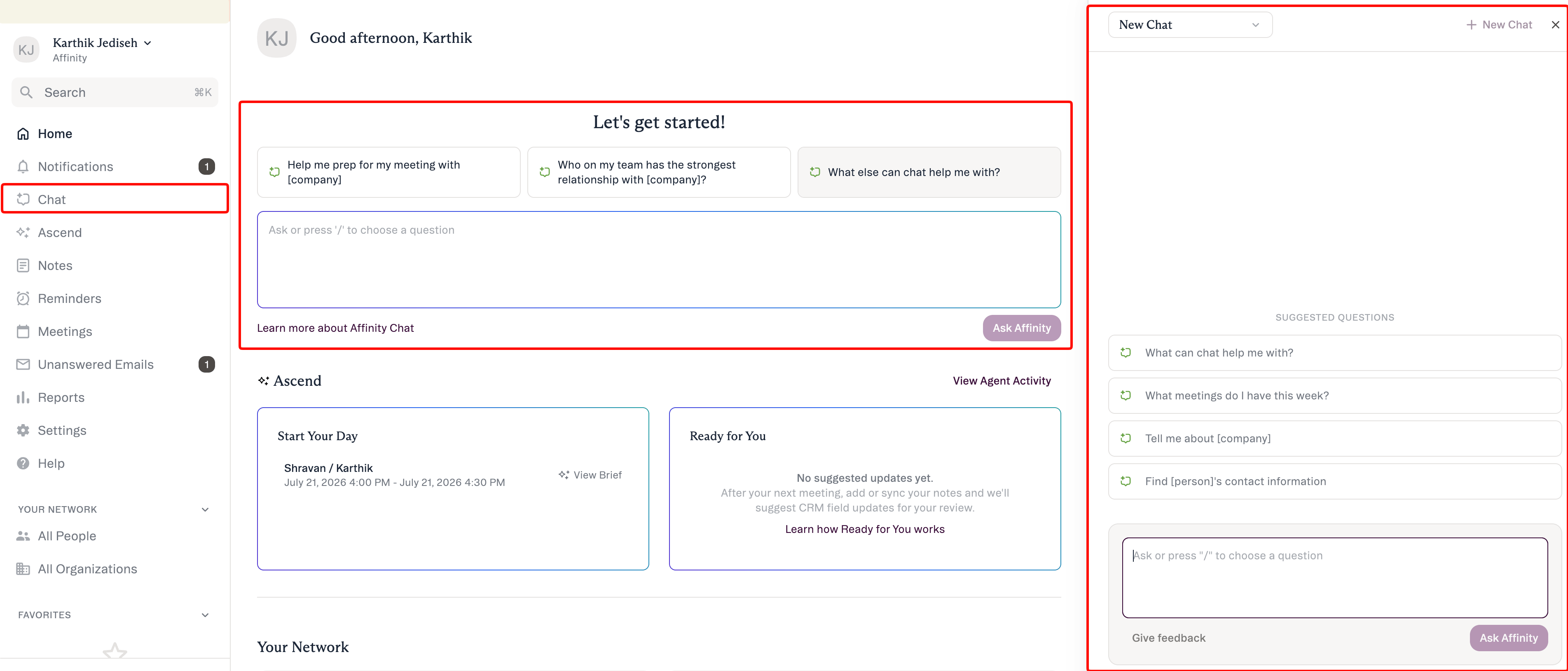
2. Ask your first question
A good first question is meeting prep. (For a full written brief on an external meeting, click Generate Brief in Meetings instead. Chat is for exploring and following up.)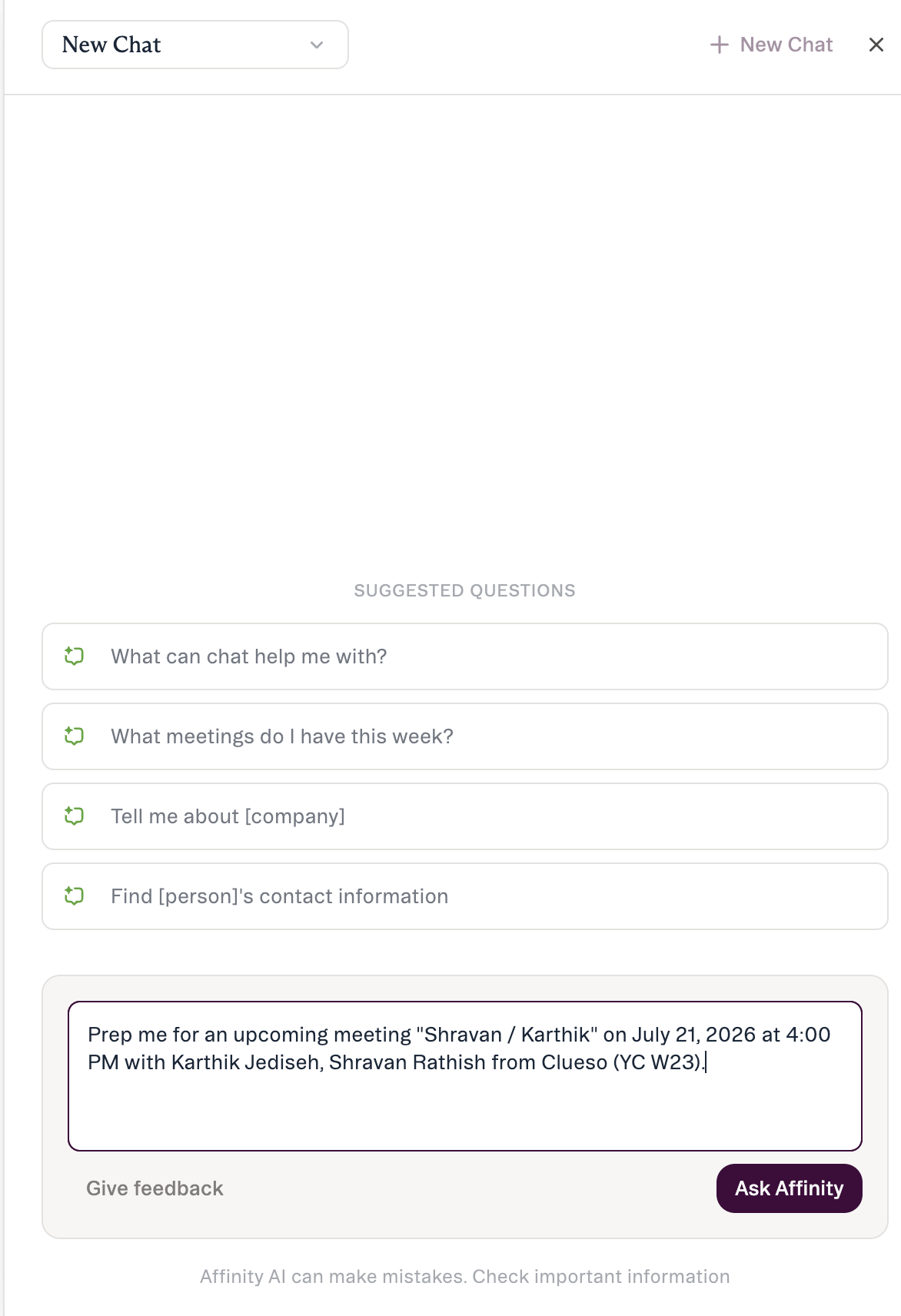
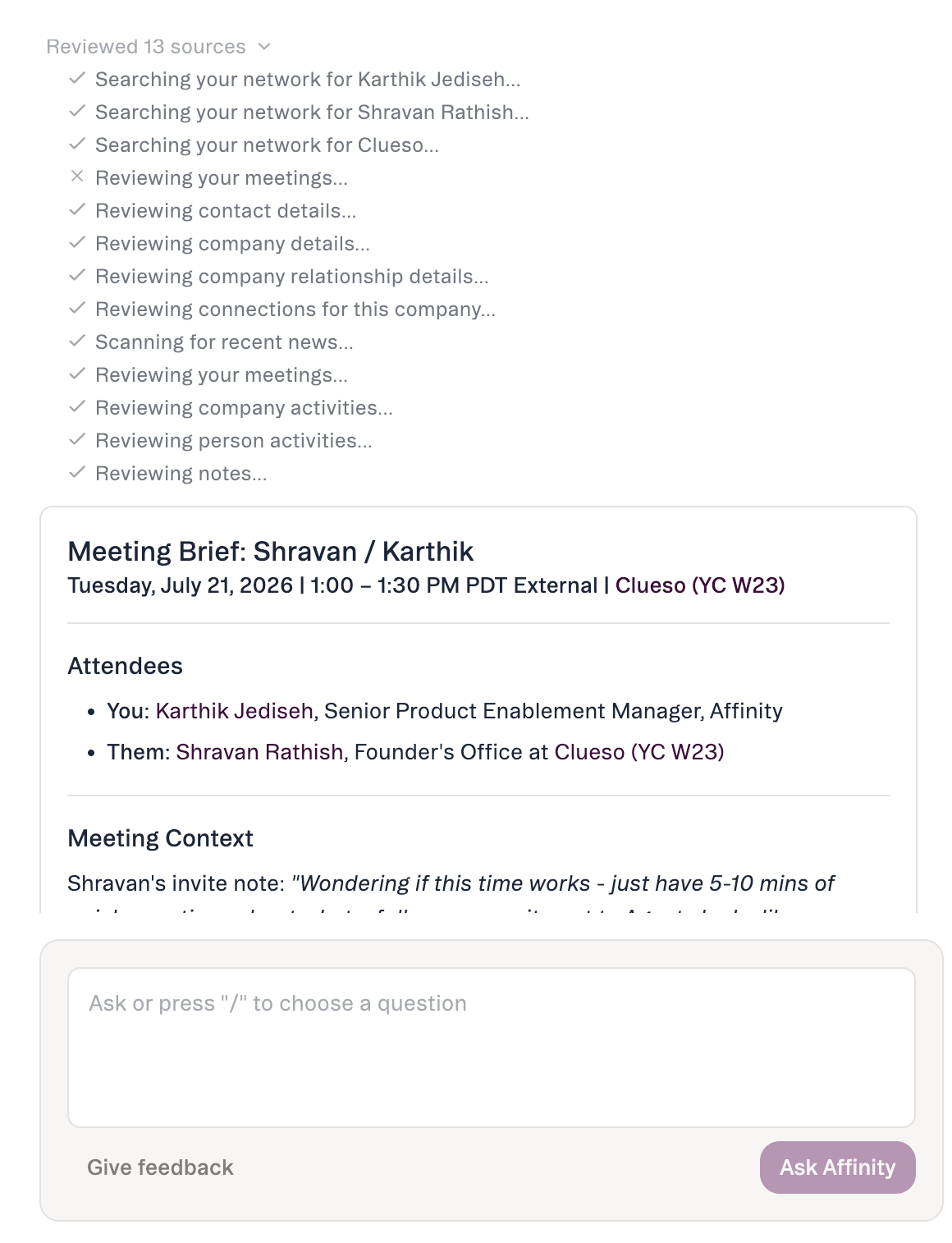
3. Read the answer and its sources
The response is grounded in your CRM data, with a short “sources used” line below it. For meeting prep you’ll typically get last interaction date, a recent-notes summary, team members who’ve engaged, relationship history, and key discussion points — plus recent company news when relevant.4. Ask a follow-up
You don’t need to restate context — AI Chat keeps the conversation history for each session:5. Take an action (with your approval)
You can ask AI Chat to make a change. It shows exactly what it proposes and waits for you to confirm before writing anything:How confirm-before-execute actions work
The model is always it suggests → you review → you approve. AI Chat only sees and changes what your own account can, and never sends email or outreach. The four actions: Update a field (or pipeline stage) · Add to a list · Create a note · Create a reminder. AI Chat can’t upload files, create saved views, or create lists. It also labels suggested vs. completed so it’s always clear whether something is a proposal or a done change.What AI Chat can and can’t do
It finds and summarizes your CRM data, and takes the four confirm-before-execute actions above. It will not send email or outreach, merge or delete records (Affinity MCP can, with your confirmation), or run on mobile (web app only). Honest limits: ~90-day activity window; people search by name or email only; no location/geographic filtering; no reliable point-in-time field history.How to access AI Chat
Log into the Affinity web app, open AI Chat from the left navigation or press Cmd+J (Mac) / Alt+J (Windows), and type a question or pick a suggested prompt. Available for: Scale, Advanced, and Enterprise. Admins manage AI features in Settings → Automations & AI → Affinity AI; individual users can turn AI features off for themselves.Basic prompting principles
- Be specific — include entity names, timeframes, and criteria. ❌ “Find companies” → ✅ “Find healthcare companies at Series A in our network.”
- Iterate and refine — narrow step by step.
- Verify critical data — click through to confirm before making decisions. If AI Chat asks “Which company?” when several match, that’s expected — add specifics.