

Asking vs. the meeting brief
Two complementary ways to get meeting context:- The Meeting Prep agent produces your pre-meeting brief for external meetings. When the agent is monitoring your meetings, briefs are generated overnight and ready by 7:00 AM in your local time zone; you can also click Generate Brief for any external meeting, from Meetings or the Start Your Day module on your home page. This works even if Monitoring is off, and View Brief opens a brief that already exists. It’s delivered in-app: on your home page (Start Your Day / Ready for You), in the Ascend Agent Activity feed. This is the reliable way to get a full pre-meeting brief. (See Meeting Prep & Data Update.)
- Asking AI Chat (this article) is on-demand and conversational — explore what your CRM knows about a specific company or contact right now, dig deeper with follow-ups, and act on what you find. Chat can’t read your Meeting Prep brief or review Suggested Field Updates. The agents don’t run from Chat: Meeting Prep runs overnight or when you click Generate Brief, and Data Update runs after your meetings. The meeting-prep prompt below works as a normal Chat query.
Before you start
- Plan: AI Chat with actions is available on Scale, Advanced, and Enterprise.
- Access: AI Chat is GA. Admins control agents and AI features in Settings → Automations & AI → Affinity AI; if you don’t see AI Chat, check with your admin.
- Web app only. Affinity AI only sees and can change what your own account already can.
Step-by-step
1. Start from the meeting
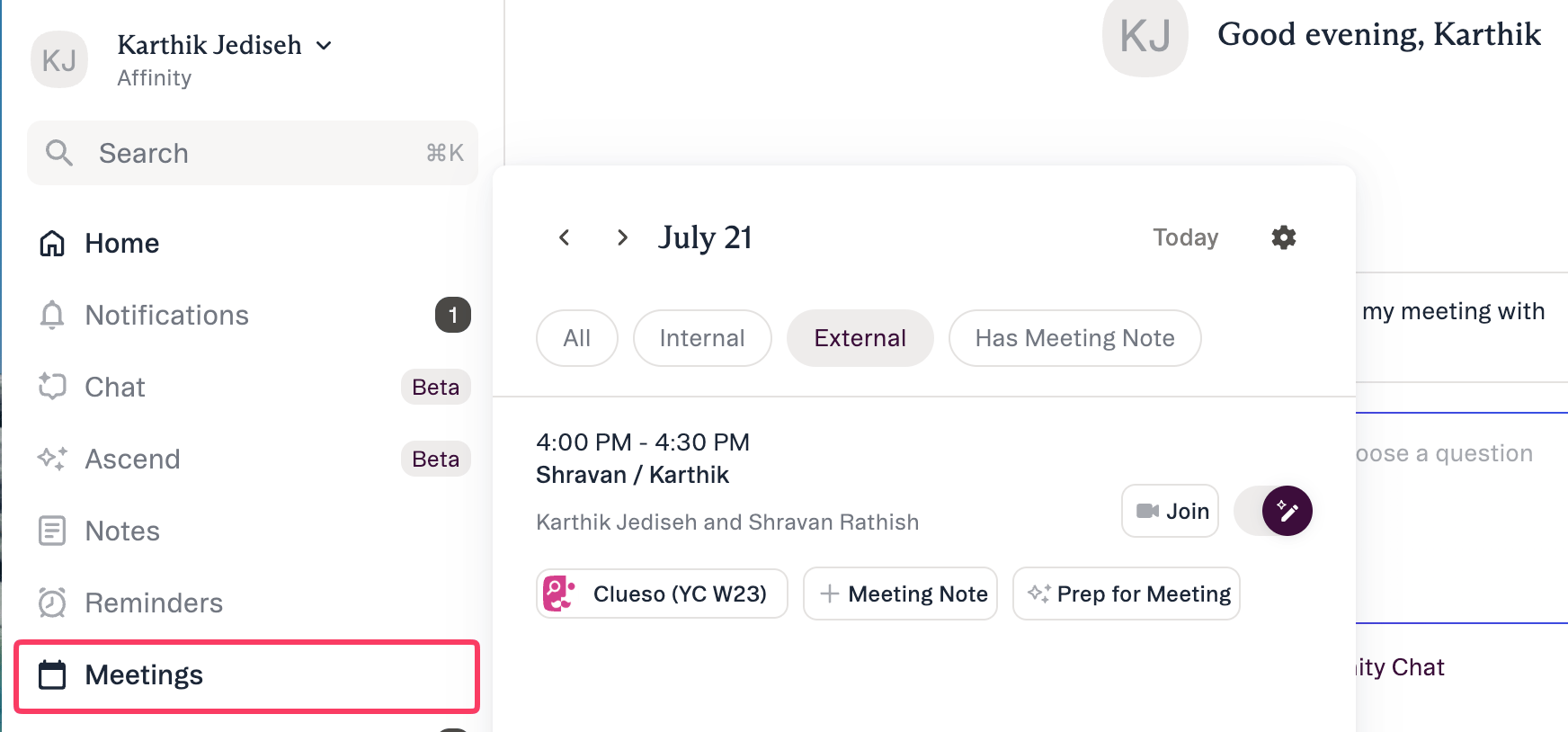
- Open Meetings in the left nav.
- Use the ← / → arrows to move to the meeting’s date.
- Open the external meeting entry, where you can pick the company profile and add a meeting note.
The Prep for meeting button that opened AI Chat with a prepopulated prompt has been replaced.
External meetings now show Generate Brief, or View Brief when a brief already exists. These
produce a full pre-meeting brief from the Meeting Prep agent rather than starting a conversation —
see Meeting Prep and Data Update.
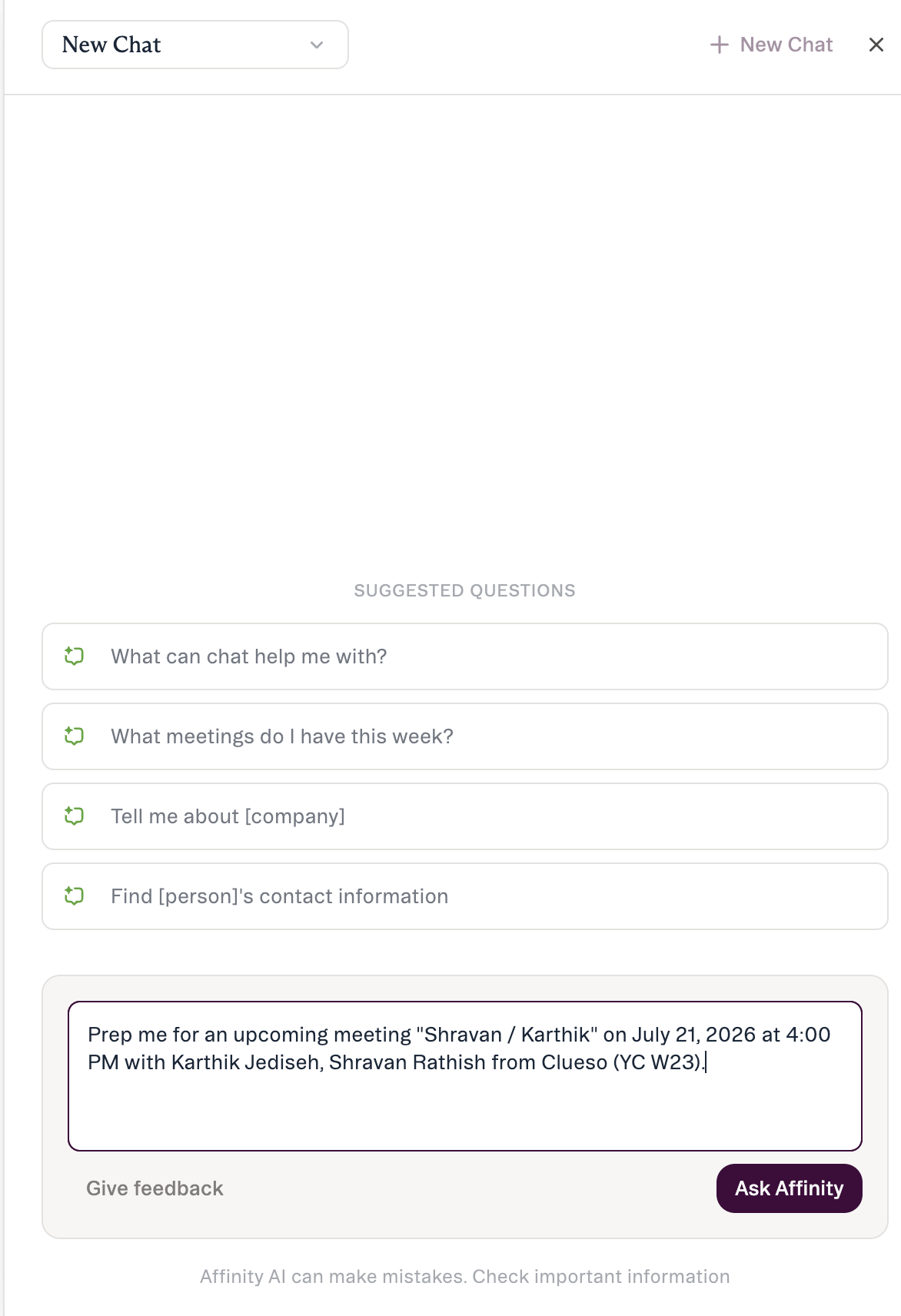
2. Open AI Chat and ask for a prep
3. Read the response
Typically: relationship history, recent activity (last interaction and how recent), and open items (deal/pipeline context). Review it against the cited sources.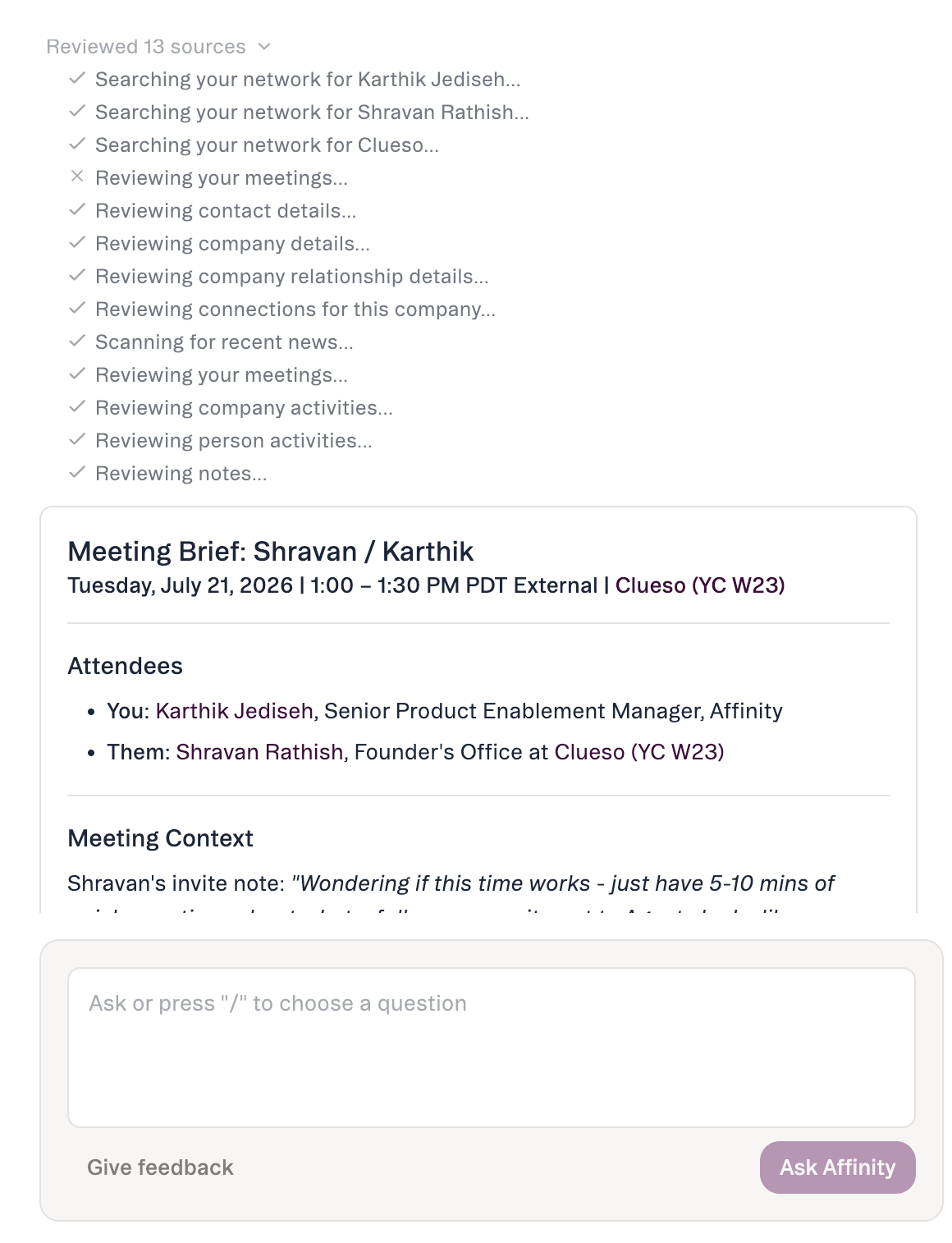
4. Ask follow-ups
5. Act on it — with your approval
When ready, ask Affinity AI to take an action right in chat: update a field or pipeline stage, add to a list, create a note, or create a reminder — for example:Tips
- Name the company or person explicitly. People search is by name or email only.
- Verify dates against your calendar — occasionally a past meeting may show as “upcoming.”
- Use follow-ups instead of one giant question.
- Review before you approve — check the proposed change against the cited source.
Common questions
Will Affinity AI change anything on its own? No — for any write action it shows the proposed change and waits for your approval. What can it do? Answer questions (with cited sources) and take four confirm-before-execute actions: update a field or pipeline stage, add to a list, create a note, create a reminder. What if the answer isn’t quite right? Ask a follow-up or check the cited sources. Note the limits: ~90-day activity window; people search by name or email only; no location filtering; no reliable point-in-time field history.Affinity AI can make mistakes. Review each suggestion before approving it.