

Getting access
- Available on Scale, Advanced, or Enterprise, with Ascend enabled for your org at Settings → Automations & AI → Affinity AI (it’s on by default). See Enabling Affinity Ascend.
- Its card on Ascend → Agents reads “Summarizes pitch decks, teasers, CIMs, and other PDFs saved to Affinity.”
- There’s no Monitoring toggle. Document Synthesis isn’t a background agent, so it only runs when you ask it to.
Summarize a file in Affinity
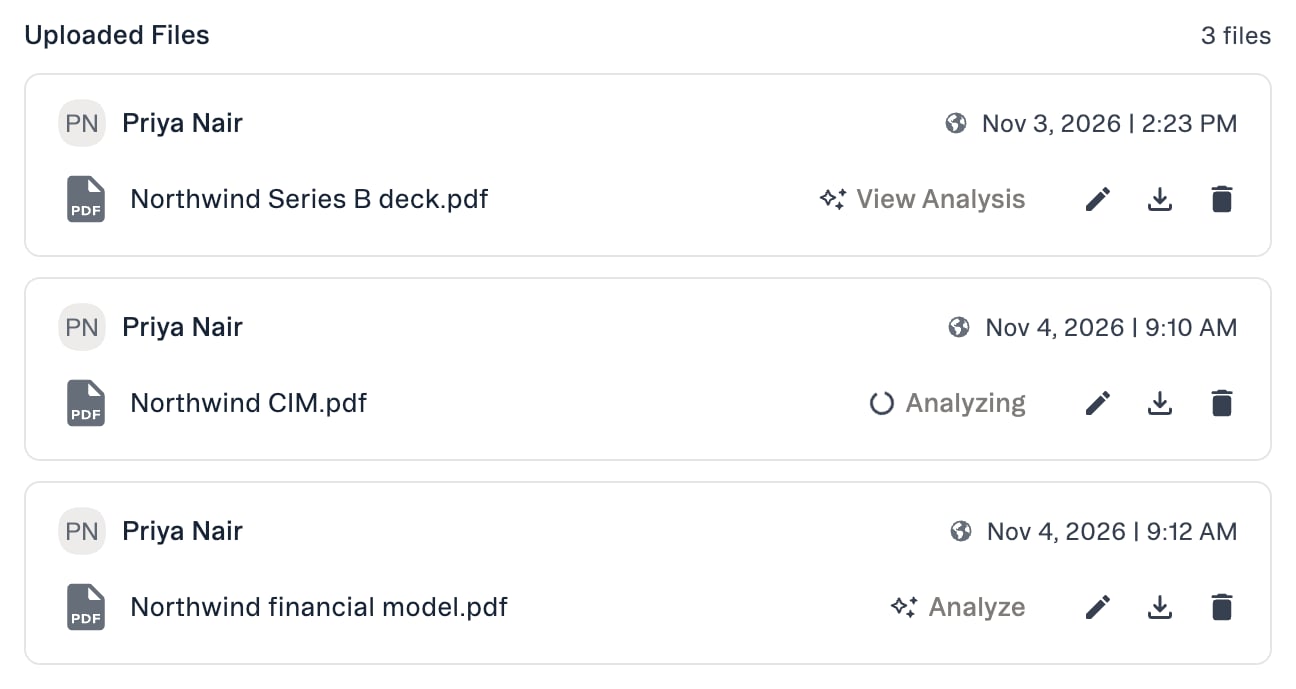
You can summarize any PDF on the Files tab of a company, person or opportunity, including email attachments already saved there.- Open the record and go to the Files tab.
- Click Analyze next to the PDF. The button shows Analyzing while the agent works.
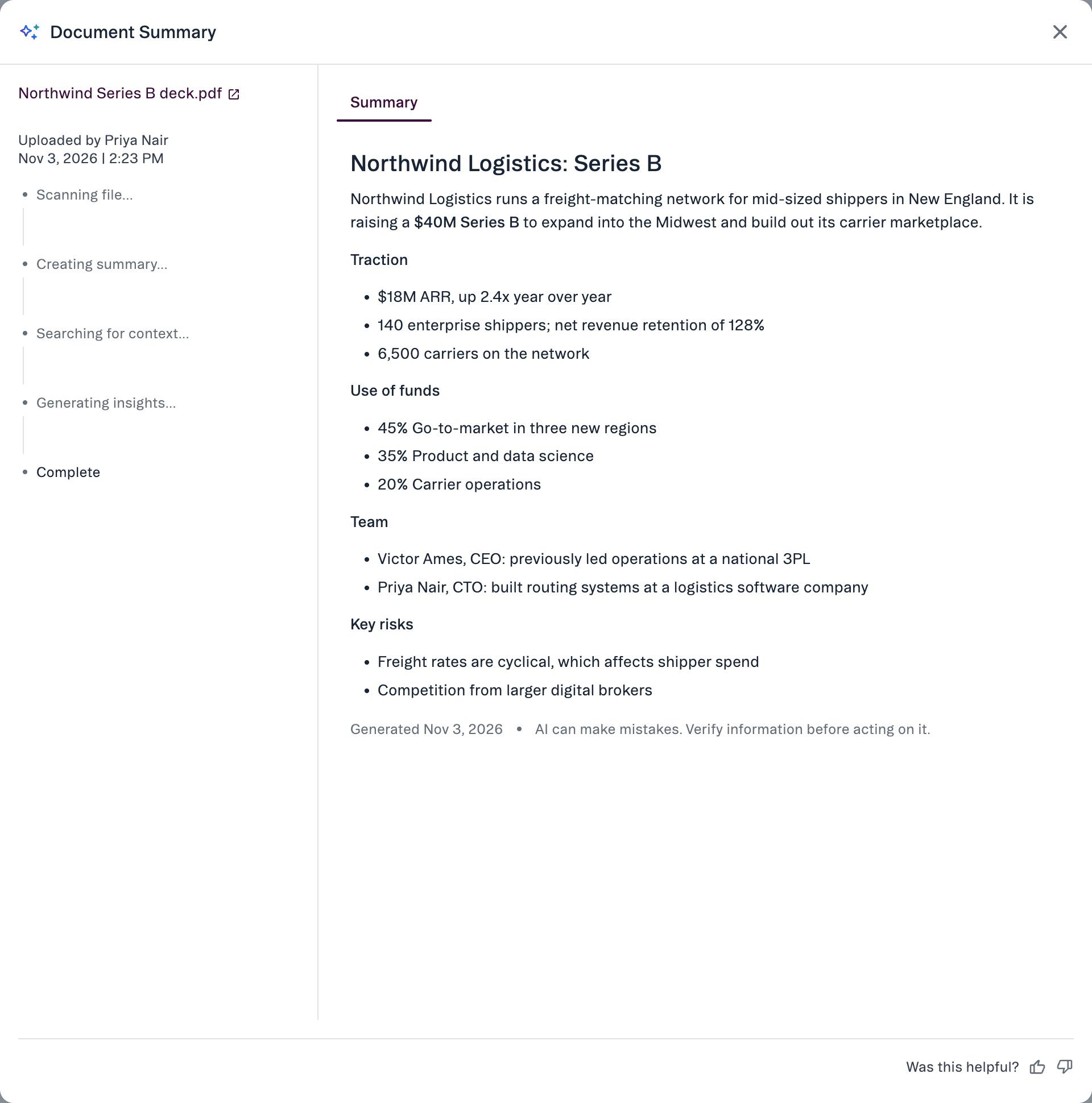
- When it’s done, click View Analysis to open the Document Summary.
Summarize an email attachment in Outlook or Chrome
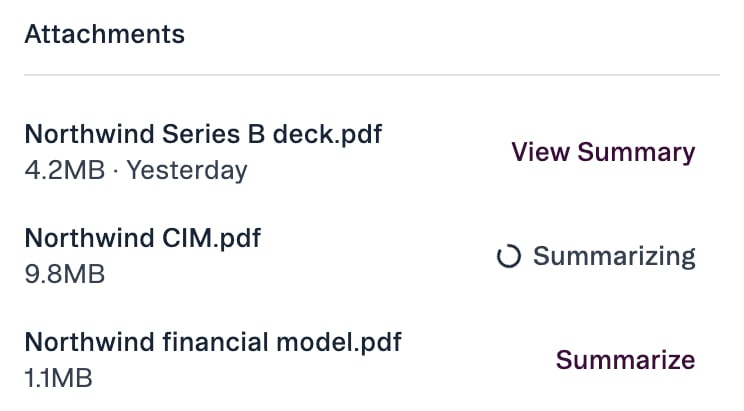
In the Outlook add-in and the Chrome extension, an email’s Attachments section lists its attachments once the email is synced to Affinity.- Open the email and find the attachment under Attachments.
- Click Summarize. It shows Summarizing while the agent works.
- Click View Summary to read it. If something went wrong, click Try again.
Find your summaries in Ascend
Each summary you request appears in Ascend as “Document summary for” the file’s name, with View File and View Summary. When you no longer need one there, click Archive.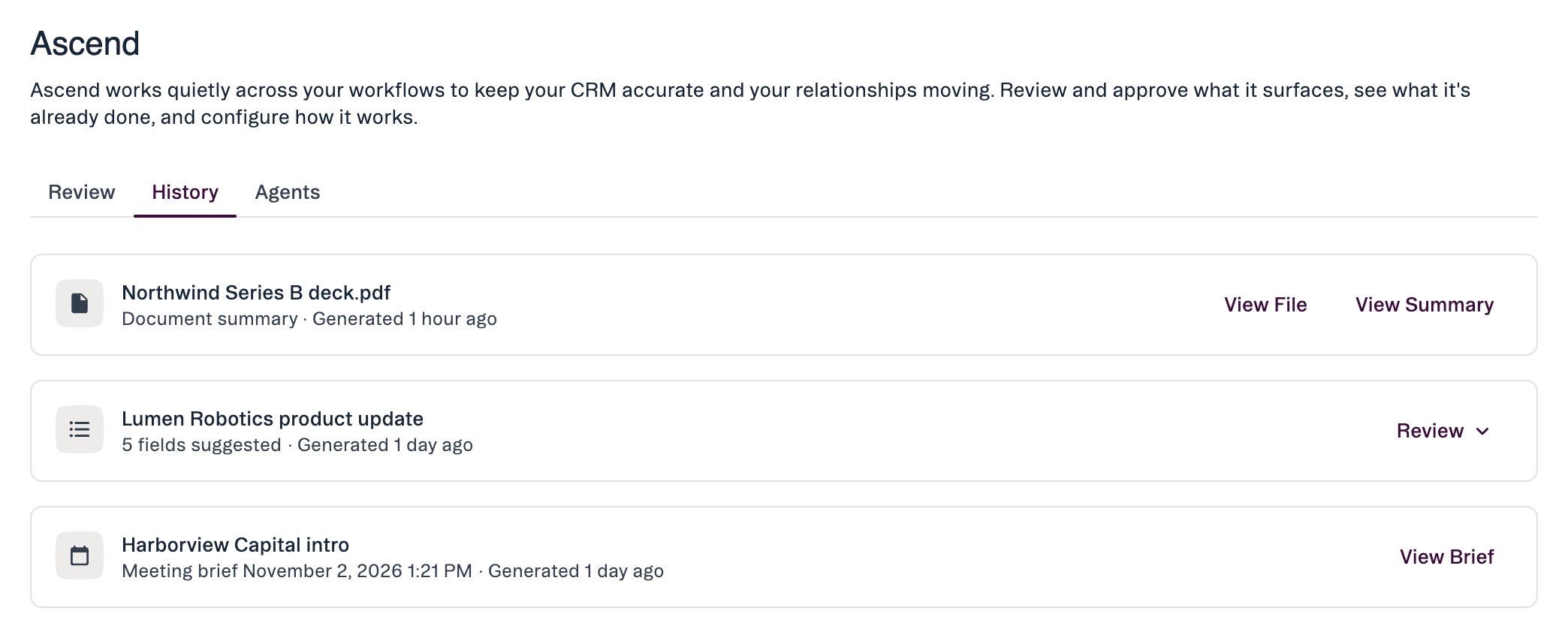
Limits
- PDF only. Files up to 22 MB.
- Long documents. Very long documents are summarized up to about 100 pages, and the summary says how much of the document it covers.
- Private to you. A summary is visible only to the person who requested it. A teammate who wants one runs Analyze on the file themselves.
What it doesn’t do
- It doesn’t scan your inbox or detect documents automatically, and it doesn’t run in the background. You start every summary.
- It doesn’t read DocSend or Google Drive links, or Office files such as Word or PowerPoint.
- It doesn’t suggest or make field updates from a document.
- It isn’t available in Affinity MCP.
Common questions
- Do I need to turn it on? No. With Ascend enabled for your org, click Analyze on a file or Summarize on an attachment. There’s no toggle.
- Who can see my summary? Only you.
- Will it pick up decks that land in my inbox? Not on its own. Open the email in the Outlook add-in or the Chrome extension and click Summarize on the attachment.
- Why can’t I analyze a file? Document Synthesis works on PDFs up to 22 MB. Other file types, and larger PDFs, can’t be summarized.
- Will it update fields on the record? No. It only writes a summary. To get suggested field updates from what you learned, add a note and run the Data Update agent on it.
- How is this different from the Labs Pitch Deck Analyzer? Where Ascend agents are on, Analyze on the Files tab runs Document Synthesis. See How to use Pitch Deck Analyzer for the Labs version.
Affinity AI can make mistakes. Check the summary against the document before you rely on it.