How-to — task-oriented recipe.
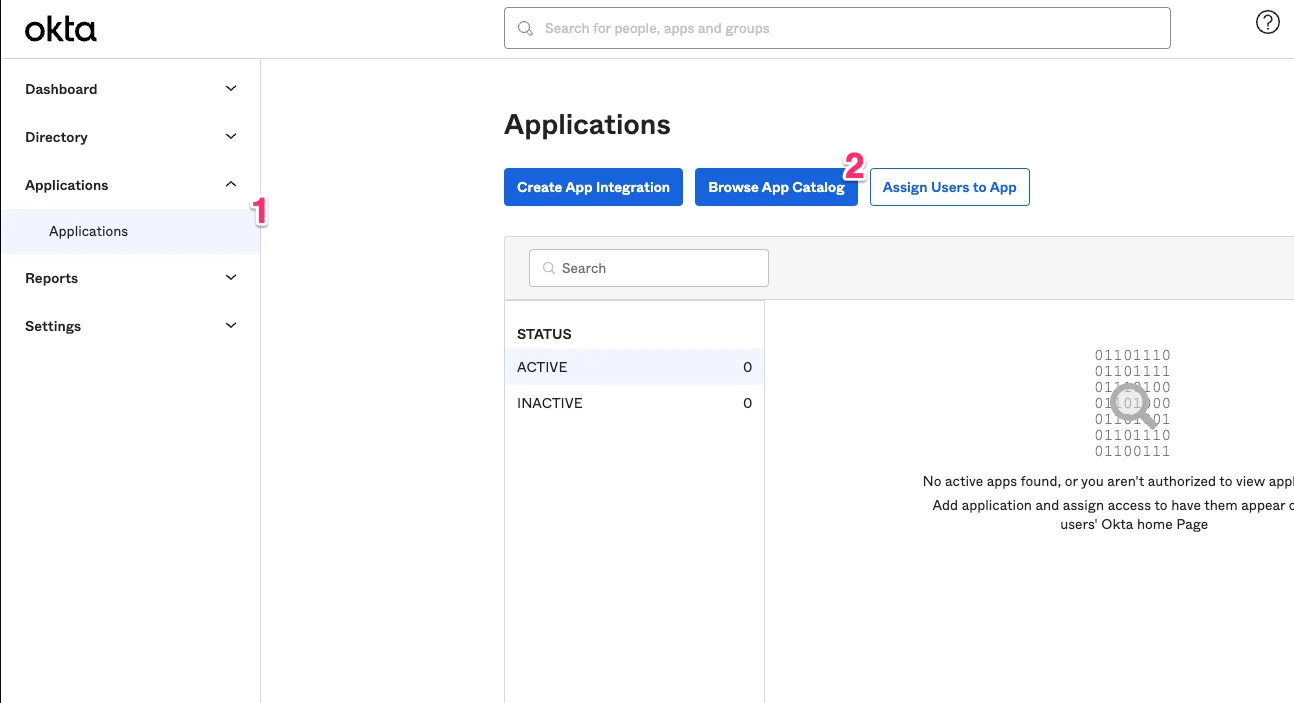
- From your admin dashboard, click Applications, then click on Browse App Catalog.
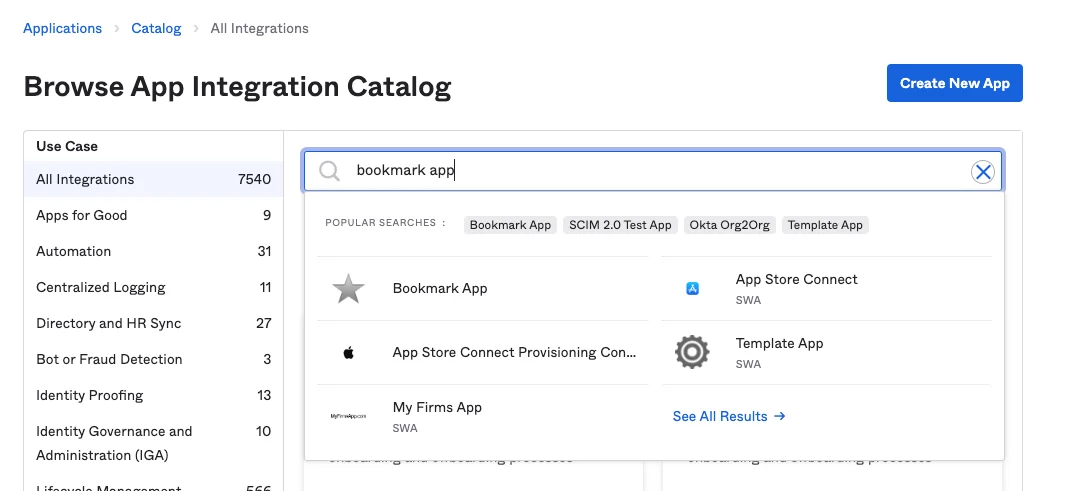
- Search for the Bookmark App - the name may vary based on your SSO provider.
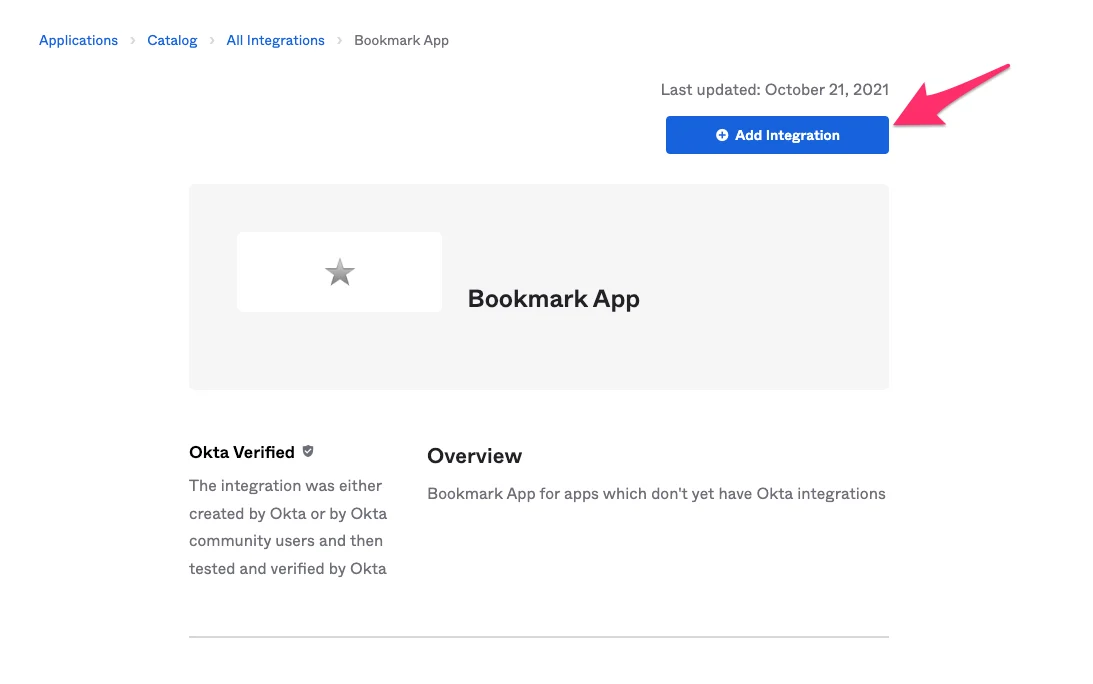
- Once you have selected the Bookmark App, click on Add Integration.
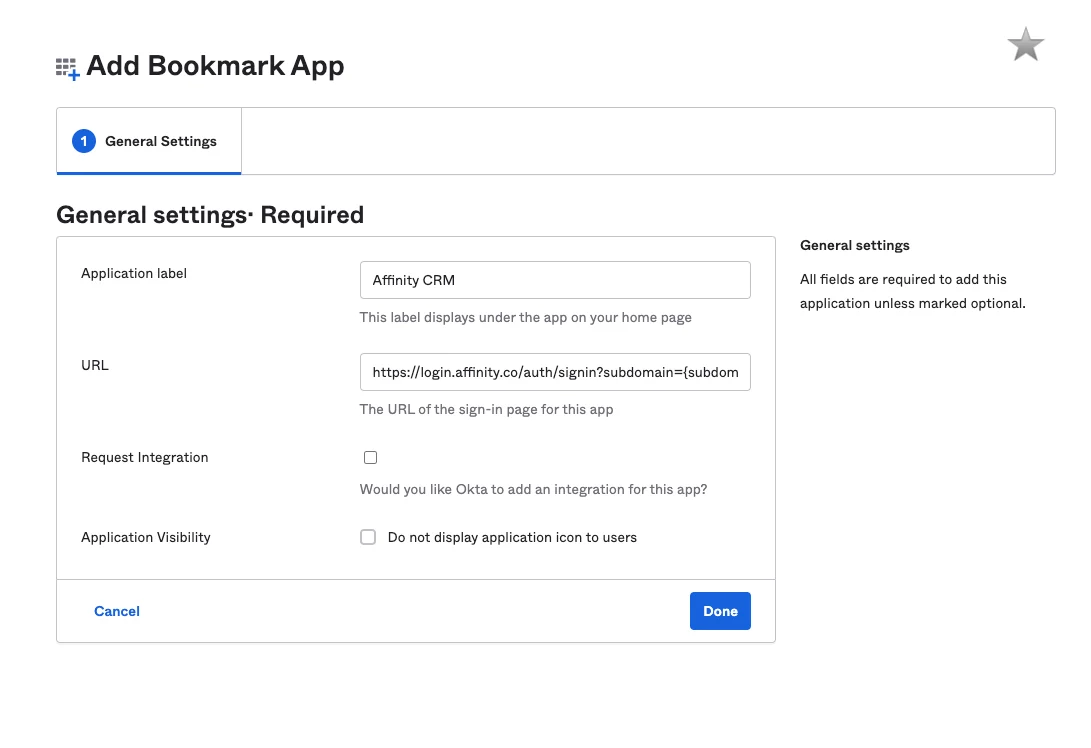
- Create a label for the application. You can name it Affinity, Affinity CRM, or anything else.
- Fill out the URL, which should be
https://login.affinity.co/auth/signin?subdomain=[subdomain]- Make sure to replace the
[subdomain]with your organization’s unique subdomain. If you’re not sure what it is, check out How to find your Affinity subdomain
- Make sure to replace the
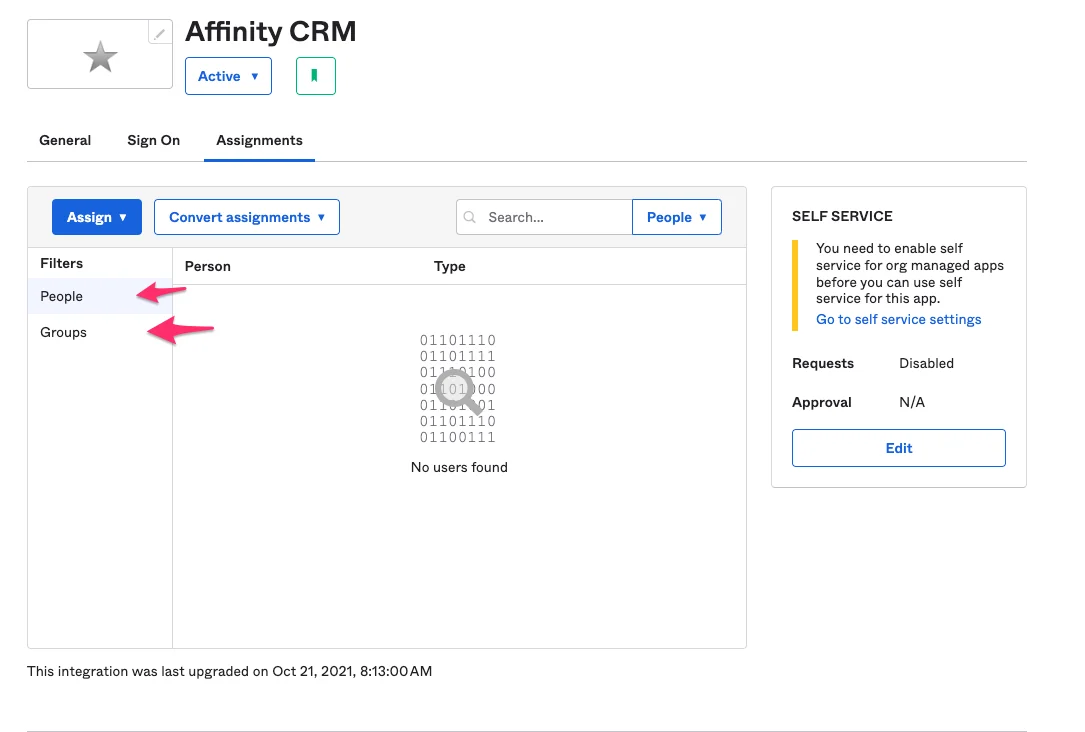
- Now, you can start adding users and groups to access Affinity via this shortcut.