How-to — task-oriented recipe.
Overview
- These filters apply to all tiles and will always be available under the dashboard view’s title.
- On the other hand, cross-filters are temporarily applied and will clear upon refreshing your dashboard view.
- Set up filters that you’d like to apply to specific tiles, not all tiles.
How to set up filters on your dashboard views
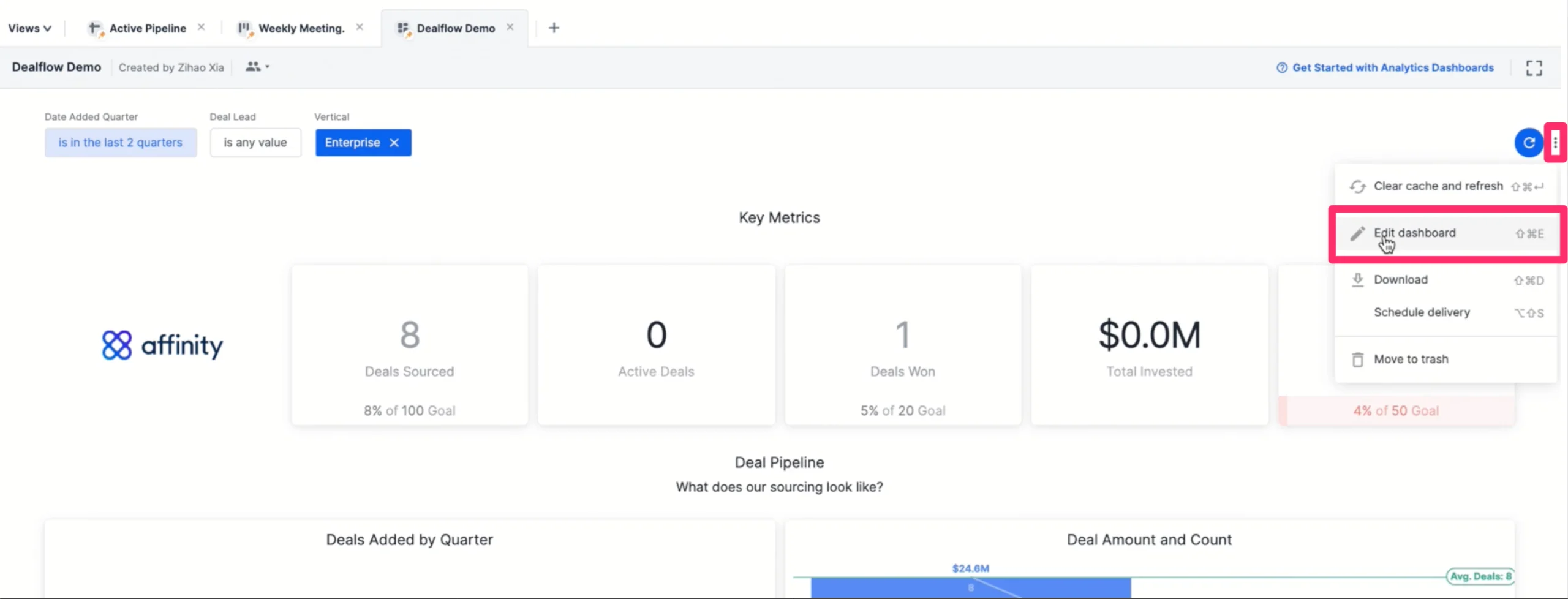
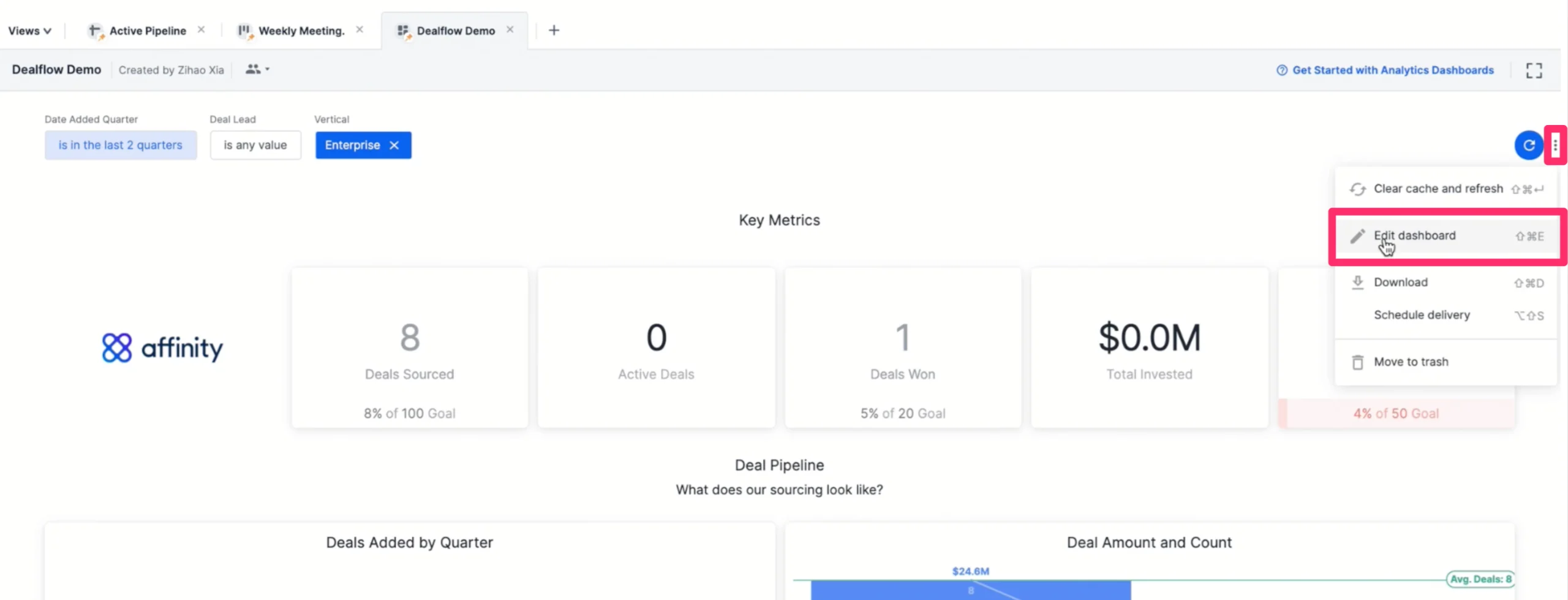
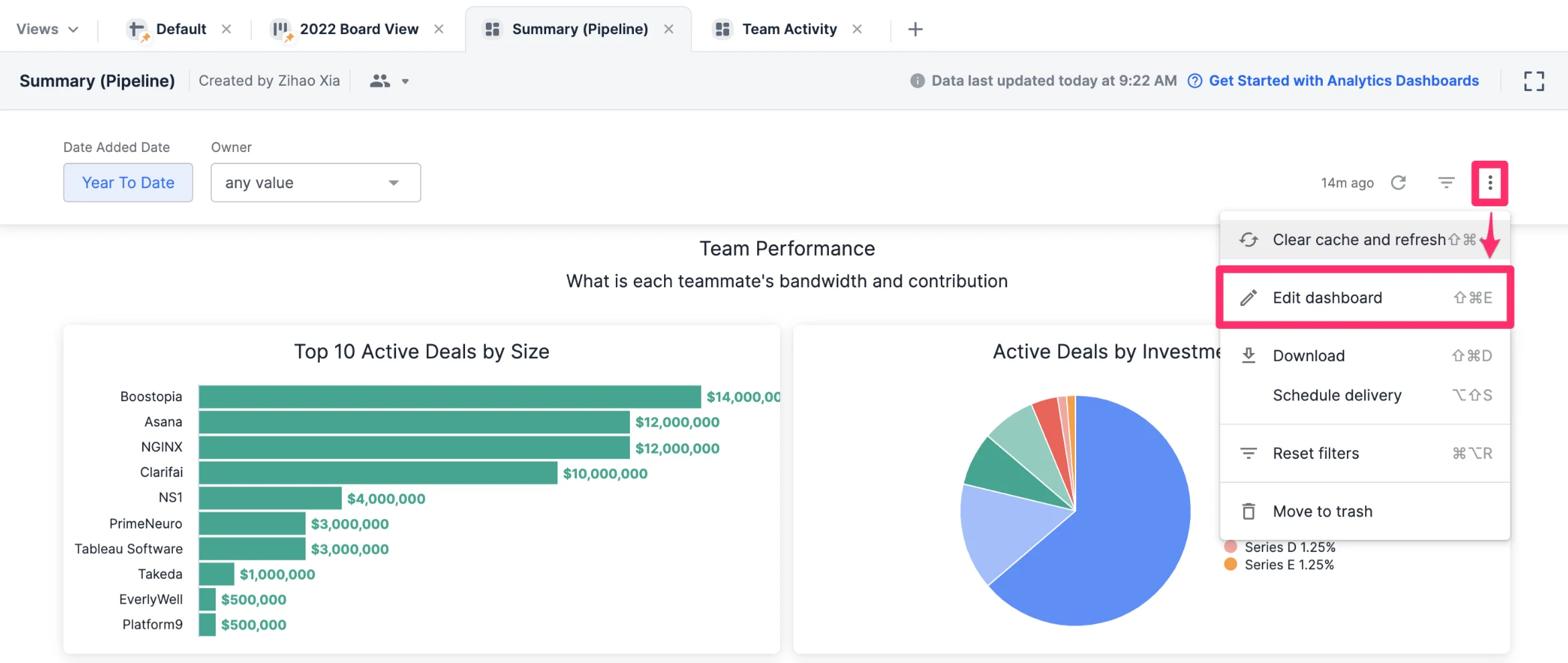
Set up filters based on certain fields like Status, Owners, and more. These filters apply to all tiles and will always be available under the dashboard’s title.- To set up a filter, click the ellipsis (3-dotted icon) in the dashboard, then click Edit dashboard.
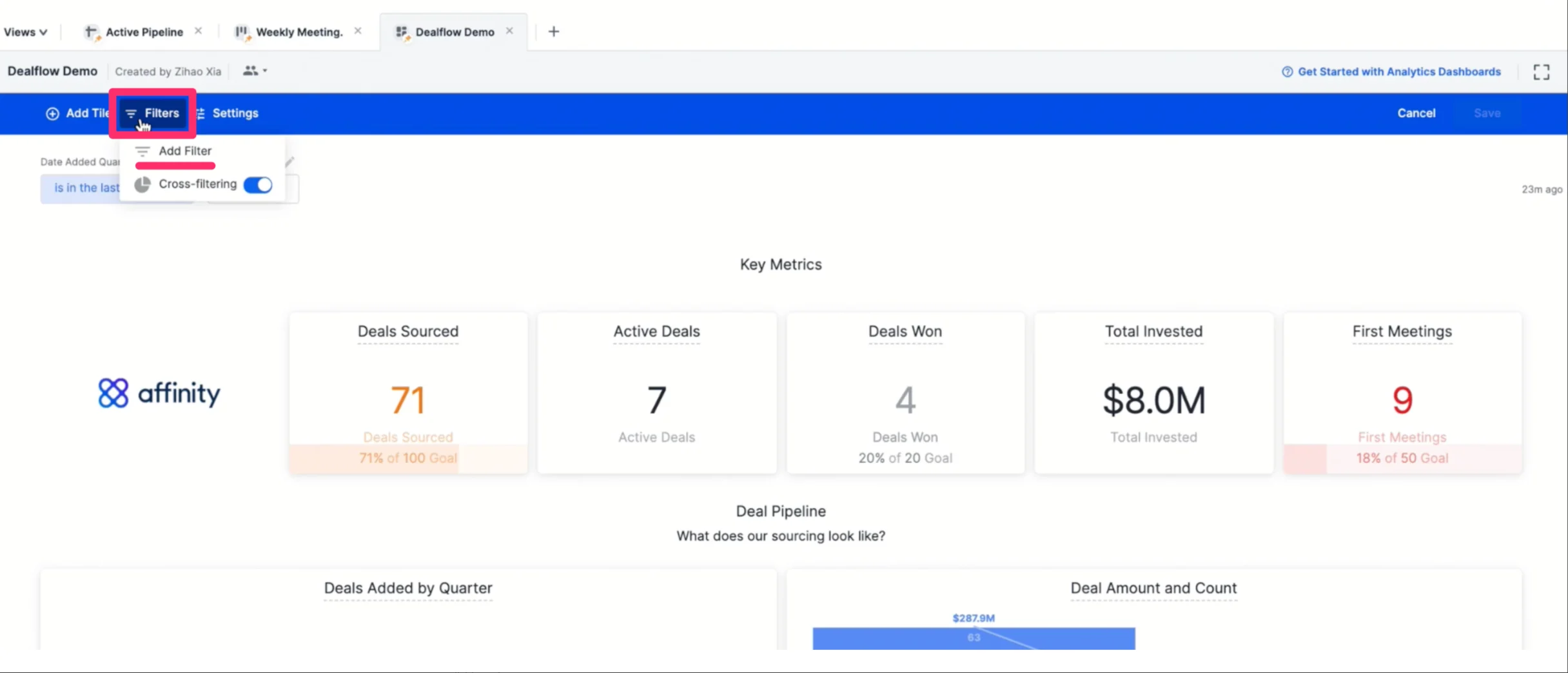
- Click Filters, then click Add Filter.
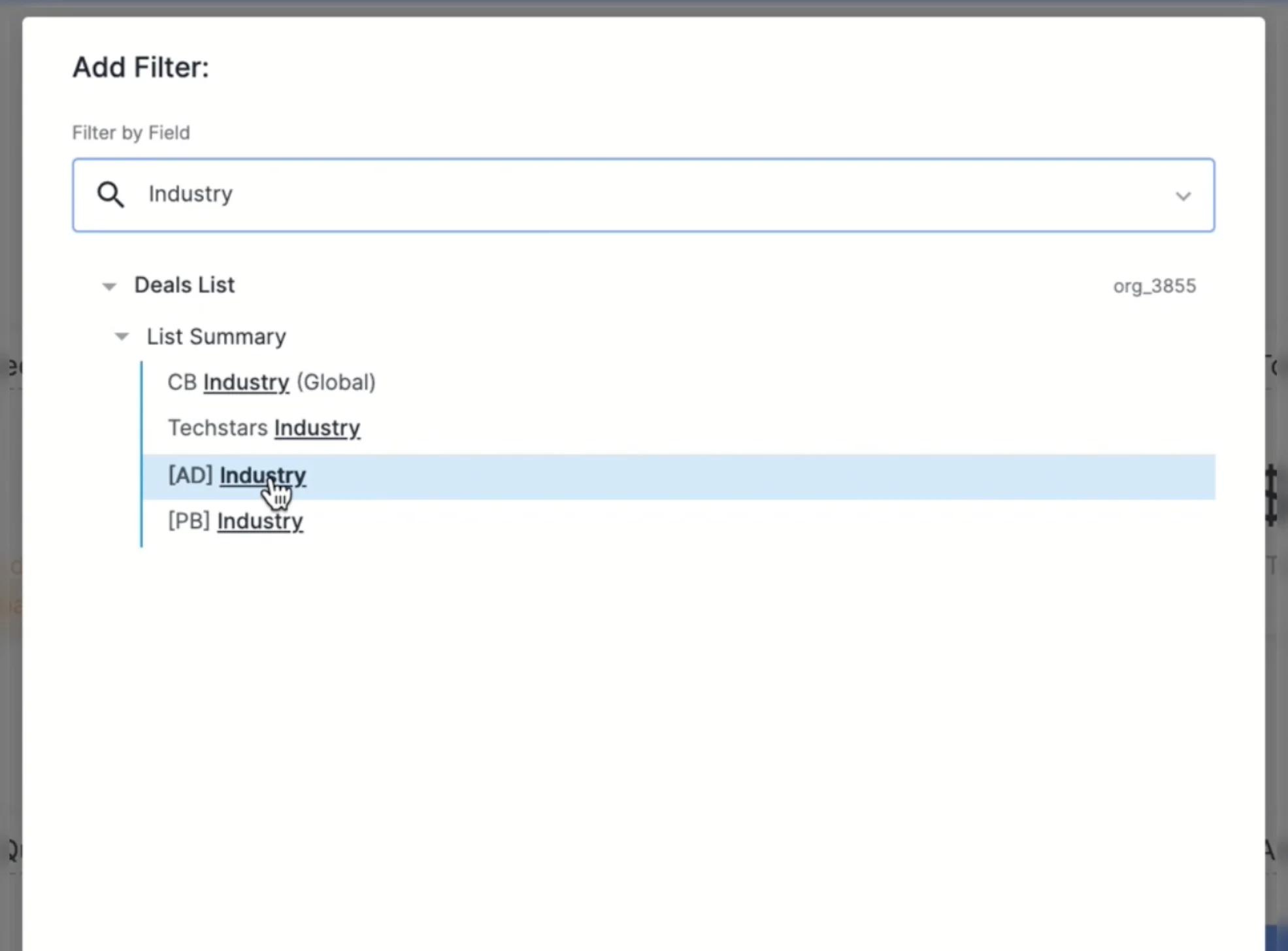
- Select the field that you want this filter to be based off of. In this example, we’ll choose Affinity Data’s Industry field.
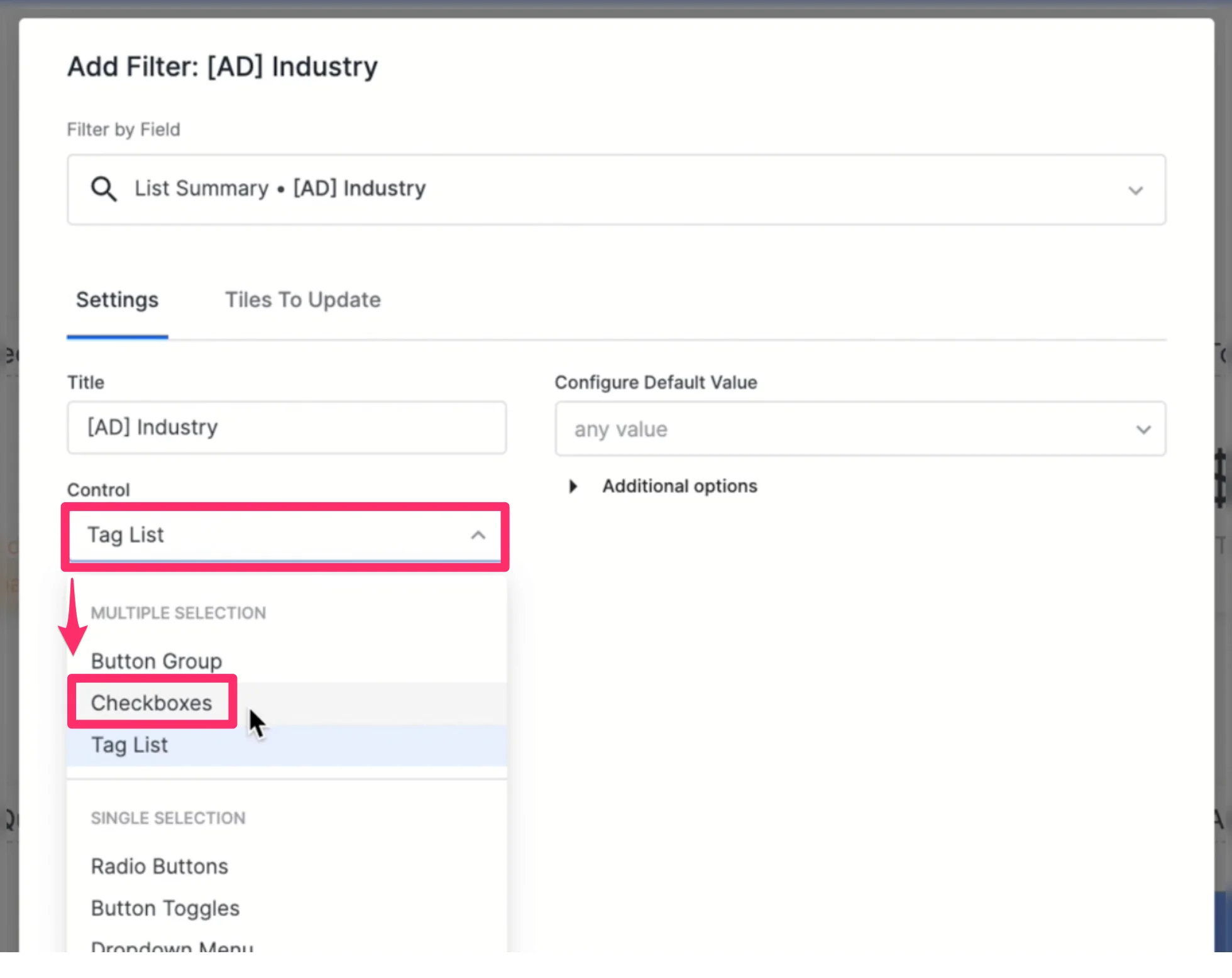
- Under the Settings tab, give a title for this filter - we simply recommend using the name of the field itself. We also recommend selecting Checkboxes for the Control and Popover for the Location, but feel free to also test out the other available options.
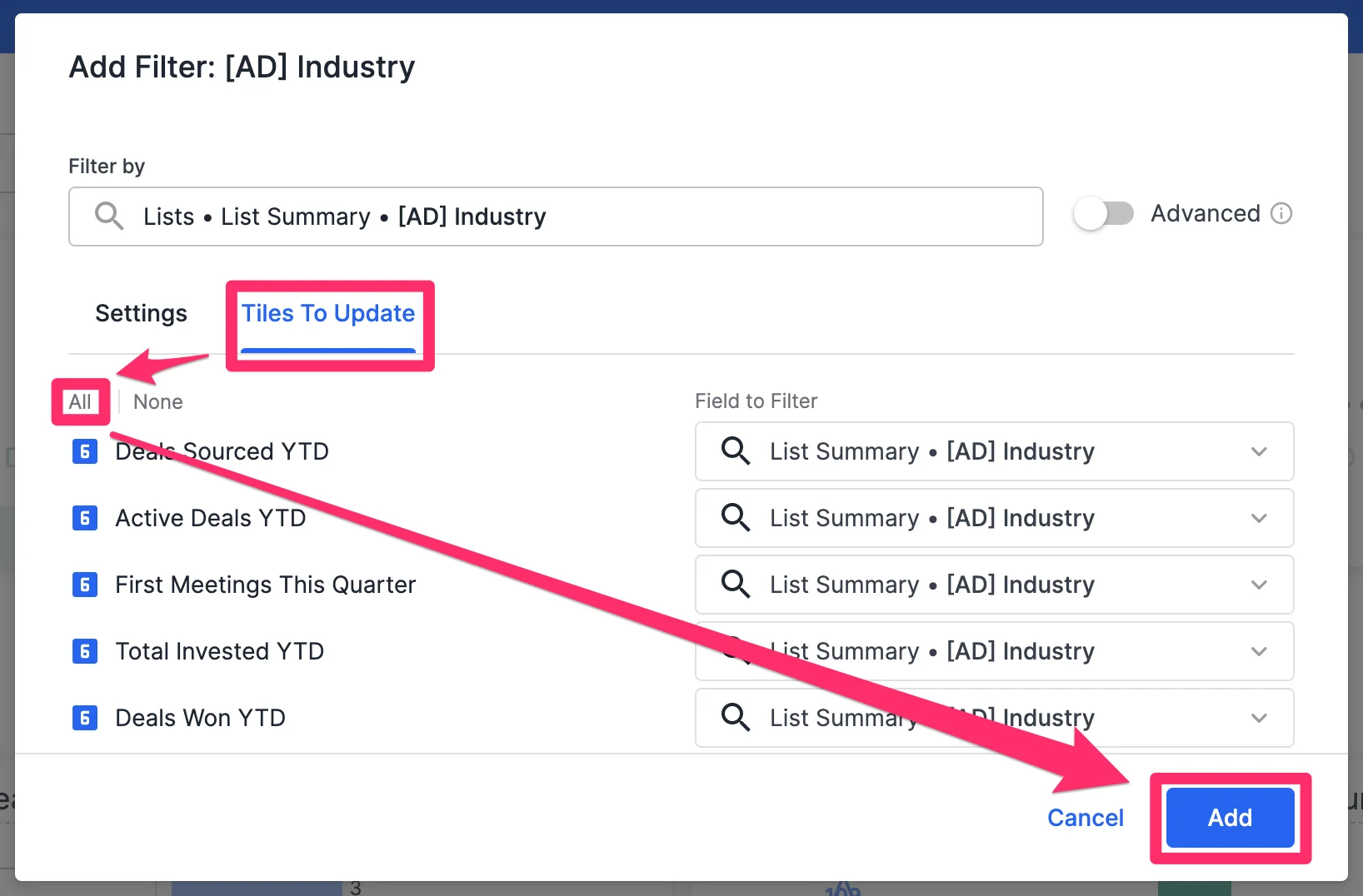
- Under the Tiles to Update tab, select which visualization tiles should be affected when the filter is applied.
- You can either update all visualization tiles or select specific visualization tiles.
- Afterwards, click Add.
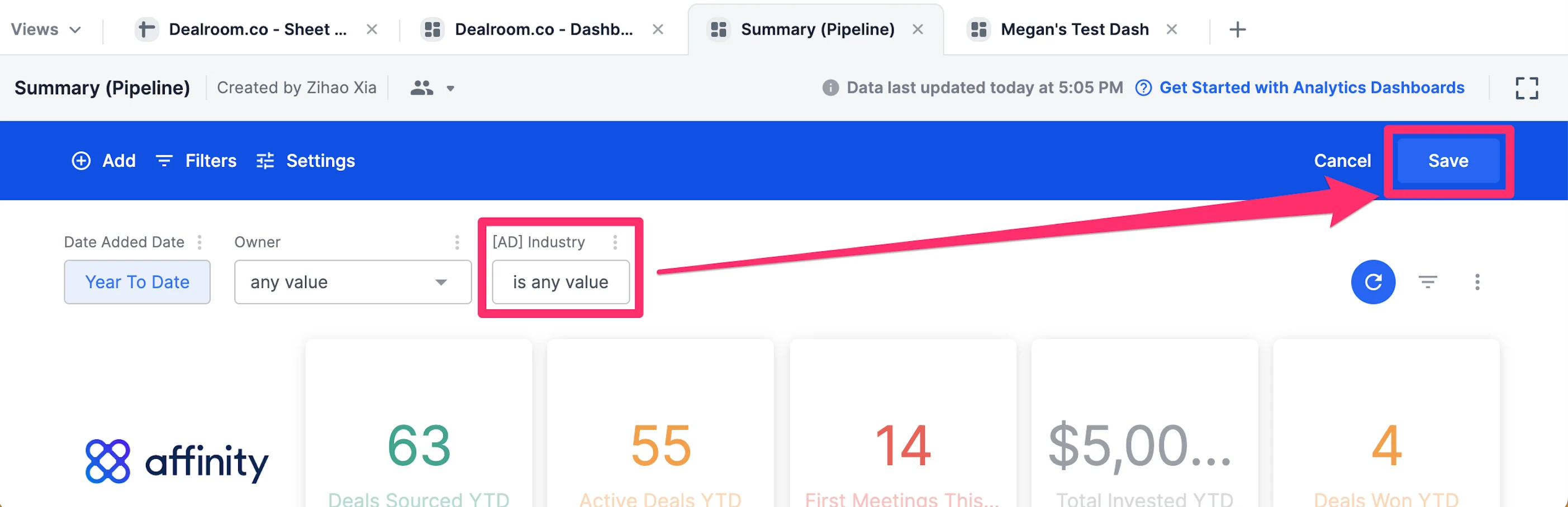
- Now, Industry will appear as a field you can filter by. Click Save and you’re all set!
How to conduct cross-filters on your dashboard views
Unlike the filters you must set up on the top of your dashboard, cross-filters enable you to quickly filter by specific data point(s) on a visualization tile and apply it to all other visualization tiles in the dashboard.- Click the ellipsis (3-dotted icon) in the dashboard, then click Edit dashboard.
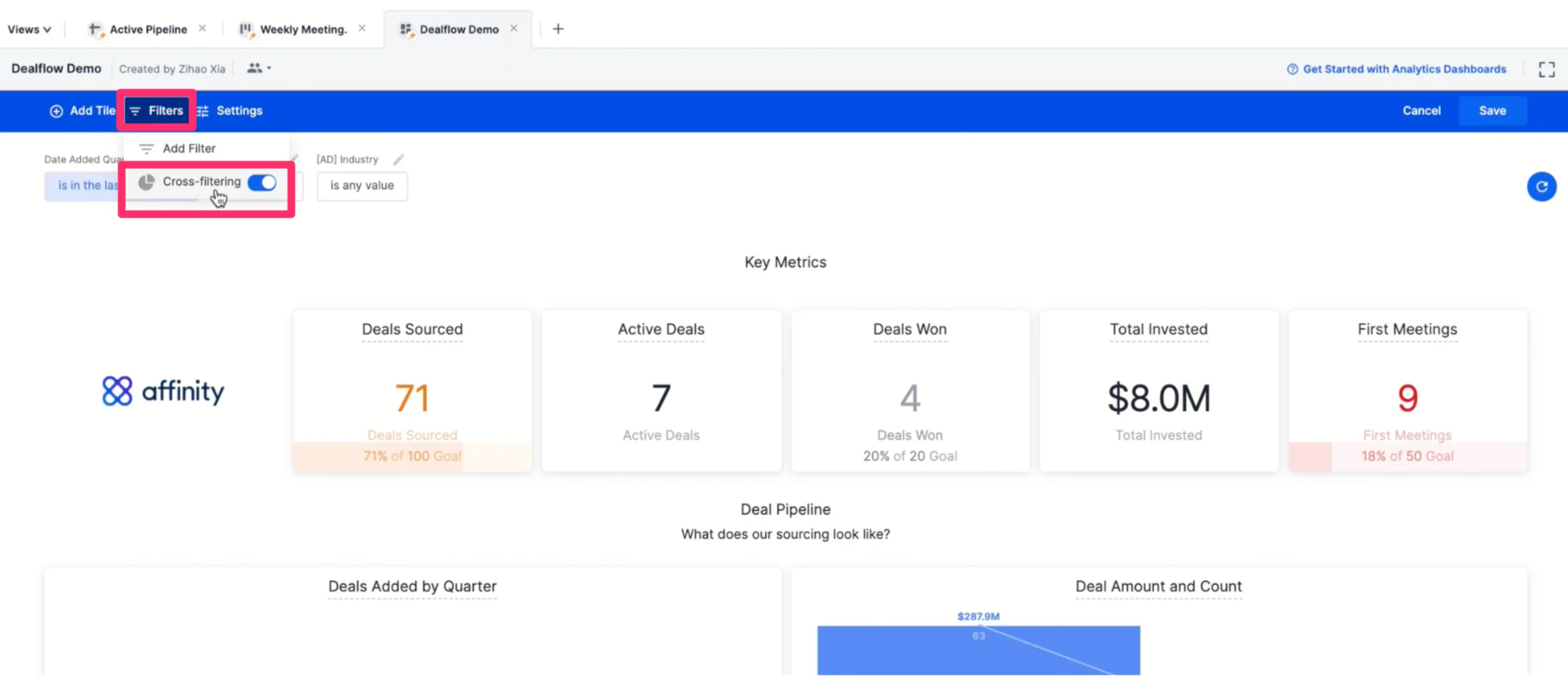
- Click Filters, then toggle on Cross-filtering.
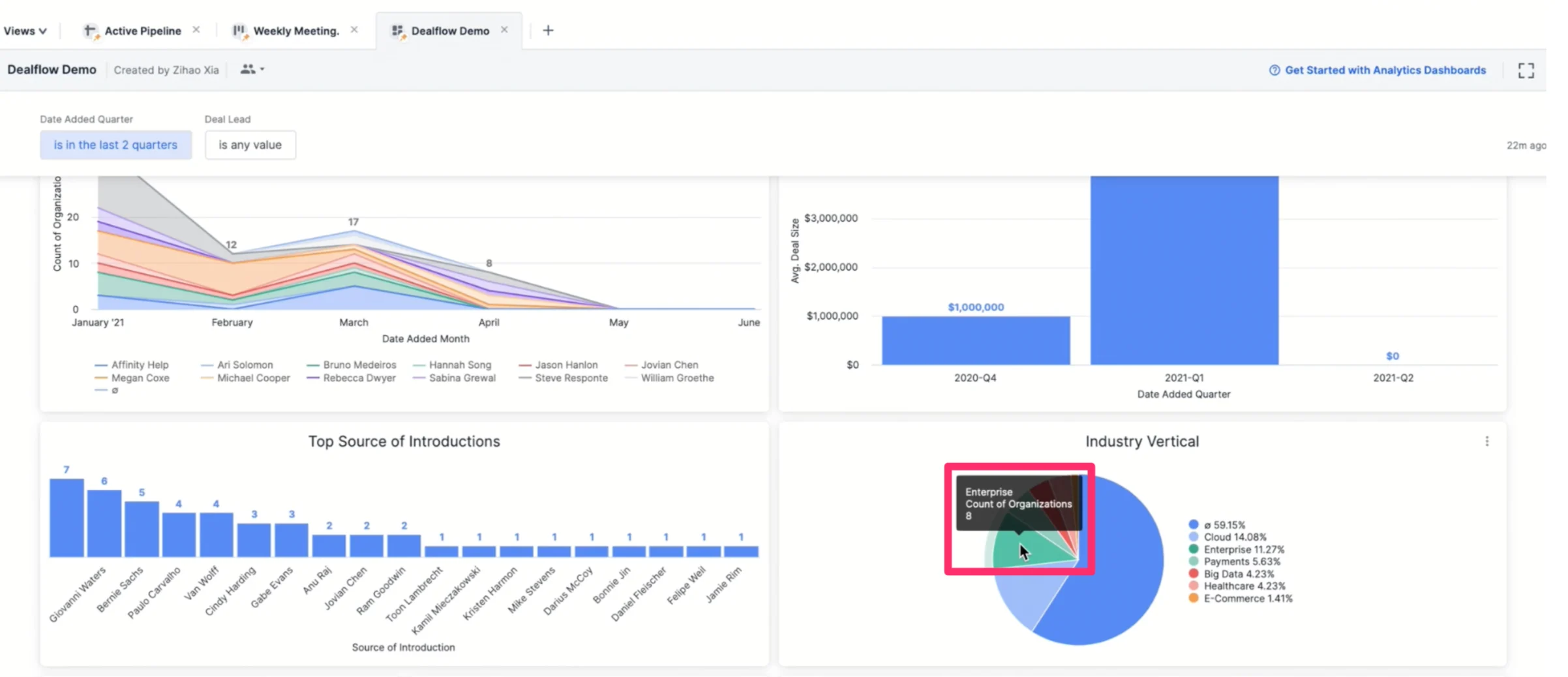
- Now, click on a specific data point on a visualization tile. In this example, we will choose “Enterprise” as the data point to cross-filter by.
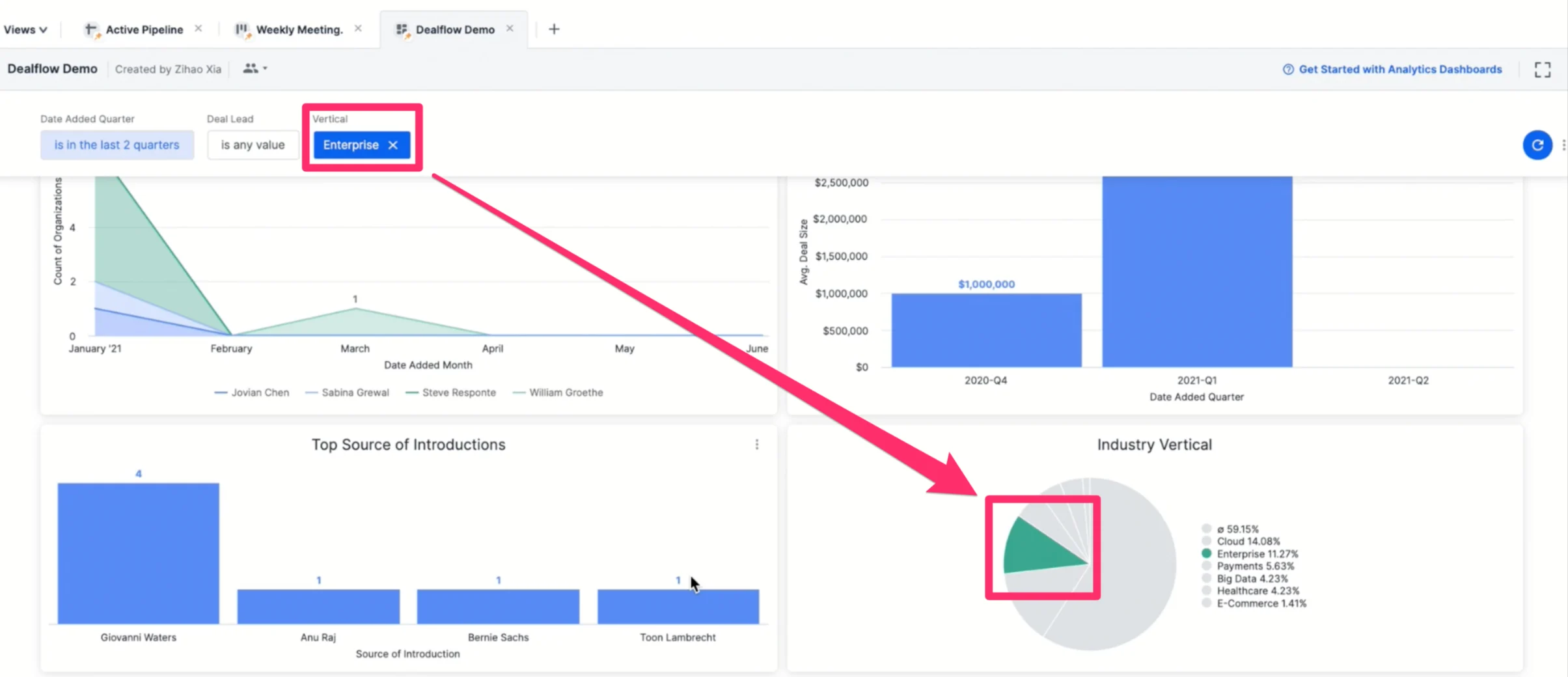
- All other visualization tiles that support cross-filtering will now be filtered by the “Enterprise” data point (see below).
- To add more data points to cross-filter by, press Command + click (on Mac keyboards) or Control + click (on PC keyboards) on the additional data points.
How to apply filters to a specific tile
Rather than applying filters across all visualization tiles, you can also apply filters to just one tile.- Click the ellipsis (3-dotted icon) in the dashboard, then click Edit dashboard.
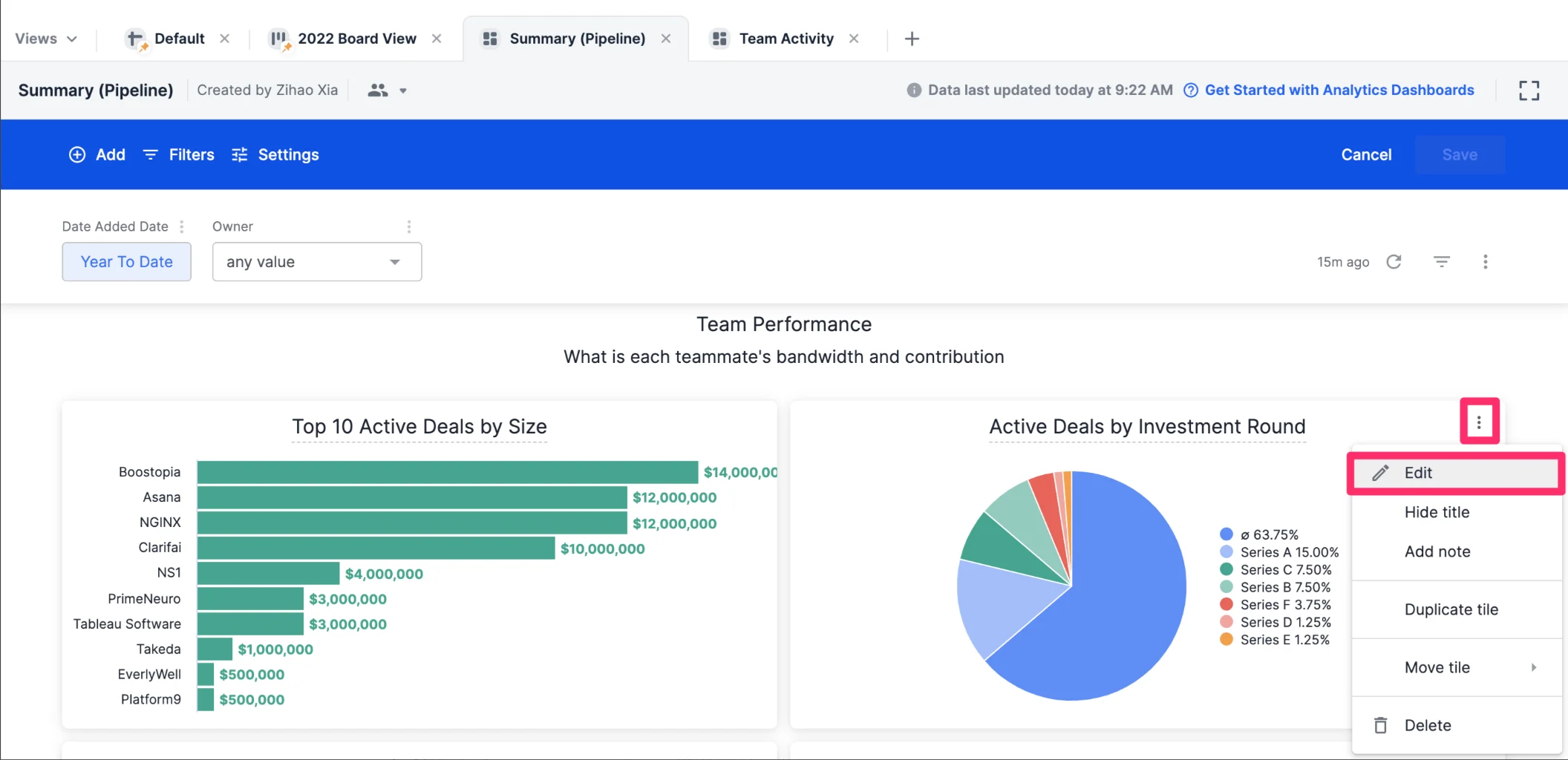
- Click the ellipsis (3-dotted icon) on the specific tile you’d like to apply filters to, then click Edit tile.
- Make changes in the Filter section, then click Run, and finally, click Save.
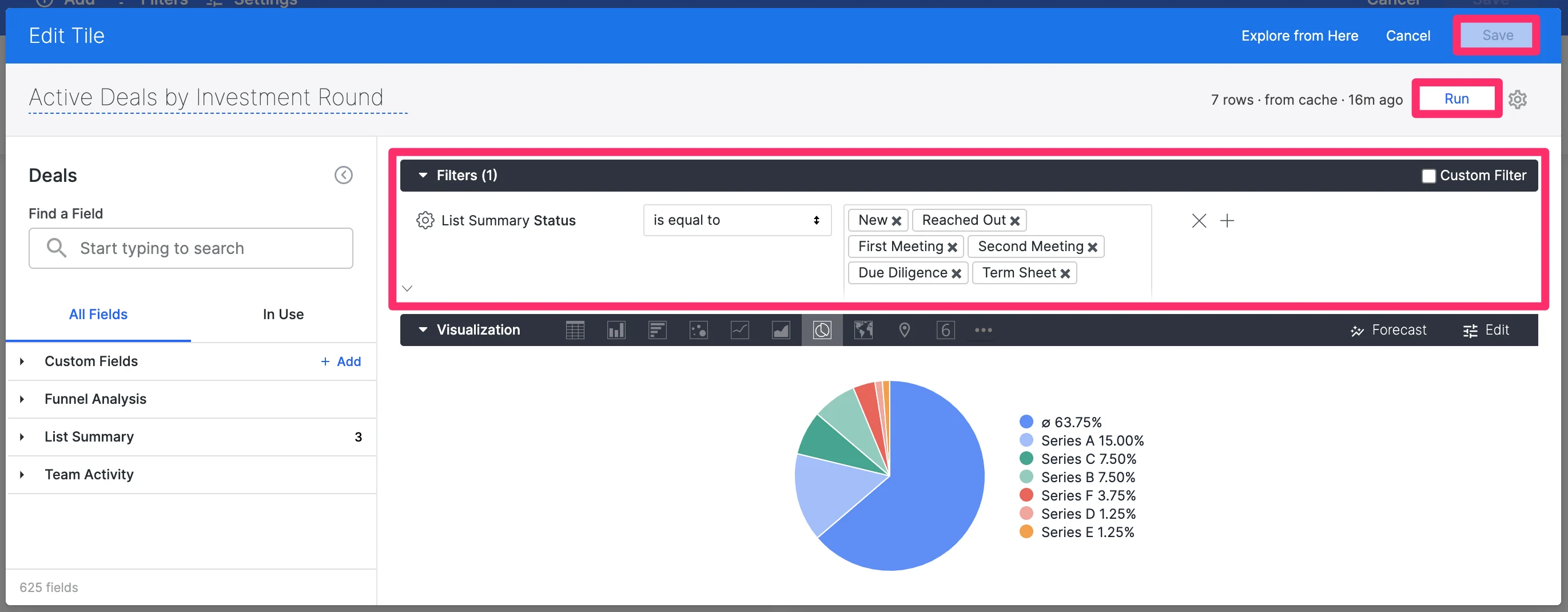
- Make sure to save the changes made to the entire dashboard view by clicking Save one more time, and you’re all set.