

Reference — lookup information.
Definitions to know before getting started
Here are some helpful terms to know as they’ll be used in the Introductions Summary Report:- Introducer - The person who is introducing the Target Person to the Introducee.
- Target Person - The person who is being introduced to the Introducee.
- Introducee - The person who is being introduced to the Target Person.
- By looking at the “To” and “CC” lines of an introduction email, Affinity determines who might be the Target Person and who might be the Introducee.
- While the “To” line is used to identify the Target Person in most cases, there may be some edge cases where the “CC” line is used instead.
How to create an Introduction Summary Report using the template
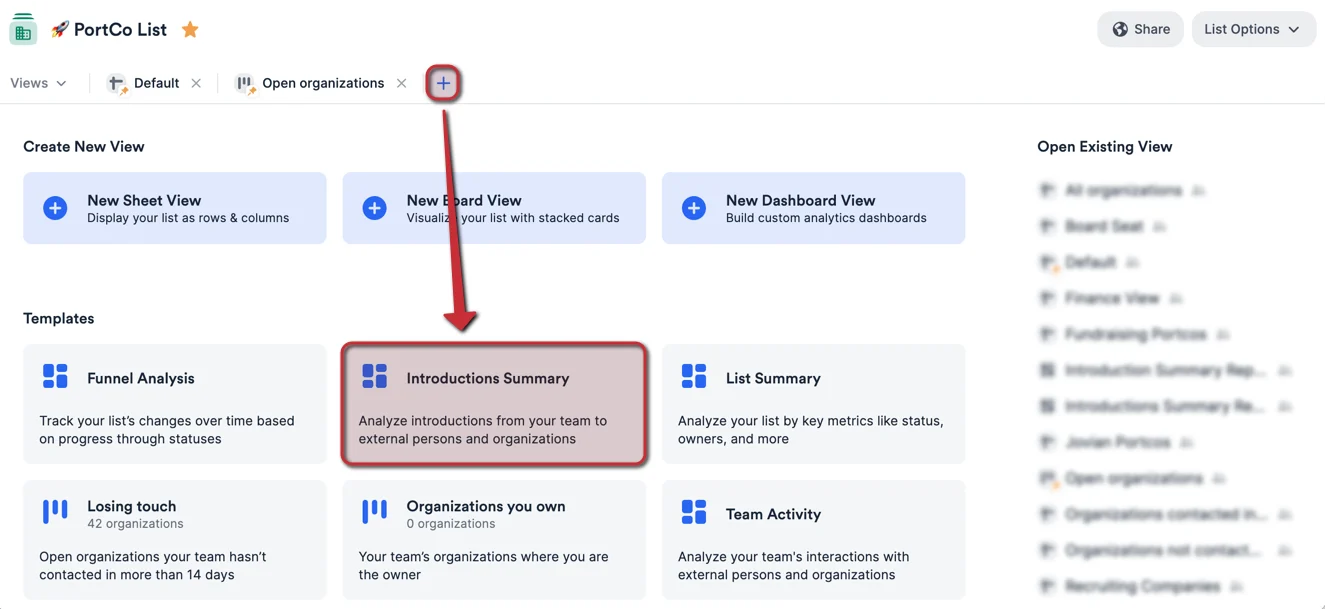
- First, click into the list you’d like to report on, then click the + icon as shown below. Then, click the Introductions Summary template option to create a new dashboard view.
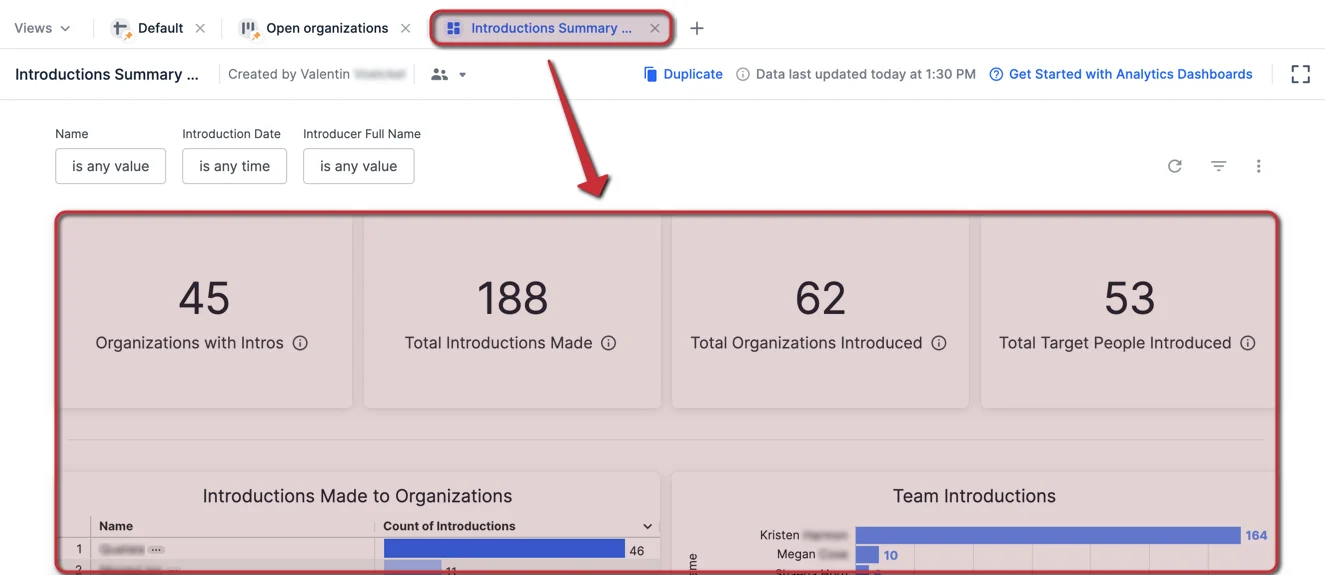
- Once the Introductions Summary report is generated, you will immediately see different visualization tiles and metrics based on the data within this list.
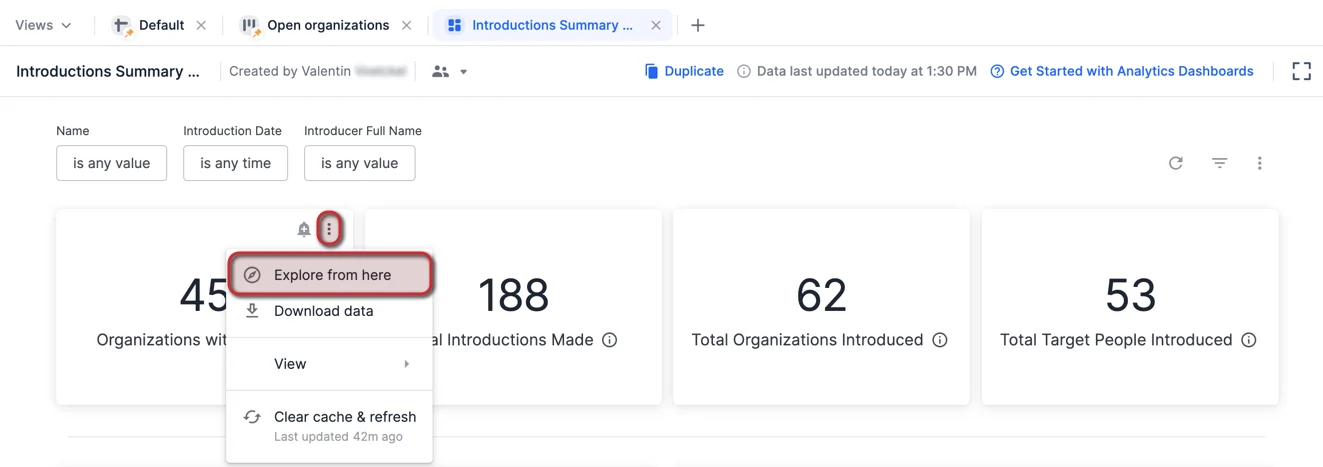
- Want to understand how certain visualization tiles were generated? Click the ellipsis (3-dotted icon) on the top-right corner of the visualization tile you want to dig deeper into, then click Explore from here.
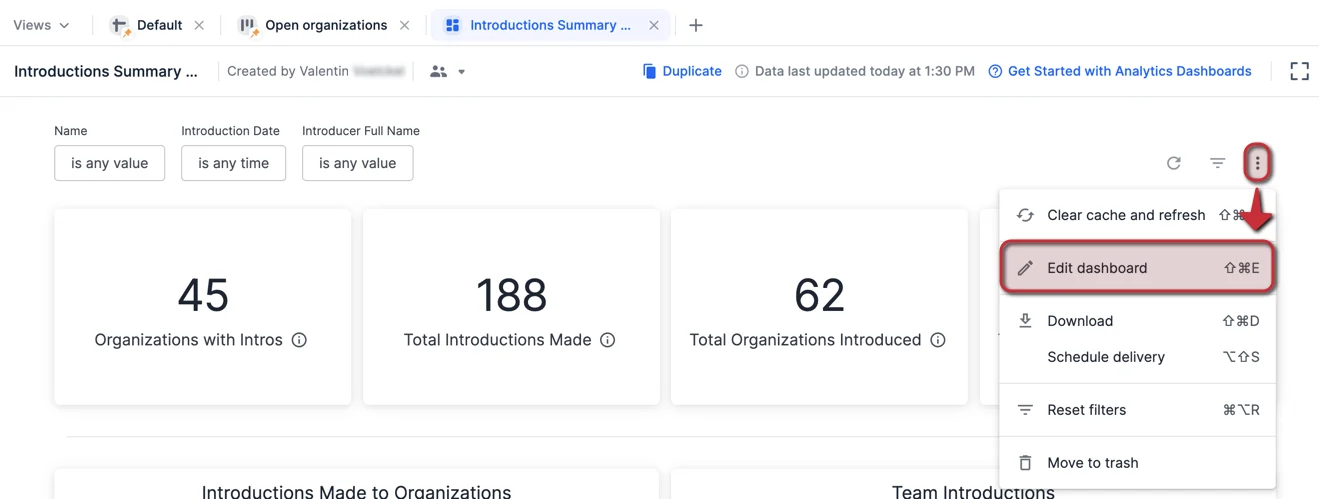
- If you’d like to change the data fields being used for certain visualization tiles, click the ellipsis (3-dotted icon) on the top-right corner, then click Edit dashboard.
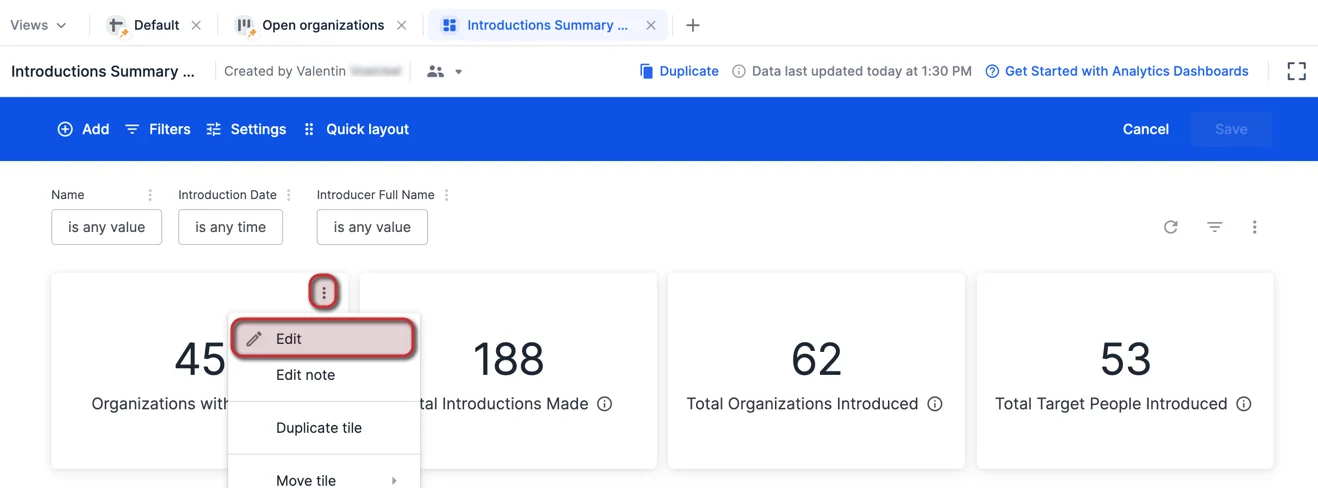
- Then, click the ellipsis (3-dotted icon) on the top-right corner of the visualization tile you want to dig deeper into, then click Edit.
- To learn more about customizing, filtering, and pivoting data on your dashboard view, check out the following articles to take your skills to the next level:
What is the method used to count these introductions?
- Affinity is looking at the introductions made by you/your team members to external people/organizations you communicate with. These introductions will be identified and stored in the Introductions tab found on the organizations’ profile pages.

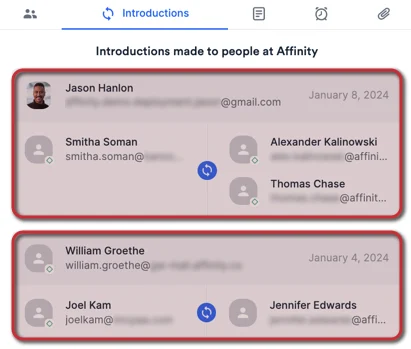
- Please note that each box shows one email interaction that Affinity considers to be an introduction, see the section titled “How does Affinity determine if an interaction is an introduction?” in How to track introductions in Affinity. Each box is counted as one introduction, even if there are multiple people being introduced to each other within that email interaction. In this example below, it will count as 2 Total Introductions Made.
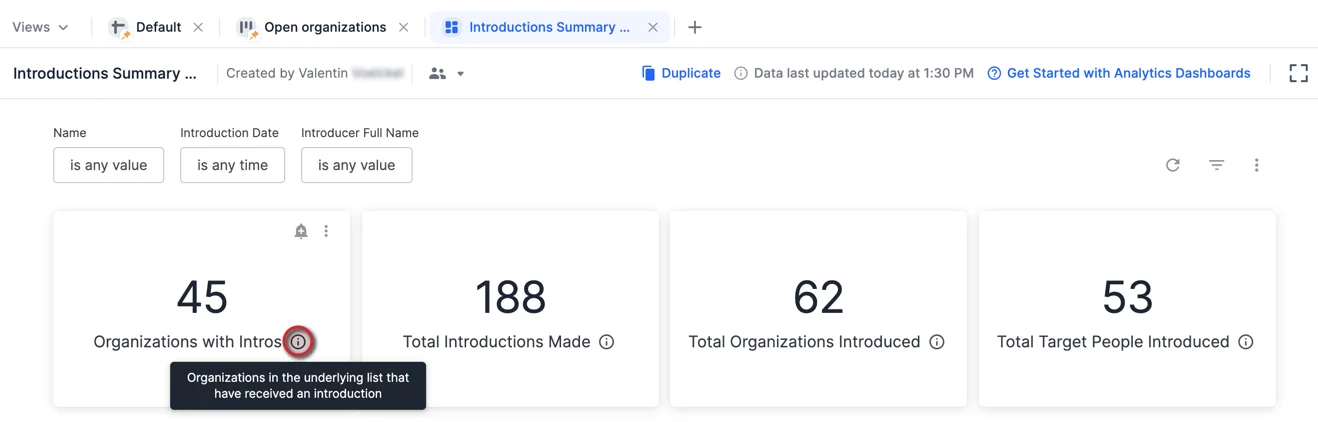
- Hover over the Information icon for each card to learn more.
How do I only count introductions between externals (outside of my organization)?
By default, these Introduction cards will include introduction counts using the two following methods:- Method 1 - Introductions between you/your fellow team members and external contacts at your portfolio company.
- Method 2 - Introductions between external people (outside your organization) and external contacts at your portfolio company.
- In this example, let’s say your company is Affinity and your portfolio company is Morgan Stanley.
- You will have to create a new filter for the Intro Target People Company Name. Start by clicking the ellipsis (3-dotted icon) and click Edit.
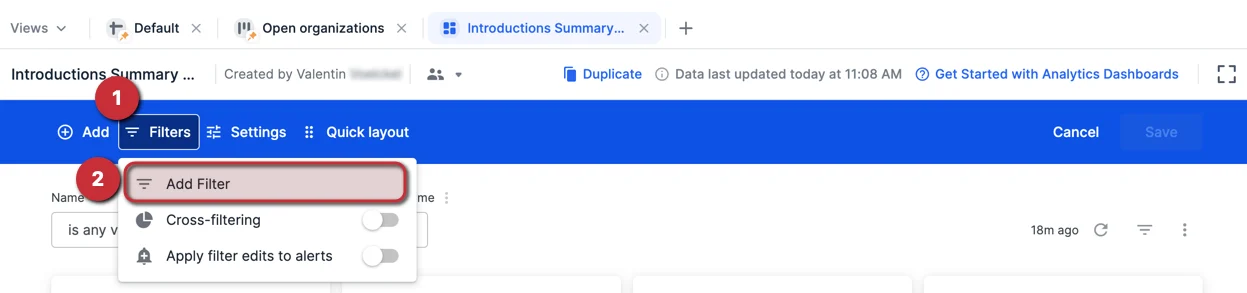
- Then, click Filters and click Add Filter.
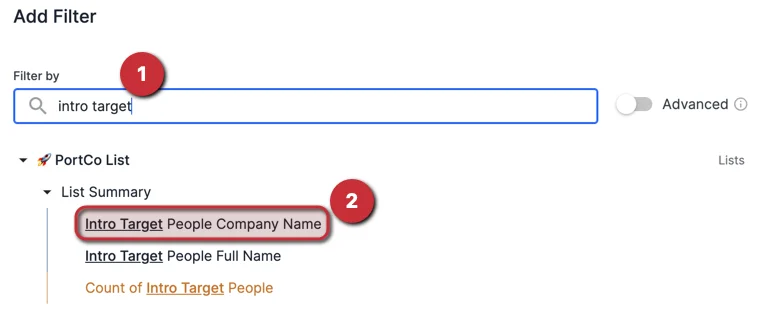
- Type in “intro target” and select the dimension: Intro Target People Company Name
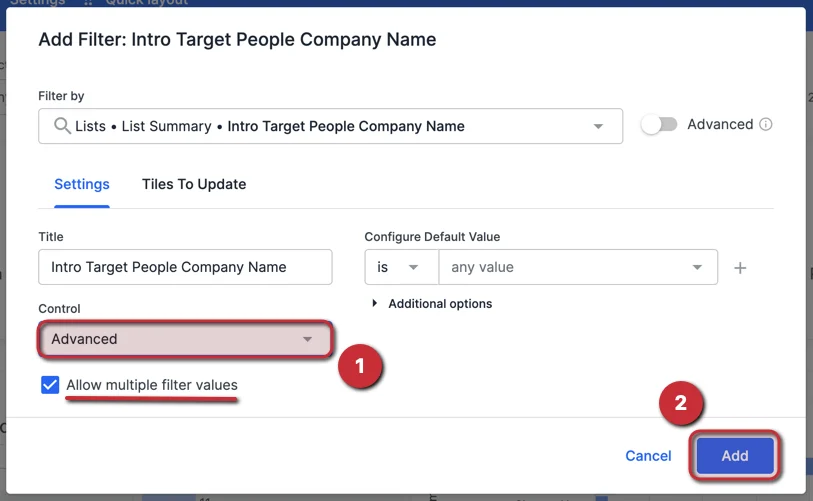
- Change the Control option to Advanced, make sure to check the box to Allow multiple filter values, then click Add.
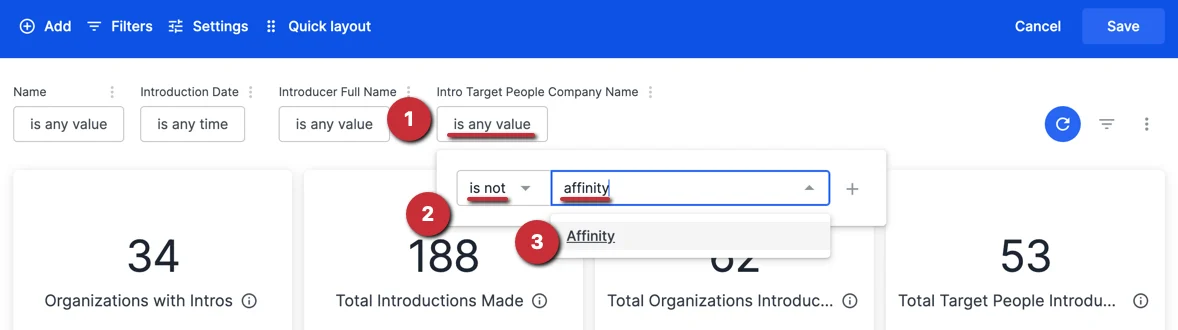
- You should now see the new filter created - click on it to change the operator from “is” to “is not” and type in to select your organization (e.g. Affinity). This will filter out all introductions made between your team members and externals at your portfolio company (e.g. Morgan Stanley), and only display introductions made between externals and externals at your portfolio company (e.g. Morgan Stanley).
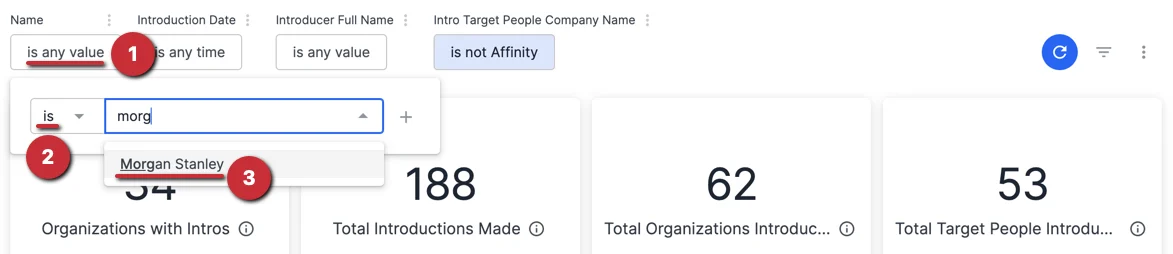
- Optional: If you’d like to narrow your focus, apply a filter to the Name field and select the specific organization(s) you’d like to focus on (e.g. Morgan Stanley).
List of all new dimensions and measures
With the release of the Introductions Summary Reports template, we are also providing you with these new dimensions and measures to create your own custom visualizations if you’d like:- “Intro Current Job Title” and “Intro Job Titles” are based on the Target People, not the Introducer or Introducee.
Important Callouts
- To ensure that Affinity successfully counts your email interactions as introductions, see the section titled “How does Affinity determine if an interaction is an introduction?” in How to track introductions in Affinity.