

Reference — lookup information.
- For those on the Scale, Advanced, and Enterprise tiers, you can leverage advanced reporting features with Affinity Analytics.
- For those on the Essential tier, we highly suggest upgrading to the Scale, Advanced, or Enterprise tiers to leverage Affinity Analytics.
How to access Funnel Analysis for Basic Reporting
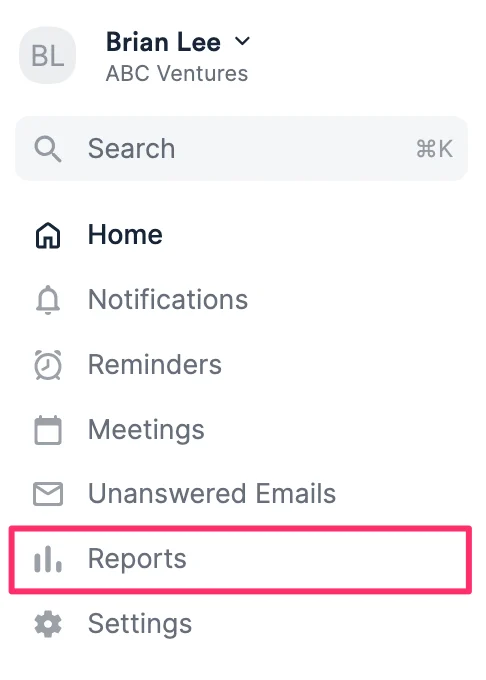
- Click the Reports tab on your global navigation bar.
- Click Funnel analysis by date added or Funnel analysis by reporting period.
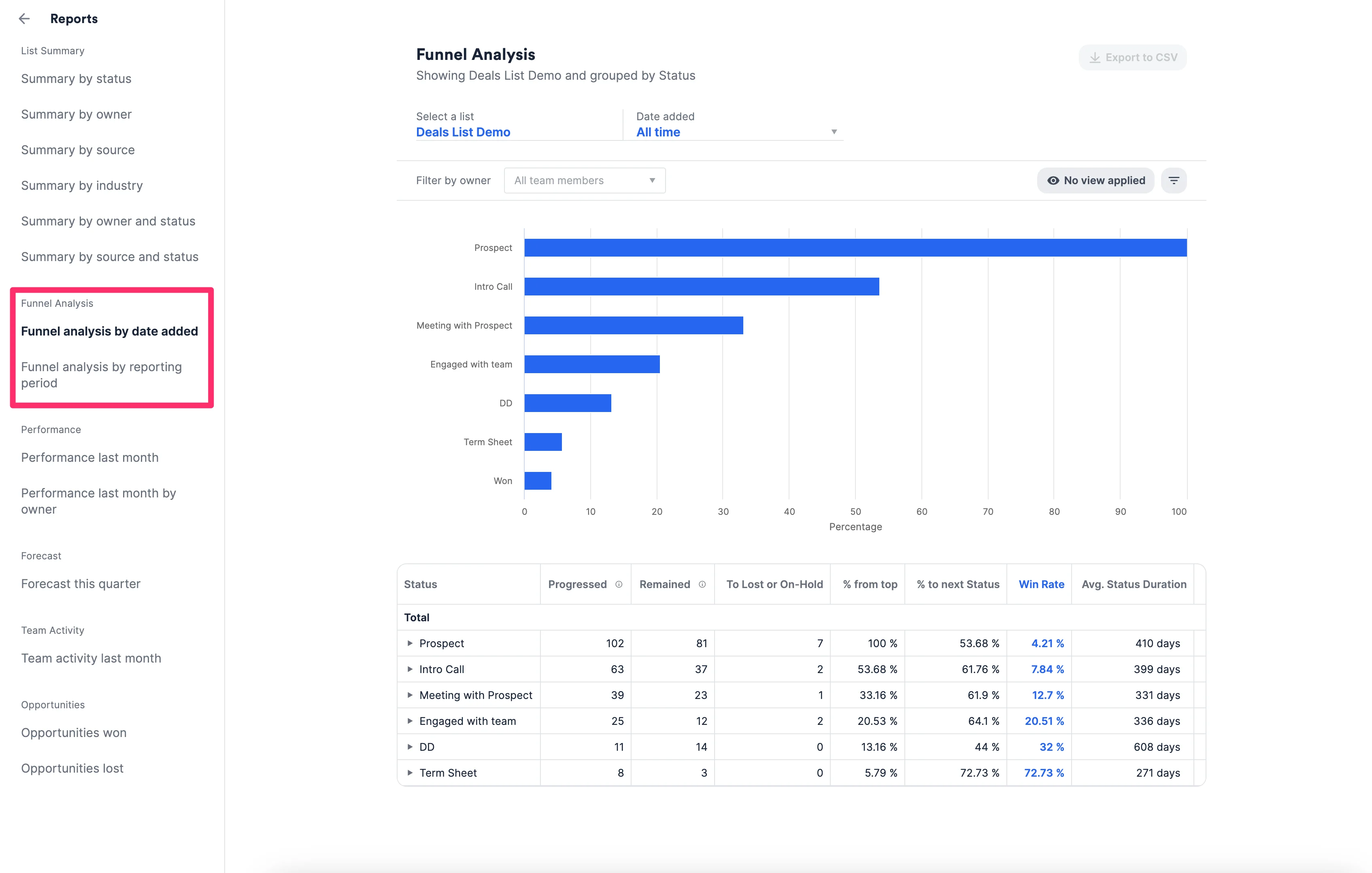
Funnel Analysis by Reporting Period
This option will include list entries that were within the Open category of the Status column during the given date range and summarize their progression (or not) during that time.- Example: If the Reporting Period was set from January 1st 2019 - March 1st 2019, then all list entries that were in the Open category will be shown on this report (even if that organization was added to the list December 2018).
Funnel Analysis by Date Added
This option will include list entries added to the list during the given date range via the Date Added column and summarize their progression (or not) during that time.- Example: If the Date Added period was set from January 1st 2019 - March 1st 2019, then the report will only show entries that were added to the list during that time. If there was an entry added in late December, it will not appear on this report.
Understanding the Funnel Analysis Breakdown
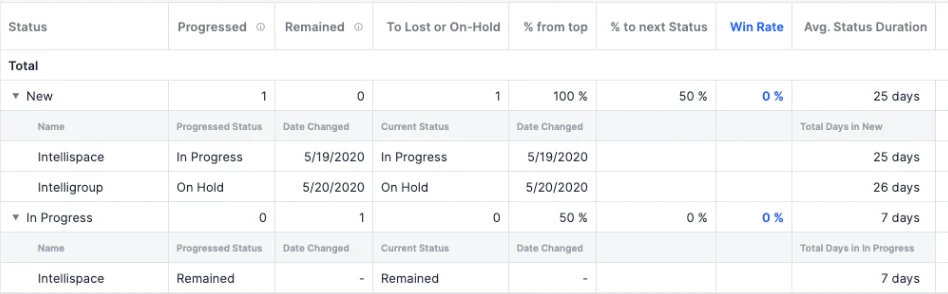
- Click the dropdown arrow next to each status option (i.e. New, In Progress, etc.).
- See the entries within each status and when they progressed.
Why does the Funnel Analysis Report include all previous status changes?
The Funnel Analysis Report must include all the previous statuses that the entry was in. This means that for each entity that was in the “Open” category at some point in the reporting period, we show its entire progress from the first status in the “Open” category, even if those changes occurred outside of the reporting period.- If we didn’t include all previous statuses for each entry, it would lead to an inconsistent display.
- Example: Let’s say the status options are: First Meeting, Second Meeting, Third Meeting, and Fourth Meeting. If there was 1 entry added to First Meeting and 2 entries added to Fourth Meeting with no other changes:
- The funnel would not end up looking like a funnel (it will be larger in the middle than at the end).
- Therefore, if the entry was initially placed in First Meeting and then skipped to Fourth Meeting, it would be recorded as if it had moved through all four statuses.