

How-to — task-oriented recipe.
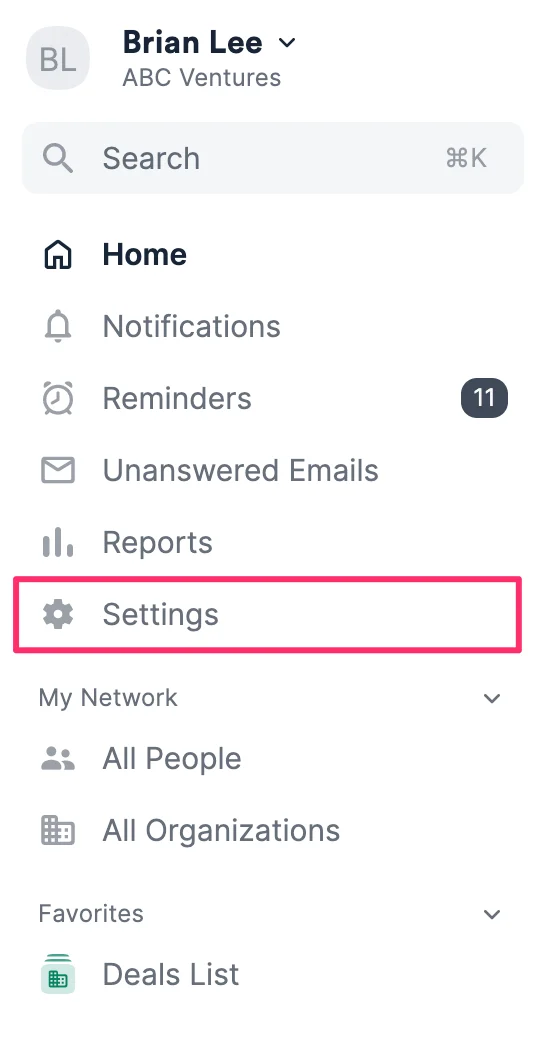
- Click Settings on the left-side of your screen.
- Then, click the Manage Imports tab to view all your data imports.
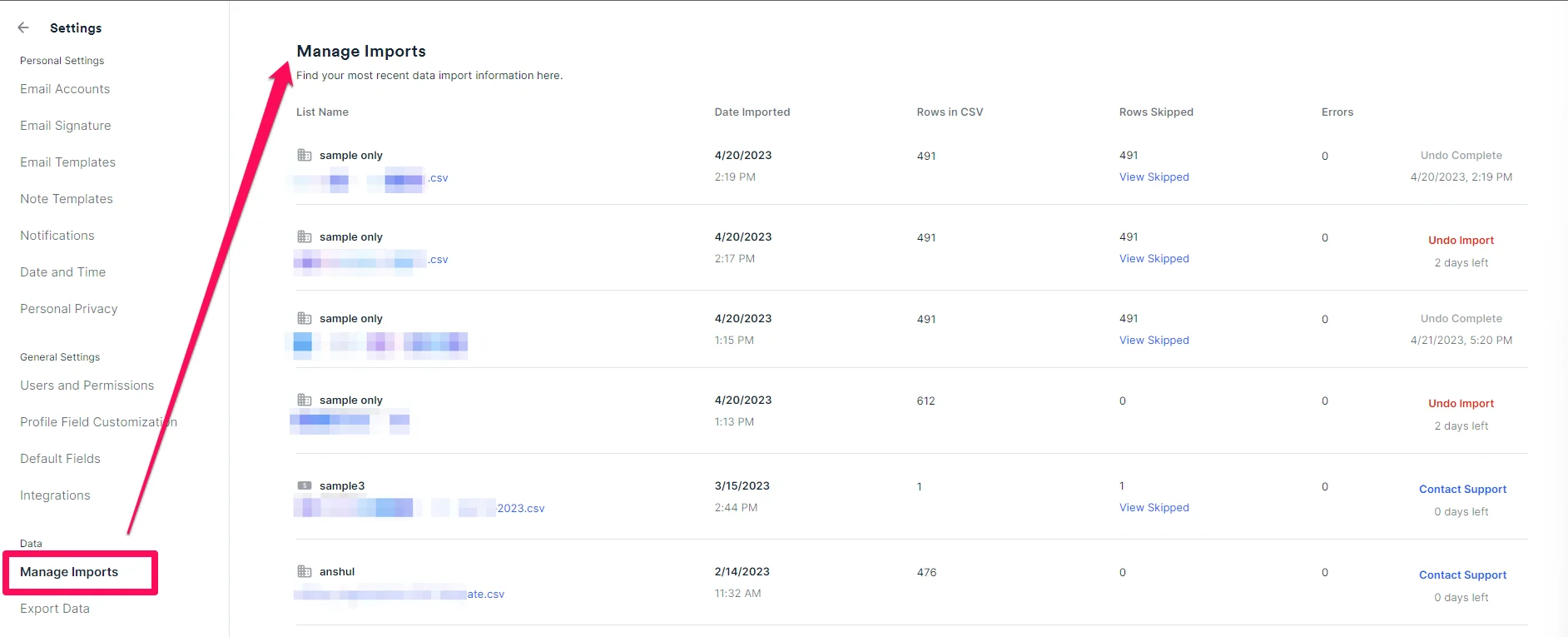
- You can download CSV files of rows skipped or errors for each import by clicking on View Skipped or View Errors where relevant.
- Rows Skipped provides you with a CSV file showing the rows that were skipped and the reasons why.
- Errors provide you with a CSV file showing the specific cells that were skipped and the reasons why.
- From there, you can make direct changes within the CSV files you just downloaded, then use it to conduct another quick import.
- If you want to undo your import, do not delete your list - instead, follow the steps in this article: How to undo imports in Affinity.