How-to — task-oriented recipe.
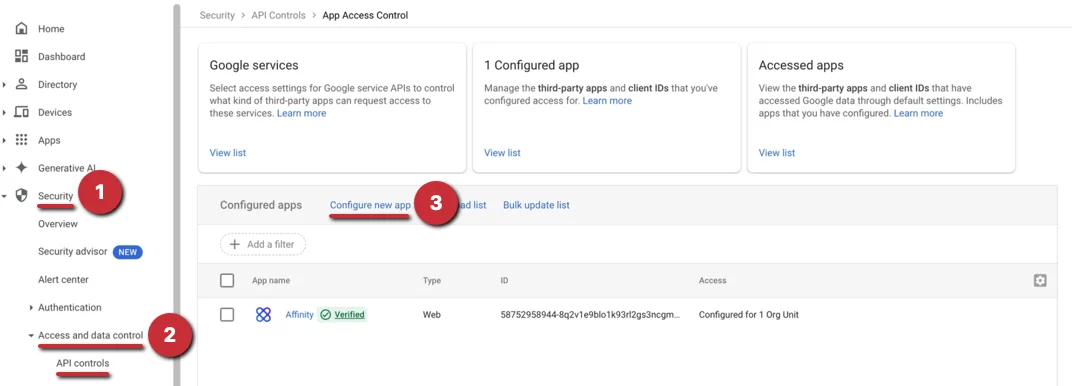
- As the Google Workspace admin, sign into https://admin.google.com/
- Click on the Security tab, then under Access and data control, click on API Controls.
- From here, click on Configure new app.
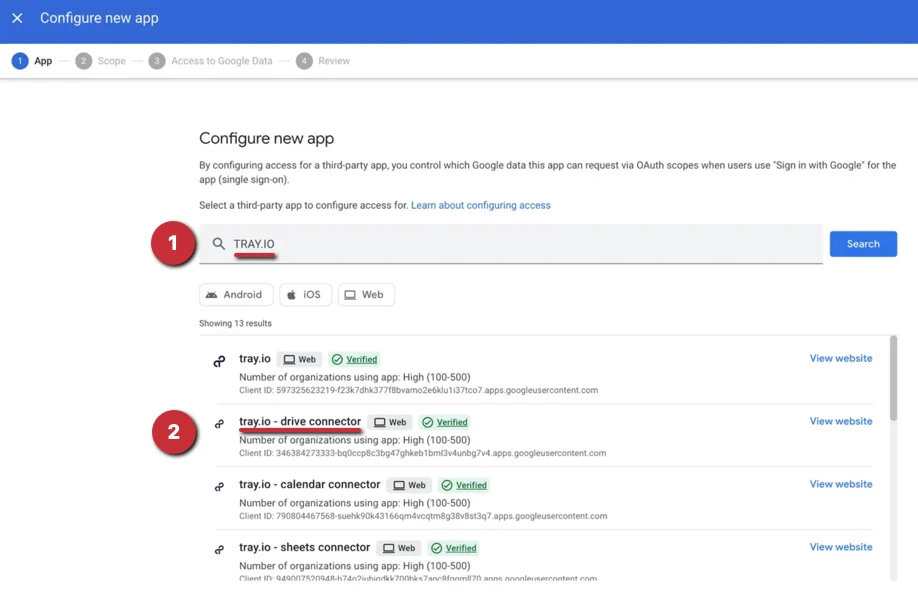
- Type in tray.io in the search bar. Since we are using it for the Google Drive integration, we will select the tray.io - drive connector option.
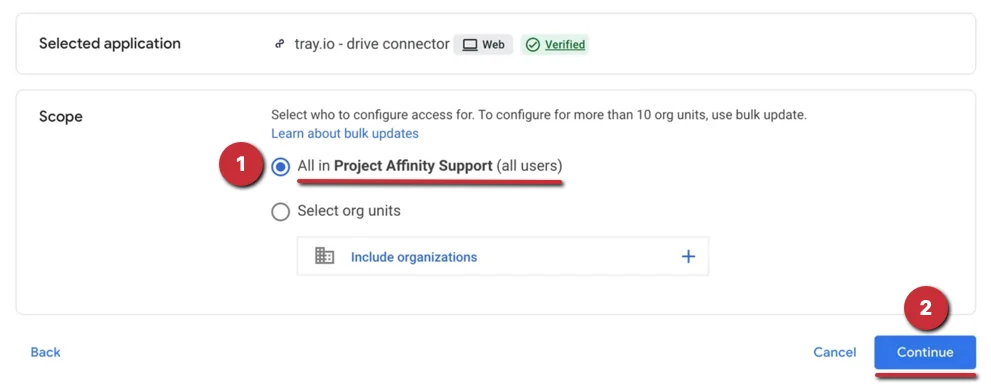
- Select the first option for all users, then click Continue.
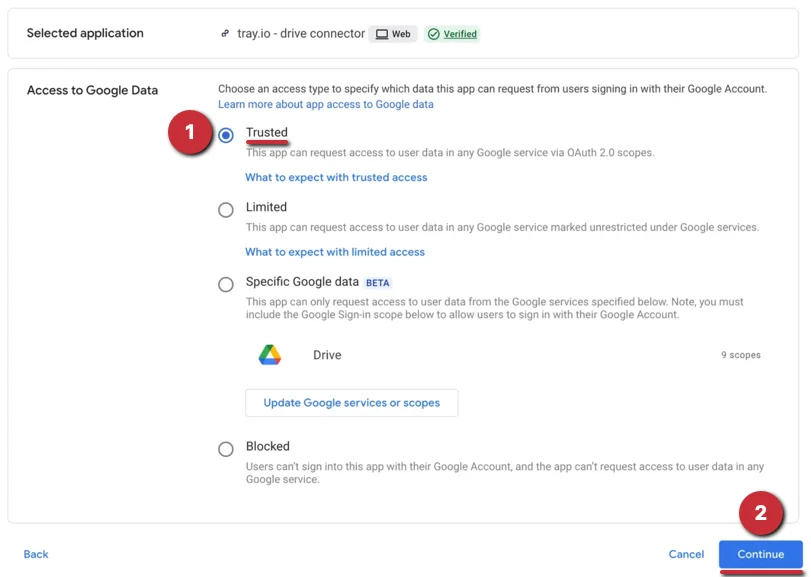
- Select Trusted, then click Continue.
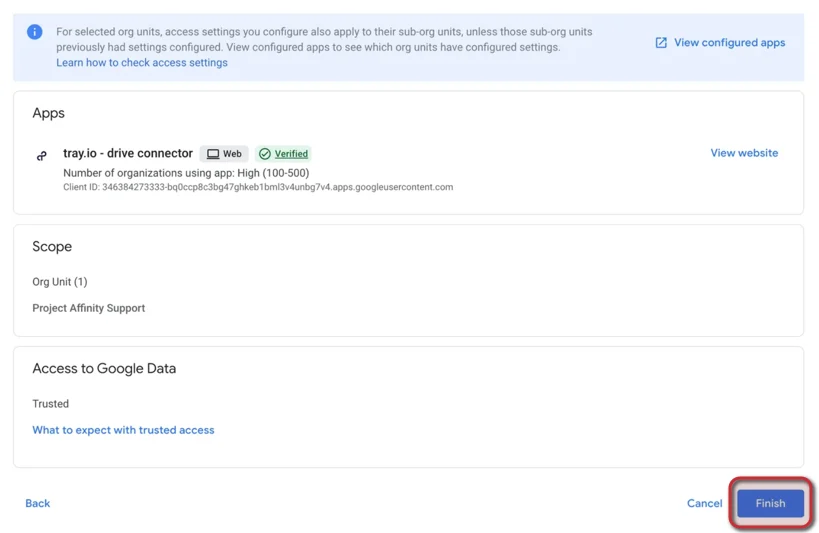
- Click Finish and you’re all set. Now, you can return to your Integrations page in Affinity and complete the set up process for the Google Drive integration.