Troubleshooting — fix for a specific issue.
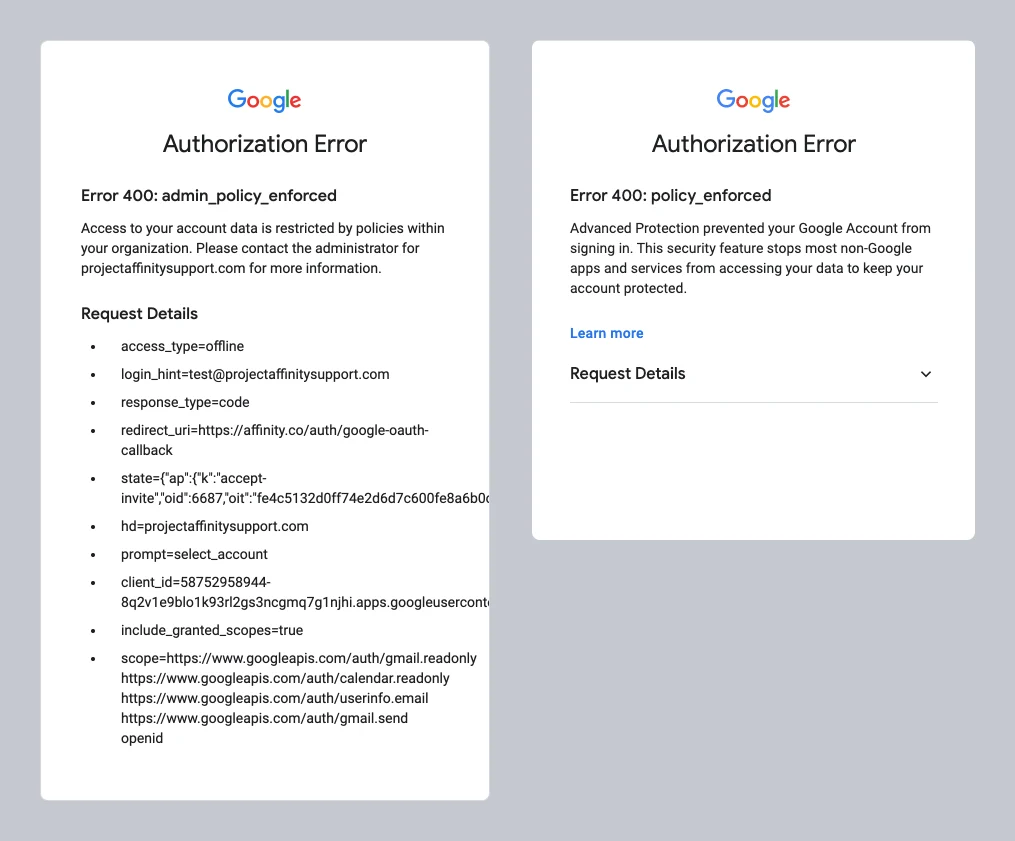
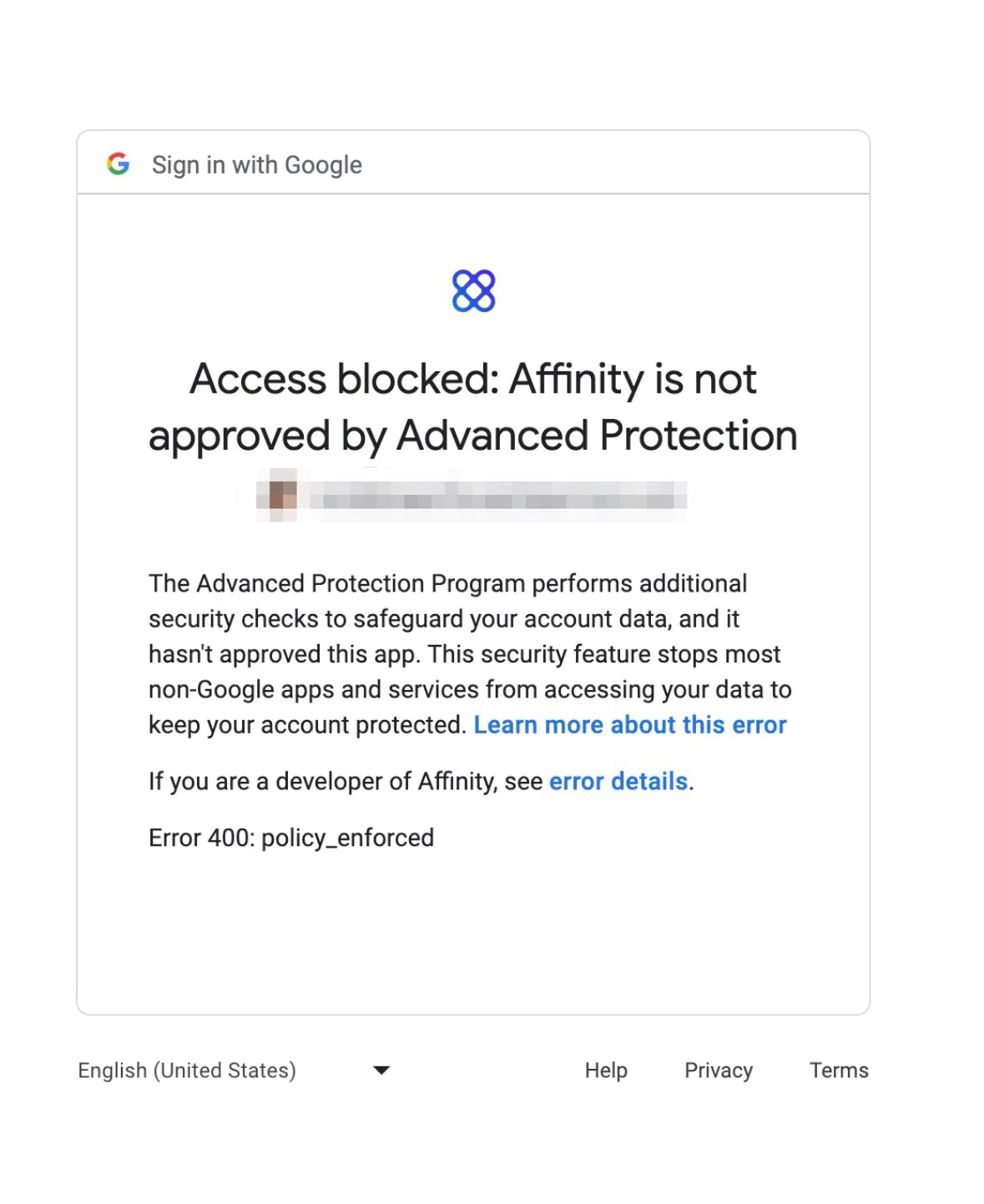
Why am I running into this error message?
Your company’s Google Workplace admin may have placed additional security measures around all third-party applications. To confirm if this is the underlying issue, follow these steps:- The Google Workspace admin will need to sign in at https://admin.google.com.
- Then, they must click the Menu icon > Security > API Controls.
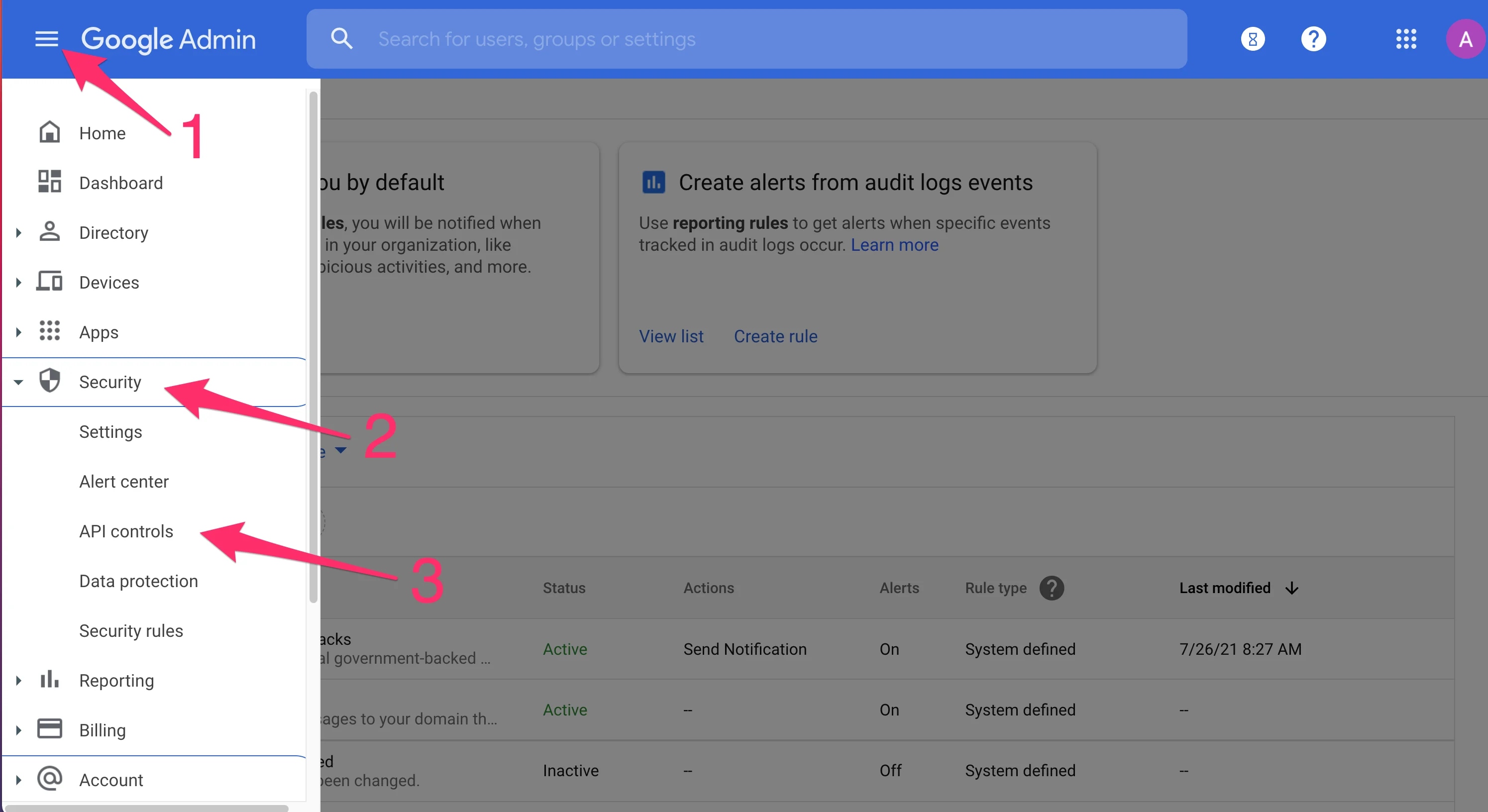
- Finally, they must check to see if Block all third-party API access is enabled.
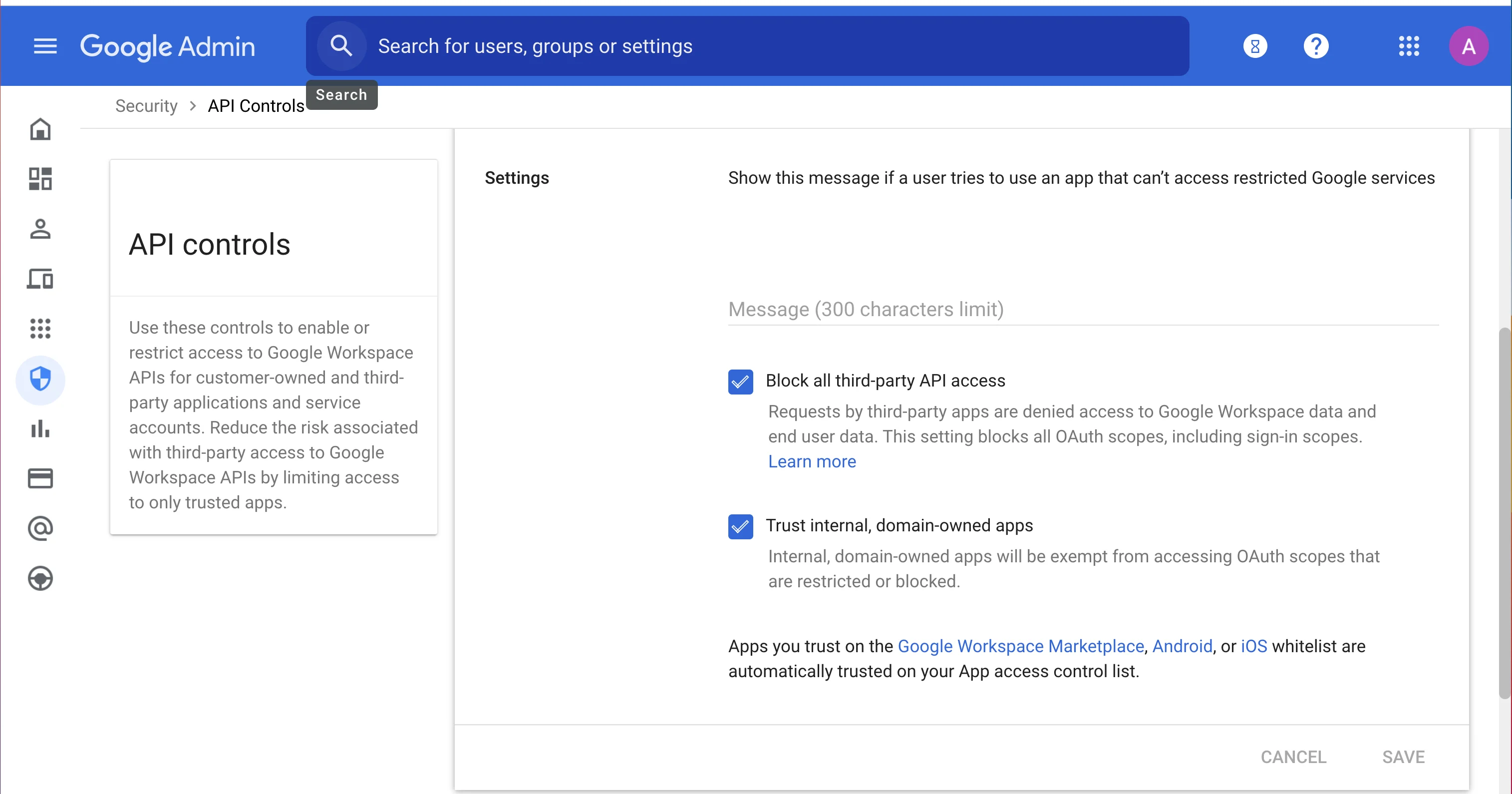
How can the Google Workspace admin enable us to access Affinity?
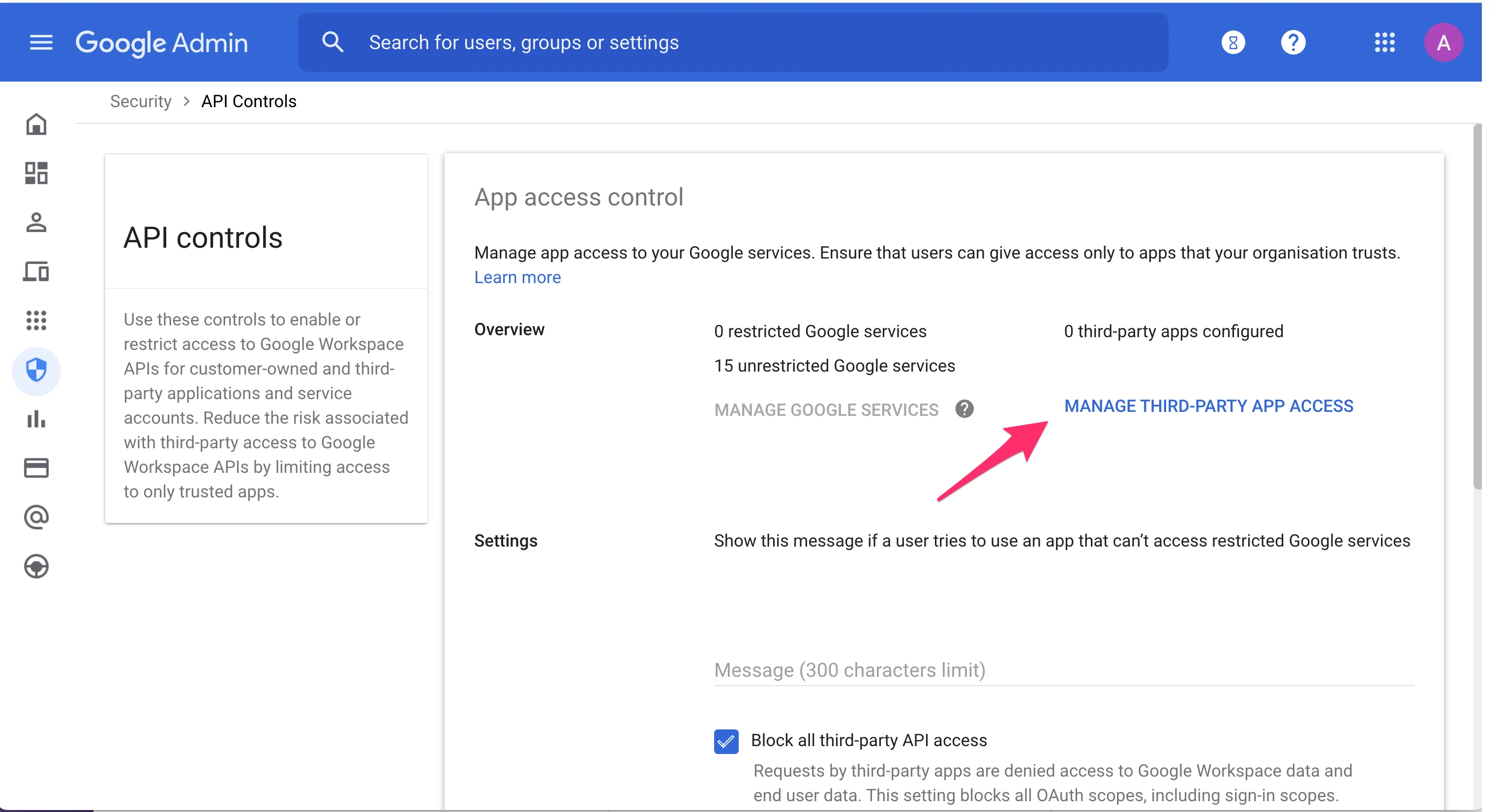
- The Google Workspace admin will need to sign in at https://admin.google.com.
- Then, they must click the Menu icon > Security > API Controls.
- Click Manage Third-Party App Access on the right side.
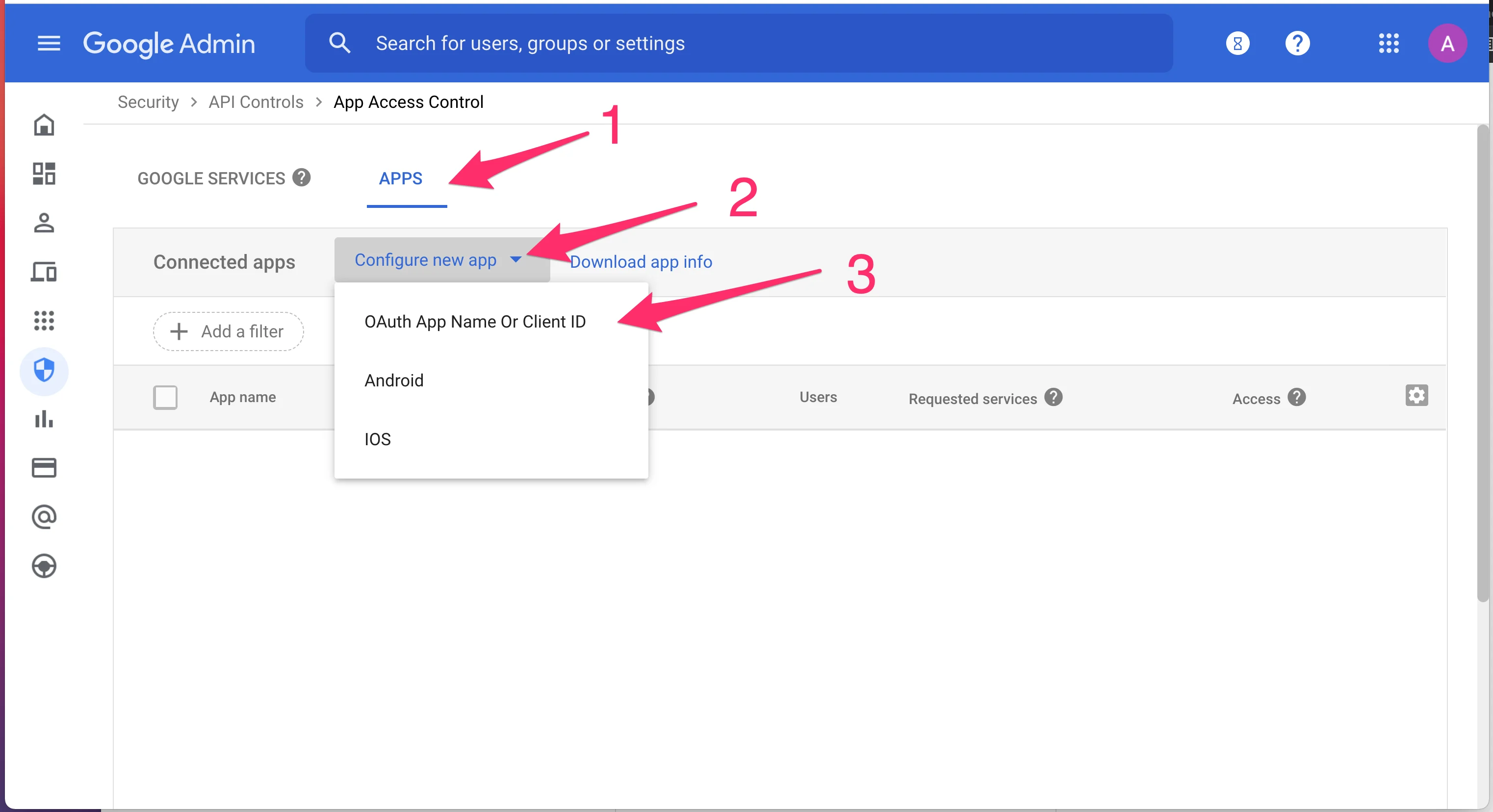
- While on Security > API Controls > App Access Control, click on the Apps tab, then click Configure new app, and select OAuth App Name Or Client ID.
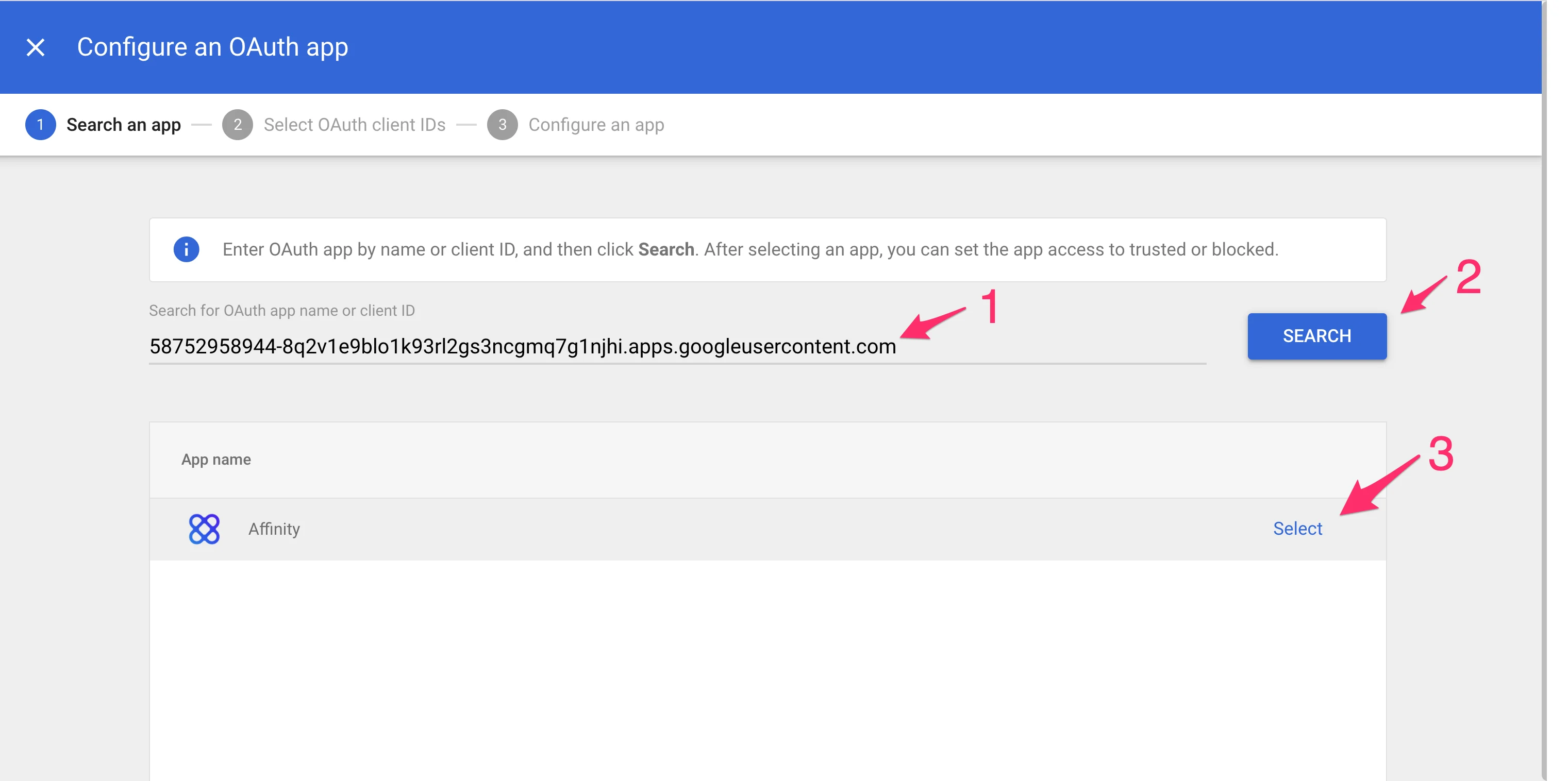
- On the search field, type in
58752958944-8q2v1e9blo1k93rl2gs3ncgmq7g1njhi.apps.googleusercontent.com, then click Search. Affinity will appear as your search result, click Select.
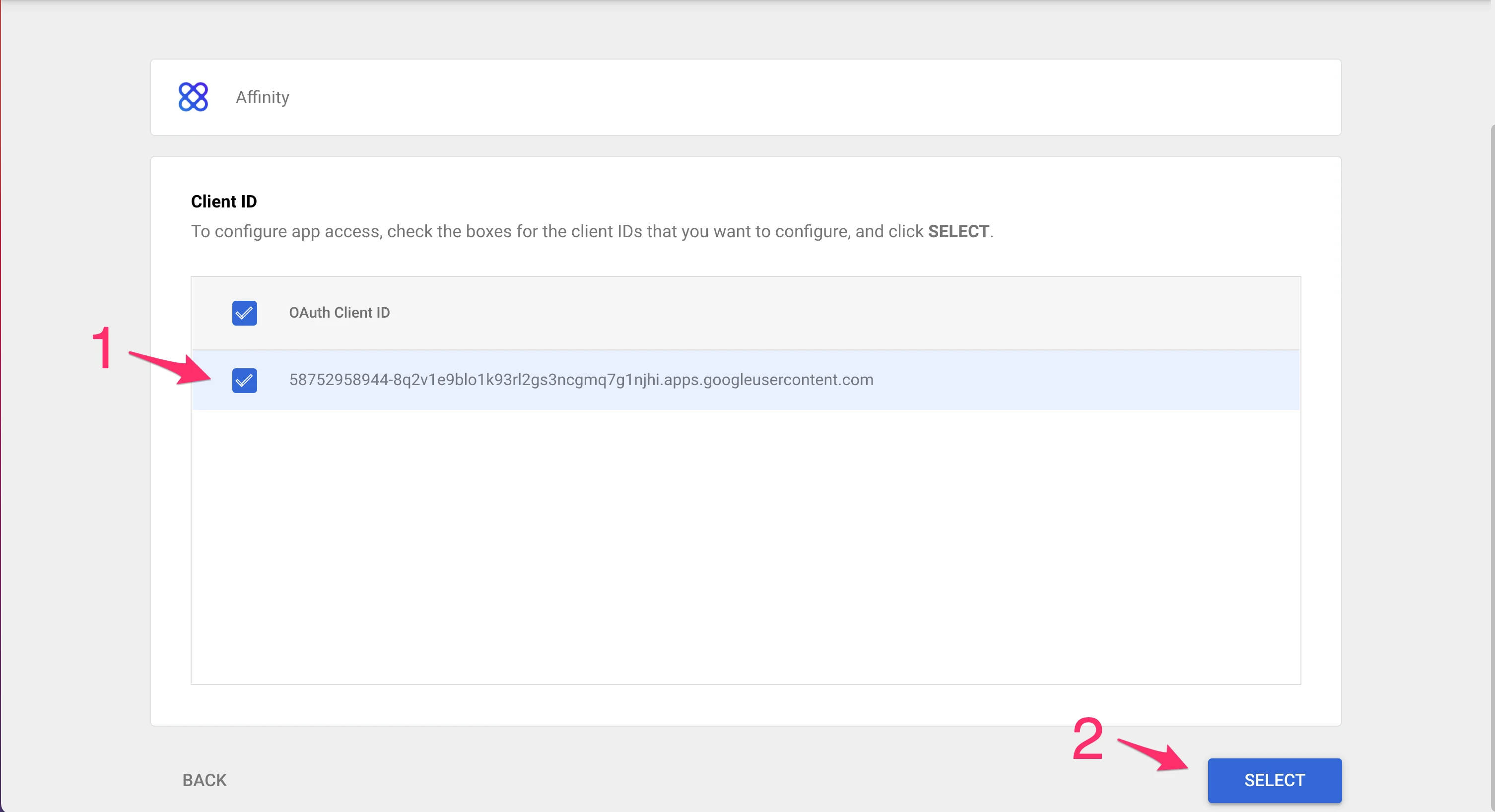
- Click the checkbox matching the Client ID:
58752958944-8q2v1e9blo1k93rl2gs3ncgmq7g1njhi.apps.googleusercontent.com, then click Select.
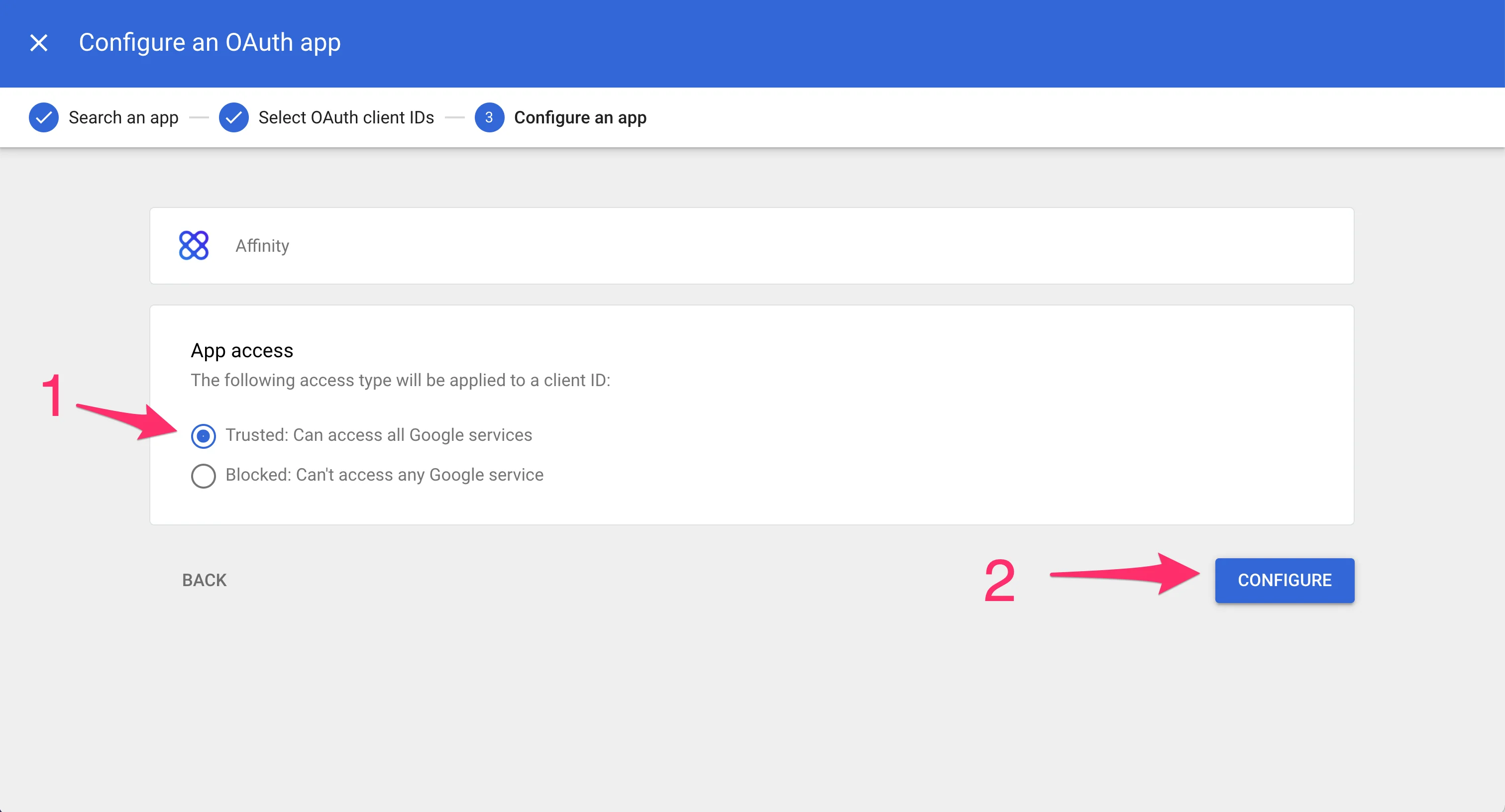
- Select Trusted: Can access all Google Services, then click Configure.
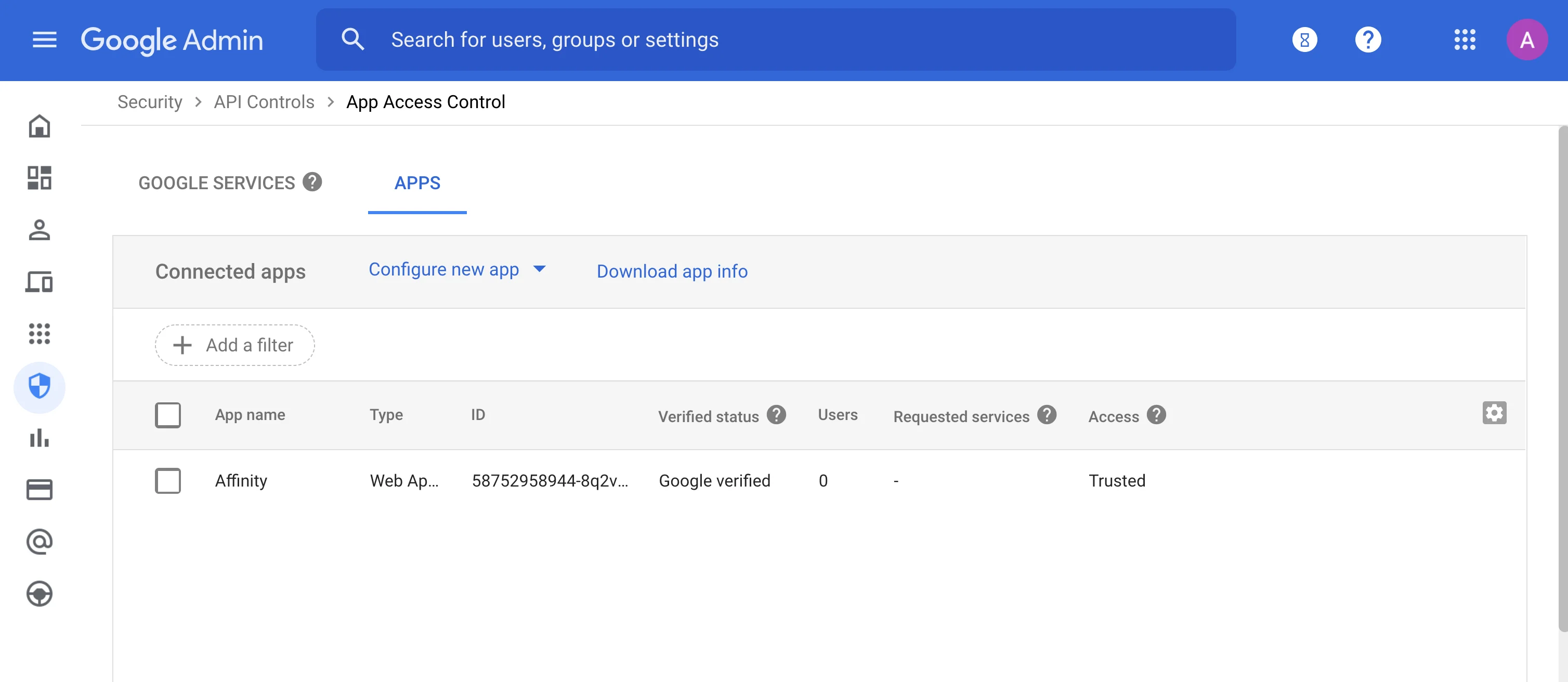
- You should now be able to see Affinity under the Apps tab. Users should now be able to access Affinity.