> ## Documentation Index
> Fetch the complete documentation index at: https://support.affinity.co/llms.txt
> Use this file to discover all available pages before exploring further.
# Troubleshooting CSV File Formats
> Help center reference: Troubleshooting CSV File Formats
**Troubleshooting** — fix for a specific issue.
Depending on your Excel's regional settings, your default delimiter/separator may either be set to **semicolons (;)** or **commas (,)** to separate items in a CSV file. This can either cause file upload issues or combine all the field values into **Column A** (see example below).
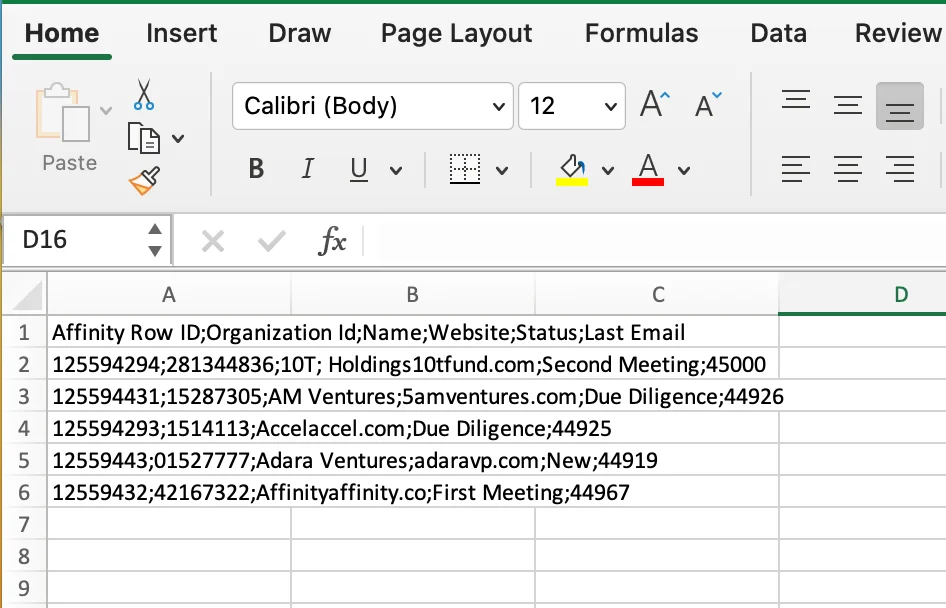 To remedy this issue, you have **three options** depending on how large of a change you'd like to make to your system:
## Option 1 - How to change your Excel settings
Choose **Option 1** if you prefer to make a one-time change to your Excel settings by changing which character it uses to separate thousands or decimals. Learn more in this [Microsoft article](https://support.microsoft.com/en-us/office/change-the-character-used-to-separate-thousands-or-decimals-c093b545-71cb-4903-b205-aebb9837bd1e).
## Option 2 - How to change your delimiter
Choose **Option 2** if you don't want to make any changes to your Excel settings or your computer's regional settings, and you just want to make these updates one at a time depending on the CSV file. There are **two ways** you can change your delimiter on a case-by-case basis:
## Option 2.1 - Using the "From Text" feature in Excel
1. Open the Excel file that you're trying to change in terms of data formatting. These steps will apply to both Mac and PC versions of Excel.
To remedy this issue, you have **three options** depending on how large of a change you'd like to make to your system:
## Option 1 - How to change your Excel settings
Choose **Option 1** if you prefer to make a one-time change to your Excel settings by changing which character it uses to separate thousands or decimals. Learn more in this [Microsoft article](https://support.microsoft.com/en-us/office/change-the-character-used-to-separate-thousands-or-decimals-c093b545-71cb-4903-b205-aebb9837bd1e).
## Option 2 - How to change your delimiter
Choose **Option 2** if you don't want to make any changes to your Excel settings or your computer's regional settings, and you just want to make these updates one at a time depending on the CSV file. There are **two ways** you can change your delimiter on a case-by-case basis:
## Option 2.1 - Using the "From Text" feature in Excel
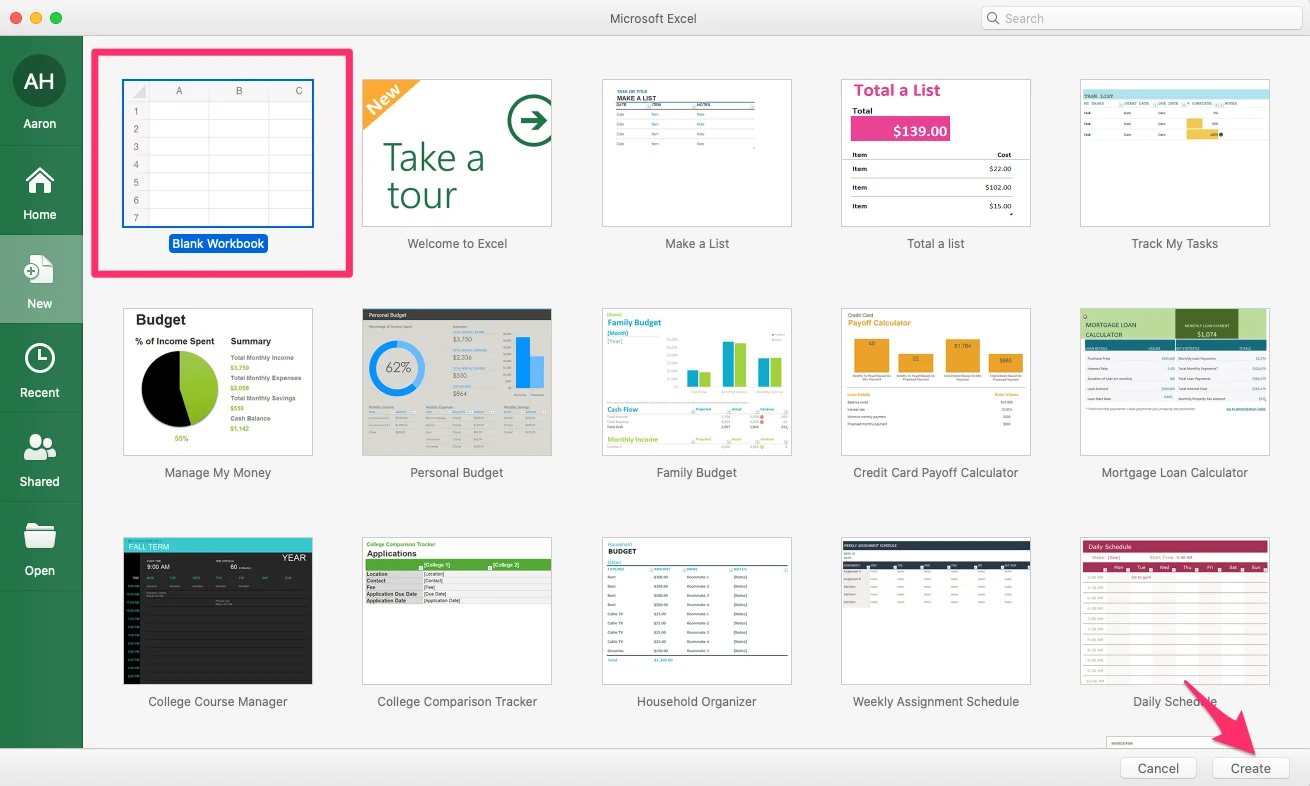
1. Open the Excel file that you're trying to change in terms of data formatting. These steps will apply to both Mac and PC versions of Excel.
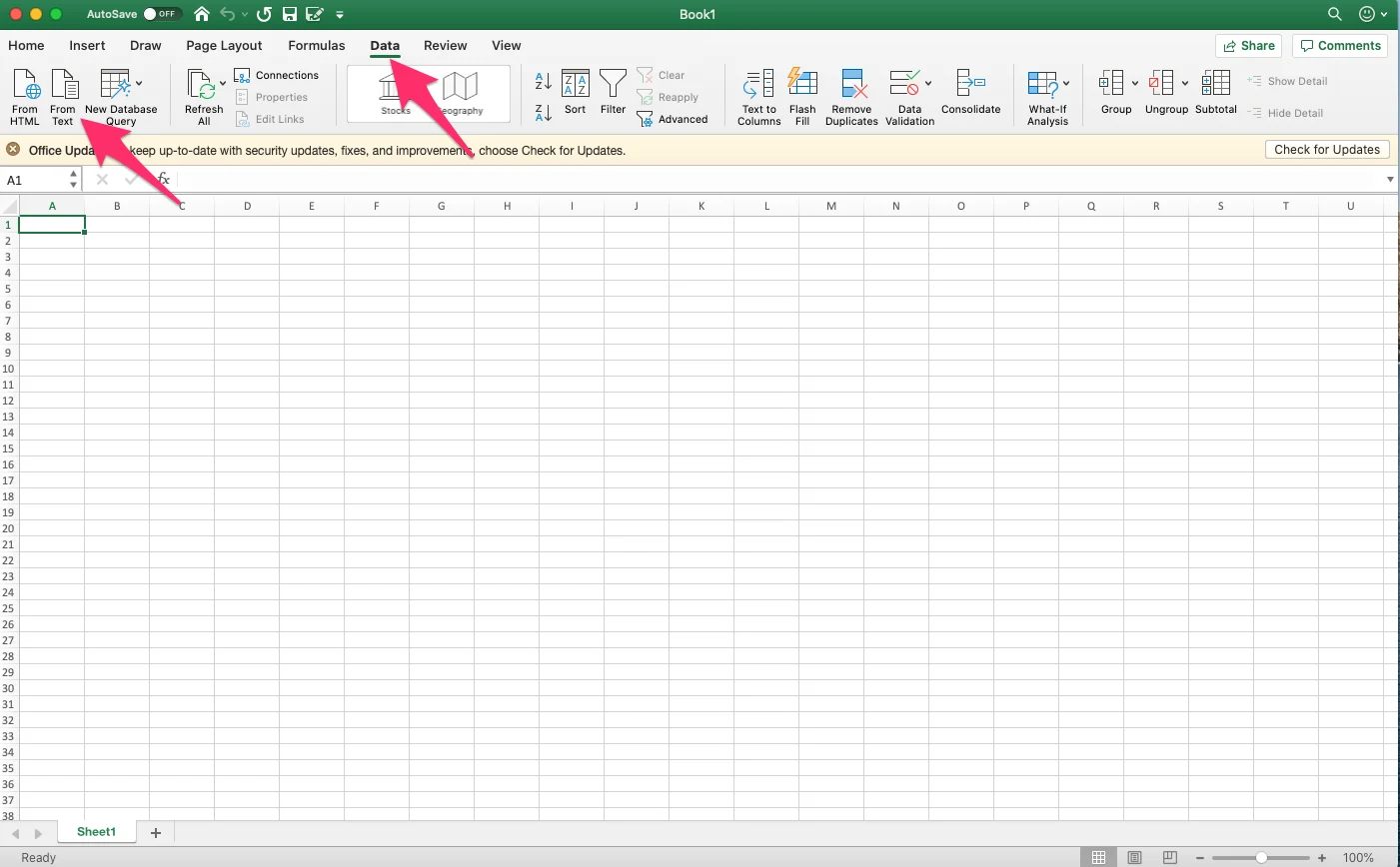
 2. Click the **Data** tab, then **From Text**.
 3. Select **the CSV file** that has the data clustered into one column.
4. Select **Delimited**, then make sure the File Origin is **Unicode UTF-8**.
3. Select **the CSV file** that has the data clustered into one column.
4. Select **Delimited**, then make sure the File Origin is **Unicode UTF-8**.
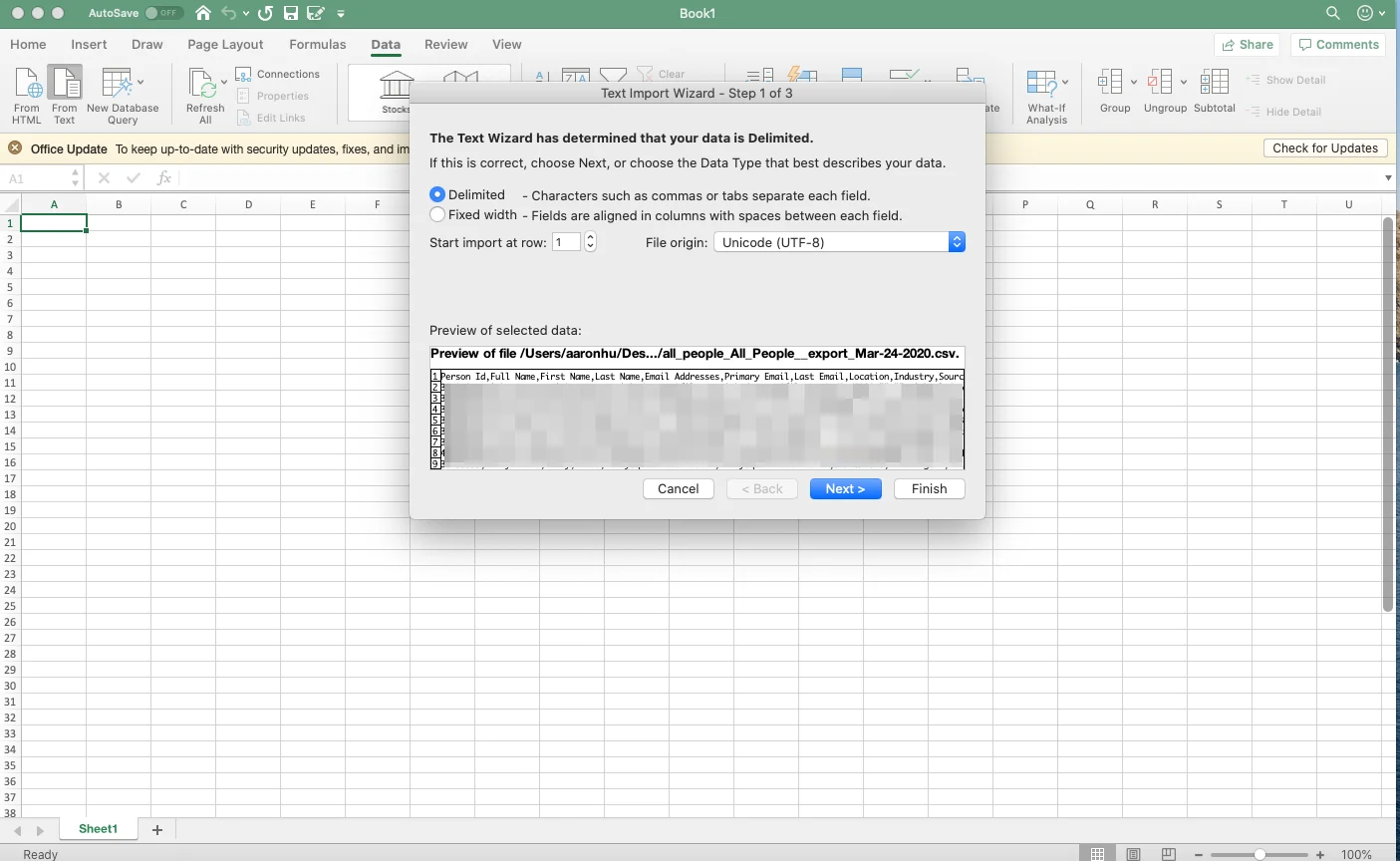 5. Select **Comma** (this is Affinity's default list separator). The preview will show the columns being separated.
6. Finally, click **Finish**.
5. Select **Comma** (this is Affinity's default list separator). The preview will show the columns being separated.
6. Finally, click **Finish**.
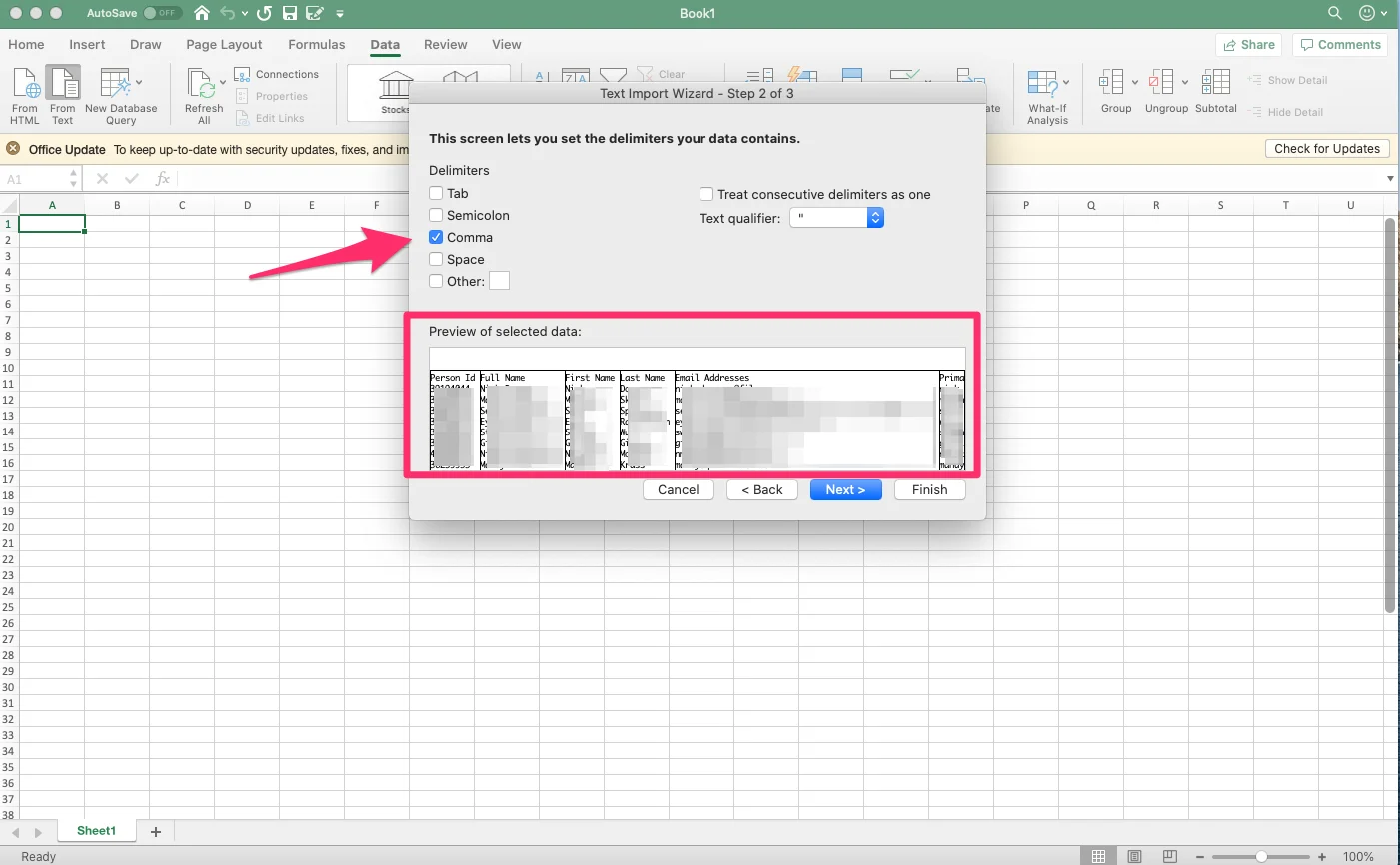 7. Remember to **Save** your file so it keeps the new format.
## Option 2.2 - Adding "sep=;" or "sep=," to the CSV file
When you have a CSV that is separated by semicolons (;) and your system/Excel default is commas (,), you can add a single line to tell Excel what delimiter to use when opening the file. Here are the steps you should follow:
1. Open your CSV using a text editor.
1. **Windows:** NotePad (notepad.exe)
2. **Mac**: TextEdit ([textedit.app](http://textedit.app))
2. Press **Enter**/**Return** to create a new line at the very top, and add **sep=;** if the separator used in the CSV is a semicolon (;), or **sep=,** if the separator is a comma (,).
3. Save your changes (**command + S** or **control + S**), then re-open in any Spreadsheet app.
7. Remember to **Save** your file so it keeps the new format.
## Option 2.2 - Adding "sep=;" or "sep=," to the CSV file
When you have a CSV that is separated by semicolons (;) and your system/Excel default is commas (,), you can add a single line to tell Excel what delimiter to use when opening the file. Here are the steps you should follow:
1. Open your CSV using a text editor.
1. **Windows:** NotePad (notepad.exe)
2. **Mac**: TextEdit ([textedit.app](http://textedit.app))
2. Press **Enter**/**Return** to create a new line at the very top, and add **sep=;** if the separator used in the CSV is a semicolon (;), or **sep=,** if the separator is a comma (,).
3. Save your changes (**command + S** or **control + S**), then re-open in any Spreadsheet app.
 **Note**: This newly added line will not show up when opening the file in Excel. Once you've opened up the Excel file (and the formatting looks good), you can re-save the file (if your default separator is a comma) so the "sep=" line is no longer present, which will allow for imports.
## Option 3 - How to change your computer's regional settings
Your regional settings are set by the country/ region in which you reside. By changing your settings to **English (United States)**, you will change your default delimiter to **comma (,)** to be in compliance with the .CSV format that Affinity uses for imports and exports (also see Microsoft's article on [how to change your regional settings](https://support.microsoft.com/en-us/office/change-regional-format-settings-in-excel-for-the-web-c206344b-0d45-4a82-8eee-34ff6b008e9c)).
## Changing your regional settings (Windows)
1. If you're using a PC (Windows), open the Windows Start Menu and click **Control Panel**.
2. Click **Region**.
**Note**: This newly added line will not show up when opening the file in Excel. Once you've opened up the Excel file (and the formatting looks good), you can re-save the file (if your default separator is a comma) so the "sep=" line is no longer present, which will allow for imports.
## Option 3 - How to change your computer's regional settings
Your regional settings are set by the country/ region in which you reside. By changing your settings to **English (United States)**, you will change your default delimiter to **comma (,)** to be in compliance with the .CSV format that Affinity uses for imports and exports (also see Microsoft's article on [how to change your regional settings](https://support.microsoft.com/en-us/office/change-regional-format-settings-in-excel-for-the-web-c206344b-0d45-4a82-8eee-34ff6b008e9c)).
## Changing your regional settings (Windows)
1. If you're using a PC (Windows), open the Windows Start Menu and click **Control Panel**.
2. Click **Region**.
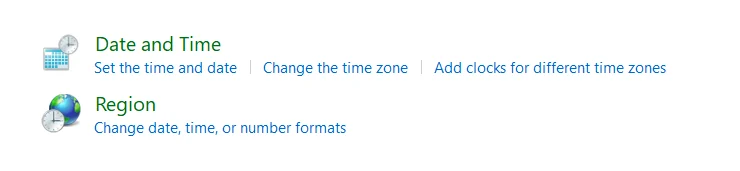 3. Then, click on **Additional settings...**
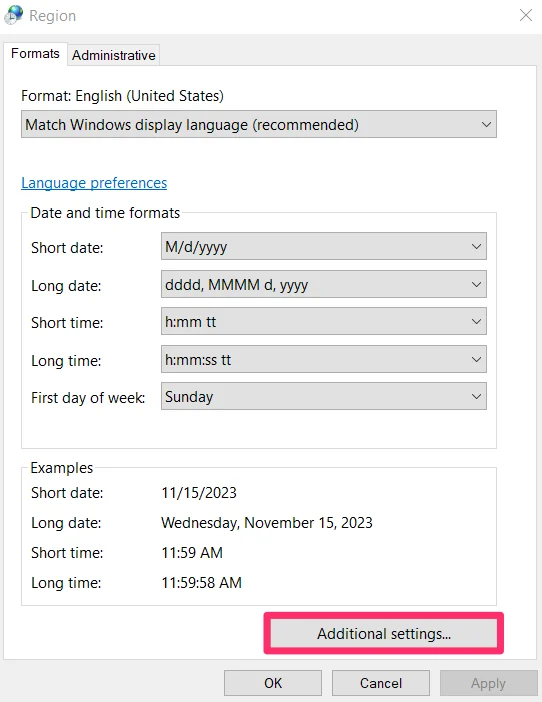 4. Now, make sure that the **Decimal symbol** field is set to **period (.)** and that the **List separator** field is set to **comma (,)**.
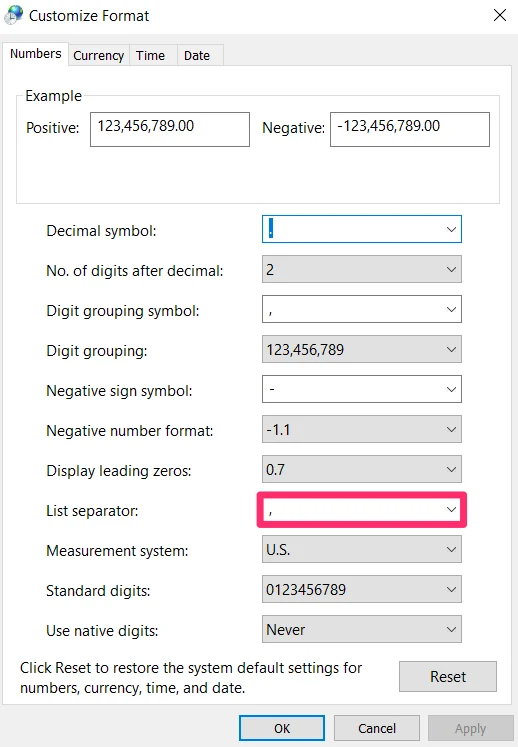 5. Last but not least, click **OK** to save your changes.
## Changing your regional settings (Mac)
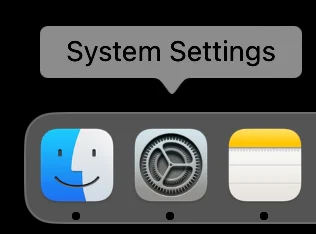
1. If you're using a Mac, click on **System Settings**.
5. Last but not least, click **OK** to save your changes.
## Changing your regional settings (Mac)
1. If you're using a Mac, click on **System Settings**.
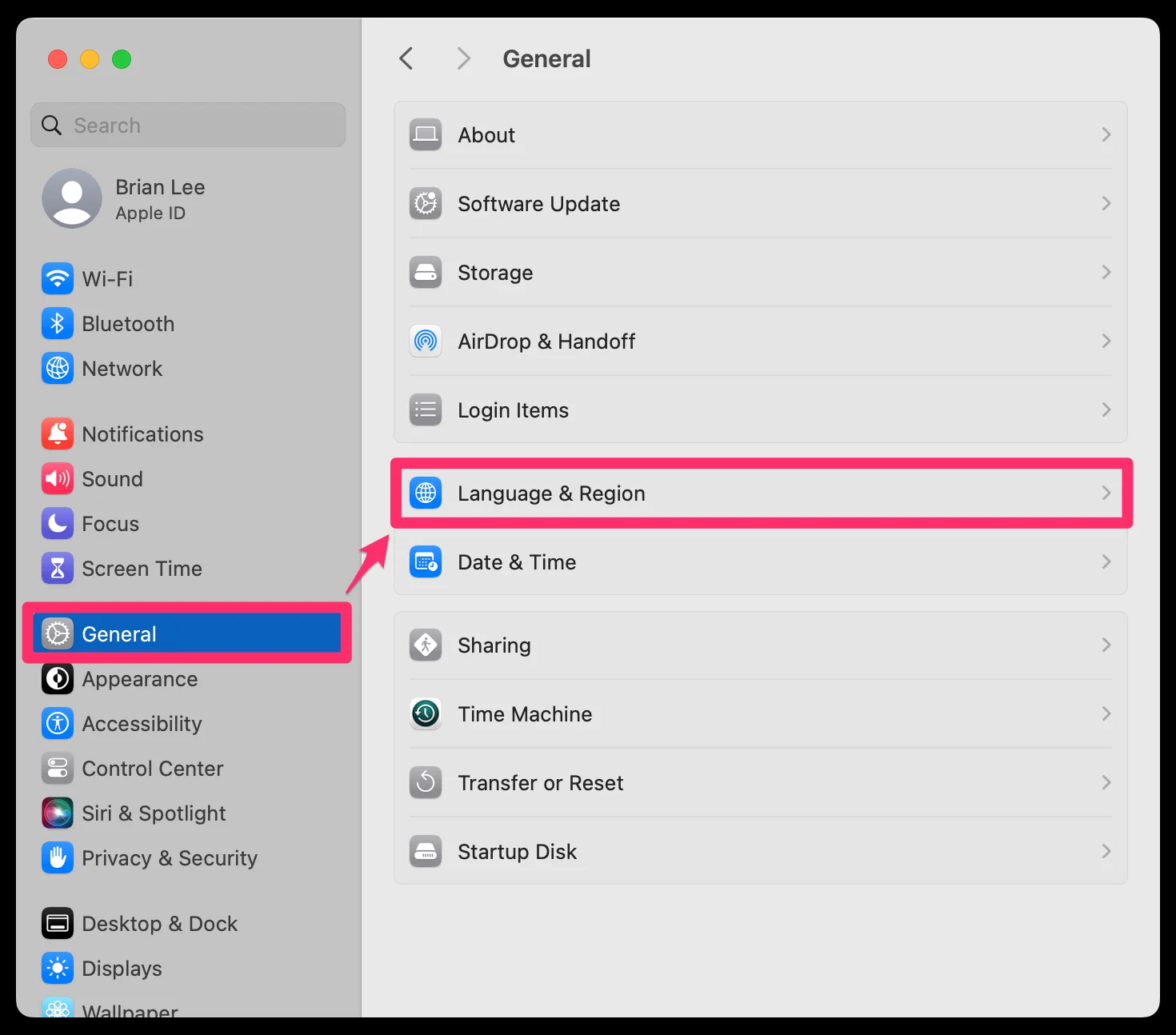
 2. Click the **General** tab, then click **Language & Region**.
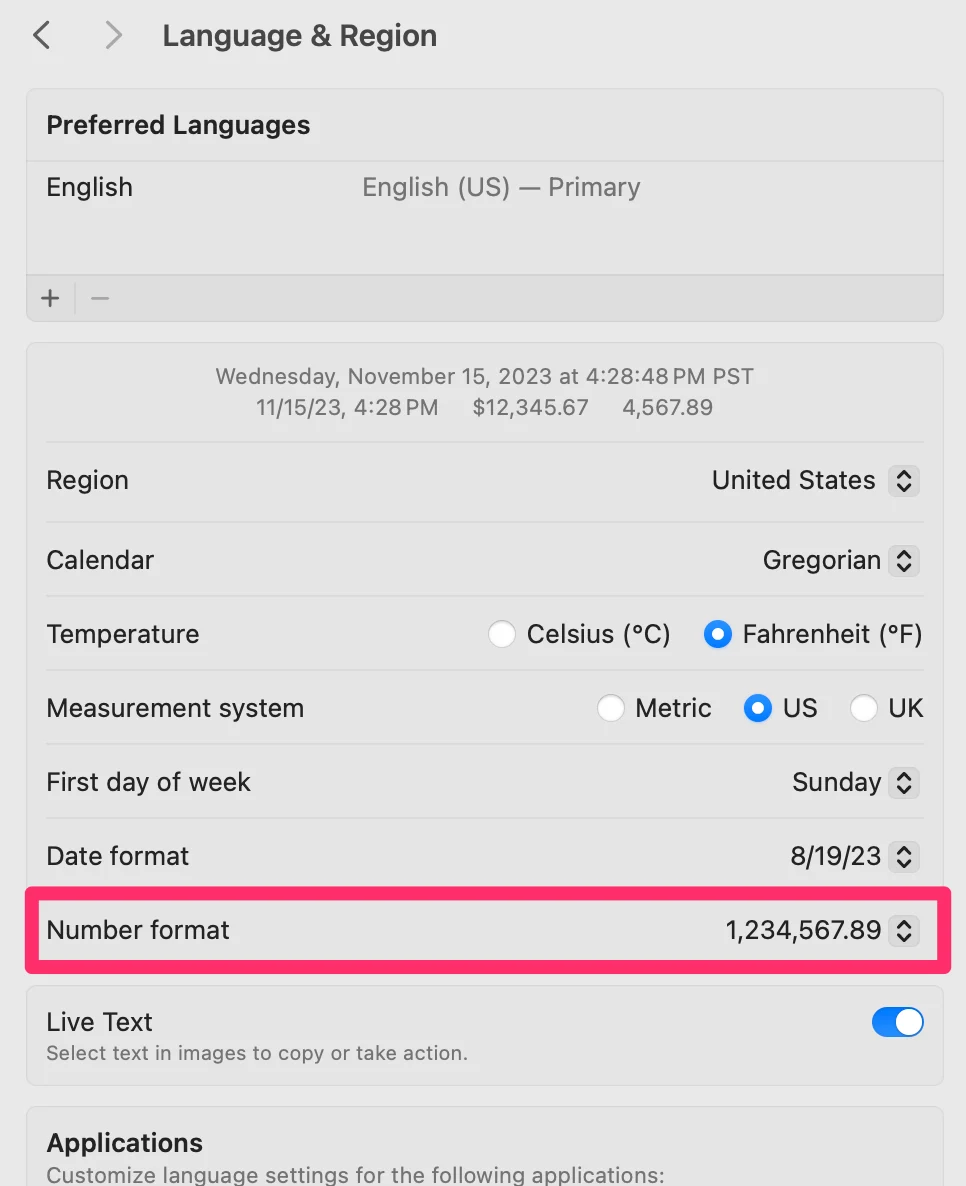
 3. Change the **Number Format** to **1,234,567.89** and you're all set.
 ## Related topics
- [Tutorial 0.3: Plan Your Data Migration](/s/article/Tutorial-0-3-plan-your-migration.md)
- [Troubleshooting](/s/article/Troubleshooting.md)
- [Data Migration](/s/article/Data-migration.md)
- [Import LinkedIn Connections](/s/article/Import-LinkedIn-Connections.md)
- [Cleaning Up Your Data Before Importing Into Affinity](/s/article/Cleaning-up-your-data-before-importing-into-Affinity.md)
## Related topics
- [Tutorial 0.3: Plan Your Data Migration](/s/article/Tutorial-0-3-plan-your-migration.md)
- [Troubleshooting](/s/article/Troubleshooting.md)
- [Data Migration](/s/article/Data-migration.md)
- [Import LinkedIn Connections](/s/article/Import-LinkedIn-Connections.md)
- [Cleaning Up Your Data Before Importing Into Affinity](/s/article/Cleaning-up-your-data-before-importing-into-Affinity.md)