> ## Documentation Index
> Fetch the complete documentation index at: https://support.affinity.co/llms.txt
> Use this file to discover all available pages before exploring further.
# Meeting Preparation with AI Chat
> Workflow recipe: Meeting Preparation with AI Chat
AI Chat is a conversational interface to your Affinity CRM: ask questions in natural language and get answers grounded in your own data, with cited sources. At GA it can also take **confirm-before-execute actions** — so you can move from "what do I know about this meeting?" to "update the record" without leaving the conversation.
## Asking vs. the automatic brief
Two complementary ways to get meeting context:
* **The Meeting Prep agent** produces your **pre-meeting brief** for the day's external meetings — generated overnight and ready by **7:00 AM in your local time zone**, so you don't have to ask. It's delivered **in-app**: on your home page (**Start Your Day** / **Ready for You**), in the **Ascend Agent Activity** feed. This is the reliable way to get a full pre-meeting brief. (See [Meeting Prep & Data Update](/s/article/Meeting-Prep-and-Data-Update).)
* **Asking AI Chat** (this article) is **on-demand and conversational** — explore what your CRM knows about a *specific* company or contact right now, dig deeper with follow-ups, and act on what you find. Reading your Meeting Prep brief in Chat, and reviewing Suggested Field Updates in Chat, are **fast-follows after launch** — not part of GA. The Meeting Prep and Data Update agents run automatically on their own; the meeting-prep prompt below works as a normal Chat query.
## Before you start
* **Plan:** AI Chat with actions is available on **Scale, Advanced, and Enterprise**.
* **Access:** AI Chat is **GA**. Admins control agents and AI features in **Settings → Automations & AI → Affinity AI**; if you don't see AI Chat, check with your admin.
* **Web app** only. Affinity AI only sees and can change what your own account already can.
## Step-by-step
### 1. Start from the meeting (fastest way)
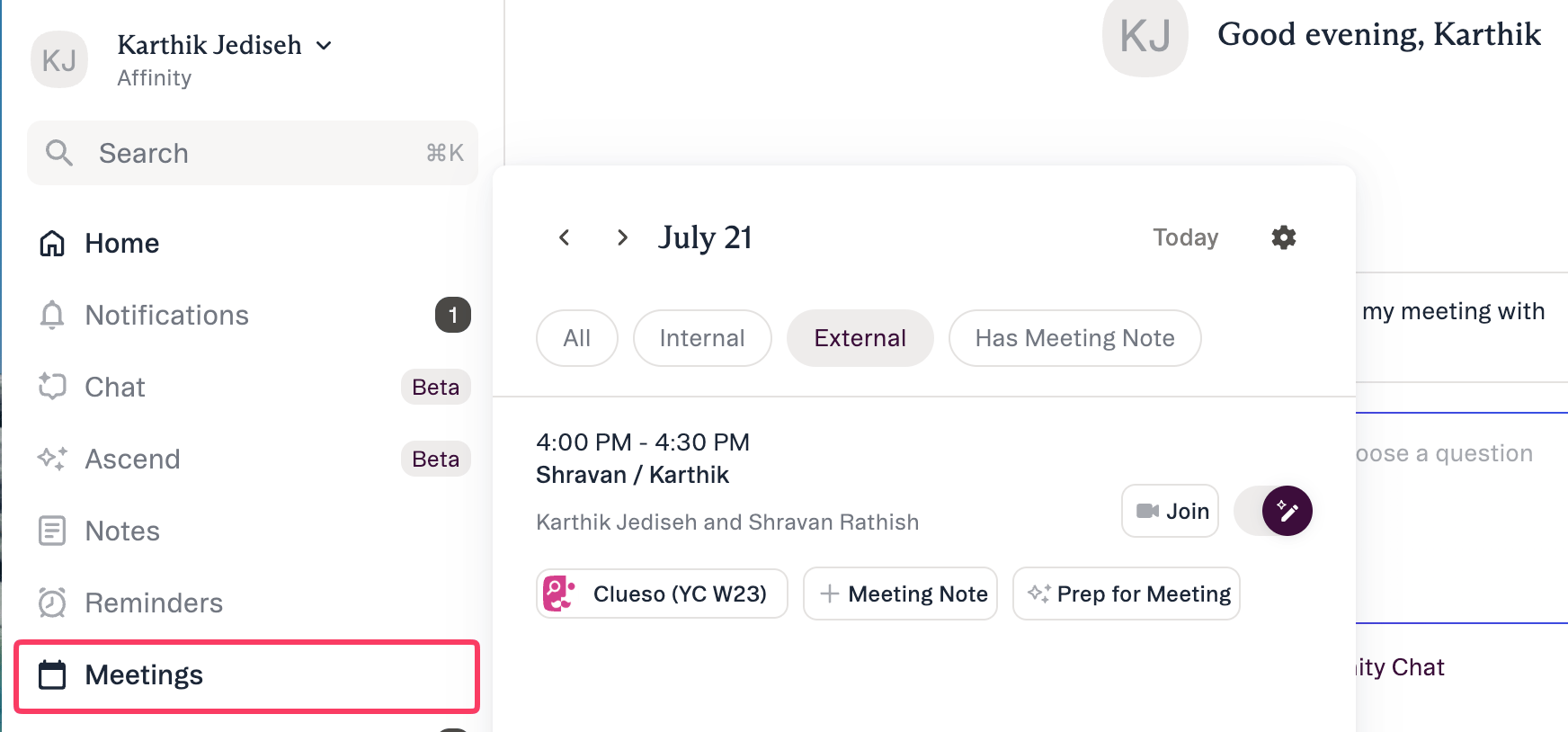 * Open **Meetings** in the left nav.
* Use the **←** / **→** arrows to move to the meeting's date.
* Open the **external meeting entry**.
* From there you can pick the **company profile** and **add a meeting note**.
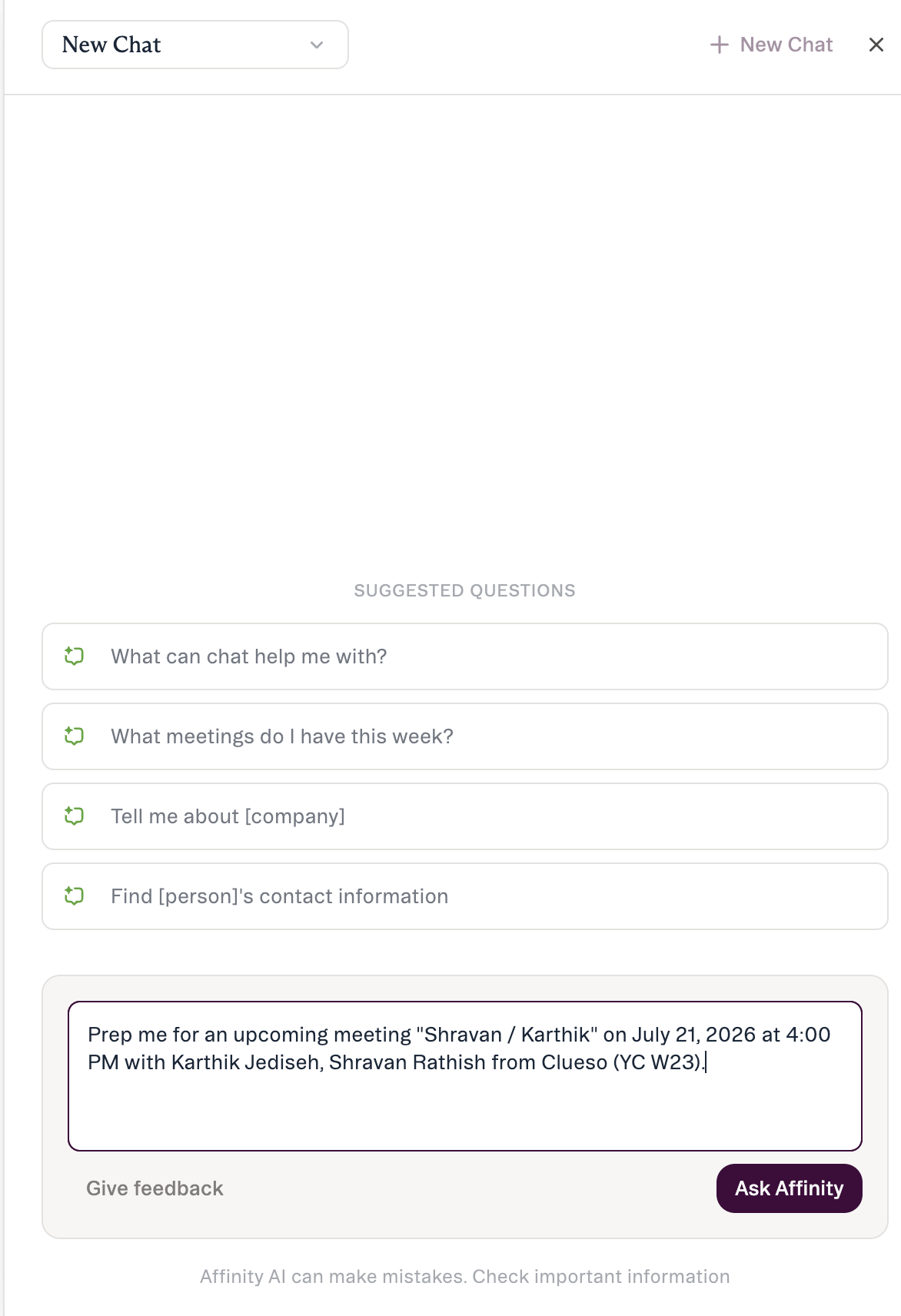
* Click **Prep for meeting** — this launches **AI Chat with a meeting-prep prompt prepopulated** from that company and meeting, so you don't have to type anything.
You can still type a prompt manually instead — **Prep for meeting** just does the first step for you.
### 2. Open AI Chat and ask for a prep
* Open **Meetings** in the left nav.
* Use the **←** / **→** arrows to move to the meeting's date.
* Open the **external meeting entry**.
* From there you can pick the **company profile** and **add a meeting note**.
* Click **Prep for meeting** — this launches **AI Chat with a meeting-prep prompt prepopulated** from that company and meeting, so you don't have to type anything.
You can still type a prompt manually instead — **Prep for meeting** just does the first step for you.
### 2. Open AI Chat and ask for a prep
 ```text theme={null}
Help me prep for my meeting with [Company]
```
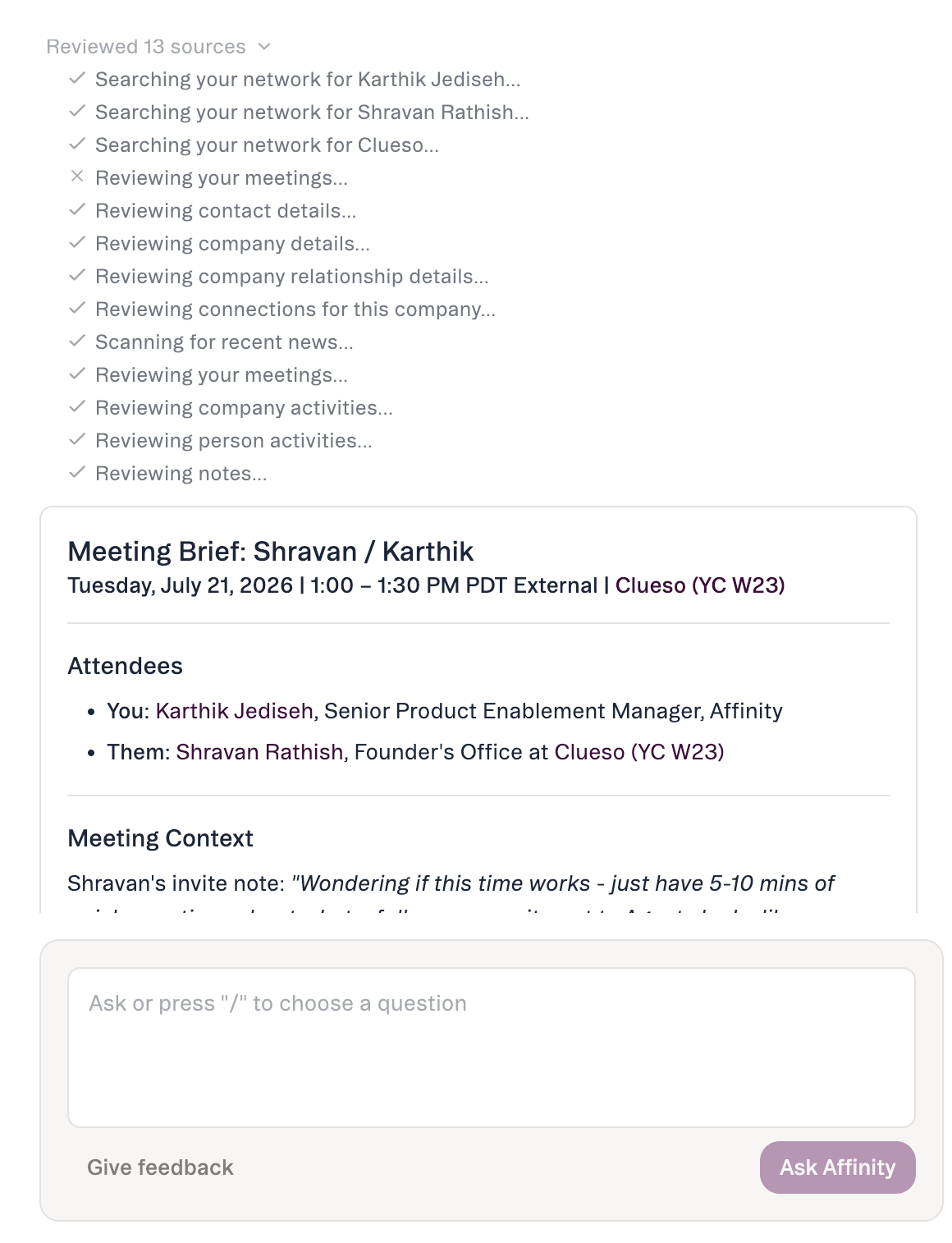
Affinity AI shows a brief thinking state, then a short **"sources used"** line.
### 3. Read the response
Typically: **relationship history**, **recent activity** (last interaction and how recent), and **open items** (deal/pipeline context). Review it against the cited sources.
```text theme={null}
Help me prep for my meeting with [Company]
```
Affinity AI shows a brief thinking state, then a short **"sources used"** line.
### 3. Read the response
Typically: **relationship history**, **recent activity** (last interaction and how recent), and **open items** (deal/pipeline context). Review it against the cited sources.
 ### 4. Ask follow-ups
```text theme={null}
When did we last talk to them, and who was on the thread?
What's the current pipeline stage for this deal?
Summarize the last note on this company.
```
### 5. Act on it — with your approval
When ready, ask Affinity AI to take an action right in chat. At launch: **update a field or pipeline stage, add to a list, create a note, create a reminder** — for example:
```text theme={null}
Move [Company] to [stage]
Log a note on [Company] summarizing this prep
Remind me to follow up with [Company] next Tuesday
```
Affinity AI shows **what will change** and **waits for you to confirm**. Nothing is written until you approve — the same confirm-before-execute model used across all Ascend agents. A few actions (upload a file, saved view, create a list) come later.
## Tips
* **Name the company or person explicitly.** Person search is by **name or email** today (attribute search is post-launch).
* **Verify dates against your calendar** — occasionally a past meeting may show as "upcoming."
* **Use follow-ups instead of one giant question.**
* **Review before you approve** — check the proposed change against the cited source.
## Common questions
**Will Affinity AI change anything on its own?** No — for any write action it shows the proposed change and waits for your approval.
**What can it do at launch?** Answer questions (with cited sources) and take four confirm-before-execute actions: update a field or pipeline stage, add to a list, create a note, create a reminder.
**What if the answer isn't quite right?** Ask a follow-up or check the cited sources. Note the limits: \~90-day activity window (being extended); person search by name/email today; no location filtering yet; no reliable point-in-time field history.
***
*Affinity AI can make mistakes. Review each suggestion before approving it.*
## Related topics
- [Affinity AI Chat Overview](/s/article/Affinity-AI-chat-overview.md)
- [Connect AI Tools to Affinity with MCP](/s/article/Tutorial-MCP-connect-ai-tools-to-affinity.md)
- [Prompts for Affinity AI Chat](/s/article/Prompts-for-Affinity-AI-Chat.md)
- [Getting Started with AI Chat](/s/article/Getting-started-with-AI-chat.md)
- [Pipeline catch-up with AI Chat](/s/article/Pipeline-catch-up-with-AI-Chat.md)
### 4. Ask follow-ups
```text theme={null}
When did we last talk to them, and who was on the thread?
What's the current pipeline stage for this deal?
Summarize the last note on this company.
```
### 5. Act on it — with your approval
When ready, ask Affinity AI to take an action right in chat. At launch: **update a field or pipeline stage, add to a list, create a note, create a reminder** — for example:
```text theme={null}
Move [Company] to [stage]
Log a note on [Company] summarizing this prep
Remind me to follow up with [Company] next Tuesday
```
Affinity AI shows **what will change** and **waits for you to confirm**. Nothing is written until you approve — the same confirm-before-execute model used across all Ascend agents. A few actions (upload a file, saved view, create a list) come later.
## Tips
* **Name the company or person explicitly.** Person search is by **name or email** today (attribute search is post-launch).
* **Verify dates against your calendar** — occasionally a past meeting may show as "upcoming."
* **Use follow-ups instead of one giant question.**
* **Review before you approve** — check the proposed change against the cited source.
## Common questions
**Will Affinity AI change anything on its own?** No — for any write action it shows the proposed change and waits for your approval.
**What can it do at launch?** Answer questions (with cited sources) and take four confirm-before-execute actions: update a field or pipeline stage, add to a list, create a note, create a reminder.
**What if the answer isn't quite right?** Ask a follow-up or check the cited sources. Note the limits: \~90-day activity window (being extended); person search by name/email today; no location filtering yet; no reliable point-in-time field history.
***
*Affinity AI can make mistakes. Review each suggestion before approving it.*
## Related topics
- [Affinity AI Chat Overview](/s/article/Affinity-AI-chat-overview.md)
- [Connect AI Tools to Affinity with MCP](/s/article/Tutorial-MCP-connect-ai-tools-to-affinity.md)
- [Prompts for Affinity AI Chat](/s/article/Prompts-for-Affinity-AI-Chat.md)
- [Getting Started with AI Chat](/s/article/Getting-started-with-AI-chat.md)
- [Pipeline catch-up with AI Chat](/s/article/Pipeline-catch-up-with-AI-Chat.md)