> ## Documentation Index
> Fetch the complete documentation index at: https://support.affinity.co/llms.txt
> Use this file to discover all available pages before exploring further.
# List Level Permissions
> Help center reference: List Level Permissions
**Reference** — lookup information.
Learn about the different roles at the list level and what you can/cannot do based on your role. **Note:** Being an Account Admin (see [Account Level Permissions](/s/article/Account-level-permissions)) does not mean that you are automatically a List Admin for specific lists that you have access to. To have full list privileges, you must ask the List Owner to make you a List Admin as well (see [How to share lists in Affinity](/s/article/How-to-share-lists-in-Affinity)).
## Overview
1. What are the different roles at the list level?
2. How to find your role at the list level
3. How to change a user's role at the list level
4. How to change list ownership
5. Non-Enterprise Tiers
6. Enterprise Tier
7. What about global fields?
8. What about exporting data from lists?
## What are the different roles at the list level?
Here are the different roles at the list level within each list:
1.
**Basic**: Can create reminder triggers, configure private saved views, and edit data (field values only).
2\.
**Standard**: Can create reminder triggers, configure private saved views, and edit data (field values and dropdown options).
3\.
**List Admins**: Can create reminder/status/opportunity triggers, configure private/shared saved views, edit data (field values and dropdown options), and provide list access.
4\.
**List Owner**: The user who created the list. Has the same permissions as **List Admins**.
5\. **Enterprise Admin** (**Enterprise** tier only): Enterprise Admins will have access to all lists created by all users, even private lists not created by the Enterprise Admin. Has the most permissions within the list. To learn what exactly you can/cannot do based on your role at the list level, see the tables below for Non-Enterprise Tiers and Enterprise Tier.
## How to find your role at the list level
1. Click into a list, then click on the **Share** button on the top-right corner.
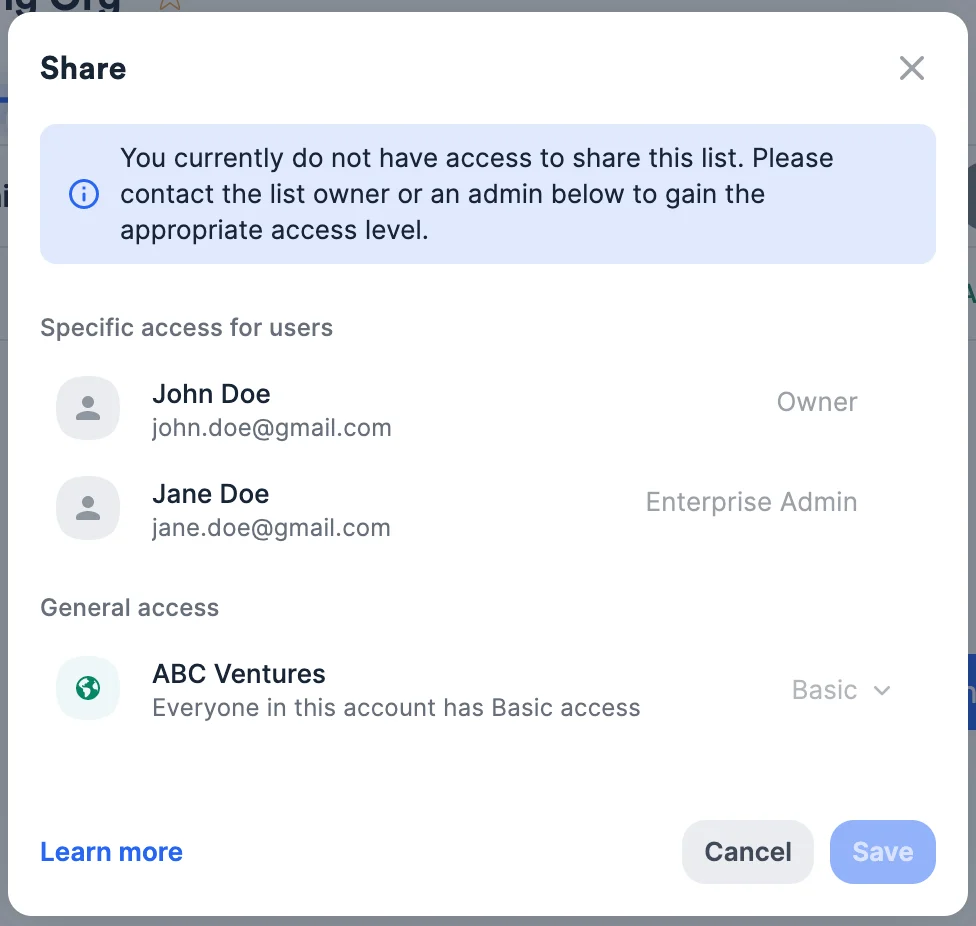
 2. If you see the blue alert bar stating, "**You currently do not have access to share this list...**" then your user type is **Basic** for this specific list, as shown under **General access**.
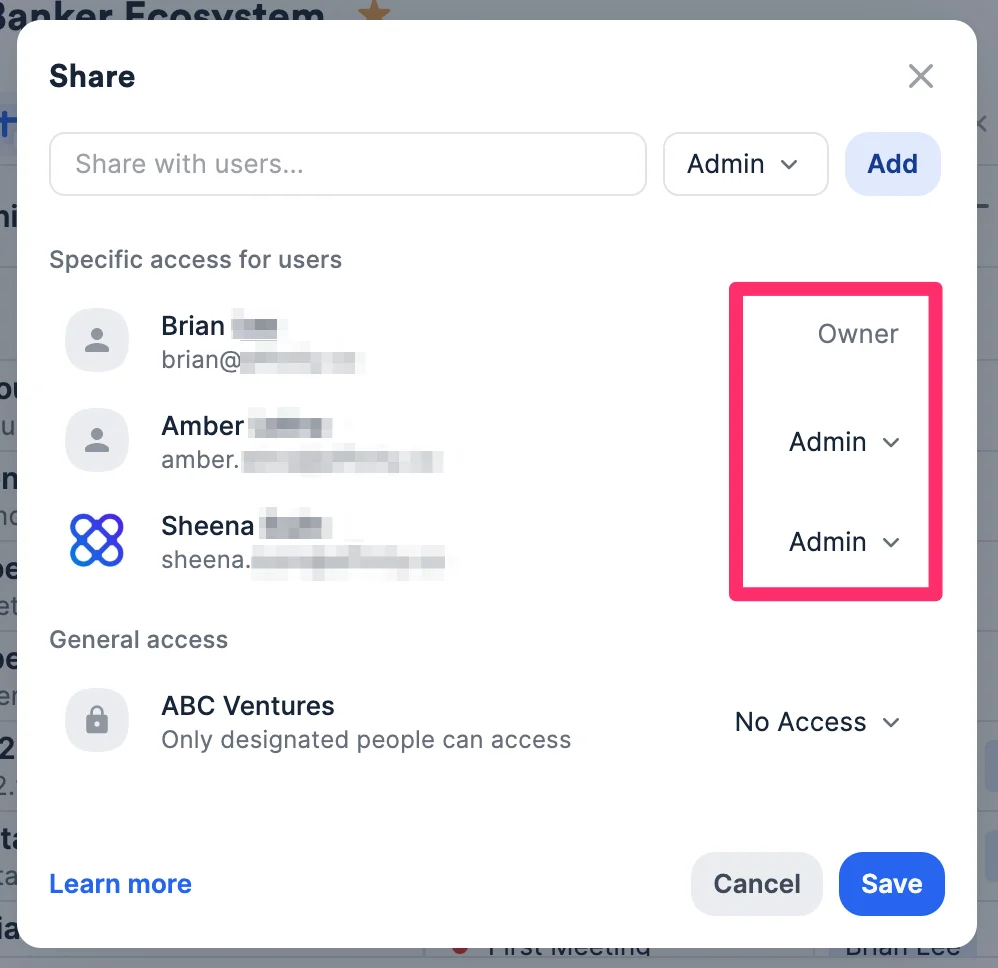
 3. If you see the search bar to share with other users instead, then you are likely the **List Owner** or a **List Admin** for this specific list.
 ## How to change a user's role at the list level
* Only the **List Owner**, **List Admins**, and **Enterprise Admins** can assign specific list roles to users.
* If the list is shared with everyone on the account, those without a specific list role will be assigned the **Basic** list role by default.
* See [How to share lists in Affinity](/s/article/How-to-share-lists-in-Affinity) to learn more.
## How to change list ownership
* If you're leaving your company, simply having an account admin [deactivate](/s/article/How-to-deactivate-reactivate-or-remove-users-from-your-Affinity-account) you will automatically transfer ownership of all the lists you have created to this account admin.
* If you're not leaving your company, but want to provide a team member of yours with the same level of permissions that you have for a list that you created, you can simply [make them a list admin](/s/article/How-to-share-lists-in-Affinity) - no need to change list ownership.
## Non-Enterprise Tiers
This applies to the **Essential**, **Scale**, and **Advanced** tiers. List Admins and List Owners have full permissions including list management (assign roles, delete/rename, share), list automation (reminder/opportunity/status triggers), field management (create/rename/delete list-specific fields, edit dropdown/status options, set profile fields, set default fields), and data access (add/remove entries, edit values, create/edit shared and private saved views). List Standard users can create/rename fields, edit dropdown options, delete empty fields, edit values, create reminder triggers, and create private saved views. List Basic users can edit field values, add/remove entries, create reminder triggers, and create private saved views.
## Enterprise Tier
Enterprise Admins have access to all lists, can share with teams/all users, and have all permissions. Otherwise the same hierarchy as Non-Enterprise tiers applies.
## What about global fields?
* Please see the section titled "How to find your account role and view permissions for each role" in the article [Account Level Permissions](/s/article/Account-level-permissions) to understand what you can/cannot do with [global fields](/s/article/Enriched-Global-and-List-specific-Fields) in your Affinity account.
## What about exporting data from lists?
* **Essential**, **Scale**, and **Advanced tiers**: Both Admin and Standard users at the account level will be able to export data from lists that they have access to.
* **Enterprise tier**: Though Admin and Standard users will be able to export list data by default, the Enterprise Admin can choose to disable export permissions for Admin and Standard users.
## Related topics
- [Users, Teams & Permissions](/s/article/Users-Teams-permissions.md)
- [Tutorial 0.5: Verify & Invite Your Team](/s/article/Tutorial-0-5-verify-and-invite-team.md)
- [Tutorial 7: Master List Views — Sort, Filter, Favorite, and Share](/s/article/Tutorial-7-master-list-views-sort-filter-favorite-and-share.md)
- [How To Delete Columns In Affinity](/s/article/How-to-delete-columns-in-Affinity.md)
- [How to update dropdown options for dropdown type fields](/s/article/How-to-update-dropdown-options-for-dropdown-type-fields.md)
## How to change a user's role at the list level
* Only the **List Owner**, **List Admins**, and **Enterprise Admins** can assign specific list roles to users.
* If the list is shared with everyone on the account, those without a specific list role will be assigned the **Basic** list role by default.
* See [How to share lists in Affinity](/s/article/How-to-share-lists-in-Affinity) to learn more.
## How to change list ownership
* If you're leaving your company, simply having an account admin [deactivate](/s/article/How-to-deactivate-reactivate-or-remove-users-from-your-Affinity-account) you will automatically transfer ownership of all the lists you have created to this account admin.
* If you're not leaving your company, but want to provide a team member of yours with the same level of permissions that you have for a list that you created, you can simply [make them a list admin](/s/article/How-to-share-lists-in-Affinity) - no need to change list ownership.
## Non-Enterprise Tiers
This applies to the **Essential**, **Scale**, and **Advanced** tiers. List Admins and List Owners have full permissions including list management (assign roles, delete/rename, share), list automation (reminder/opportunity/status triggers), field management (create/rename/delete list-specific fields, edit dropdown/status options, set profile fields, set default fields), and data access (add/remove entries, edit values, create/edit shared and private saved views). List Standard users can create/rename fields, edit dropdown options, delete empty fields, edit values, create reminder triggers, and create private saved views. List Basic users can edit field values, add/remove entries, create reminder triggers, and create private saved views.
## Enterprise Tier
Enterprise Admins have access to all lists, can share with teams/all users, and have all permissions. Otherwise the same hierarchy as Non-Enterprise tiers applies.
## What about global fields?
* Please see the section titled "How to find your account role and view permissions for each role" in the article [Account Level Permissions](/s/article/Account-level-permissions) to understand what you can/cannot do with [global fields](/s/article/Enriched-Global-and-List-specific-Fields) in your Affinity account.
## What about exporting data from lists?
* **Essential**, **Scale**, and **Advanced tiers**: Both Admin and Standard users at the account level will be able to export data from lists that they have access to.
* **Enterprise tier**: Though Admin and Standard users will be able to export list data by default, the Enterprise Admin can choose to disable export permissions for Admin and Standard users.
## Related topics
- [Users, Teams & Permissions](/s/article/Users-Teams-permissions.md)
- [Tutorial 0.5: Verify & Invite Your Team](/s/article/Tutorial-0-5-verify-and-invite-team.md)
- [Tutorial 7: Master List Views — Sort, Filter, Favorite, and Share](/s/article/Tutorial-7-master-list-views-sort-filter-favorite-and-share.md)
- [How To Delete Columns In Affinity](/s/article/How-to-delete-columns-in-Affinity.md)
- [How to update dropdown options for dropdown type fields](/s/article/How-to-update-dropdown-options-for-dropdown-type-fields.md)