> ## Documentation Index
> Fetch the complete documentation index at: https://support.affinity.co/llms.txt
> Use this file to discover all available pages before exploring further.
# How to use board views in Affinity
> Help center reference
**How-to** — task-oriented recipe.
By [creating board views](/s/article/How-to-create-and-use-saved-views-within-a-list), you can now visualize your pipeline and other categories in your Affinity lists. See all the actions you can take by clicking on one of the sections below.
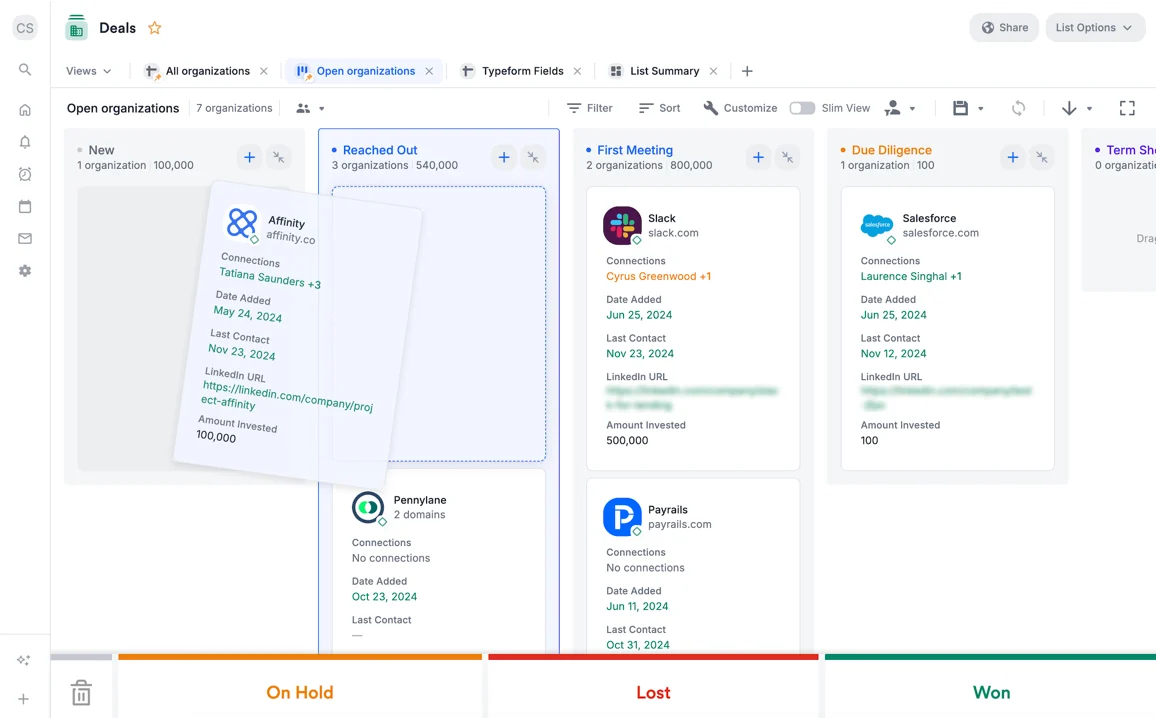
## Drag and drop cards from one category to another
Click **and** hold on a card to drag and drop from one category to another.
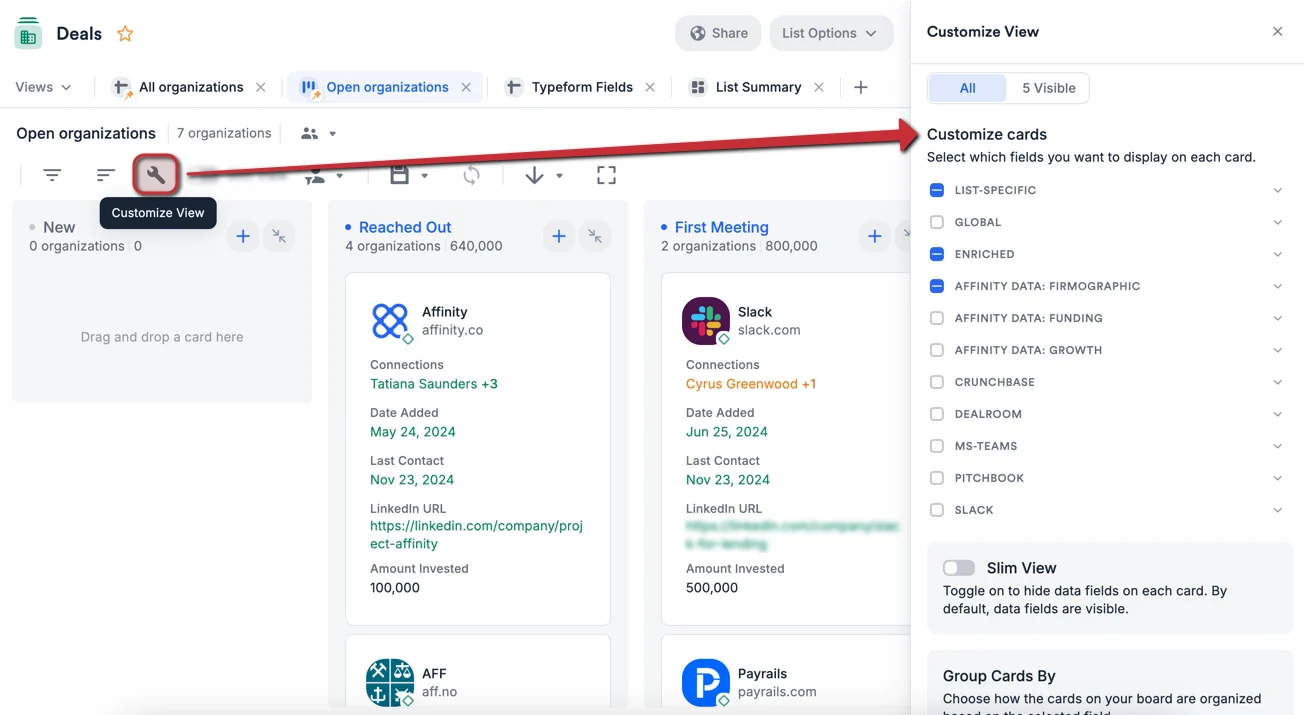
 ## Customize cards within board view
1. Click the **Customize View** icon.
2. Customize your cards by selecting the relevant fields you want to show within each card (6 fields max).
## Customize cards within board view
1. Click the **Customize View** icon.
2. Customize your cards by selecting the relevant fields you want to show within each card (6 fields max).
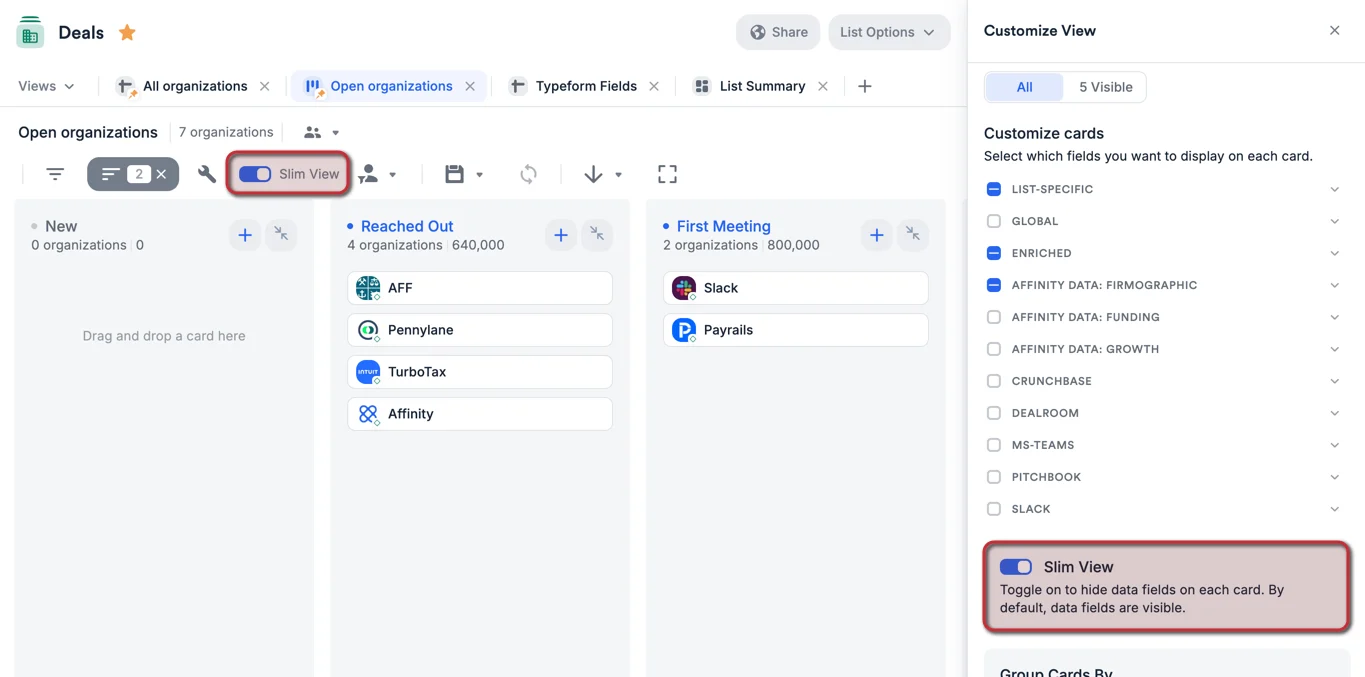
 3. Or, condense them to view more cards at once by switching to **Slim View**.
 4. Here are all the field types that are available (or not) in board views based on list type:
| Field Types | People lists | Organization lists | Opportunity lists |
| --------------------------------------------------------------------------- | ------------ | ------------------ | ----------------- |
| [Affinity Data: Biographic](/s/article/Affinity-Data) | Yes | No | No |
| [Affinity Data: Experience](/s/article/Affinity-Data) | Yes | No | No |
| [Affinity Data: Firmographic](/s/article/Affinity-Data) | No | Yes | Coming Soon |
| [Affinity Data: Funding](/s/article/Affinity-Data) | No | Yes | Coming Soon |
| [Affinity Data: Growth](/s/article/Affinity-Data) | No | Yes | Coming Soon |
| [Enriched fields](/s/article/Enriched-Global-and-List-specific-Fields) | Yes | Yes | Yes |
| [Global fields](/s/article/Enriched-Global-and-List-specific-Fields) | Yes\* | Yes\* | Coming Soon |
| [List-specific fields](/s/article/Enriched-Global-and-List-specific-Fields) | Yes\* | Yes\* | Yes\* |
| [Crunchbase](/s/article/Crunchbase-data-in-Affinity) fields | No | Yes | No |
| [Dealroom.co](/s/article/Dealroom-co-data-in-Affinity) fields | No | Yes | No |
| [PitchBook](/s/article/How-to-integrate-Affinity-with-Pitchbook) fields | No | Yes | No |
| **Notes** / **Reminders** fields | Yes | Yes | Yes |
\* These are the specific field types that are **not** supported for board view at this time:
1. Location-type fields (single value and multiple values)
## Toggle on Action Bar for each card
Toggle on the Action Bar to quickly add a note, set a reminder, send an email, or upload a file to an entity's profile page with just one click.
1. Click the **Customize View** button, then turn the toggle on for **Show Action Bar**.
4. Here are all the field types that are available (or not) in board views based on list type:
| Field Types | People lists | Organization lists | Opportunity lists |
| --------------------------------------------------------------------------- | ------------ | ------------------ | ----------------- |
| [Affinity Data: Biographic](/s/article/Affinity-Data) | Yes | No | No |
| [Affinity Data: Experience](/s/article/Affinity-Data) | Yes | No | No |
| [Affinity Data: Firmographic](/s/article/Affinity-Data) | No | Yes | Coming Soon |
| [Affinity Data: Funding](/s/article/Affinity-Data) | No | Yes | Coming Soon |
| [Affinity Data: Growth](/s/article/Affinity-Data) | No | Yes | Coming Soon |
| [Enriched fields](/s/article/Enriched-Global-and-List-specific-Fields) | Yes | Yes | Yes |
| [Global fields](/s/article/Enriched-Global-and-List-specific-Fields) | Yes\* | Yes\* | Coming Soon |
| [List-specific fields](/s/article/Enriched-Global-and-List-specific-Fields) | Yes\* | Yes\* | Yes\* |
| [Crunchbase](/s/article/Crunchbase-data-in-Affinity) fields | No | Yes | No |
| [Dealroom.co](/s/article/Dealroom-co-data-in-Affinity) fields | No | Yes | No |
| [PitchBook](/s/article/How-to-integrate-Affinity-with-Pitchbook) fields | No | Yes | No |
| **Notes** / **Reminders** fields | Yes | Yes | Yes |
\* These are the specific field types that are **not** supported for board view at this time:
1. Location-type fields (single value and multiple values)
## Toggle on Action Bar for each card
Toggle on the Action Bar to quickly add a note, set a reminder, send an email, or upload a file to an entity's profile page with just one click.
1. Click the **Customize View** button, then turn the toggle on for **Show Action Bar**.
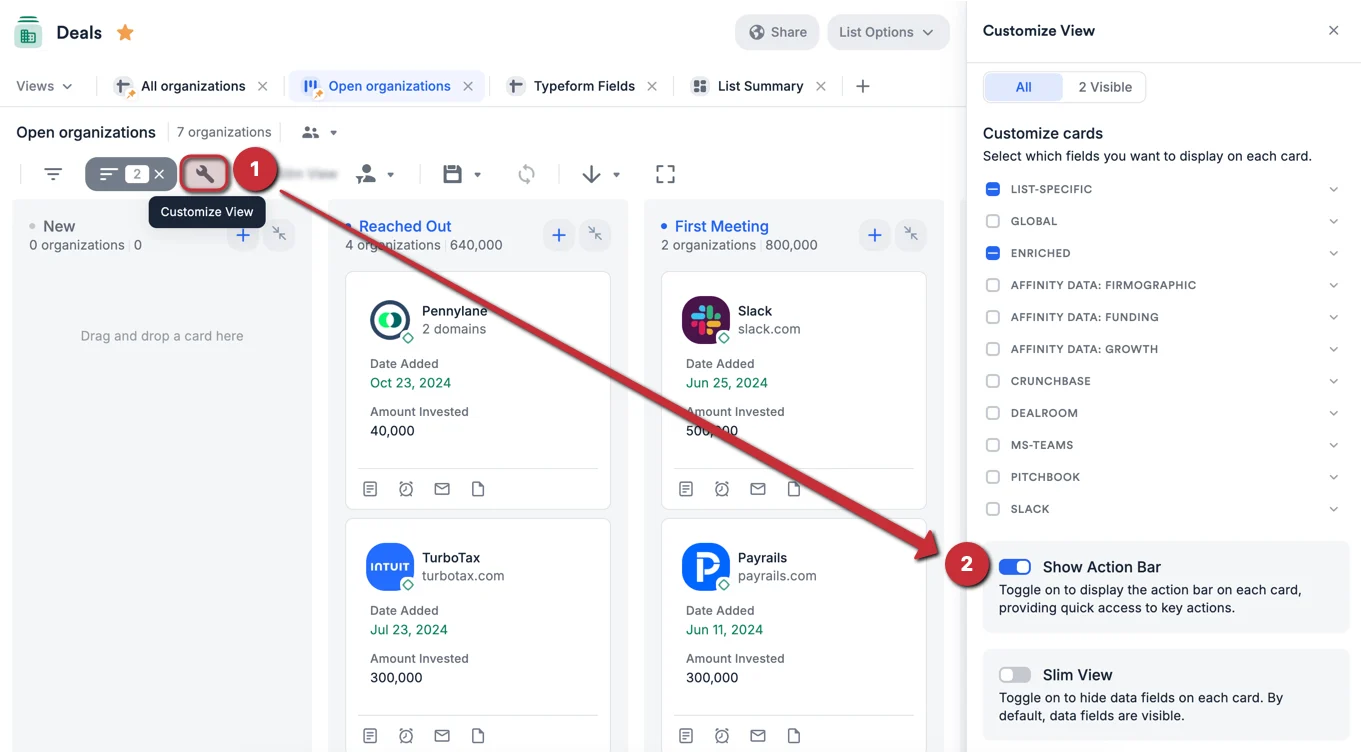 2. You will see 4 icons appear at the bottom of each card, representing the 4 actions you can take:
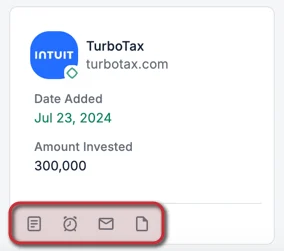 * Add a note
* Set a reminder
* Send an email
* Upload a file
## Group by different ranked/regular dropdown fields
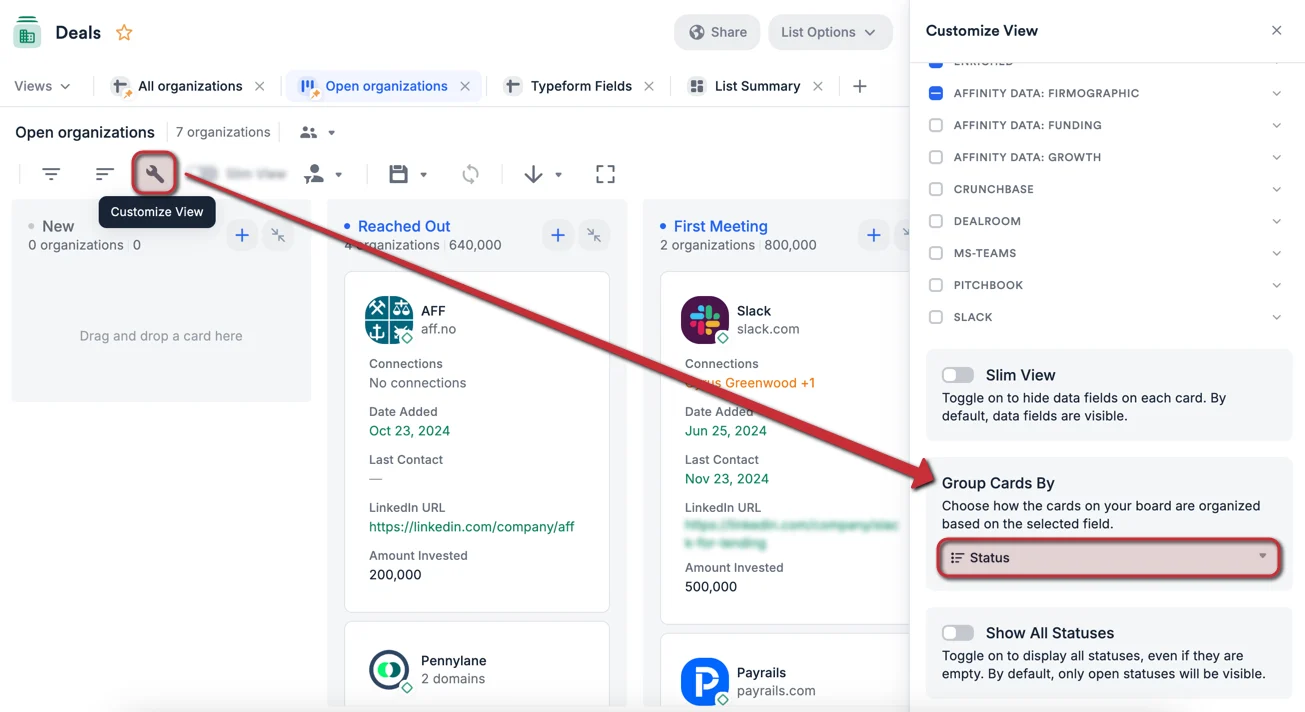
Though board views are initially grouped by the default **Status** field, you can now group by a different ranked/regular dropdown field (single values only — multiple values not supported).
1. Click the **Customize View** button.
2. Under **Select your board's grouping field**, select a field. You will see both list-specific fields and global fields available (see [List-specific fields vs. Global fields](/s/article/Enriched-Global-and-List-specific-Fields)).
3. Make sure to click the **Save** icon to save the changes you made (see [Update a saved view](/s/article/How-to-create-and-use-saved-views-within-a-list)).
* Add a note
* Set a reminder
* Send an email
* Upload a file
## Group by different ranked/regular dropdown fields
Though board views are initially grouped by the default **Status** field, you can now group by a different ranked/regular dropdown field (single values only — multiple values not supported).
1. Click the **Customize View** button.
2. Under **Select your board's grouping field**, select a field. You will see both list-specific fields and global fields available (see [List-specific fields vs. Global fields](/s/article/Enriched-Global-and-List-specific-Fields)).
3. Make sure to click the **Save** icon to save the changes you made (see [Update a saved view](/s/article/How-to-create-and-use-saved-views-within-a-list)).
 ## Toggle between Open status options and All status options
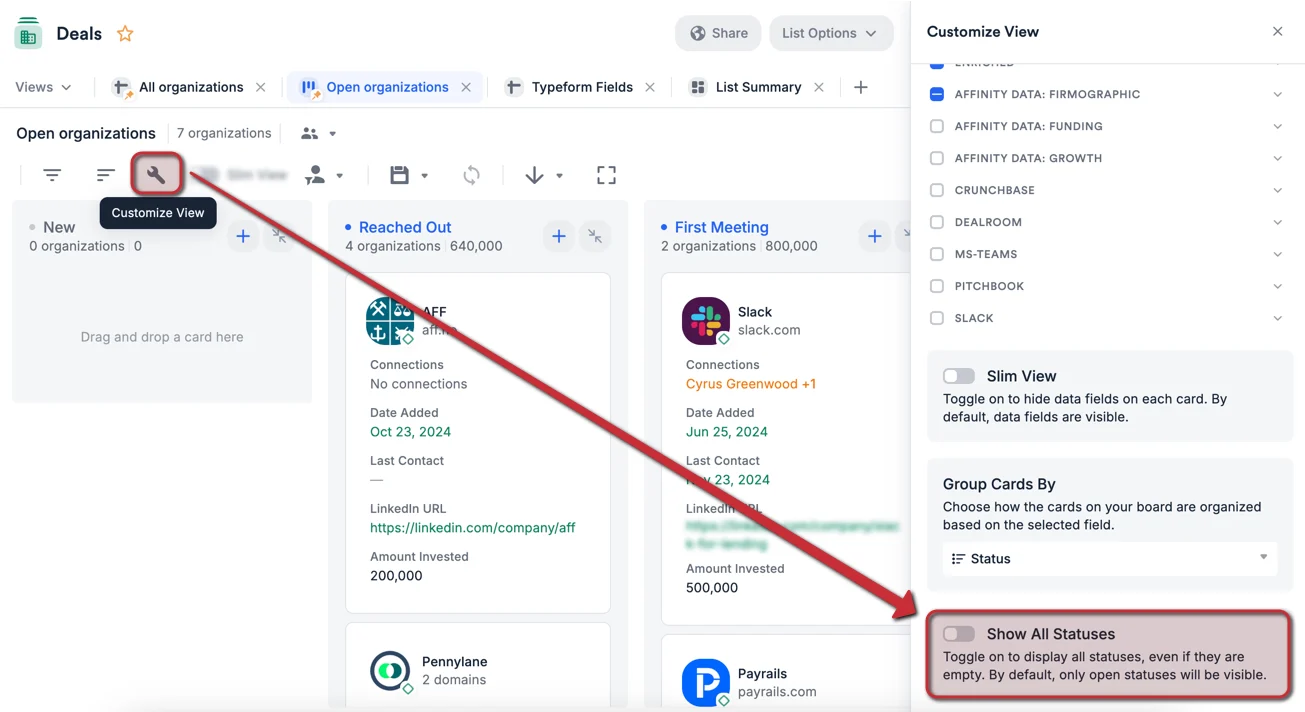
Board views grouped by the default **Status** field will show status options in the **Open** category, but you can now show all categories (i.e. **Won**, **Lost**, and **On Hold**).
1. Click the **Customize View** icon.
2. Toggle on **Display all statuses on the board**.
## Toggle between Open status options and All status options
Board views grouped by the default **Status** field will show status options in the **Open** category, but you can now show all categories (i.e. **Won**, **Lost**, and **On Hold**).
1. Click the **Customize View** icon.
2. Toggle on **Display all statuses on the board**.
 ## Easily access profile pages
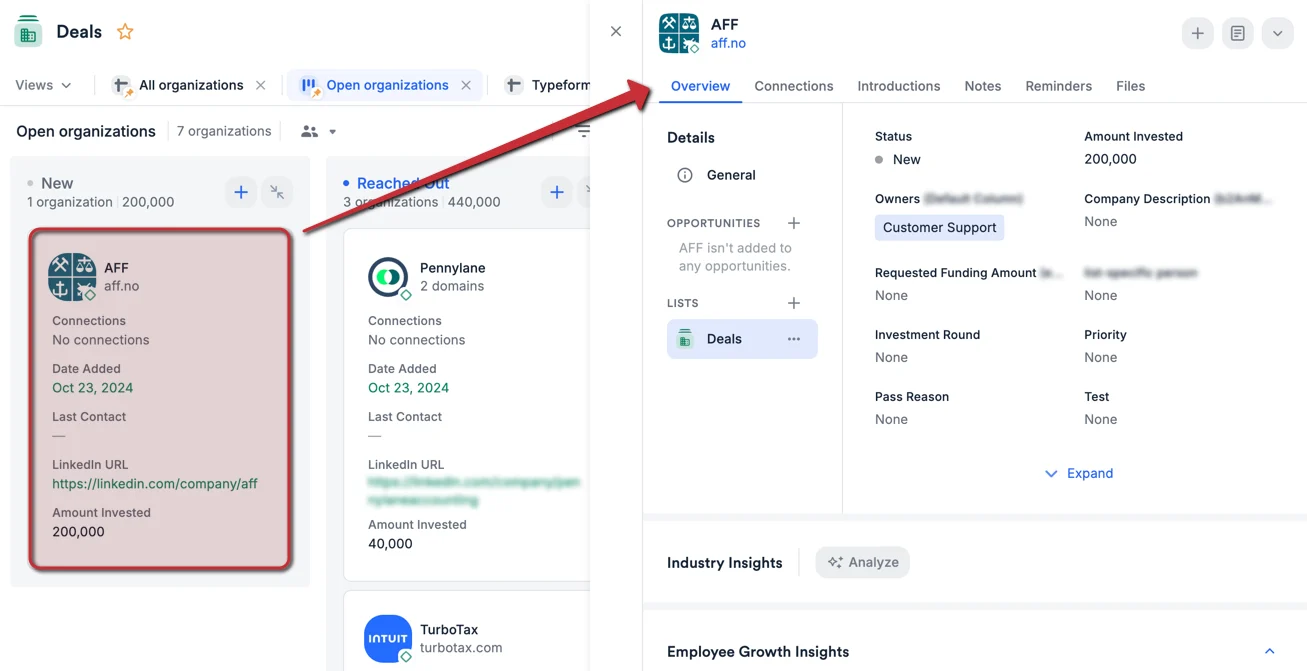
Simply click on a card to quickly access the contact's profile page.
## Easily access profile pages
Simply click on a card to quickly access the contact's profile page.
 ## Sort by different fields
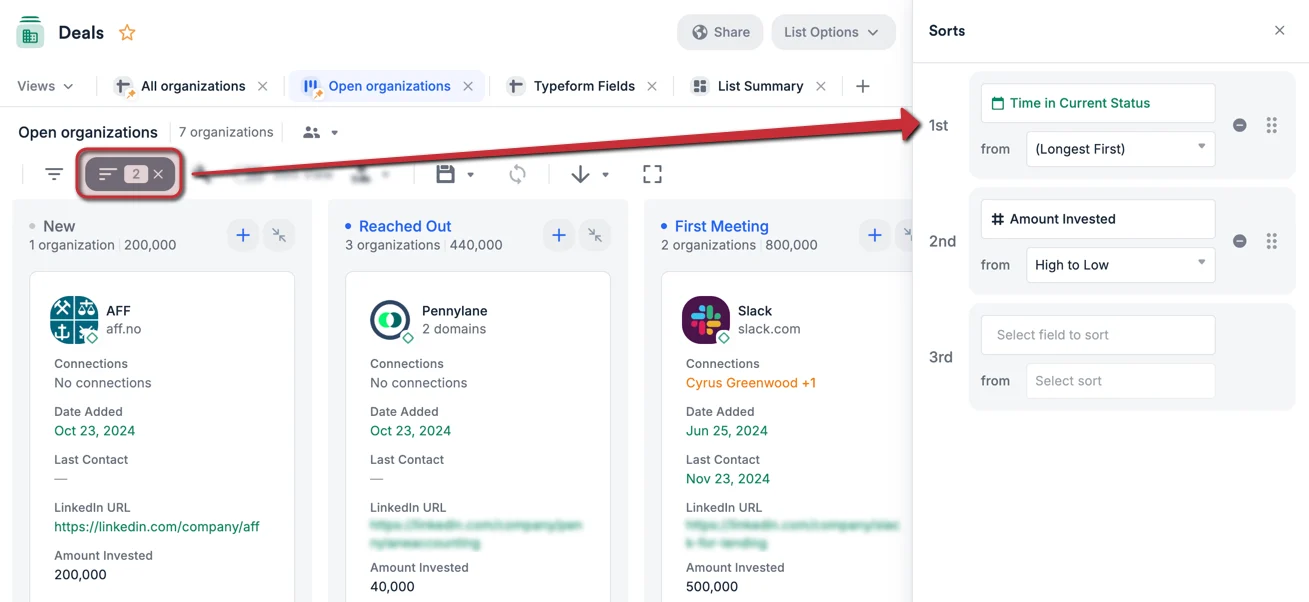
Sort by these different fields: **Amount**, **Connections**, **Date Added**, **Owners**, **Time in Current Status**, **Last Contact**, or by **Alphabetical Order** (multi-sorting up to 3 fields max).
## Sort by different fields
Sort by these different fields: **Amount**, **Connections**, **Date Added**, **Owners**, **Time in Current Status**, **Last Contact**, or by **Alphabetical Order** (multi-sorting up to 3 fields max).
 ## Related topics
- [Tutorial 9: Building Your Pipeline — Stages, Status, and Board View](/s/article/Tutorial-9-building-your-pipeline-stages-status-and-board-view.md)
- [Android Users How To Use The Affinity Mobile App](/s/article/Android-users-How-to-use-the-Affinity-Mobile-App.md)
- [How to create and use Note Templates within Affinity](/s/article/How-to-create-use-Note-Templates-within-Affinity.md)
- [How to create and use saved views within a list](/s/article/How-to-create-and-use-saved-views-within-a-list.md)
- [iOS Users How To Use The Affinity Mobile App](/s/article/iOS-users-How-to-use-the-Affinity-Mobile-App.md)
## Related topics
- [Tutorial 9: Building Your Pipeline — Stages, Status, and Board View](/s/article/Tutorial-9-building-your-pipeline-stages-status-and-board-view.md)
- [Android Users How To Use The Affinity Mobile App](/s/article/Android-users-How-to-use-the-Affinity-Mobile-App.md)
- [How to create and use Note Templates within Affinity](/s/article/How-to-create-use-Note-Templates-within-Affinity.md)
- [How to create and use saved views within a list](/s/article/How-to-create-and-use-saved-views-within-a-list.md)
- [iOS Users How To Use The Affinity Mobile App](/s/article/iOS-users-How-to-use-the-Affinity-Mobile-App.md)