> ## Documentation Index
> Fetch the complete documentation index at: https://support.affinity.co/llms.txt
> Use this file to discover all available pages before exploring further.
# How To Set Up Automated Alerts For Affinity Analytics
> Help center reference
**How-to** — task-oriented recipe.
With Affinity Analytics alerts, you can specify conditions in your dashboard that, when met, trigger a notification to be sent to specific recipients at the desired frequency.
## Setting up an alert
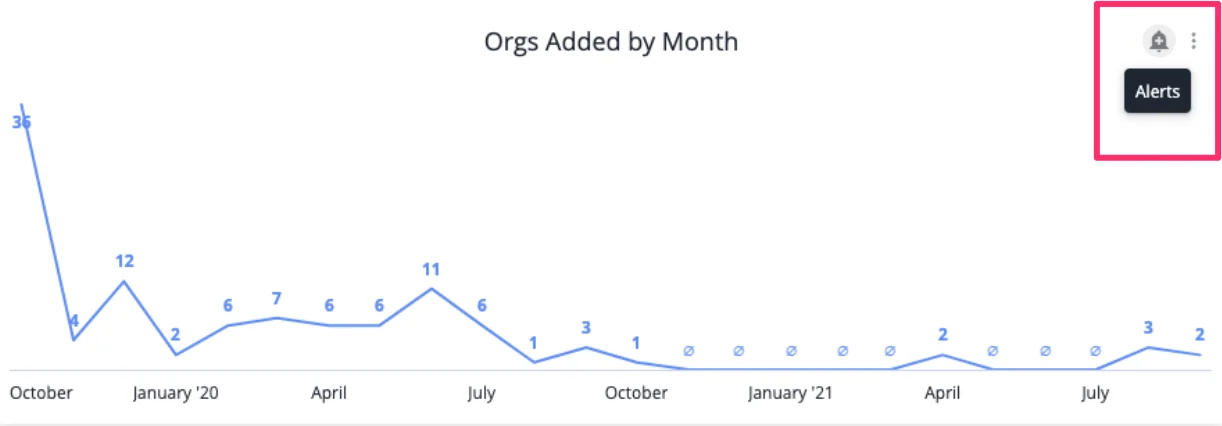
1. Go to the dashboard view that contains the tile you'd like to set an alert for. Then, click on the **Alerts** icon on the top-right corner.
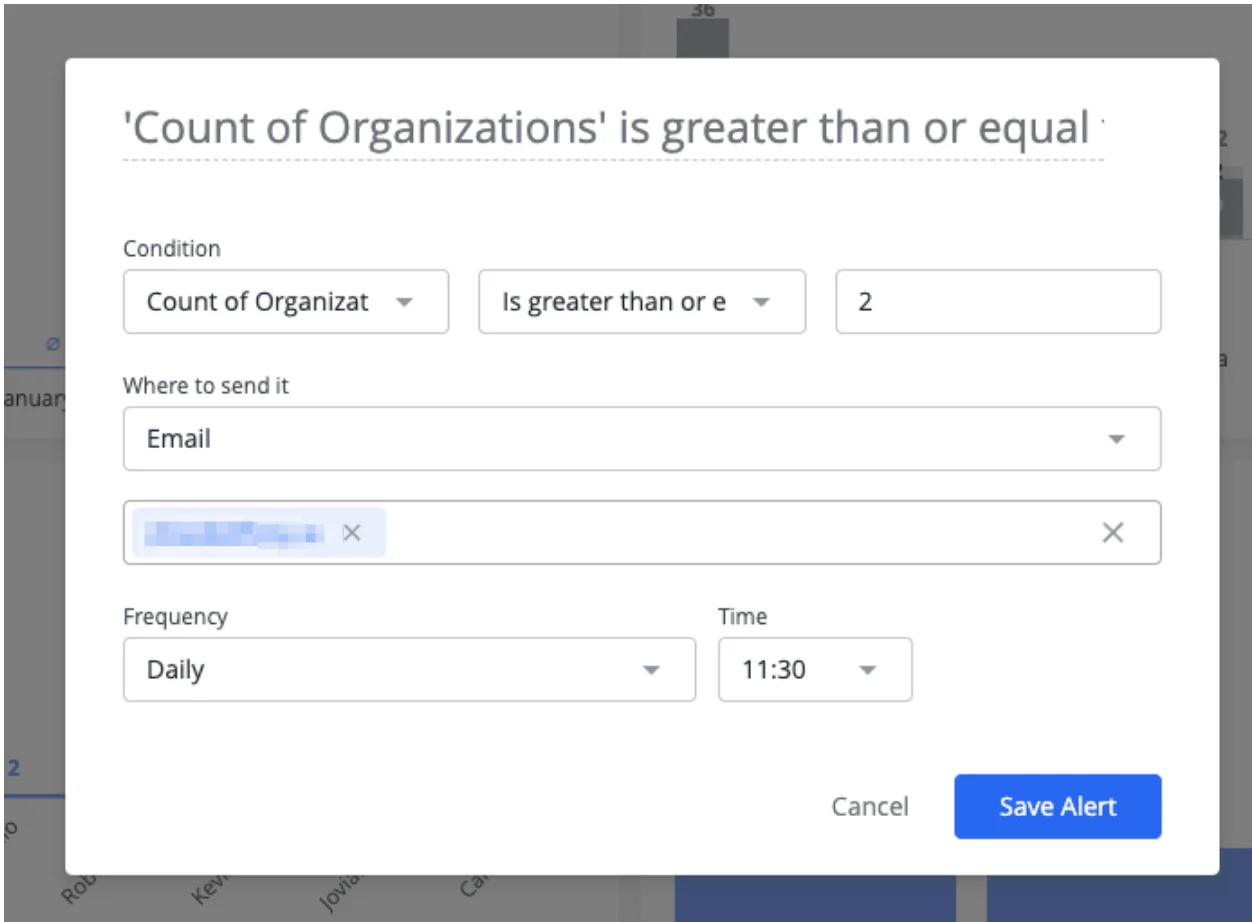
 2. You will then see a modal appear to configure the conditions that will trigger the alert, including frequency and time.
**Note**: The default time zone for alerts is **Pacific Time (PT)** and cannot be changed to a different time zone at the moment.
2. You will then see a modal appear to configure the conditions that will trigger the alert, including frequency and time.
**Note**: The default time zone for alerts is **Pacific Time (PT)** and cannot be changed to a different time zone at the moment.
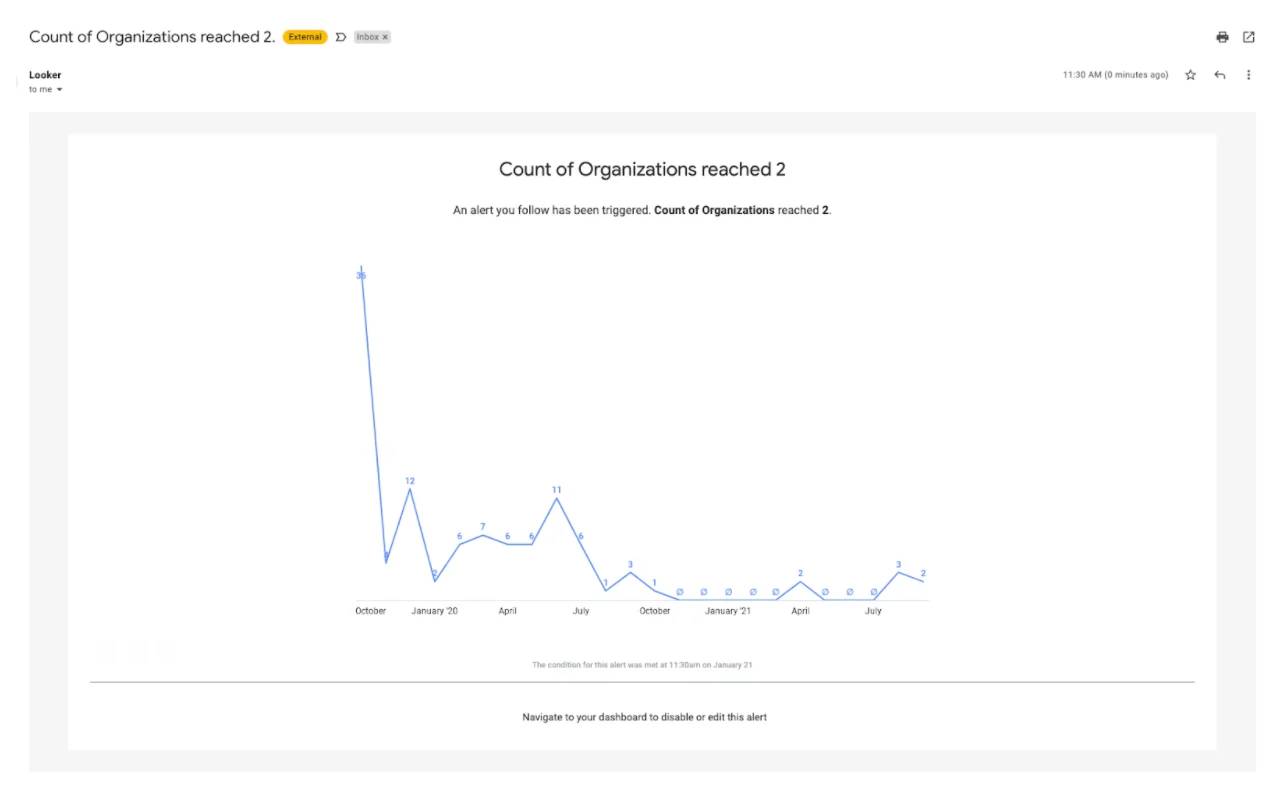
 3. When the condition is triggered, you will see an email alert like below.
 4. For a full list of supported conditions, see [this article from Looker](https://docs.looker.com/sharing-and-publishing/creating-alerts#setting_alert_conditions).
## Editing an alert
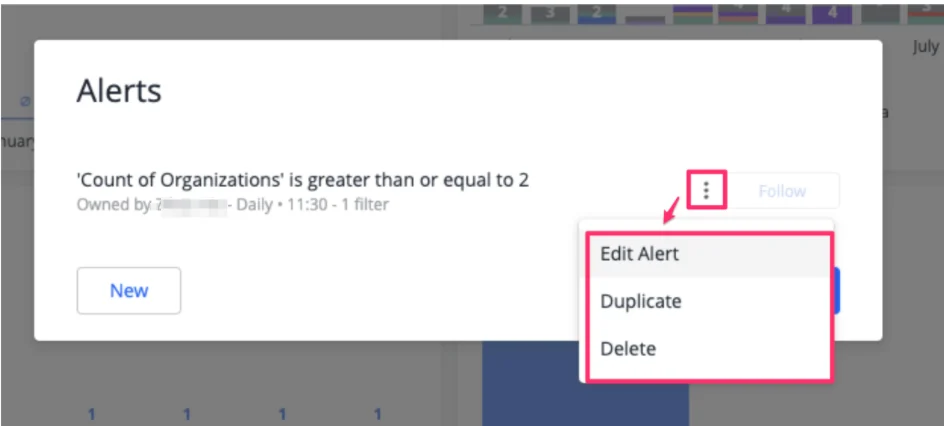
Find the alert that you've set up and click the alert icon. You can then click into the three dots to edit, duplicate, or delete the alert.
4. For a full list of supported conditions, see [this article from Looker](https://docs.looker.com/sharing-and-publishing/creating-alerts#setting_alert_conditions).
## Editing an alert
Find the alert that you've set up and click the alert icon. You can then click into the three dots to edit, duplicate, or delete the alert.
 ## Following an alert
You can also choose to follow an alert set up by another user. Repeat the steps for editing an alert and click the **Follow** button. You will now receive an email when the conditions for the alert are met.
## Important Callouts
* You will only be able to see alerts via the specific tiles that they've been set up for.
* The default time zone for alerts is **Pacific Time (PT)** and cannot be changed to a different time zone at the moment.
## Related topics
- [How To Set Win Ratios In Affinity Analytics](/s/article/How-to-set-win-ratios-in-Affinity-Analytics.md)
- [How To Set And Track Goals Using Affinity Analytics](/s/article/How-to-set-and-track-goals-using-Affinity-Analytics.md)
- [How To Set Up Affinity For Salesforce](/s/article/How-to-set-up-Affinity-for-Salesforce.md)
- [How To Set Up Automations In Affinity](/s/article/How-to-set-up-automations-in-Affinity.md)
- [How To Set Up And Use Affinity Notetaker](/s/article/How-to-set-up-and-use-Affinity-Notetaker.md)
## Following an alert
You can also choose to follow an alert set up by another user. Repeat the steps for editing an alert and click the **Follow** button. You will now receive an email when the conditions for the alert are met.
## Important Callouts
* You will only be able to see alerts via the specific tiles that they've been set up for.
* The default time zone for alerts is **Pacific Time (PT)** and cannot be changed to a different time zone at the moment.
## Related topics
- [How To Set Win Ratios In Affinity Analytics](/s/article/How-to-set-win-ratios-in-Affinity-Analytics.md)
- [How To Set And Track Goals Using Affinity Analytics](/s/article/How-to-set-and-track-goals-using-Affinity-Analytics.md)
- [How To Set Up Affinity For Salesforce](/s/article/How-to-set-up-Affinity-for-Salesforce.md)
- [How To Set Up Automations In Affinity](/s/article/How-to-set-up-automations-in-Affinity.md)
- [How To Set Up And Use Affinity Notetaker](/s/article/How-to-set-up-and-use-Affinity-Notetaker.md)