> ## Documentation Index
> Fetch the complete documentation index at: https://support.affinity.co/llms.txt
> Use this file to discover all available pages before exploring further.
# How To Send Personalized Bulk Emails Within Affinity
> Help center reference
**How-to** — task-oriented recipe.
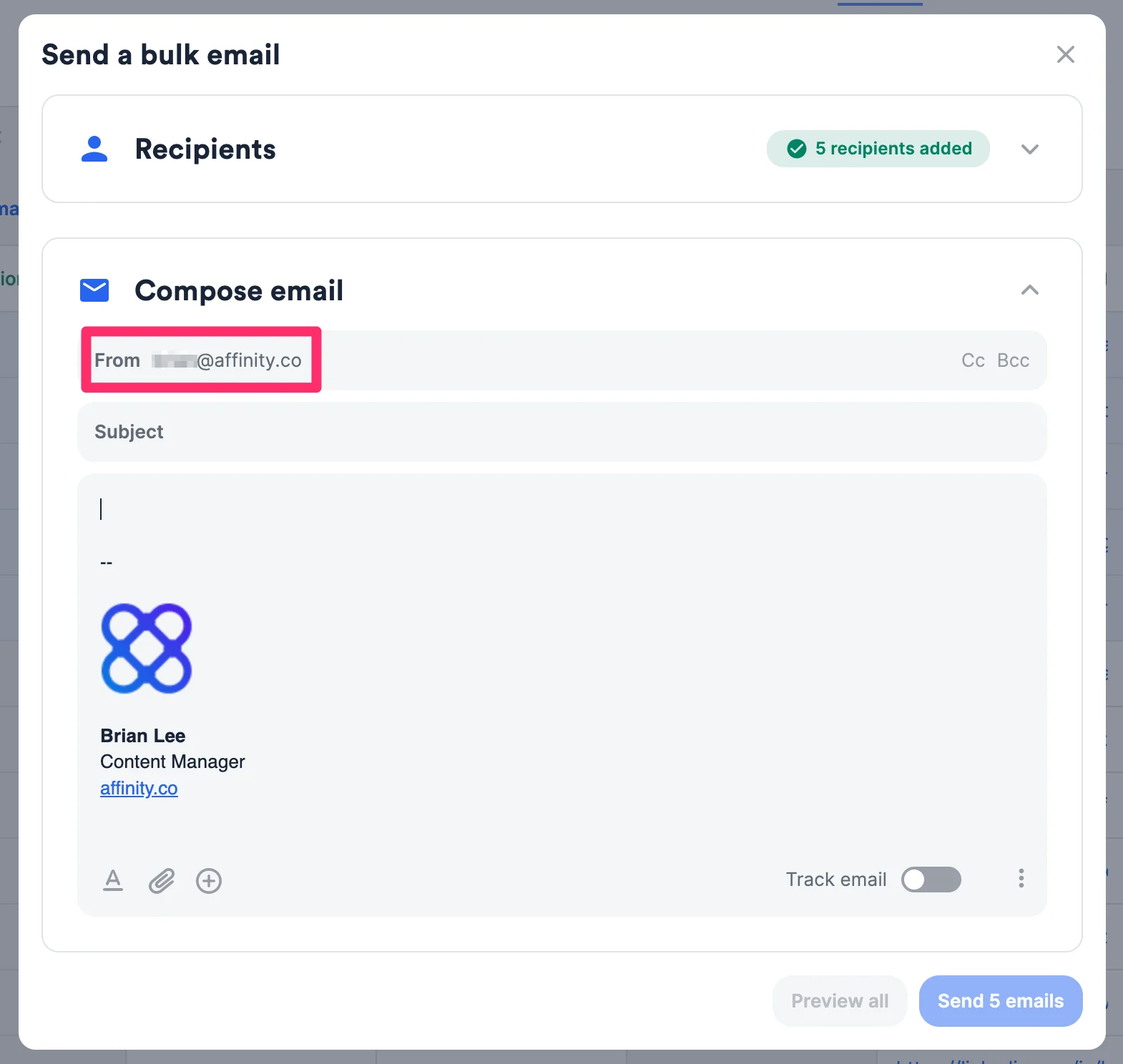
Use Affinity to send personalized emails to multiple people at the same time. These bulk emails will still be sent through your email provider (e.g. Gmail or Microsoft Office365/Exchange) and your default email address, as shown on the **From** field. If you'd like to change your default email address, please reach out to [support@affinity.co](mailto:support@affinity.co).
 Deliverability is our highest priority, so we have implemented risk-mitigating measures to prevent your email account from being considered spam or reaching the rate limit set by your company or email provider.
* One batch of bulk emails is limited to **200 recipients** at a time.
* Only **one batch** of bulk emails can be sent at a time. **Once the current batch is fully processed**, feel free to get started with the next batch.
### Who can access the bulk email feature?
| **Essential** | **Scale** | **Advanced** | **Enterprise** |
| ------------- | --------- | ------------ | -------------- |
| No | No | Yes | Yes |
Interested in upgrading to **Advanced**, or **Enterprise**? Please reach out to your Affinity point of contact or [support@affinity.co](mailto:support@affinity.co).
### When to use the bulk email feature over Affinity's Mailchimp integration
We highly suggest leveraging the bulk email feature over Affinity's [Mailchimp integration](/s/article/How-to-integrate-Affinity-with-Mailchimp) if you/your team aligns with the following:
* You only intend to send out emails that contain hyperlinks and attached files/images.
* Your team does **not** use Mailchimp to begin with.
* Your team does **not** need to embed images within the email body.
* Your team does **not** need to create branded emails with customizable layouts.
### How to send personalized bulk emails
1. Click into either the All Organizations/All People directories, or any people list, organization list, or opportunity list.
Deliverability is our highest priority, so we have implemented risk-mitigating measures to prevent your email account from being considered spam or reaching the rate limit set by your company or email provider.
* One batch of bulk emails is limited to **200 recipients** at a time.
* Only **one batch** of bulk emails can be sent at a time. **Once the current batch is fully processed**, feel free to get started with the next batch.
### Who can access the bulk email feature?
| **Essential** | **Scale** | **Advanced** | **Enterprise** |
| ------------- | --------- | ------------ | -------------- |
| No | No | Yes | Yes |
Interested in upgrading to **Advanced**, or **Enterprise**? Please reach out to your Affinity point of contact or [support@affinity.co](mailto:support@affinity.co).
### When to use the bulk email feature over Affinity's Mailchimp integration
We highly suggest leveraging the bulk email feature over Affinity's [Mailchimp integration](/s/article/How-to-integrate-Affinity-with-Mailchimp) if you/your team aligns with the following:
* You only intend to send out emails that contain hyperlinks and attached files/images.
* Your team does **not** use Mailchimp to begin with.
* Your team does **not** need to embed images within the email body.
* Your team does **not** need to create branded emails with customizable layouts.
### How to send personalized bulk emails
1. Click into either the All Organizations/All People directories, or any people list, organization list, or opportunity list.
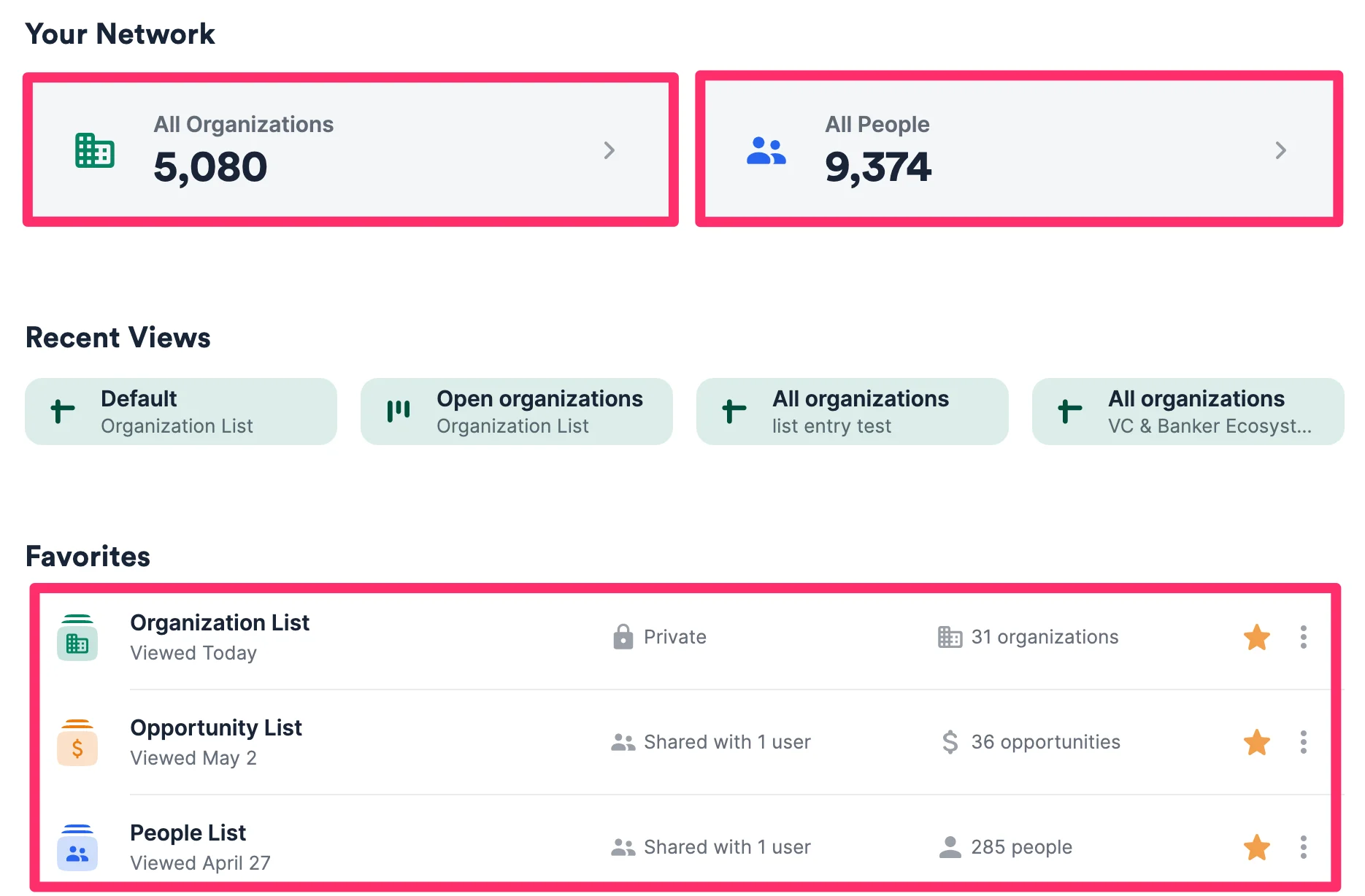 2. Then, click the checkbox next to the **Name** field to select all list entries, or click on the checkboxes next to all the specific list entries you'd like to bulk-send an email to, then click the **Send Bulk Email** button. You can bulk email up to 200 people at a time.
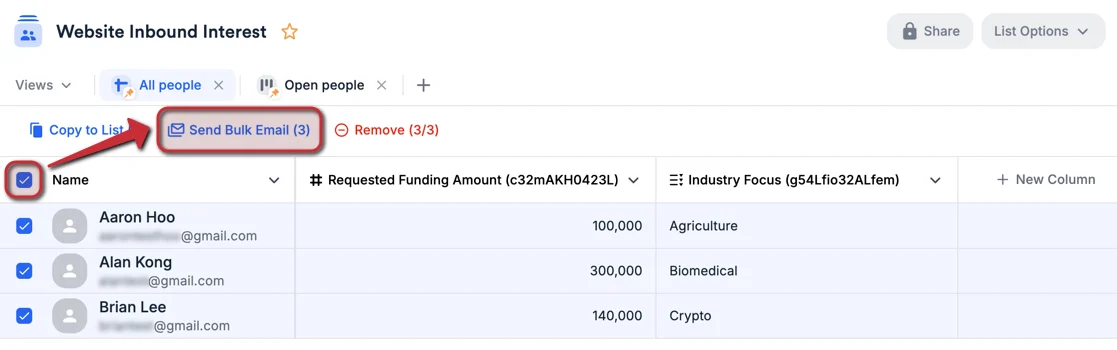 3. When sending bulk emails within an organization or opportunity list, click the checkboxes next to all the organizations or opportunities for which you'd like to email people. The recipients will be determined by the individuals associated with each organization/opportunity based on the default **People** field. Each recipient will receive their own email - if there are multiple individuals associated with a single opportunity, they will not be included together on the same email chain.
**Note**: If you're sending bulk emails from an organization list, please note that certain organizations may have a lot of people associated with them under the default **People** field. **Do not remove individuals** from the **People** field, since it will disassociate those individuals from their organizations entirely. Instead, proceed to click on the **Send Bulk Email** button, then de-select specific individuals accordingly.
3. When sending bulk emails within an organization or opportunity list, click the checkboxes next to all the organizations or opportunities for which you'd like to email people. The recipients will be determined by the individuals associated with each organization/opportunity based on the default **People** field. Each recipient will receive their own email - if there are multiple individuals associated with a single opportunity, they will not be included together on the same email chain.
**Note**: If you're sending bulk emails from an organization list, please note that certain organizations may have a lot of people associated with them under the default **People** field. **Do not remove individuals** from the **People** field, since it will disassociate those individuals from their organizations entirely. Instead, proceed to click on the **Send Bulk Email** button, then de-select specific individuals accordingly.
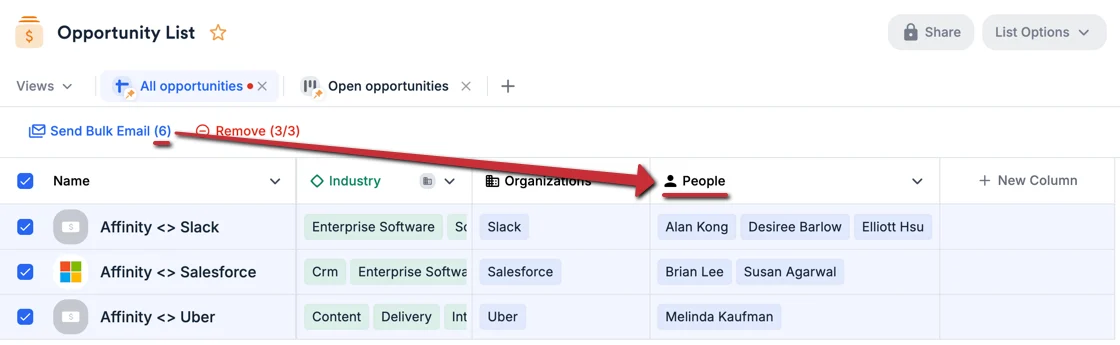 4. Now, click on **Recipients** to make sure that these are the people you'd like to send individual emails to. You can always add more people within the bulk email feature by clicking on the **+ Add more recipients** search bar. You can also remove contacts by clicking on the **x** to the right of their name.
**Note**: Emails will default to a recipient's primary email address if selected from the list. Users can add recipients' non-primary emails as well using the search bar. However, please note that apostrophes (') are **not** supported in email addresses.
4. Now, click on **Recipients** to make sure that these are the people you'd like to send individual emails to. You can always add more people within the bulk email feature by clicking on the **+ Add more recipients** search bar. You can also remove contacts by clicking on the **x** to the right of their name.
**Note**: Emails will default to a recipient's primary email address if selected from the list. Users can add recipients' non-primary emails as well using the search bar. However, please note that apostrophes (') are **not** supported in email addresses.
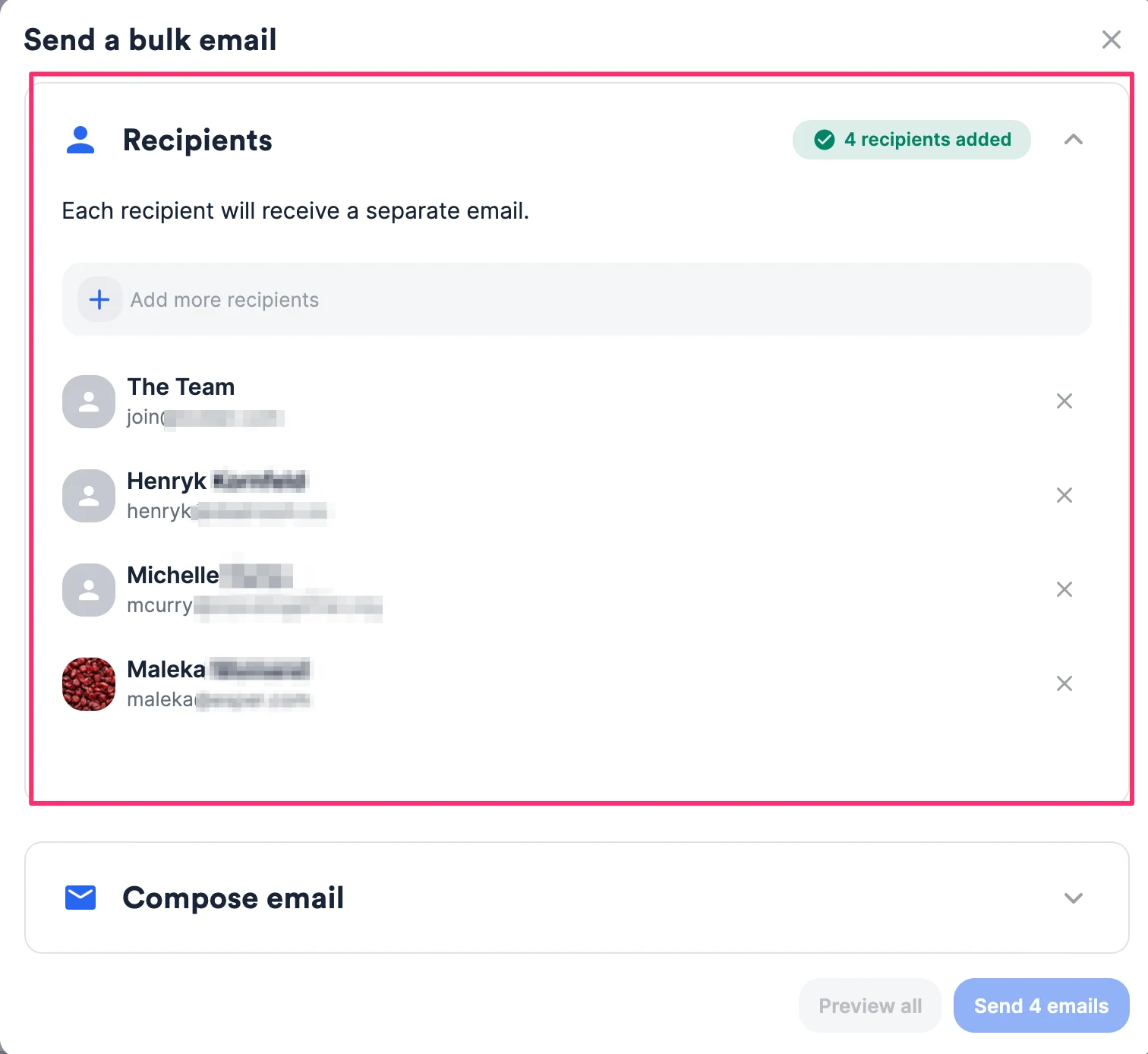 5. Then, click **Compose email** right below.
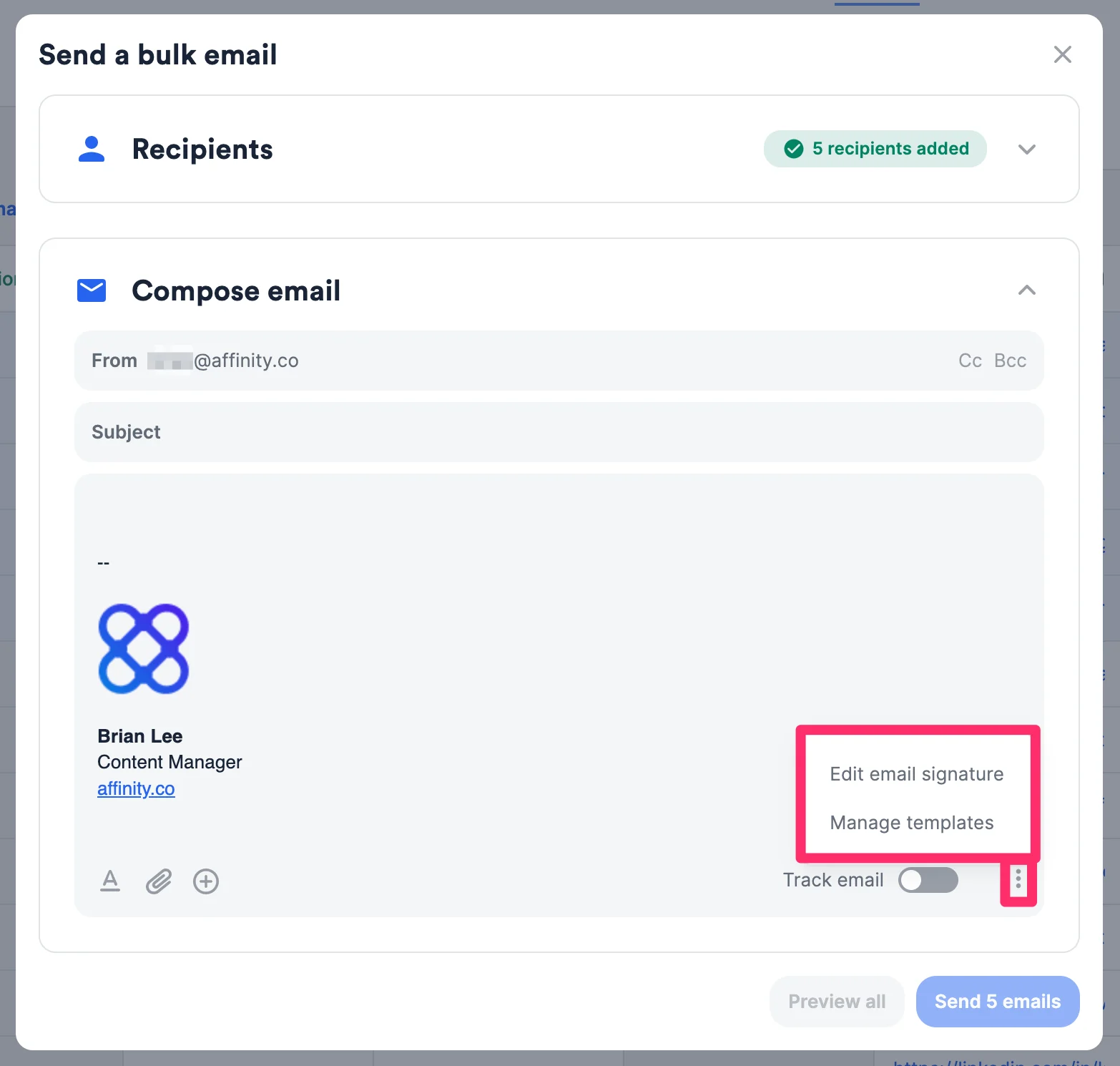
6. If you haven't set up an email signature in Affinity yet, click the **ellipsis (3-dotted) icon** on the right side. You can insert links, use rich-text formatting, and add your company logo/image ([learn more](/s/article/How-to-set-up-your-email-signature-in-Affinity)).
7. From here, you can also access and [manage your email templates](/s/article/How-to-create-use-Email-Templates-within-Affinity) within your **Settings**.
5. Then, click **Compose email** right below.
6. If you haven't set up an email signature in Affinity yet, click the **ellipsis (3-dotted) icon** on the right side. You can insert links, use rich-text formatting, and add your company logo/image ([learn more](/s/article/How-to-set-up-your-email-signature-in-Affinity)).
7. From here, you can also access and [manage your email templates](/s/article/How-to-create-use-Email-Templates-within-Affinity) within your **Settings**.
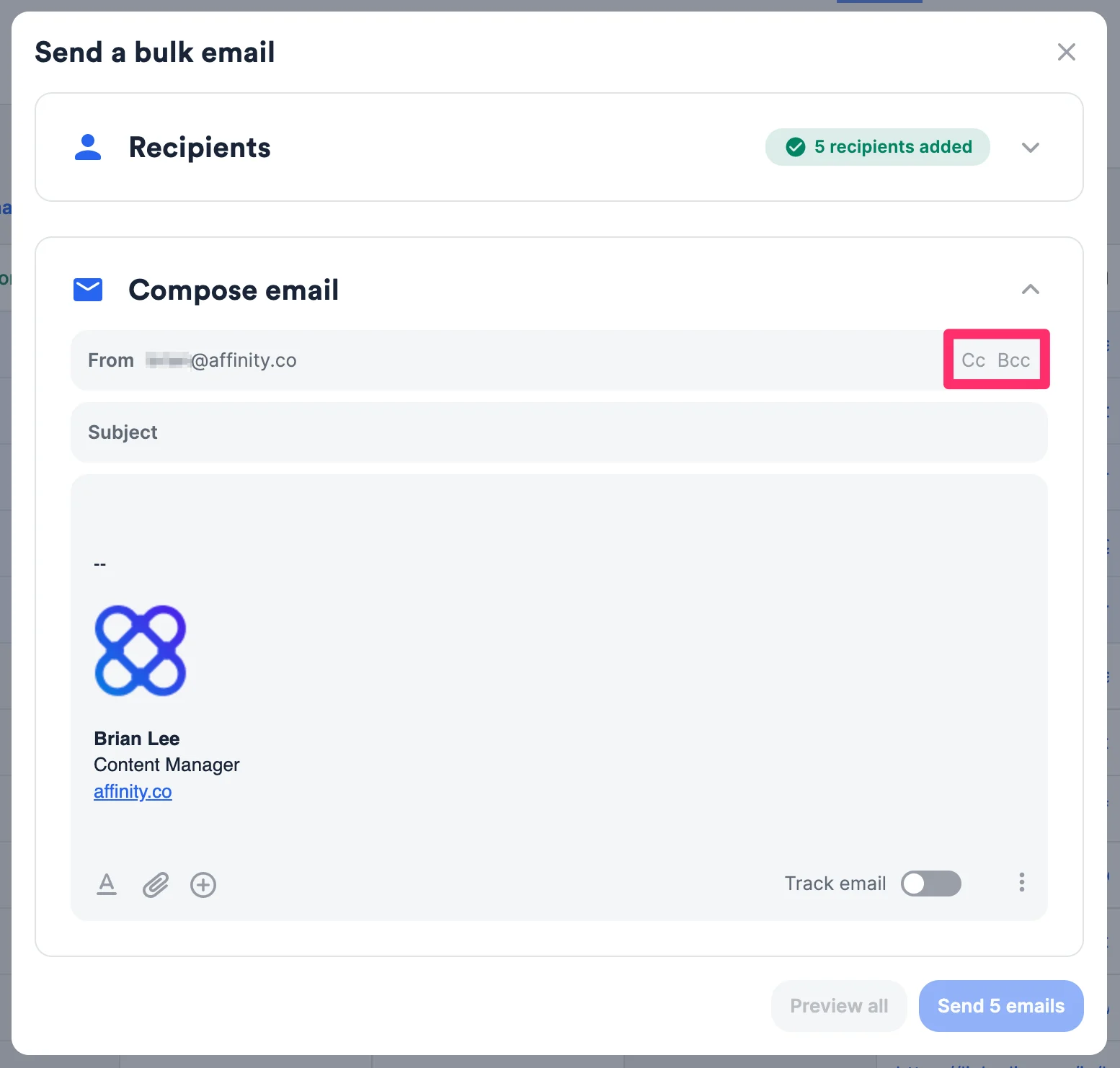
 8. Once you've set up your email signature, add up to 10 additional recipients for the **CC** and **BCC** lines if needed. These additional recipients will be CC'ed or BCC'ed on each and every email sent out.
**Note**: Affinity will not surface these emails on the profile pages of the individuals who are on the **BCC** line.
8. Once you've set up your email signature, add up to 10 additional recipients for the **CC** and **BCC** lines if needed. These additional recipients will be CC'ed or BCC'ed on each and every email sent out.
**Note**: Affinity will not surface these emails on the profile pages of the individuals who are on the **BCC** line.
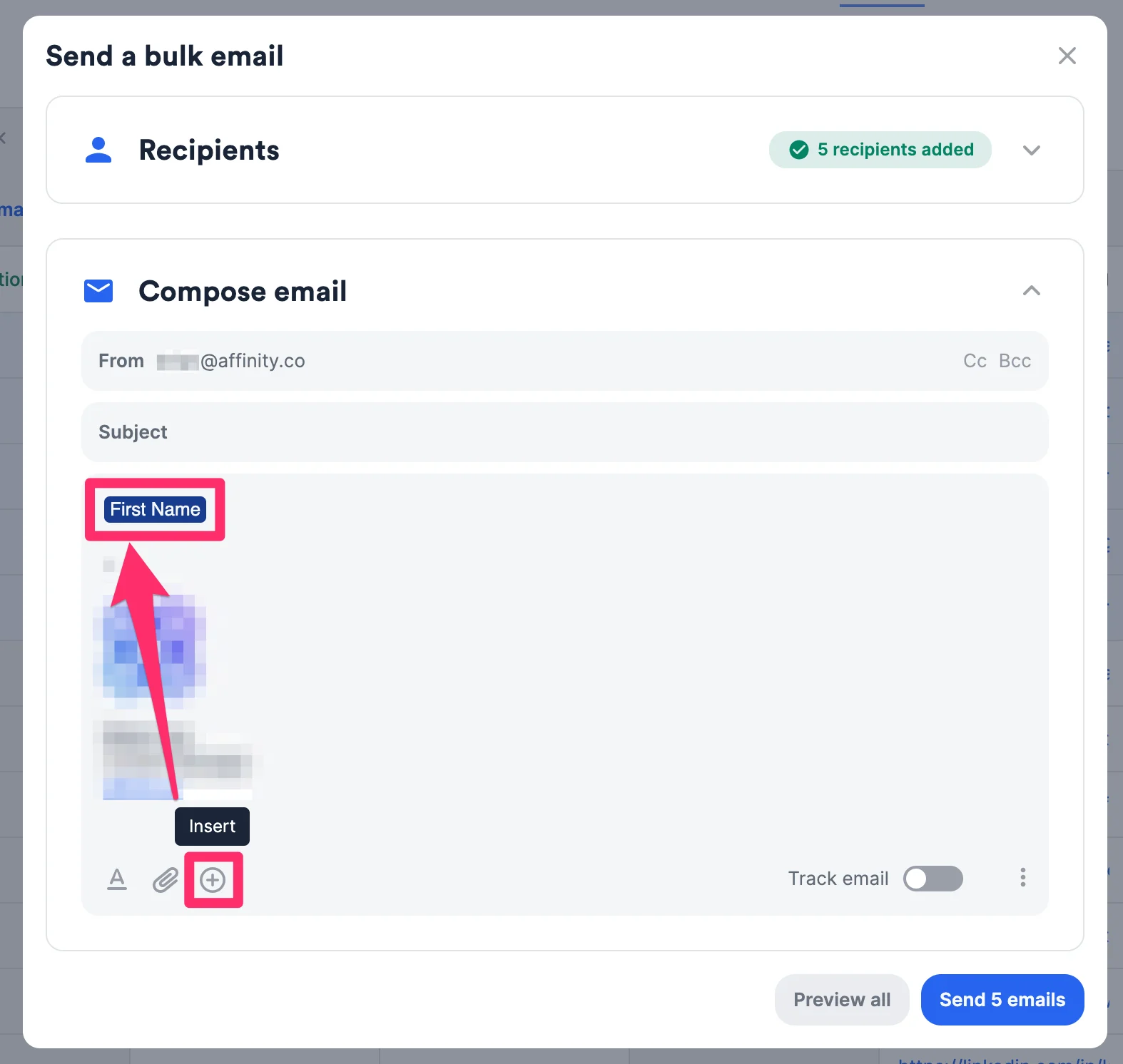
 9. Type in an email subject. The email subject will be the same for all emails.
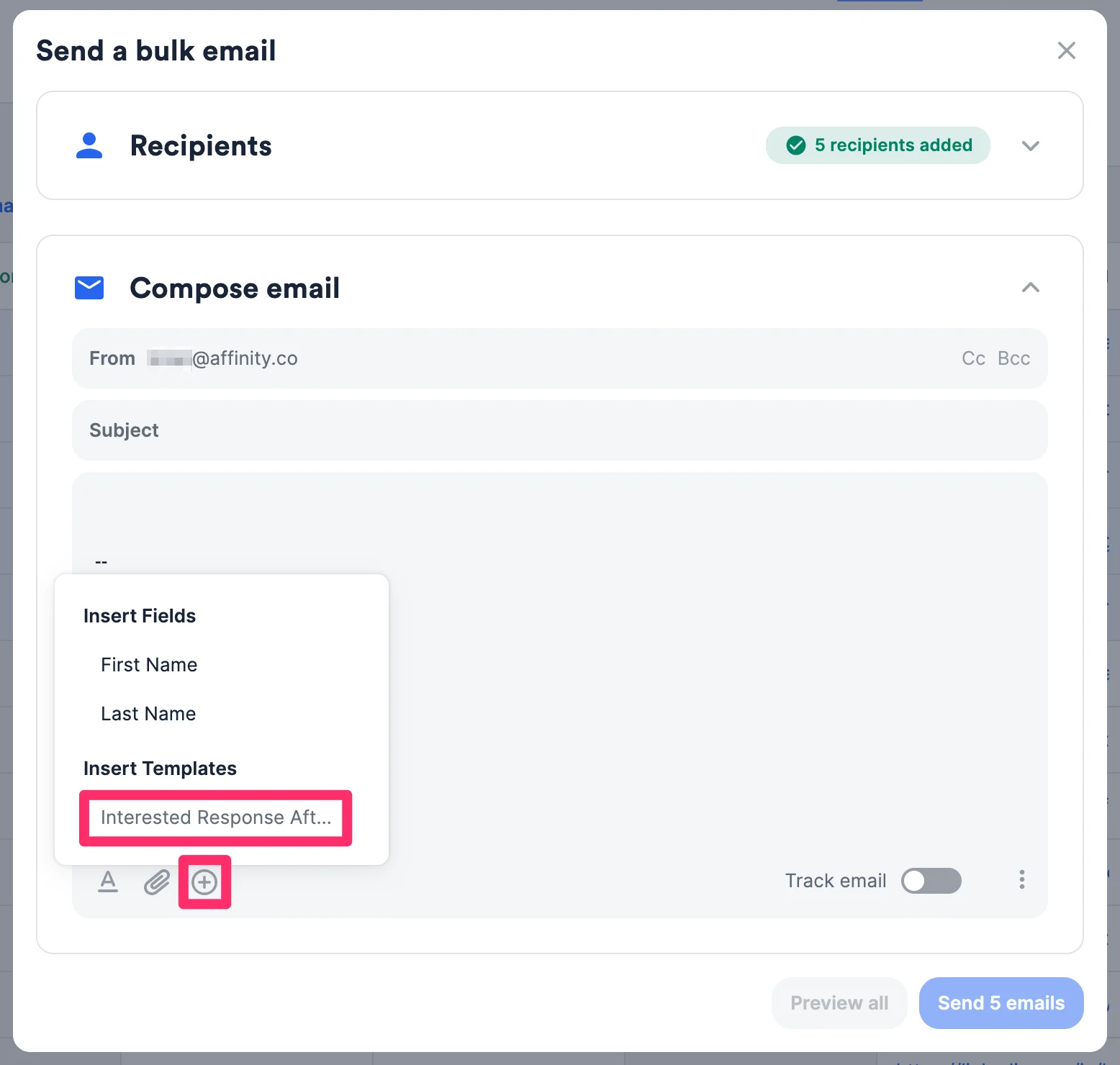
10. To make sure each email is customized for each person, you can use the **First Name** and/or **Last Name** token in the email body. To insert one of the tokens, you can click the **+** icon on the bottom left corner.
9. Type in an email subject. The email subject will be the same for all emails.
10. To make sure each email is customized for each person, you can use the **First Name** and/or **Last Name** token in the email body. To insert one of the tokens, you can click the **+** icon on the bottom left corner.
 11. Alternatively, you can insert a pre-saved email template if you've already created [email templates](/s/article/How-to-create-use-Email-Templates-within-Affinity).
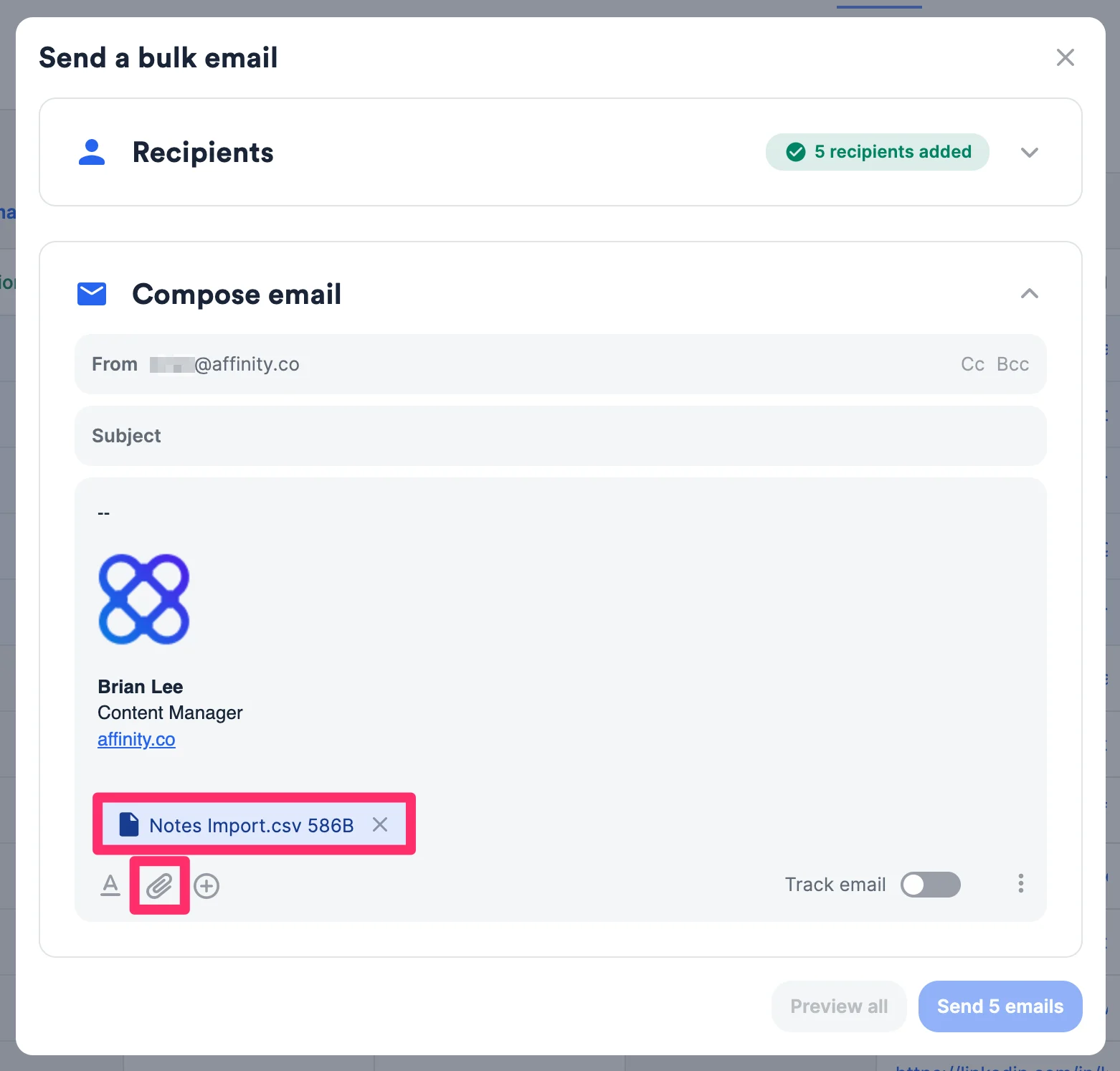
 12. Feel free to attach any files that are also relevant. All emails will include the same files.
* Make sure your files are one of our [supported file types](/s/article/Supported-File-Types-for-Upload) within Affinity.
* For Gmail users, the file size limit is **20MB**.
* For Outlook users, the file size limit is **2.5MB**.
12. Feel free to attach any files that are also relevant. All emails will include the same files.
* Make sure your files are one of our [supported file types](/s/article/Supported-File-Types-for-Upload) within Affinity.
* For Gmail users, the file size limit is **20MB**.
* For Outlook users, the file size limit is **2.5MB**.
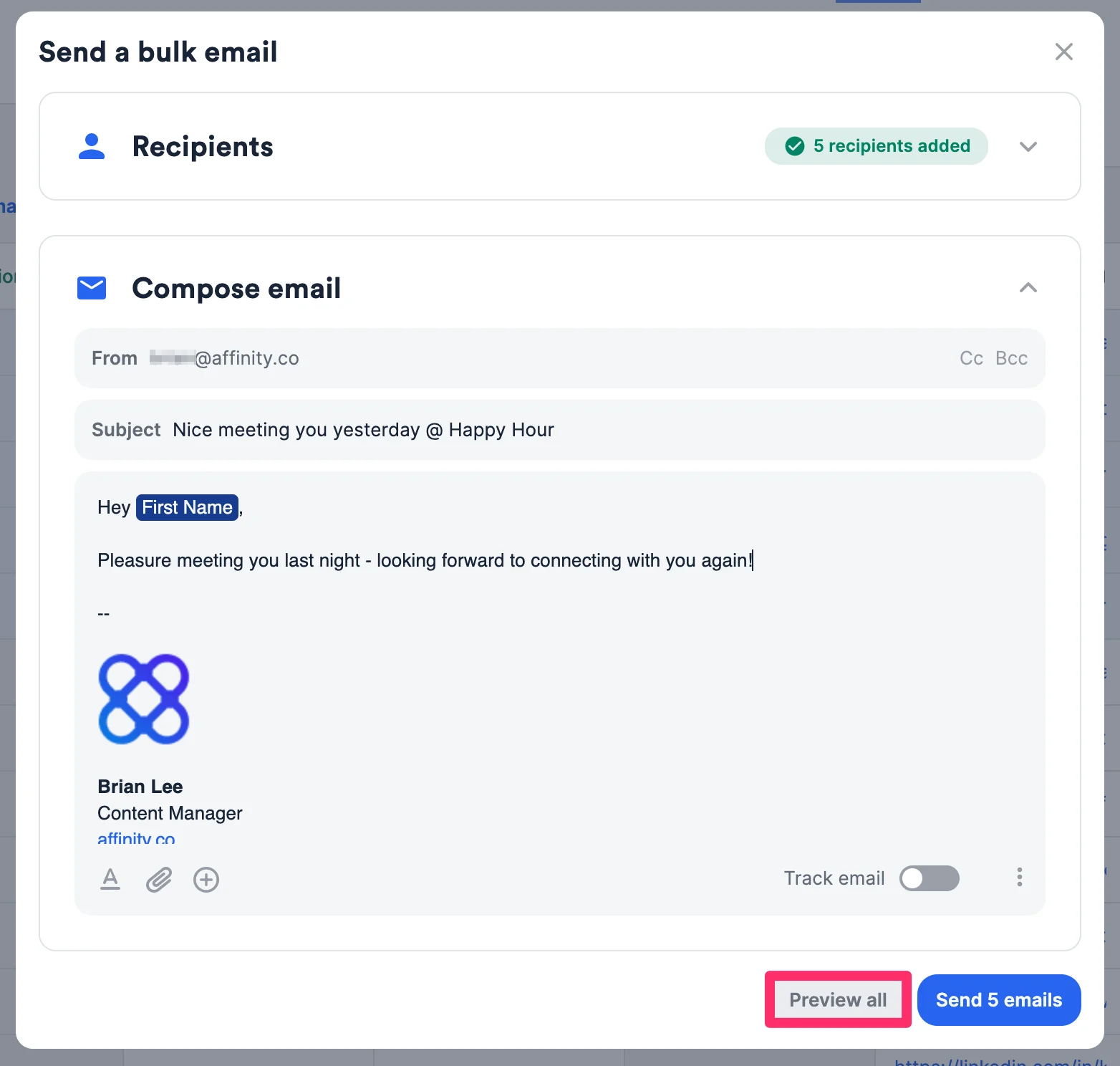
 13. Click **Preview all** to see what your email would look like from the recipients' perspective.
 14. Click through the arrows to see how each email would differ based on each recipient. You can also click **Send me a test email** and the test email should appear in your Inbox folder within the minute. None of the people you added to the CC or BCC lines will receive a copy of this test email.
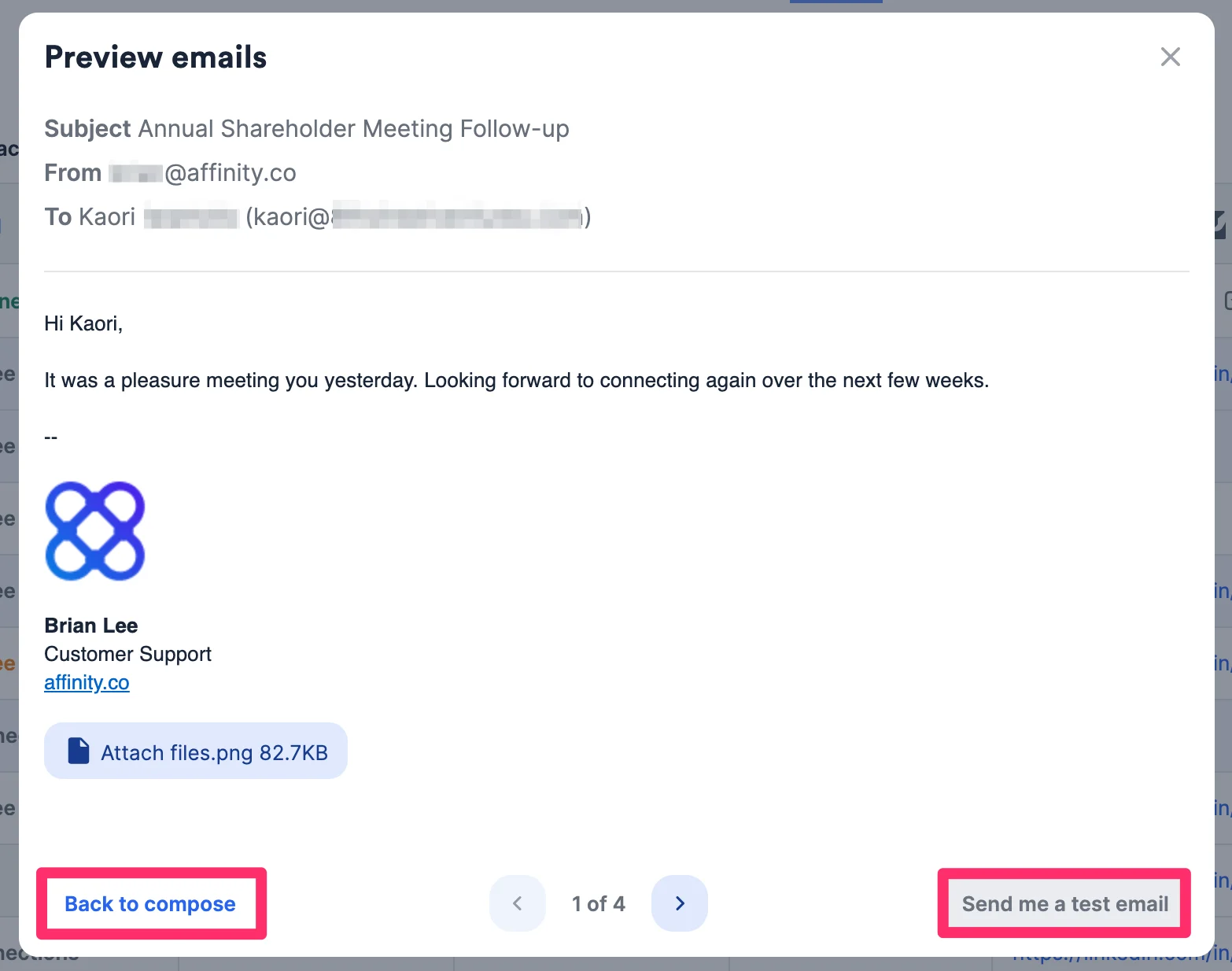 15. Once you receive the test email, go **Back to compose** for any final edits before sending.
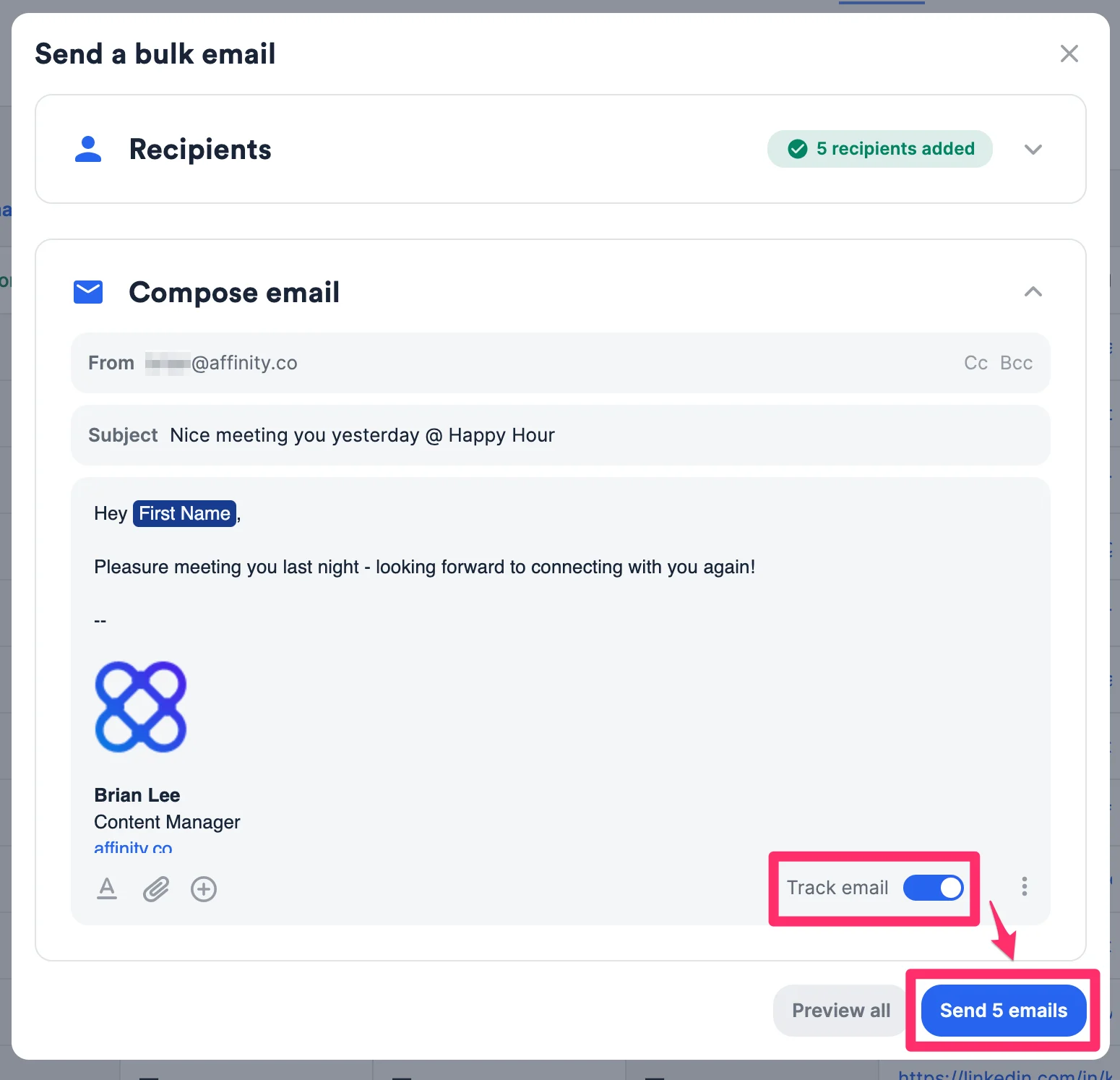
 16. If you're ready to send, toggle on the [email tracking](/s/article/How-to-track-emails-sent-through-Affinity) feature to track open, click, and response rates. Then, click the **Send # emails** button.
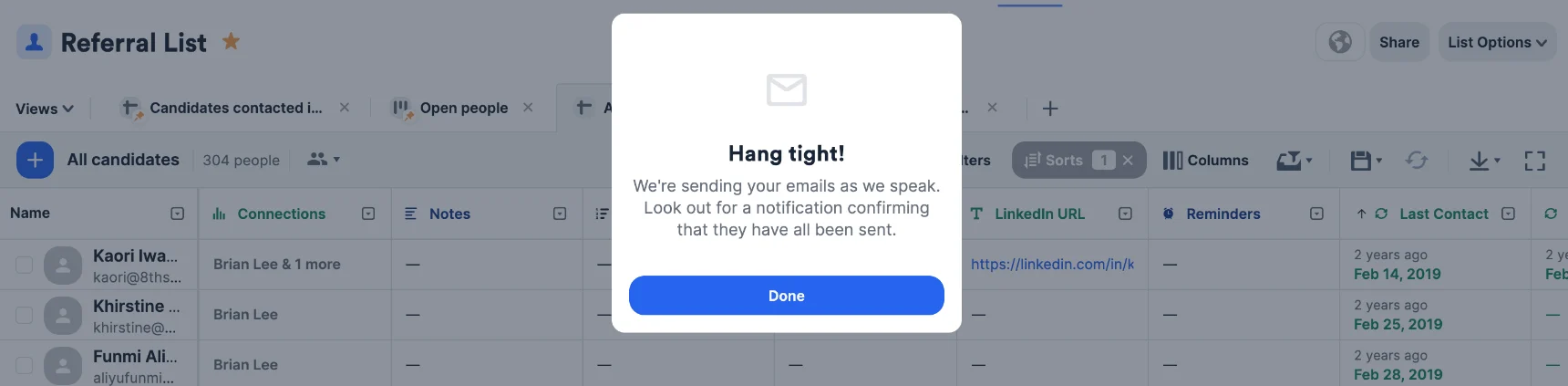
 17. To keep your emails out of spam, we will space out their delivery by a few seconds, which may take a few minutes to complete.
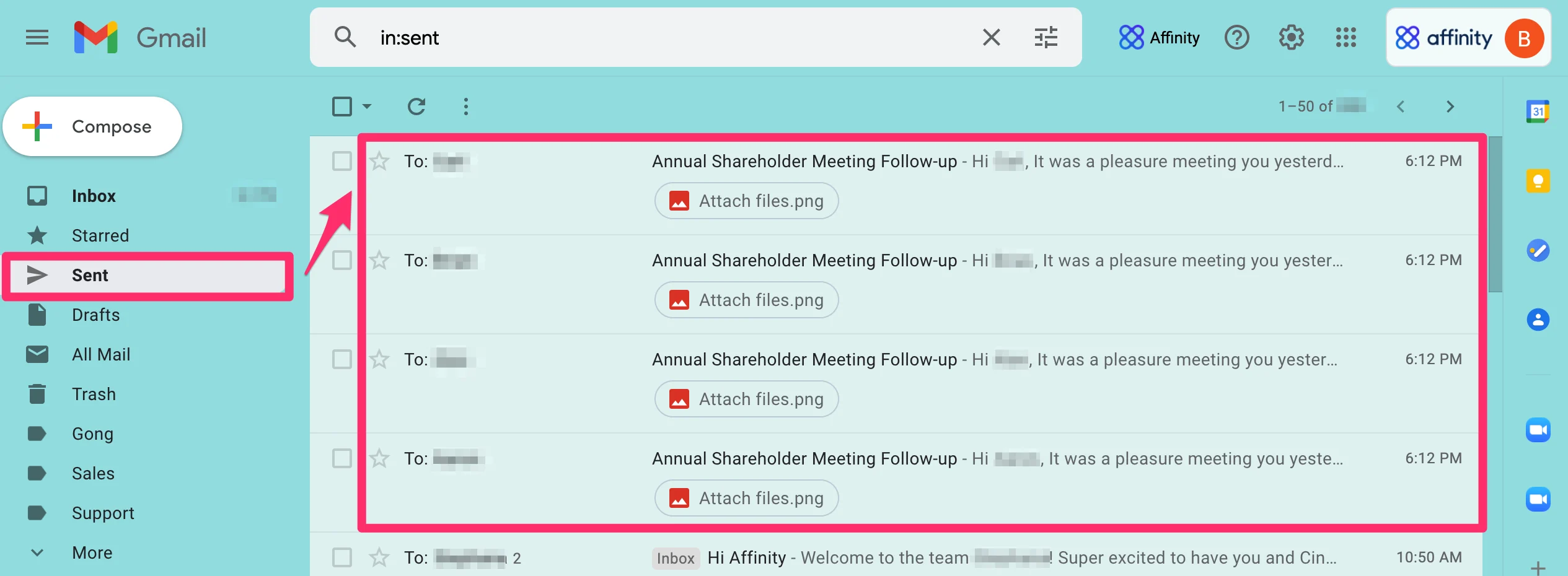
 18. After a few minutes, these emails should start appearing in your Sent folder.
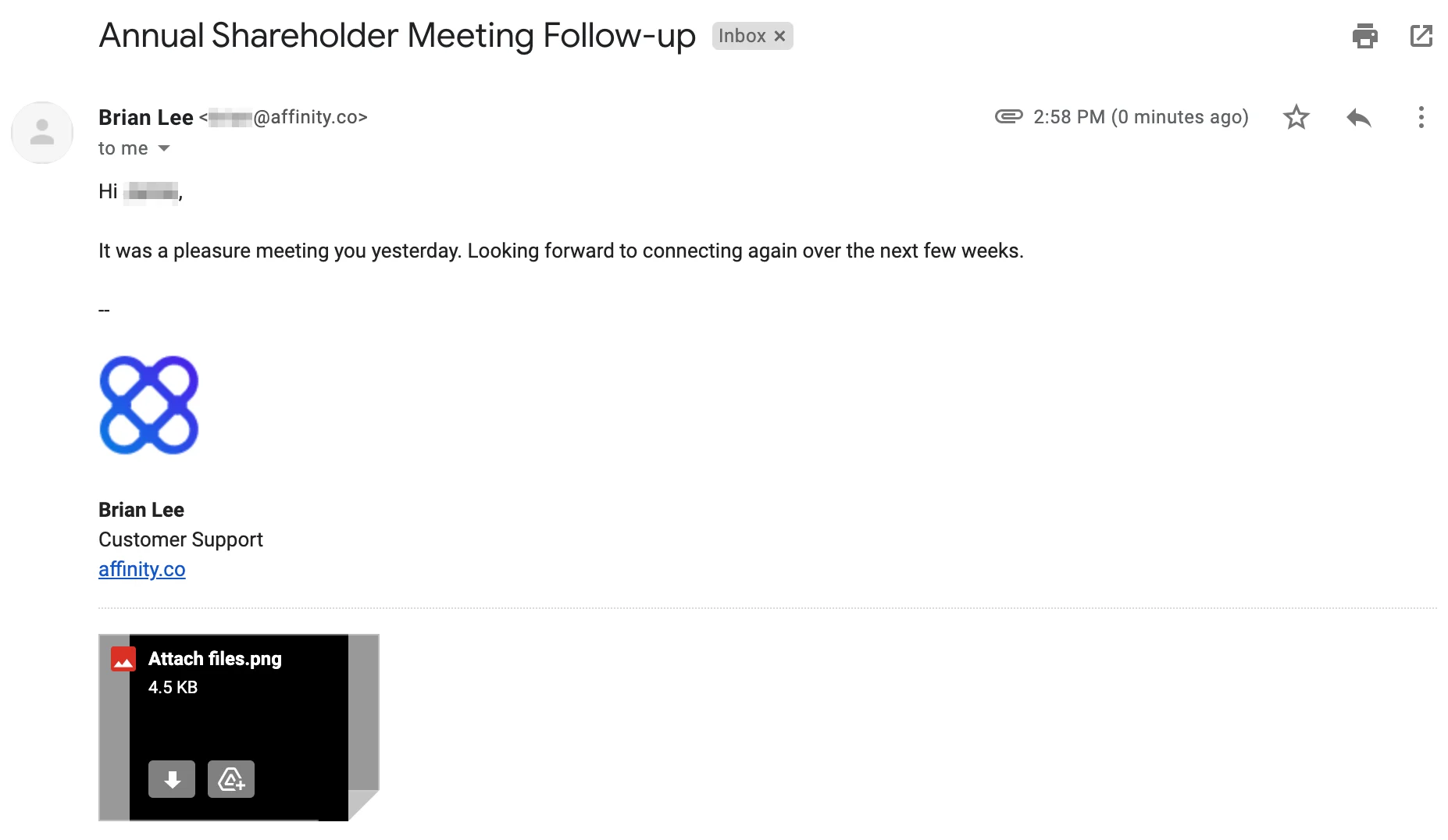
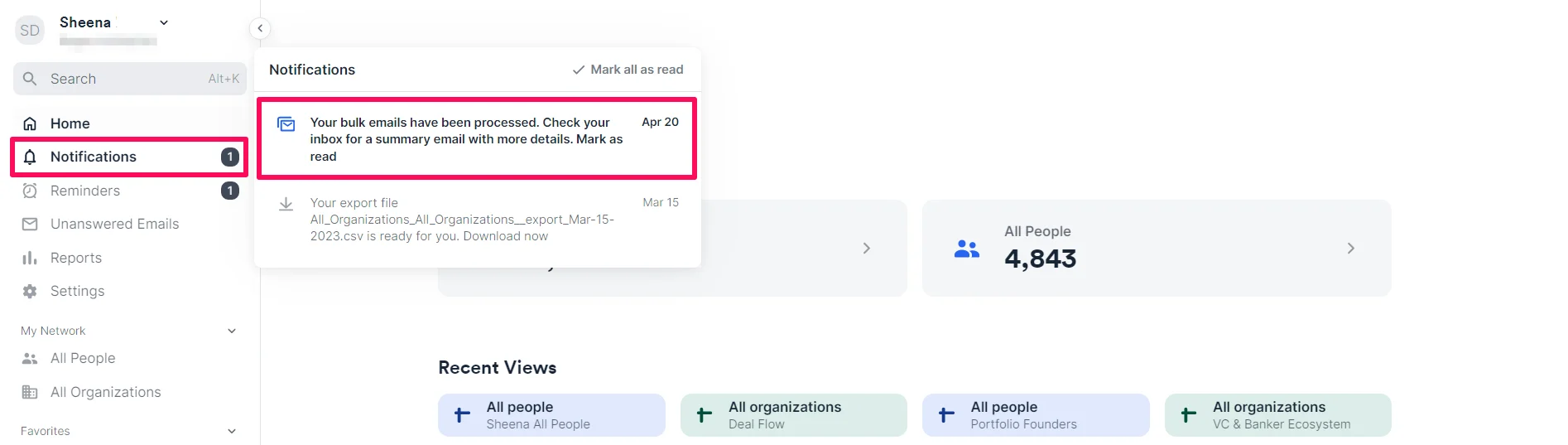
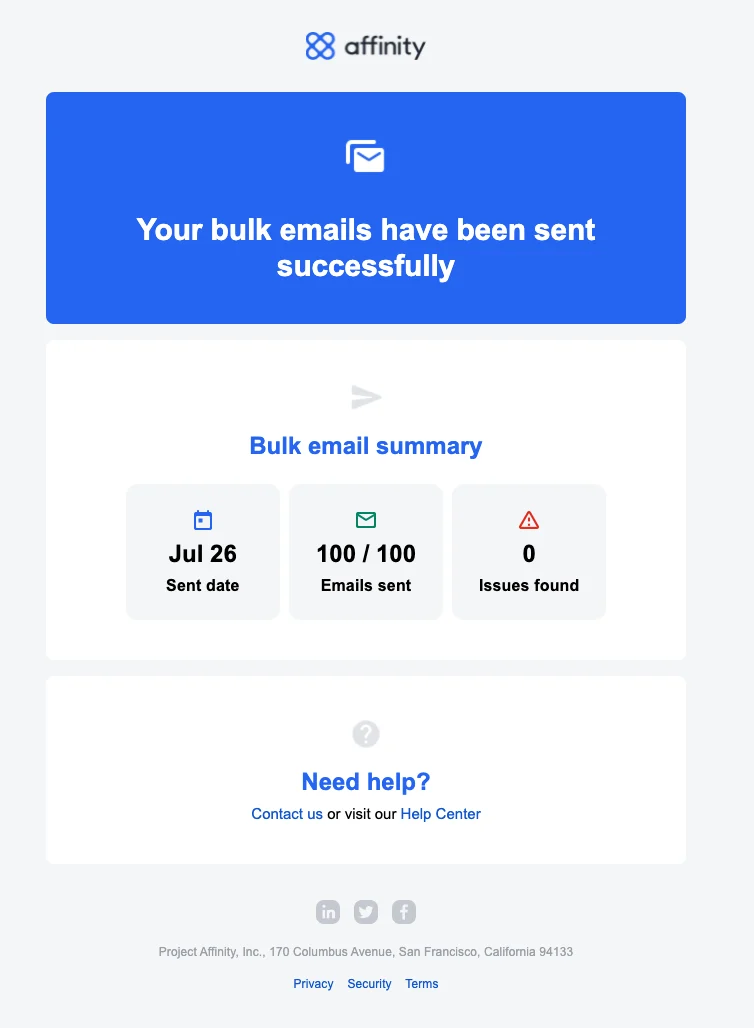
 19. You will also receive both in-product and email notifications once all emails have been sent.
 20. All emails will be tracked within Affinity, so they should also show up on recipients' profile pages in their Activity Timeline over the next several minutes.
### How to keep your emails out of spam
Here are some tips for protecting your email reputation and making sure your emails are successfully delivered to your contacts' inboxes:
* Do **not** buy or rent email lists.
* Do **not** scrape websites for email addresses.
* Do **not** continue emailing people whom you have received bounce notifications from before.
* Do **not** use red or white fonts in your email body.
* Do **not** use ALL CAPS in your email subject line or email body.
* Do **not** use too many exclamation points within your email!!!
* Do **not** use video, Flash, or JavaScript within your email.
* Do **not** use spam trigger words and phishing phrases (e.g. WIN, Free!, LIMITED TIME, etc.).
* Do **not** forget to use spell check, as spelling mistakes aren't just unprofessional - they're actually a spam trigger too.
* Do **not** write a novel. Too much copy is another red flag for spam filters, so keep your emails short and sweet.
Avoid sending bulk emails to too many people at once. Affinity has set the limit to 200 recipients per batch of bulk emails to protect your reputation, but we don't set a daily or weekly limit on the number of batches or overall emails sent. Be aware of your email provider's email-sending limits ([Gmail](https://support.google.com/a/answer/166852) / [Outlook](https://support.microsoft.com/en-us/office/sending-limits-in-outlook-com-279ee200-594c-40f0-9ec8-bb6af7735c2e)), so you don't get flagged!
### Troubleshooting common bulk email errors
Should some of your emails fail, you will receive an email notification from Affinity summarizing what happened and which of your recipients didn't receive emails. Here are some potential reasons why:
* Your email account may have disabled syncing either before or during the process of your emails being sent out.
* To re-enable syncing, please follow these steps: [How to reenable syncing into Affinity](/s/article/How-to-reenable-syncing-into-Affinity)
* Then, go back to the list and send the emails once more to those who failed to receive them the first time.
* You did not grant Affinity the permission to send emails on your behalf.
* To grant email permissions, go to [affinity.co/auth/reauthorize](https://affinity.co/auth/reauthorize) and make sure to click all the checkboxes for approval.
* Then, go back to the list and send the emails once more to those who failed to receive them at first.
* You have met your email provider's email-sending limit
* Feel free to try sending the bulk email again tomorrow, or contact your IT team to find out whether there have been any limits potentially set by your company.
Should you have any questions, feel free to contact us at [support@affinity.co](mailto:support@affinity.co) and we'd be happy to help.
## Related topics
- [How To Create Use Email Templates Within Affinity](/s/article/How-to-create-use-Email-Templates-within-Affinity.md)
- [How To Send Emails And File Attachments Through Affinity](/s/article/How-to-send-emails-and-file-attachments-through-Affinity.md)
- [Lists in Affinity — Open Beta Guide](/s/article/Lists-in-Affinity.md)
- [How To Track Emails Sent Through Affinity](/s/article/How-to-track-emails-sent-through-Affinity.md)
- [Best Practices Affinity For Investment Banking](/s/article/Best-Practices-Affinity-for-Investment-Banking.md)
20. All emails will be tracked within Affinity, so they should also show up on recipients' profile pages in their Activity Timeline over the next several minutes.
### How to keep your emails out of spam
Here are some tips for protecting your email reputation and making sure your emails are successfully delivered to your contacts' inboxes:
* Do **not** buy or rent email lists.
* Do **not** scrape websites for email addresses.
* Do **not** continue emailing people whom you have received bounce notifications from before.
* Do **not** use red or white fonts in your email body.
* Do **not** use ALL CAPS in your email subject line or email body.
* Do **not** use too many exclamation points within your email!!!
* Do **not** use video, Flash, or JavaScript within your email.
* Do **not** use spam trigger words and phishing phrases (e.g. WIN, Free!, LIMITED TIME, etc.).
* Do **not** forget to use spell check, as spelling mistakes aren't just unprofessional - they're actually a spam trigger too.
* Do **not** write a novel. Too much copy is another red flag for spam filters, so keep your emails short and sweet.
Avoid sending bulk emails to too many people at once. Affinity has set the limit to 200 recipients per batch of bulk emails to protect your reputation, but we don't set a daily or weekly limit on the number of batches or overall emails sent. Be aware of your email provider's email-sending limits ([Gmail](https://support.google.com/a/answer/166852) / [Outlook](https://support.microsoft.com/en-us/office/sending-limits-in-outlook-com-279ee200-594c-40f0-9ec8-bb6af7735c2e)), so you don't get flagged!
### Troubleshooting common bulk email errors
Should some of your emails fail, you will receive an email notification from Affinity summarizing what happened and which of your recipients didn't receive emails. Here are some potential reasons why:
* Your email account may have disabled syncing either before or during the process of your emails being sent out.
* To re-enable syncing, please follow these steps: [How to reenable syncing into Affinity](/s/article/How-to-reenable-syncing-into-Affinity)
* Then, go back to the list and send the emails once more to those who failed to receive them the first time.
* You did not grant Affinity the permission to send emails on your behalf.
* To grant email permissions, go to [affinity.co/auth/reauthorize](https://affinity.co/auth/reauthorize) and make sure to click all the checkboxes for approval.
* Then, go back to the list and send the emails once more to those who failed to receive them at first.
* You have met your email provider's email-sending limit
* Feel free to try sending the bulk email again tomorrow, or contact your IT team to find out whether there have been any limits potentially set by your company.
Should you have any questions, feel free to contact us at [support@affinity.co](mailto:support@affinity.co) and we'd be happy to help.
## Related topics
- [How To Create Use Email Templates Within Affinity](/s/article/How-to-create-use-Email-Templates-within-Affinity.md)
- [How To Send Emails And File Attachments Through Affinity](/s/article/How-to-send-emails-and-file-attachments-through-Affinity.md)
- [Lists in Affinity — Open Beta Guide](/s/article/Lists-in-Affinity.md)
- [How To Track Emails Sent Through Affinity](/s/article/How-to-track-emails-sent-through-Affinity.md)
- [Best Practices Affinity For Investment Banking](/s/article/Best-Practices-Affinity-for-Investment-Banking.md)