> ## Documentation Index
> Fetch the complete documentation index at: https://support.affinity.co/llms.txt
> Use this file to discover all available pages before exploring further.
# How to filter/sort columns within a list
> Help center reference
## Filter/Sort in Classic Lists
### How to filter columns within a list
There are two ways to filter columns within a list:
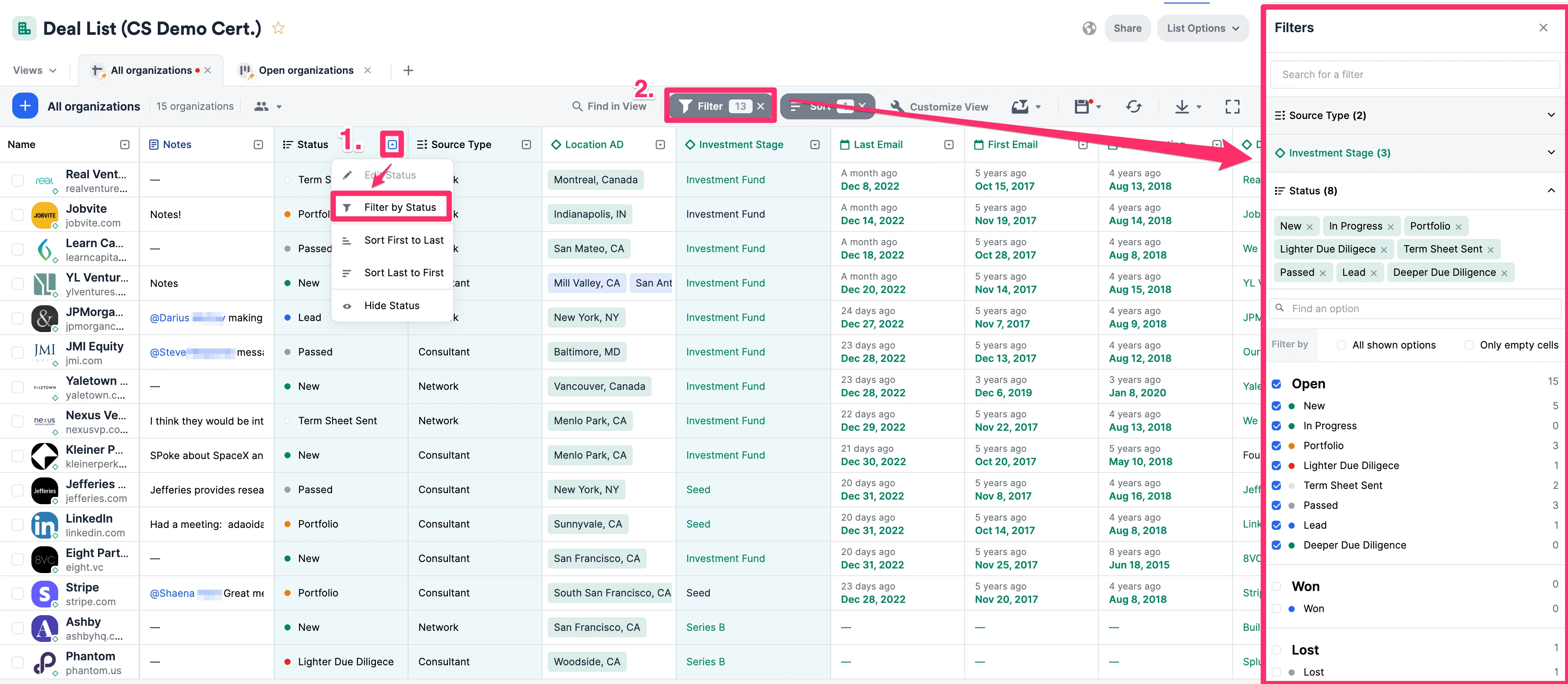 1. Click the dropdown arrow within each column header, then click **Filter by \_\_\_\_\_\_\_**.
2. Or, click the **Filters** button found above the column headers.
3. Filtering by multiple values **within a single** column uses "OR" logic (more inclusive since it can meet any criteria).
4. Filtering by multiple values **across multiple** columns uses "AND" logic (less inclusive since it must meet all criteria).
**Note:** Though you cannot filter for text-type columns, you can leverage the search bar within the list to narrow down your search (see Searching within a list section in [Conducting searches in Affinity](https://www.notion.so/articles/Knowledge/Conducting-searches-in-Affinity)).
### **Which field types do not support filtering at this time?**
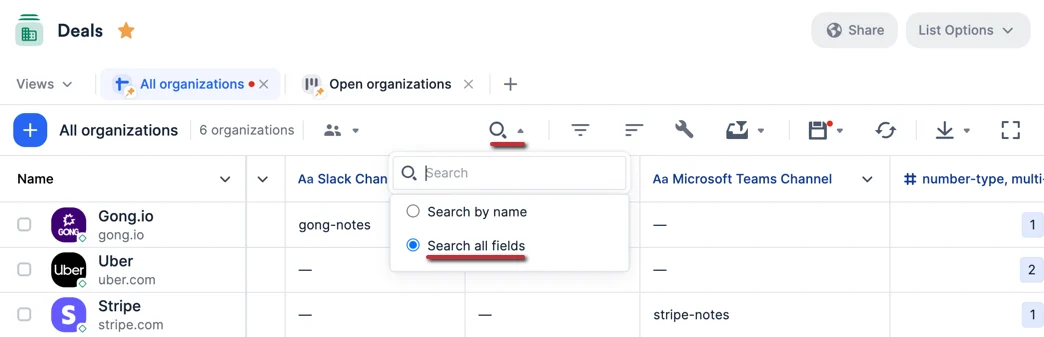
While the **text-type** field is the only field type that does not support native filtering in its own column like how all other fields do, you can still choose the "Search all fields" option to narrow down your search results.
### **Which field types do not support filtering at this time?**
While the **text-type** field is the only field type that does not support native filtering in its own column like how all other fields do, you can still choose the "Search all fields" option to narrow down your search results.
### How to sort columns within a list
There are two ways to sort columns within a list:
1. Click the dropdown arrow within each column header, then click **Filter by \_\_\_\_\_\_\_**.
2. Or, click the **Filters** button found above the column headers.
3. Filtering by multiple values **within a single** column uses "OR" logic (more inclusive since it can meet any criteria).
4. Filtering by multiple values **across multiple** columns uses "AND" logic (less inclusive since it must meet all criteria).
**Note:** Though you cannot filter for text-type columns, you can leverage the search bar within the list to narrow down your search (see Searching within a list section in [Conducting searches in Affinity](https://www.notion.so/articles/Knowledge/Conducting-searches-in-Affinity)).
### **Which field types do not support filtering at this time?**
While the **text-type** field is the only field type that does not support native filtering in its own column like how all other fields do, you can still choose the "Search all fields" option to narrow down your search results.
### **Which field types do not support filtering at this time?**
While the **text-type** field is the only field type that does not support native filtering in its own column like how all other fields do, you can still choose the "Search all fields" option to narrow down your search results.
### How to sort columns within a list
There are two ways to sort columns within a list:
 1. Click the **Sort** button found above the column headers.
2. Or, click the dropdown arrow within each column header, then click **Sort \_\_\_\_\_\_\_Note:** You can sort up to 3 different columns at a time by clicking the **Sort** button. The very first column that is being sorted by will have the arrow icon on the left-side of the column header (as shown above).
### **Which field types do not support sorting at this time?**
1. Text-type
2. Number-type (multiple values)
3. Dropdown-type (multiple values)
4. Location-type (single value)
5. Location-type (multiple values)
6. Person-type (multiple values)
7. Organization-type (multiple values)
## Filter/Sort in new Lists
Use the comprehensive [Reference for Filtering and Sorting in new Lists](https://support.affinity.co/s/article/Reference-to-Filtering-and-Sorting-in-New-Lists) to understand all the operators and what you can do in this major upgrade to the Classic lists experience.
### How to filter columns within a list
### **Steps**
1. Open the list where you want to apply filters.
2. Click the column header → select **Filter \[column name]**.
1. Click the **Sort** button found above the column headers.
2. Or, click the dropdown arrow within each column header, then click **Sort \_\_\_\_\_\_\_Note:** You can sort up to 3 different columns at a time by clicking the **Sort** button. The very first column that is being sorted by will have the arrow icon on the left-side of the column header (as shown above).
### **Which field types do not support sorting at this time?**
1. Text-type
2. Number-type (multiple values)
3. Dropdown-type (multiple values)
4. Location-type (single value)
5. Location-type (multiple values)
6. Person-type (multiple values)
7. Organization-type (multiple values)
## Filter/Sort in new Lists
Use the comprehensive [Reference for Filtering and Sorting in new Lists](https://support.affinity.co/s/article/Reference-to-Filtering-and-Sorting-in-New-Lists) to understand all the operators and what you can do in this major upgrade to the Classic lists experience.
### How to filter columns within a list
### **Steps**
1. Open the list where you want to apply filters.
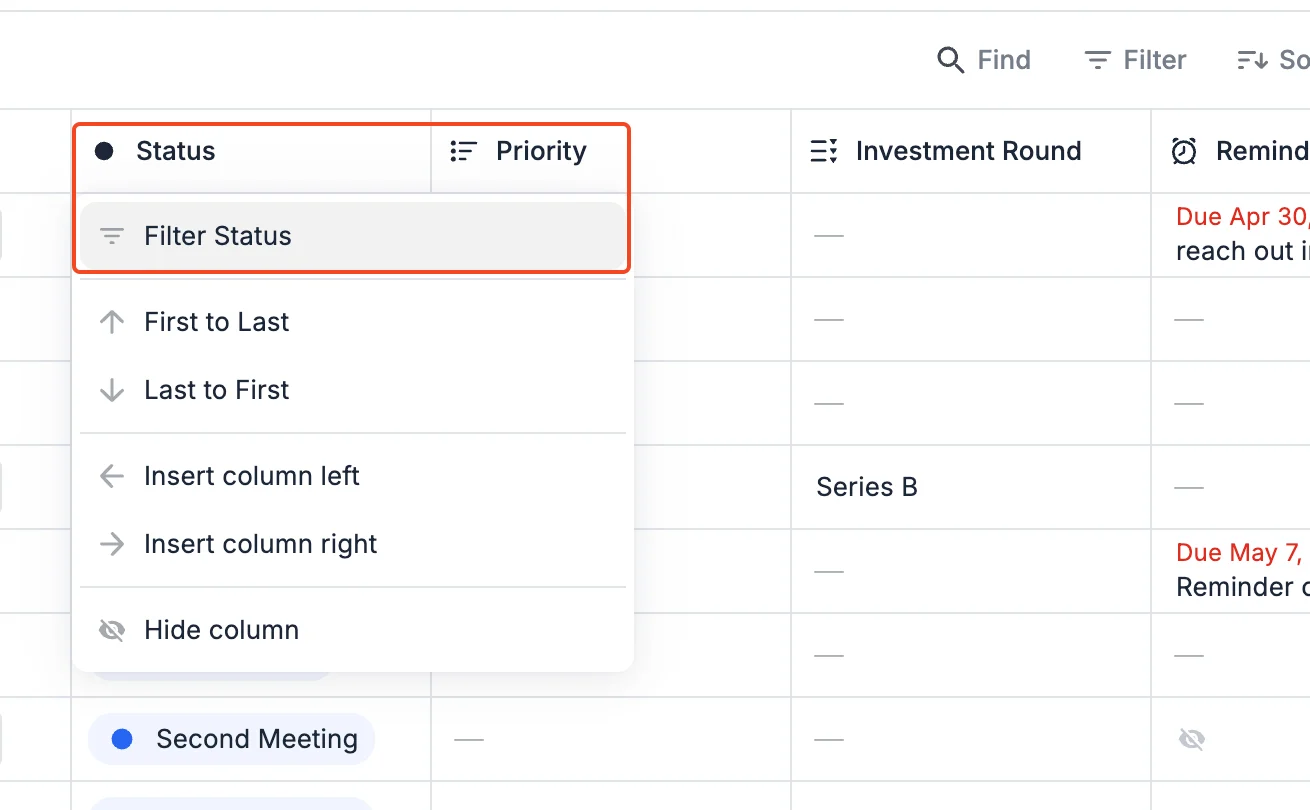
2. Click the column header → select **Filter \[column name]**.
 * Or click the **Filter** button above the column headers.
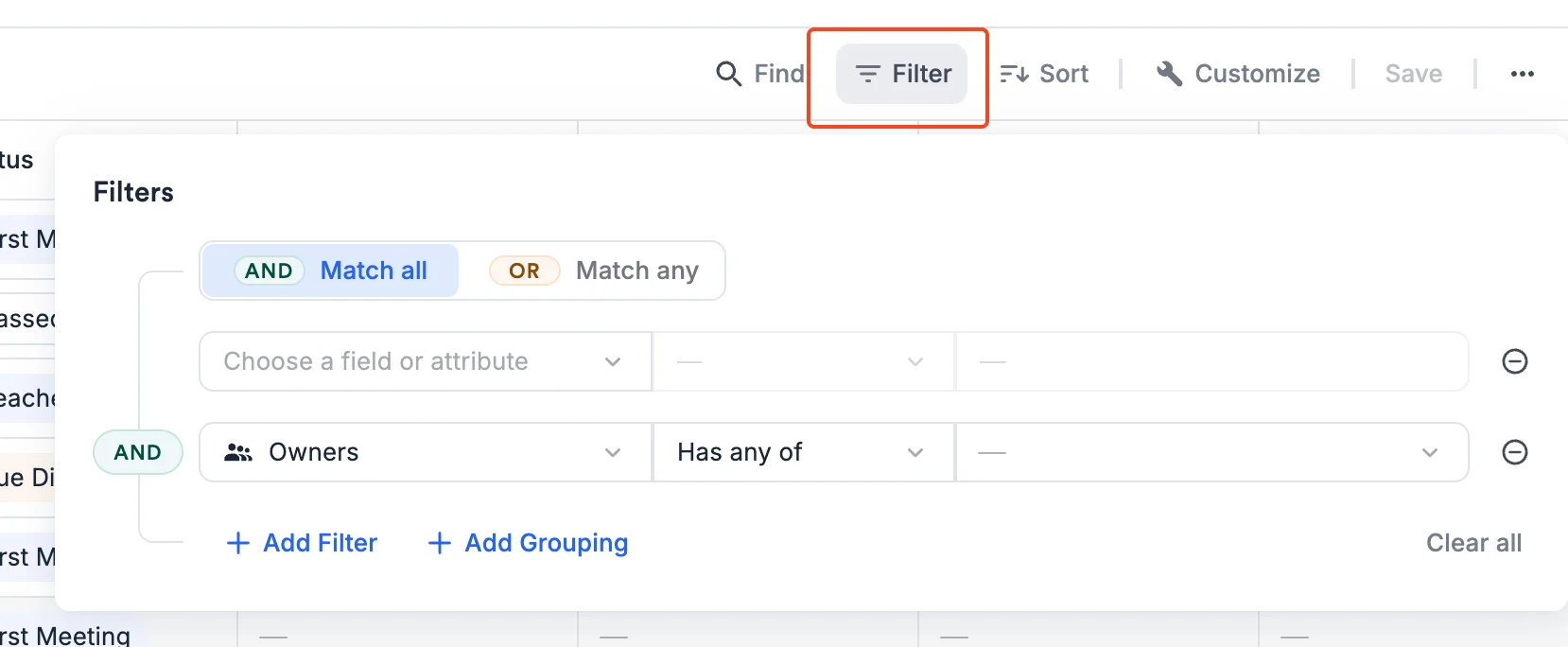 3. Choose your operator (e.g., *contains*, *is empty*).
4. Select your values or enter text, depending on field type.
5. Press **Apply**.
### **Expected Outcome**
Your list view will now display only the records that match your filter criteria. Filters can be combined across multiple fields.
### **Tips/Warnings**
* Filtering multiple values within one column = OR logic.
* Filtering across multiple columns = AND as well as OR logic.
* Notes and text fields only support word-level matching; “care” will not match “healthcare.”
* When filtering on notes/reminders, entities may surface if *any* note or reminder matches.
1. Text-type
2. Number-type (multiple values)
3. Dropdown-type (multiple values)
4. Location-type (single value)
5. Location-type (multiple values)
6. Person-type (multiple values)
7. Organization-type (multiple values)
### How to sort columns within a list
**Overview**
Sorting helps you organize your list by up to **five fields at once** (3 in Classic Lists), while supporting expanded sorts on new fields such as Notes → Created Date and Connections Score.
### **Steps**
1. Open the list where you want to sort.
2. Click the **Sort** button above the column headers.
3. Choose your operator (e.g., *contains*, *is empty*).
4. Select your values or enter text, depending on field type.
5. Press **Apply**.
### **Expected Outcome**
Your list view will now display only the records that match your filter criteria. Filters can be combined across multiple fields.
### **Tips/Warnings**
* Filtering multiple values within one column = OR logic.
* Filtering across multiple columns = AND as well as OR logic.
* Notes and text fields only support word-level matching; “care” will not match “healthcare.”
* When filtering on notes/reminders, entities may surface if *any* note or reminder matches.
1. Text-type
2. Number-type (multiple values)
3. Dropdown-type (multiple values)
4. Location-type (single value)
5. Location-type (multiple values)
6. Person-type (multiple values)
7. Organization-type (multiple values)
### How to sort columns within a list
**Overview**
Sorting helps you organize your list by up to **five fields at once** (3 in Classic Lists), while supporting expanded sorts on new fields such as Notes → Created Date and Connections Score.
### **Steps**
1. Open the list where you want to sort.
2. Click the **Sort** button above the column headers.
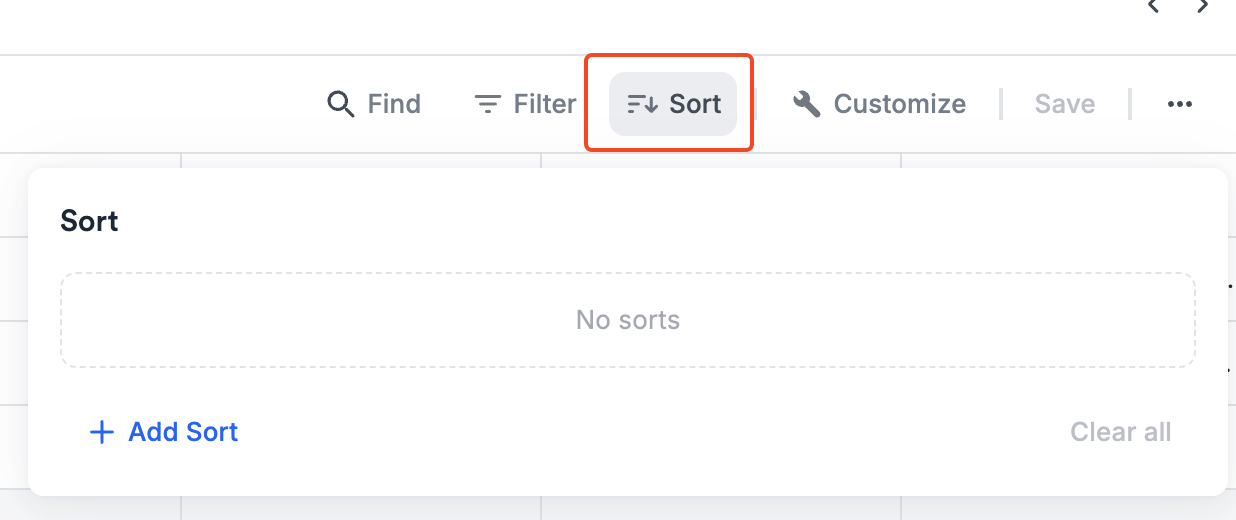 3. Click **+ Add Sort** and add up to 5 sort rules:
* Example: *Stage (ascending), Score (descending), Created Date (newest first).*
4. Click **Apply**.
### **Expected Outcome**
Your list will reorder based on the sort rules, with empty cells always appearing at the bottom.
### **Tips/Warnings**
* Use ordinal sorts (ranked dropdowns) to enforce business logic order (e.g., Priority 1 → Priority 3).
* Location sorts are alphabetical for now
* Sorting on Owners, which is a multi-value fields is supported
* Remember to **Save** in order to return to this sort configuration
## Related topics
- [How to create and use saved views within a list](/s/article/How-to-create-and-use-saved-views-within-a-list.md)
- [Tutorial 7: Master List Views — Sort, Filter, Favorite, and Share](/s/article/Tutorial-7-master-list-views-sort-filter-favorite-and-share.md)
- [How to customize saved views in your lists](/s/article/How-to-customize-saved-views-in-your-lists.md)
- [Filter/Sort/Operators Reference](/s/article/Filter-sort-operators-reference.md)
- [Tutorial 1: Your First List — Create, Populate, and Organize](/s/article/Tutorial-1-your-first-list-create-populate-and-organize.md)
3. Click **+ Add Sort** and add up to 5 sort rules:
* Example: *Stage (ascending), Score (descending), Created Date (newest first).*
4. Click **Apply**.
### **Expected Outcome**
Your list will reorder based on the sort rules, with empty cells always appearing at the bottom.
### **Tips/Warnings**
* Use ordinal sorts (ranked dropdowns) to enforce business logic order (e.g., Priority 1 → Priority 3).
* Location sorts are alphabetical for now
* Sorting on Owners, which is a multi-value fields is supported
* Remember to **Save** in order to return to this sort configuration
## Related topics
- [How to create and use saved views within a list](/s/article/How-to-create-and-use-saved-views-within-a-list.md)
- [Tutorial 7: Master List Views — Sort, Filter, Favorite, and Share](/s/article/Tutorial-7-master-list-views-sort-filter-favorite-and-share.md)
- [How to customize saved views in your lists](/s/article/How-to-customize-saved-views-in-your-lists.md)
- [Filter/Sort/Operators Reference](/s/article/Filter-sort-operators-reference.md)
- [Tutorial 1: Your First List — Create, Populate, and Organize](/s/article/Tutorial-1-your-first-list-create-populate-and-organize.md)