> ## Documentation Index
> Fetch the complete documentation index at: https://support.affinity.co/llms.txt
> Use this file to discover all available pages before exploring further.
# Getting Started with AI Chat
> Get started: Getting Started with AI Chat
## What is AI Chat?
AI Chat is a conversational interface to your Affinity CRM. Instead of building filters or clicking through profiles, ask questions in natural language and get instant answers grounded in your firm's data — with cited sources. At GA, AI Chat can also take **confirm-before-execute actions**: it proposes a change, shows you exactly what it will do, and waits for your approval before anything is written.
**Think of it as** a knowledgeable colleague who has instant access to every company, person, note, and interaction in your CRM.
* **vs Search** — conversational: ask follow-ups, refine, explore.
* **vs Filters** — no UI to learn; describe what you want in plain language.
* **vs manual clicking** — aggregates across profiles instantly.
## Your first conversation
### 1. Open AI Chat
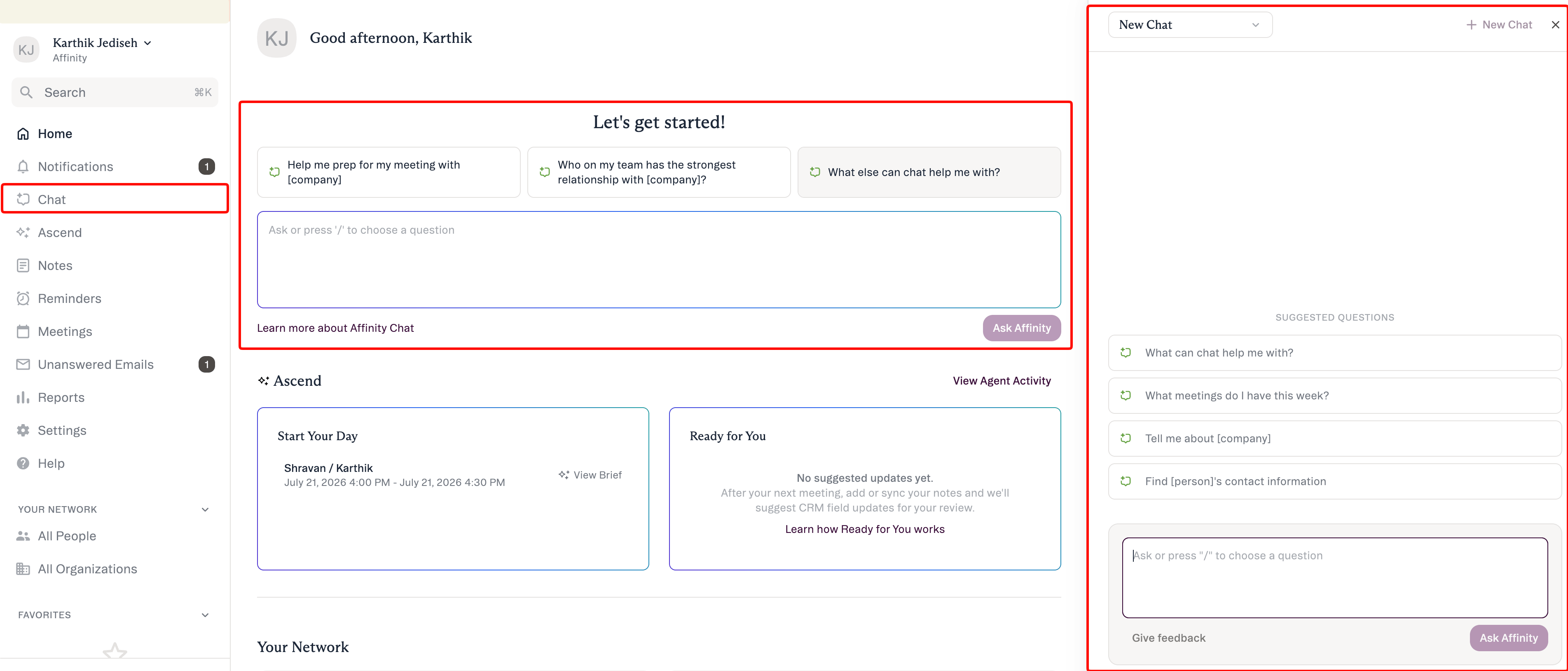
Log into the Affinity **web app** (AI Chat is web-only at launch), click the **AI Chat** icon, and you'll see a few suggested prompts — click one or type your own.
 ### 2. Ask your first question
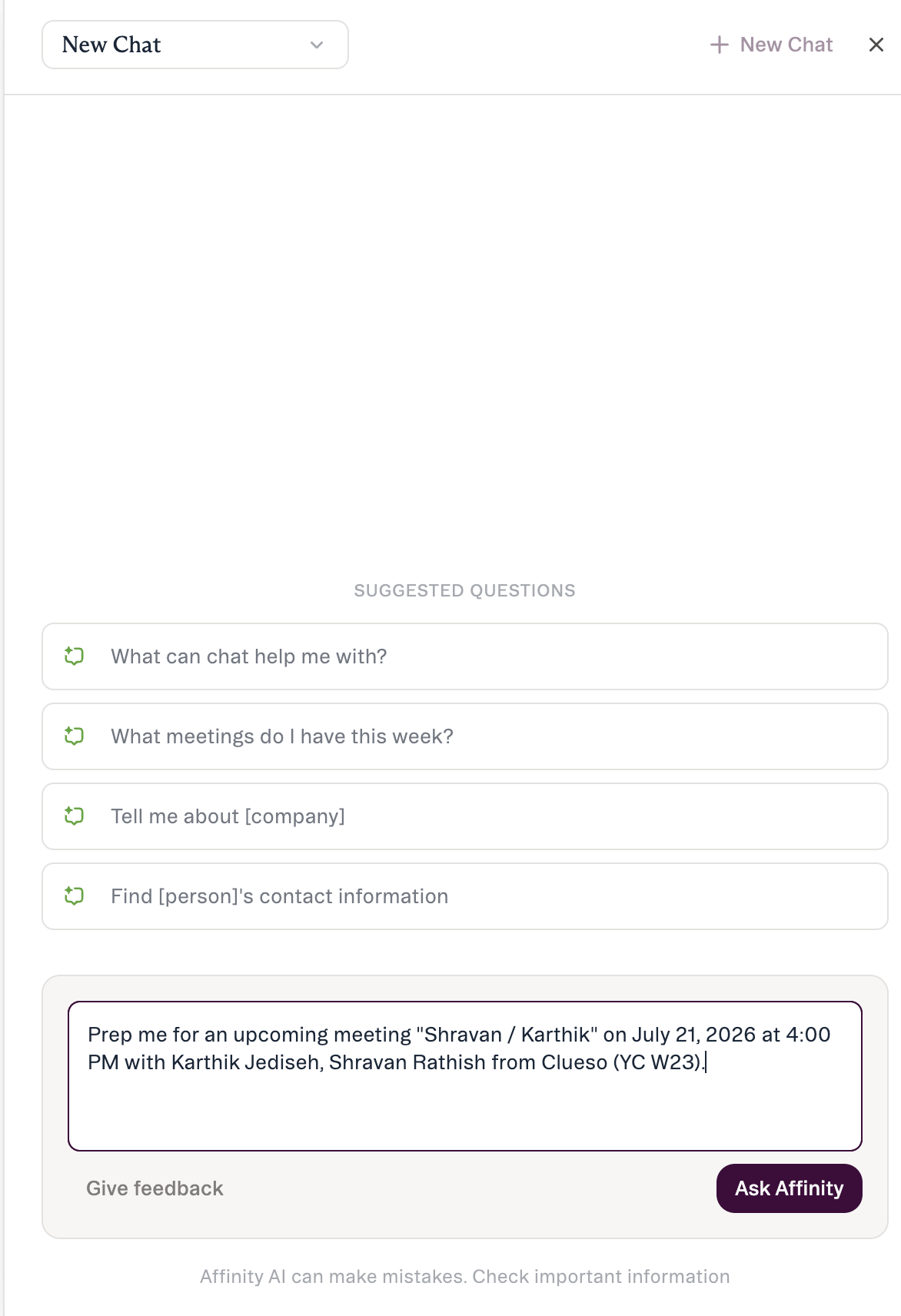
A good first question is meeting prep:
### 2. Ask your first question
A good first question is meeting prep:
 ```text theme={null}
Help me prepare for my meeting with Acme Corp
```
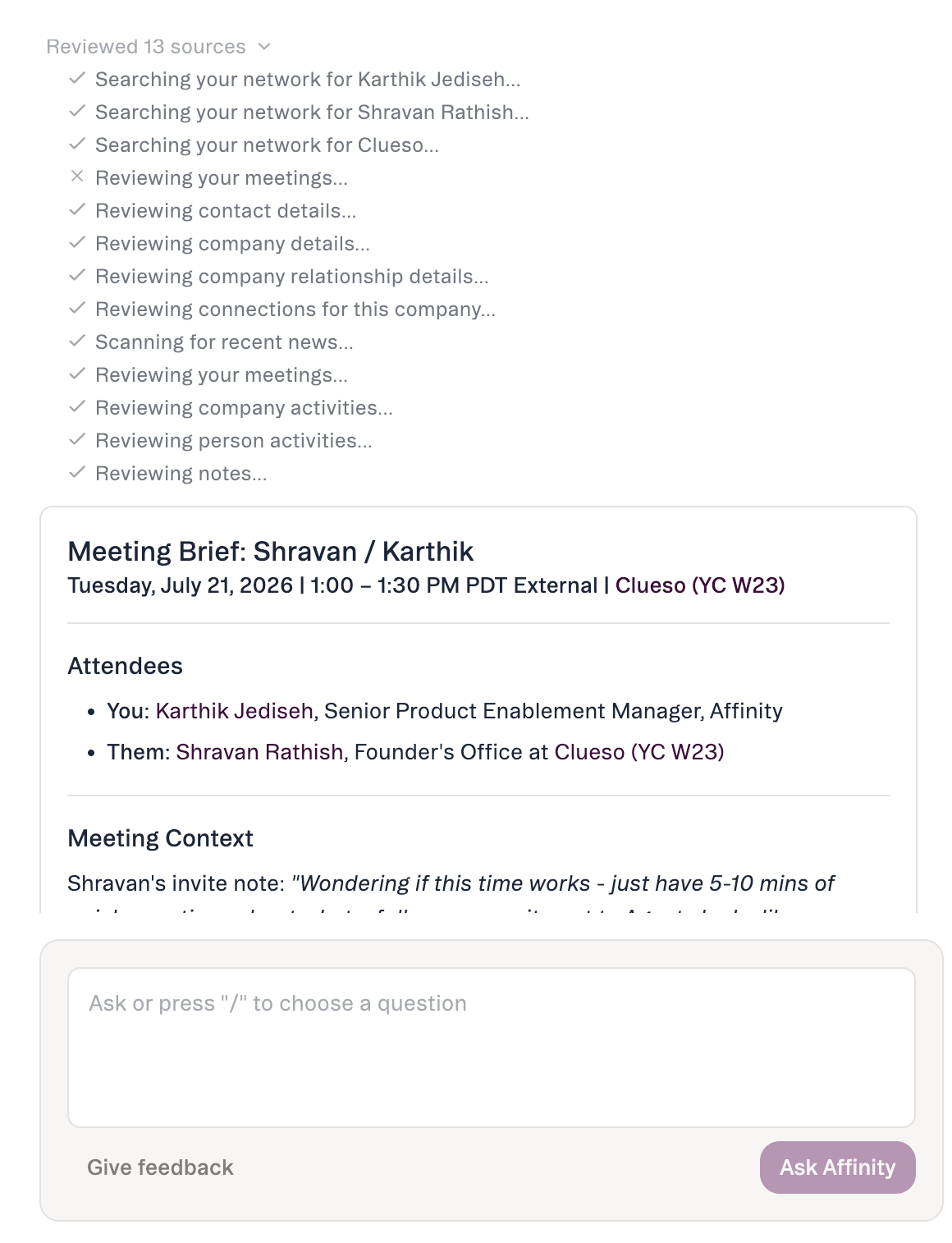
As it works, AI Chat **shows its work**: a brief *thinking* state, then the answer.
```text theme={null}
Help me prepare for my meeting with Acme Corp
```
As it works, AI Chat **shows its work**: a brief *thinking* state, then the answer.
 ### 3. Read the answer and its sources
The response is grounded in your CRM data, with a short **"sources used"** line below it. For meeting prep you'll typically get last interaction date, a recent-notes summary, team members who've engaged, relationship history, and key discussion points — plus recent company news when relevant.
### 4. Ask a follow-up
You don't need to restate context — AI Chat keeps the conversation history for each session:
```text theme={null}
Which of these contacts have we not emailed in the last 60 days?
```
### 5. Take an action (with your approval)
At GA you can ask AI Chat to make a change. It shows exactly what it proposes and waits for you to **confirm** before writing anything:
```text theme={null}
Set Acme Corp's round size to $20M
```
Nothing is saved until you approve.
## How confirm-before-execute actions work
The model is always **it suggests → you review → you approve.** AI Chat only sees and changes what your own account can, and never sends email or outreach.
**Confirmed at launch (July 22):** Update a field (or pipeline stage) · Add to a list · Create a note · Create a reminder. A few actions are **coming later** — uploading a file, creating a saved view, creating a list. AI Chat also **labels suggested vs. completed** so it's always clear whether something is a proposal or a done change.
## What AI Chat can and can't do
It finds and summarizes your CRM data, and at GA takes the four confirm-before-execute actions above. It will **not** send email or outreach, merge or delete records, or run on mobile (web app only at launch).
Honest limits: **\~90-day activity window** (being extended); **person search by name/email** today (attribute search is post-launch); **no location/geographic filtering yet**; **no reliable point-in-time field history**.
## How to access AI Chat
Log into the Affinity **web app**, click the **AI Chat** icon, and type a question or pick a suggested prompt. **Available for:** Scale, Advanced, and Enterprise. Admins manage AI features in **Settings → Automations & AI → Affinity AI**; individual users can turn AI features off for themselves.
## Basic prompting principles
1. **Be specific** — include entity names, timeframes, and criteria. ❌ "Find companies" → ✅ "Find healthcare companies at Series A in our network."
2. **Iterate and refine** — narrow step by step.
3. **Verify critical data** — click through to confirm before making decisions. If AI Chat asks "Which company?" when several match, that's expected — add specifics.
## How to give feedback
Every response has a **thumbs up / down**. Be specific in written feedback (❌ "Didn't work" → ✅ "Expected the last meeting date but it wasn't included"). Your conversation and feedback route to Affinity's product team.
*Affinity AI can make mistakes. Review each suggestion before approving it.*
## Related topics
- [Warm Intros in AI Chat and MCP](/s/article/Warm-Intros-in-AI-Chat-and-MCP.md)
- [Getting Started with Affinity MCP](/s/article/Getting-started-with-Affinity-MCP.md)
- [Connect AI Tools to Affinity with MCP](/s/article/Tutorial-MCP-connect-ai-tools-to-affinity.md)
- [Affinity AI Chat Overview](/s/article/Affinity-AI-chat-overview.md)
- [Take actions with AI Chat](/s/article/Take-actions-with-AI-Chat.md)
### 3. Read the answer and its sources
The response is grounded in your CRM data, with a short **"sources used"** line below it. For meeting prep you'll typically get last interaction date, a recent-notes summary, team members who've engaged, relationship history, and key discussion points — plus recent company news when relevant.
### 4. Ask a follow-up
You don't need to restate context — AI Chat keeps the conversation history for each session:
```text theme={null}
Which of these contacts have we not emailed in the last 60 days?
```
### 5. Take an action (with your approval)
At GA you can ask AI Chat to make a change. It shows exactly what it proposes and waits for you to **confirm** before writing anything:
```text theme={null}
Set Acme Corp's round size to $20M
```
Nothing is saved until you approve.
## How confirm-before-execute actions work
The model is always **it suggests → you review → you approve.** AI Chat only sees and changes what your own account can, and never sends email or outreach.
**Confirmed at launch (July 22):** Update a field (or pipeline stage) · Add to a list · Create a note · Create a reminder. A few actions are **coming later** — uploading a file, creating a saved view, creating a list. AI Chat also **labels suggested vs. completed** so it's always clear whether something is a proposal or a done change.
## What AI Chat can and can't do
It finds and summarizes your CRM data, and at GA takes the four confirm-before-execute actions above. It will **not** send email or outreach, merge or delete records, or run on mobile (web app only at launch).
Honest limits: **\~90-day activity window** (being extended); **person search by name/email** today (attribute search is post-launch); **no location/geographic filtering yet**; **no reliable point-in-time field history**.
## How to access AI Chat
Log into the Affinity **web app**, click the **AI Chat** icon, and type a question or pick a suggested prompt. **Available for:** Scale, Advanced, and Enterprise. Admins manage AI features in **Settings → Automations & AI → Affinity AI**; individual users can turn AI features off for themselves.
## Basic prompting principles
1. **Be specific** — include entity names, timeframes, and criteria. ❌ "Find companies" → ✅ "Find healthcare companies at Series A in our network."
2. **Iterate and refine** — narrow step by step.
3. **Verify critical data** — click through to confirm before making decisions. If AI Chat asks "Which company?" when several match, that's expected — add specifics.
## How to give feedback
Every response has a **thumbs up / down**. Be specific in written feedback (❌ "Didn't work" → ✅ "Expected the last meeting date but it wasn't included"). Your conversation and feedback route to Affinity's product team.
*Affinity AI can make mistakes. Review each suggestion before approving it.*
## Related topics
- [Warm Intros in AI Chat and MCP](/s/article/Warm-Intros-in-AI-Chat-and-MCP.md)
- [Getting Started with Affinity MCP](/s/article/Getting-started-with-Affinity-MCP.md)
- [Connect AI Tools to Affinity with MCP](/s/article/Tutorial-MCP-connect-ai-tools-to-affinity.md)
- [Affinity AI Chat Overview](/s/article/Affinity-AI-chat-overview.md)
- [Take actions with AI Chat](/s/article/Take-actions-with-AI-Chat.md)